Sawgrass SG500 Nozzle Check and Head Cleaning: Step-by-Step Guide

A print comes out with a faint band running through one color, or a section of a design looks washed out compared to what showed up on screen.
On the SG500, that almost always points to a clogged nozzle rather than a settings problem, and the fix lives entirely in the printer’s own menu.
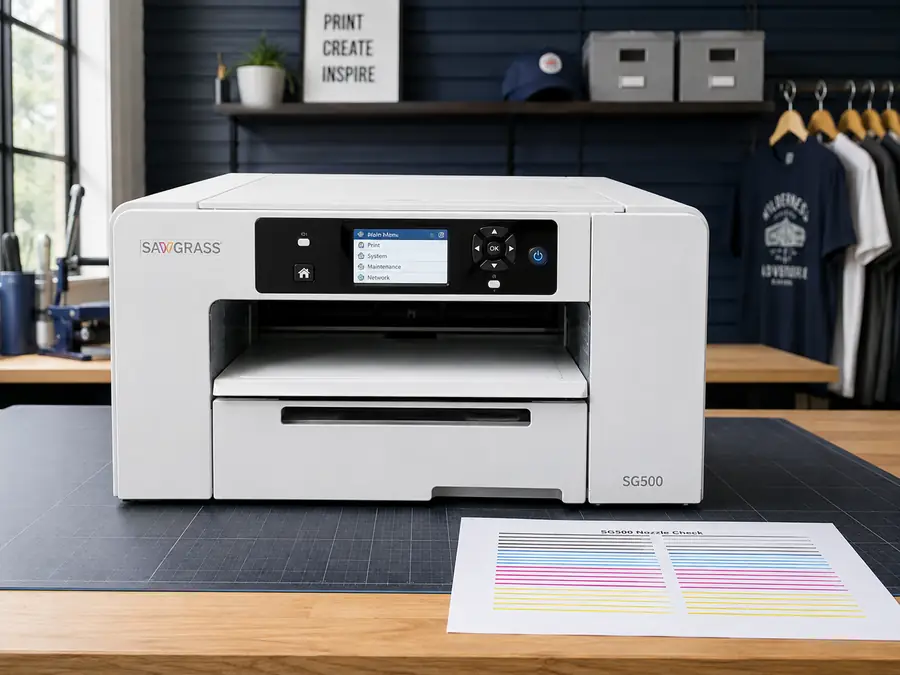
Unlike converted EcoTank printers, the Sawgrass SG500 does not use purge files at all. Sawgrass built the nozzle check, head cleaning, and head flush functions directly into the printer, so there is no PDF to download or print. This guide walks through that built-in process from start to finish.
Quick Answer
Go to Menu, then Printer Features, then List/Test Print, and select Nozzle Check to print a test pattern. If any lines are missing or broken, run Head Cleaning from the same menu.
Repeat the check and clean cycle up to two or three times. If the pattern still shows gaps after that, move on to a Head Flush instead of continuing to clean.
Tools Needed
You do not need any special supplies for this process. A few plain sheets of letter or A4 paper are enough, and the SG500 needs to be powered on and connected.
If you prefer running maintenance from a computer instead of the printer panel, Sawgrass Print Utility handles the same functions under its Devices menu.
This process applies specifically to the SG500 model within the broader lineup of Sawgrass sublimation printers.
Preparation
Load a few sheets of plain copy paper into the tray before starting. This does not need to be sublimation paper or any specialty stock. The nozzle check pattern only needs to show up clearly enough to read, so ordinary paper works fine and saves your sublimation paper for actual jobs.
Step 1: Print a Nozzle Check
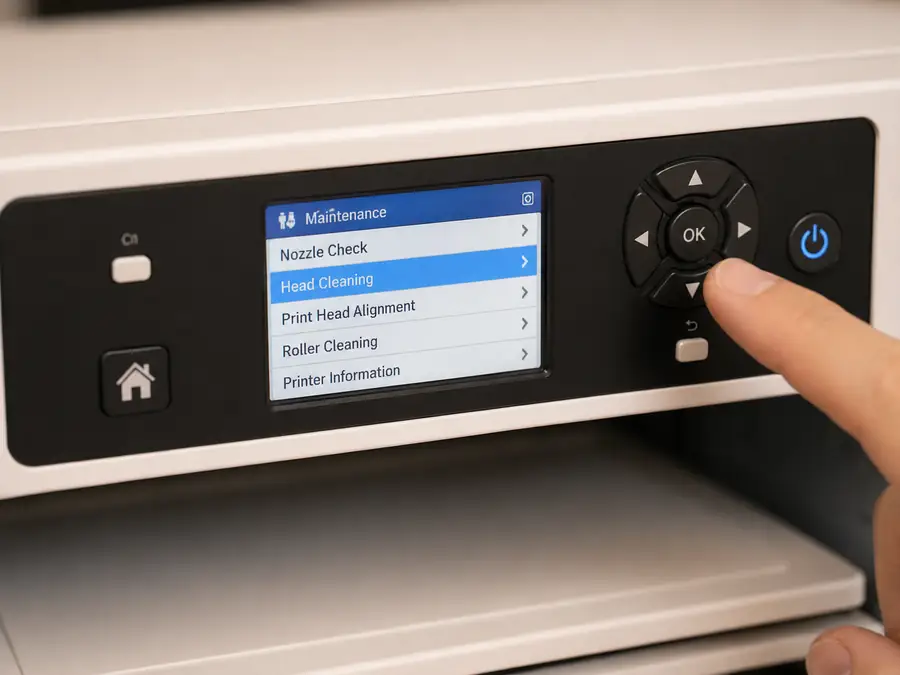
On the printer panel, press Menu, then use the arrow buttons to navigate to Printer Features, and press OK. From there, select List/Test Print, then choose Nozzle Check and press OK. The printer runs the pattern automatically once you confirm.
If you would rather do this from your computer, open Sawgrass Print Utility, go to Settings, select Devices, and choose your SG500 from the list. The nozzle check option is available from there as well, and the result is identical either way.
Step 2: Read the Test Pattern
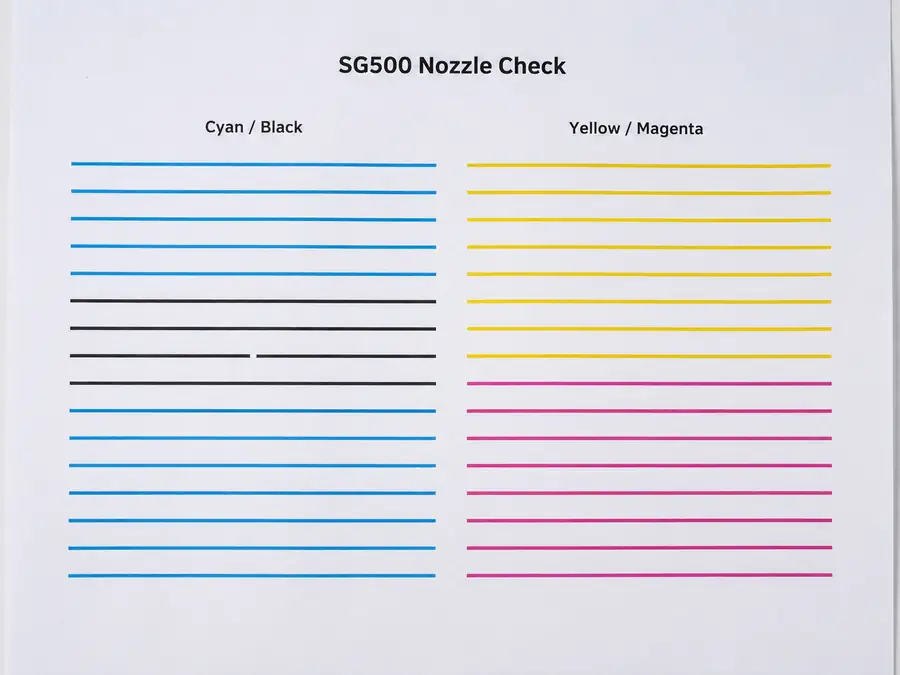
The printed pattern shows two print heads. Head 1 covers cyan and black, and Head 2 covers yellow and magenta. Each head prints as a set of parallel lines, and a healthy nozzle check shows every line complete and unbroken.
If a line has gaps or is missing entirely, that head has a clog. Note which head or heads show the problem before moving to the next step, since you can clean just the affected head instead of both.
Note: If your SG500 uses VersiFlex ink, the E channel will not appear on the pattern at all. This is expected and does not indicate a problem.
Step 3: Run a Head Cleaning
From the same Printer Features menu, select List/Test Print again, then choose Head-cleaning and press OK. Select the head that needs attention, either Head 1, Head 2, or All Heads if both showed gaps, then confirm to start.
Do not turn the printer off while cleaning is in progress. If the cycle gets interrupted, print a fresh nozzle check afterward and start the cleaning process over rather than assuming it finished.
Step 4: Recheck and Repeat if Needed
Print another nozzle check right after the cleaning finishes to see whether the lines came back clean. If gaps remain, run the cleaning again. Sawgrass recommends stopping at two to three cleaning cycles, since head cleaning uses ink and running it repeatedly without improvement usually means the clog needs a stronger fix.
Step 5: When to Perform a Head Flush
If the nozzle check still shows missing lines after two or three head cleanings, move on to a Head Flush from the same List/Test Print menu.
A flush is a deeper process than a standard cleaning and uses more ink, so it is meant as a next step rather than a routine habit.
Warning: Never power off the SG500 during a head flush. If the printer loses power mid-flush, you need to start over from printing a new nozzle check.
Troubleshooting
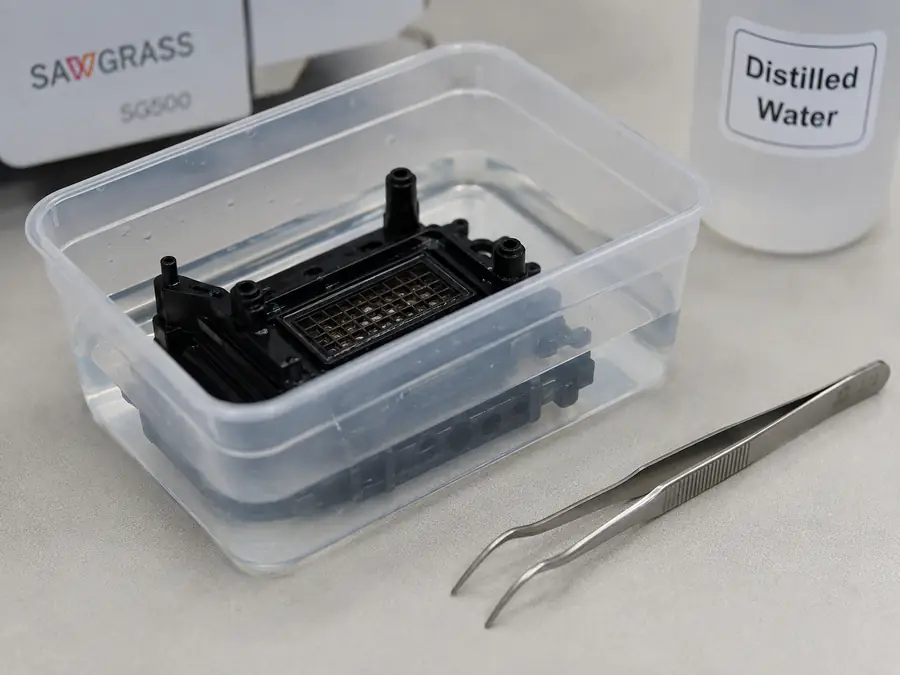
If the pattern still shows gaps after a flush, the capping station under the print head may need attention. Sawgrass recommends soaking the capping station filter in hot distilled water for ten to fifteen minutes, since a dirty or dried-out capping station can cause the same missing-line symptoms as a clogged nozzle.
Avoid using anything other than distilled water, since other cleaners can damage the sponge or the print head itself.
If the nozzle check is still not clean after three head cleanings and one flush, that is the point to contact Sawgrass support directly rather than continuing to run cycles on your own.
Print this checklist and keep it near your SG500 for quick reference. It covers the same nozzle check, cleaning, and flush steps from this guide in a format you can check off as you go.
Common Mistakes
Running several head cleanings back to back without checking the pattern in between wastes ink and does not speed up the fix. Powering off the printer mid-cycle is another common issue, and it usually means starting the whole process over. For related planning, see Sublimation on Leather.
This menu-driven process also replaces the purge sheet workflow used on EcoTank-based sublimation printers entirely, since the SG500 has no equivalent purge file to print.
Frequently Asked Questions
How often should I run a nozzle check on the SG500?
Running one weekly, or before starting a large print job, catches clogs early before they show up in a finished design. The printer also runs a brief automatic cleaning cycle every ten hours while it stays powered on, which is one reason Sawgrass recommends leaving it on rather than switching it off between uses.
Can I use sublimation paper for a nozzle check?
Plain copy paper works fine and is the more practical choice, since it saves your sublimation paper for actual print jobs.
Does the SG500 use purge files like Epson EcoTank printers?
No. The SG500 handles maintenance entirely through its own menu system with nozzle checks, head cleaning, and head flushing. There is no purge file to download or print on this printer.
How many head cleanings are safe to run in a row?
Stick to two or three cleaning cycles before moving to a head flush. Cleaning uses ink each time it runs, and repeating it well past that point without improvement usually points to a problem a flush or capping station cleaning needs to address instead.
Keeping the SG500 Running Clean
Most nozzle problems on the SG500 clear up with a check and one or two cleaning cycles, especially if you catch them early with a weekly check. Save the head flush for when cleaning alone isn’t cutting it, and keep the printer powered on between sessions so its own maintenance cycle can do some of the work for you.