Best Laptop for Sublimation 2026: Compatibility Chart + Top Picks

The best laptop for sublimation is usually not a gaming laptop. What matters more is whether the computer supports your printer software, design programs, cutter software, and normal business workload without slowing down or creating compatibility problems.
For a new purchase, 16 GB of RAM and a 512 GB SSD are the safest starting targets for most sublimation users. That gives you enough room for Canva, Cricut Design Space, browser tabs, printer utilities, and moderate Photoshop work without buying more computer than you need.
Software compatibility comes first. A powerful laptop is a poor choice if the printer utility you rely on will not run on its processor or operating system.
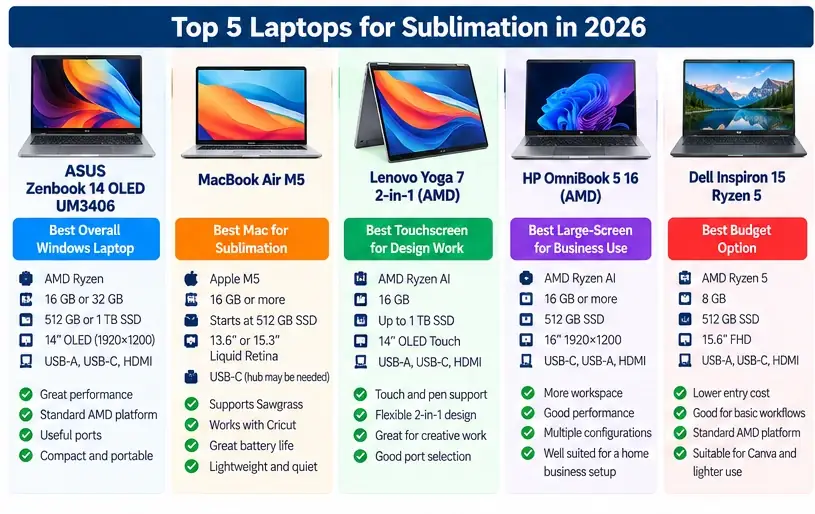
Best Laptops for Sublimation at a Glance
| Laptop | Best fit | RAM | Storage | Display | Key reason to consider |
|---|---|---|---|---|---|
| ASUS Zenbook 14 OLED UM3406 | Windows users | 16 GB or 32 GB | 512 GB or 1 TB | 14″ OLED | Strong specs, useful ports, AMD Windows compatibility |
| MacBook Air M5 | Mac users | Configurable | Starts at 512 GB | 13.6″ or 15.3″ Liquid Retina | Apple silicon support, portability |
| Lenovo Yoga 7 2-in-1 14 AMD | Touchscreen/design work | 16 GB | Up to 1 TB | 14″ OLED touch | Pen and convertible modes |
| HP OmniBook 5 16 AMD | Larger-screen business use | 16 GB+ | 512 GB+ | 16″ 1920×1200 | More workspace for design and orders |
| Dell Inspiron 15 Ryzen 5 | Budget/basic use | 8 GB | 512 GB | 15.6″ FHD | Low entry cost, standard AMD Windows platform |
The ASUS Zenbook 14 OLED UM3406 is available with AMD Ryzen processors, 16 GB or 32 GB LPDDR5X memory, 512 GB or 1 TB NVMe storage, an OLED display, USB-A, USB-C, and HDMI.
Apple’s 2026 MacBook Air uses the M5 chip, starts with 512 GB of storage, comes in 13-inch and 15-inch sizes, and supports up to two external displays.
Lenovo’s Yoga 7 2-in-1 Gen 10 uses AMD Ryzen AI processors, includes 16 GB memory configurations, supports up to 1 TB SSD storage, and combines an OLED touchscreen with USB-A, USB-C, HDMI, and microSD connectivity.
HP’s current 16-inch OmniBook 5 AMD configuration can be ordered with 16 GB or more RAM, 512 GB SSD storage, and several 1920×1200 display options.
Dell’s current Inspiron 15 configuration with a Ryzen 5 7530U, 8 GB RAM, 512 GB SSD, and Full HD display was listed at $329.99 when checked. Availability and promotional pricing can change.
Do You Actually Need a New Laptop for Sublimation?
Before spending money, check the computer you already have.
A laptop does not need to be new simply because you bought a sublimation printer.
Your current computer may be perfectly usable if it has:
- a supported Windows or macOS version
- enough RAM for your normal software
- an SSD
- adequate free storage
- working printer drivers
- supported design software
- the USB, Bluetooth, or network connections your equipment needs
A slower computer can still work well for simple Canva designs and printing premade PNG files.
The need to upgrade usually becomes clearer when software compatibility or real performance starts limiting your workflow.
Signs an Upgrade Makes Sense
Consider replacing the laptop when:
- your required printer utility will not install
- the operating system is no longer supported
- Photoshop constantly runs short of memory
- large design files become painfully slow
- your drive is always nearly full
- Cricut Design Space cannot run properly on the platform
- you constantly unplug equipment because of limited ports
- normal multitasking causes freezing or long delays
Do not replace a working laptop just because another model has a faster processor.
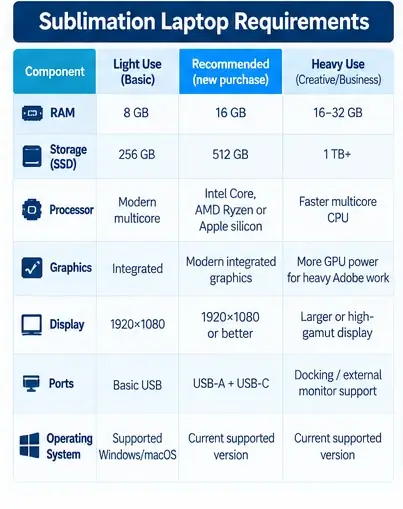
Sublimation Laptop Requirements: Minimum vs Recommended
The printer itself usually places very little demand on the computer. Design software and multitasking create most of the hardware load.
| Component | Light use | Recommended new purchase | Heavy creative/business use |
|---|---|---|---|
| RAM | 8 GB | 16 GB | 16 to 32 GB |
| Storage | 256 GB SSD | 512 GB SSD | 1 TB+ |
| Processor | Modern multicore | Current Intel, AMD Ryzen, or supported Apple silicon | Faster multicore CPU |
| Graphics | Integrated graphics | Modern integrated graphics | More GPU power for heavier Adobe work |
| Display | 1920×1080 | 1920×1080 or better | Larger/high-gamut display helpful |
| Ports | Basic USB | USB-A + USB-C useful | Docking/external monitor support |
| Operating system | Supported Windows/macOS | Current supported version | Current supported version |
Adobe currently lists 8 GB RAM as Photoshop’s minimum and 16 GB or more as recommended. Adobe also recommends a fast internal SSD and substantially more free storage for smoother Photoshop work.
Sawgrass lists 8 GB RAM minimum and 16 GB or more recommended for Sawgrass Print Utility. It recommends an Intel i5, AMD Ryzen, or better CPU.
That is why 16 GB is a better buying target even though some software can technically run with less.
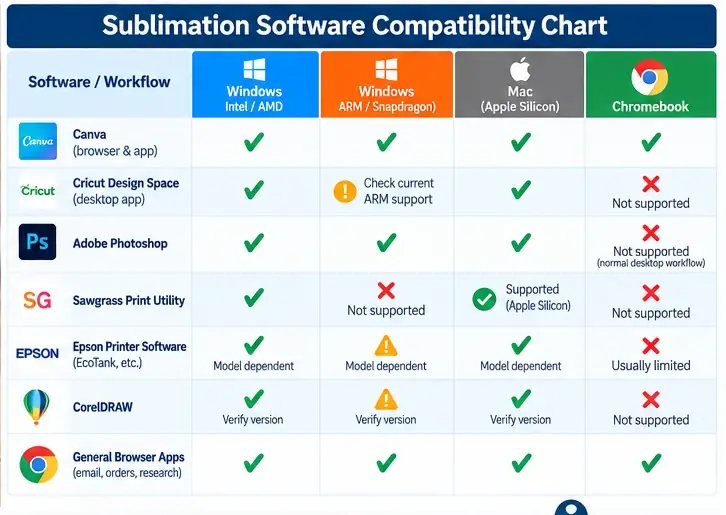
Sublimation Software Compatibility Chart
Compatibility should be checked before comparing processor benchmarks.
| Software or workflow | Windows Intel/AMD | Windows ARM | Mac | Chromebook |
|---|---|---|---|---|
| Canva browser workflow | Yes | Yes | Yes | Yes |
| Cricut Design Space desktop | Yes | Check current support | Yes | No |
| Adobe Photoshop | Yes | Yes | Yes | Not standard desktop Photoshop |
| Sawgrass Print Utility | Yes | No | Yes, including Apple silicon | No |
| Epson printer software | Model dependent | Model dependent | Model dependent | Usually limited |
| General browser/business apps | Yes | Yes | Yes | Yes |
Cricut explicitly states that Design Space requires Windows or Mac and that Chromebook computers are not compatible.
Sawgrass currently supports Windows 11, recent macOS versions, Intel/AMD Windows processors, and Apple silicon. It specifically states that Windows ARM processors such as Qualcomm Snapdragon are not supported.
For a deeper look at design applications rather than hardware, see what program to use for sublimation.
ASUS Zenbook 14 OLED UM3406: Strong Windows Fit
The ASUS Zenbook 14 OLED is a practical fit for someone who wants a compact Windows machine without moving into gaming-laptop territory.
Current UM3406 configurations include AMD Ryzen processors, 16 GB or 32 GB LPDDR5X RAM, and 512 GB or 1 TB NVMe SSD storage. The 14-inch OLED panel has a 1920×1200 resolution and wide-gamut specifications.
Its ports are particularly useful for a sublimation workspace:
- USB-A
- two USB-C connections on applicable configurations
- HDMI
- headphone/audio connection
That reduces the need for a hub when you have a printer, external monitor, storage drive, or cutter attached.
Best fit
Choose this type of configuration if you:
- prefer Windows
- run Canva and Adobe applications
- use Cricut or Silhouette equipment
- use Sawgrass software
- need 16 GB RAM or more
- want a portable 14-inch system
Because it uses standard AMD Windows processors rather than Windows ARM, it avoids the current Sawgrass Snapdragon compatibility problem.
What to watch
The memory is soldered on many Zenbook configurations. Buy the amount of RAM you expect to need rather than assuming you can upgrade later.
MacBook Air M5: Strong Mac Fit
Apple released the M5 MacBook Air in March 2026.
The current model starts with 512 GB storage and is available with either a 13.6-inch or 15.3-inch Liquid Retina display. Apple also supports up to two external monitors on the M5 Air.
The 13-inch model started at $1,099 in the US at launch, while the 15-inch version started at $1,299.
Why it works for sublimation
Apple silicon works with current Sawgrass Print Utility according to Sawgrass.
Cricut Design Space supports Mac computers.
Photoshop also supports Apple silicon, with Adobe recommending 16 GB or more RAM for heavier work.
That makes the MacBook Air useful for a workflow built around:
- Photoshop
- Illustrator
- Canva
- Cricut Design Space
- Sawgrass printing
- browser-based order management
13-inch or 15-inch?
The 13-inch Air is easier to carry.
The 15-inch version gives you more room for Photoshop panels, browser windows, product mockups, and spreadsheets.
For a laptop that spends most of its life beside a sublimation printer, the larger display may be more useful than shaving a little weight.
What to watch
MacBook Air has fewer traditional ports than many Windows laptops.
A USB-C hub or dock may be useful if your workflow includes:
- USB printer
- Cricut or other cutter
- external SSD
- external monitor
- SD card reader
- calibration device
Lenovo Yoga 7 2-in-1: Strong Touchscreen Choice
Touchscreens are not required for sublimation, but some designers genuinely benefit from them.
The Lenovo Yoga 7 2-in-1 Gen 10 uses AMD Ryzen AI processors, 16 GB LPDDR5X memory, and SSD storage up to 1 TB. Its 14-inch OLED display supports touch, and select configurations include pen support.
It can switch among laptop, tablet, tent, and presentation modes.
That can be useful when you:
- sketch directly on screen
- annotate artwork
- review designs with a customer
- use the laptop at craft fairs
- prefer a touch-based Canva or design workflow
Connectivity
Lenovo includes:
- USB-A
- two USB-C ports
- HDMI
- microSD reader
- headphone/microphone connection
That is a useful port mix for a craft or print workspace.
What to watch
Do not buy a 2-in-1 simply because sublimation requires one. It does not.
The touchscreen only adds value if your design habits actually use it.
HP OmniBook 5 16: Better for a Larger Workspace
A 16-inch laptop makes sense when portability matters less than screen space.
HP’s current OmniBook 5 16 AMD configurations offer 16 GB, 24 GB, or 32 GB RAM options, 512 GB SSD storage, and several 16-inch 1920×1200 displays. Some configurations include OLED or 100% sRGB panels.
A larger screen helps when your working layout includes:
- Photoshop or Illustrator
- Canva
- Etsy or Shopify
- an order spreadsheet
- browser tabs
- printer software
Best fit
This type of laptop is particularly practical for a home sublimation business where the laptop normally stays on a desk.
You get more visual workspace without having to buy an external monitor immediately.
What to watch
The exact OmniBook configuration matters.
HP offers multiple processors, displays, memory levels, and operating-system options under similar product names. Check the exact configuration rather than buying from the family name alone.
Dell Inspiron 15 Ryzen 5: Budget Option for Lighter Workflows
A current Dell Inspiron 15 configuration uses an AMD Ryzen 5 7530U processor, 8 GB DDR4 memory, a 512 GB NVMe SSD, integrated Radeon graphics, and a 15.6-inch Full HD touchscreen. It was listed at $329.99 when checked.
This is the type of budget laptop that can make sense when your main workflow is:
- Canva
- simple PNG/SVG files
- browser-based tools
- printer software
- Cricut Design Space
- lighter photo editing
The limitation is RAM
Eight gigabytes can work, but it is below my preferred target for a new sublimation-business laptop.
Adobe recommends 16 GB or more for Photoshop, and Sawgrass also recommends 16 GB or more for Print Utility.
If your work will include Photoshop, many browser tabs, mockup software, spreadsheets, and printer utilities at the same time, look for a 16 GB configuration or confirm that the RAM can be upgraded.
A cheap computer stops being cheap if you replace it a year later because the original specification was too restrictive.
Windows vs Mac for Sublimation
Sublimation itself does not favor Windows or macOS.
Software compatibility is what matters.
| Need | Windows | Mac |
|---|---|---|
| Wide range of prices | Strong | More limited |
| Sawgrass Print Utility | Intel/AMD supported | Apple silicon supported |
| Adobe Photoshop | Yes | Yes |
| Cricut Design Space | Yes | Yes |
| Touchscreen laptops | Many options | No touchscreen MacBook |
| USB-A ports | Common | Usually needs hub |
| Apple ecosystem | Limited | Strong |
| Hardware choice | Very broad | Smaller lineup |
Sawgrass currently supports standard 64-bit Windows systems and recent macOS versions, including native Apple-silicon support.
Choose the platform that fits your printer, design software, accessories, and existing workflow.
Should You Buy a Chromebook for Sublimation?
A Chromebook can run browser tools such as Canva, but it is a poor default choice for a complete sublimation setup.
Cricut explicitly states that Design Space is not compatible with Chromebook computers.
Printer utilities, desktop Adobe applications, drivers, ICC workflows, and other tools can create similar limitations.
A Chromebook makes more sense as a secondary browser device than as the main computer controlling a full sublimation workspace.
If Cricut is part of your setup, read the Cricut sublimation workflow guide before choosing your computer.
Check Windows S Mode Before Buying a Cheap Laptop
Some inexpensive Windows computers ship with Windows running in S Mode.
That mode restricts which applications can be installed.
Cricut’s current system requirements state that Windows systems in S Mode are not supported for Design Space.
Do not assume every laptop labeled “Windows 11” provides the same desktop-software experience.
Check:
- Windows edition
- S Mode status
- processor type
- available RAM
- storage type
before buying.
Be Careful With Snapdragon and Windows ARM
This is one of the most important compatibility checks for Sawgrass users.
New Windows laptops built around Qualcomm Snapdragon processors can offer excellent battery life and strong general performance.
Adobe now supports Photoshop and several other Creative Cloud applications on Windows ARM.
Sawgrass is different.
Sawgrass currently states:
Windows ARM is not supported by Sawgrass Print Utility.
That means a Snapdragon laptop may run Photoshop perfectly well while still failing a critical part of your Sawgrass printing workflow.
Buying rule
If you use Sawgrass Print Utility, choose:
- an Intel Windows laptop
- an AMD Windows laptop
- or a supported Apple-silicon Mac
unless Sawgrass changes its requirements later.
This is why checking software compatibility is more important than simply buying the newest processor.
How Much RAM Do You Need for Sublimation?
8 GB RAM
Eight gigabytes can handle:
- Canva
- Design Space
- basic printer software
- simple browsing
- light photo editing
It is usable, but not my preferred specification for a new laptop intended to last several years.
16 GB RAM
Sixteen gigabytes is the practical target for most sublimation users.
It gives you more room for:
- Photoshop
- Canva
- Design Space
- Print Utility
- several browser tabs
- spreadsheets
- order-management tools
Both Adobe and Sawgrass recommend 16 GB or more for their current software.
32 GB RAM
Consider 32 GB when you regularly work with:
- large layered Photoshop files
- Illustrator and Photoshop together
- heavy multitasking
- video editing
- large mockup libraries
- multiple Adobe apps
- AI-assisted creative software
More RAM does not make sublimation ink brighter or improve print quality. It only gives software more working memory.
How Much Storage Do You Need?
256 GB SSD
Usable for light work, but it can fill quickly.
A design business accumulates:
- PNGs
- SVGs
- PSD files
- mockups
- customer uploads
- fonts
- product photos
- videos
- printer software
- backups
512 GB SSD
This is the practical target for most users buying a laptop now.
It gives you more breathing room without moving into an expensive high-capacity configuration.
Apple’s current M5 MacBook Air starts at 512 GB, which is a good example of how 512 GB has become a more reasonable baseline for creative work.
1 TB SSD
One terabyte makes sense if the laptop is also your main business computer.
It is especially useful when you store:
- large PSDs
- high-resolution mockups
- thousands of customer files
- videos
- product photography
- offline design libraries
An external SSD can also be a cheaper way to add space.
Does a Sublimation Laptop Need a Dedicated Graphics Card?
Usually no.
Common sublimation tasks such as:
- Canva
- Cricut Design Space
- printer utilities
- basic Photoshop work
- PNG/SVG editing
- product mockups
- order management
do not automatically justify a gaming GPU.
Adobe does require a compatible modern GPU for Photoshop, but its requirements do not mean every user needs a separate high-end gaming graphics card.
Modern integrated graphics are suitable for many normal sublimation-design workflows.
A stronger GPU becomes more useful when your computer also handles:
- demanding video editing
- 3D rendering
- heavy AI workloads
- very high-resolution creative projects
- complex Adobe workflows
Do not pay for a gaming laptop only because the word “graphics” appears in your design workflow.
Does Laptop Screen Quality Affect Sublimation Color?
A better screen helps you judge artwork more consistently.
It does not guarantee that the final sublimated product will match what you see on the laptop.
Final color depends on the entire workflow:
- printer
- ink
- sublimation paper
- ICC profile
- software settings
- substrate
- heat
- pressure
- time
An OLED or wide-gamut screen can make designing more pleasant, but it does not replace color management.
For that problem, use the dedicated screen calibration guide for sublimation.
Ports and Connectivity Matter More Than They Look
A sublimation workspace can accumulate accessories quickly.
You may connect:
- printer
- Cricut or Silhouette machine
- mouse
- external SSD
- external display
- drawing tablet
- card reader
- colorimeter
Useful laptop connections include:
- USB-A
- USB-C
- HDMI
- Bluetooth
- Wi-Fi
- external-display support
A laptop with only USB-C is still workable, but you may need a hub.
The ASUS Zenbook 14 and Lenovo Yoga 7 are examples of current models that still provide a mix of USB-A, USB-C, and HDMI connections.
Which Laptop Specs Fit Your Sublimation Setup?
| Your workflow | What to prioritize |
|---|---|
| Canva + Epson EcoTank | 16 GB RAM, 512 GB SSD, current Windows or Mac |
| Cricut + sublimation | Windows or Mac, avoid Chromebook |
| Sawgrass SG500/SG1000 | Intel/AMD Windows or supported Apple silicon |
| Photoshop-heavy workflow | 16 GB+ RAM, fast CPU, 512 GB+ SSD |
| Large design library | 1 TB SSD or external SSD |
| Stylus drawing | 2-in-1 touchscreen |
| Home business desk setup | 15 to 16-inch screen |
| Travel/craft fairs | 13 to 14-inch lightweight laptop |
| Heavy Adobe/video work | 16 to 32 GB RAM, stronger CPU/GPU |
For Epson-specific application choices, see best sublimation software for Epson printers.
Common Laptop Buying Mistakes for Sublimation
Buying a Chromebook Before Checking Software
Canva working in a browser does not mean the whole sublimation workflow will work.
Cricut Design Space desktop does not support Chromebook.
Buying Windows S Mode Without Knowing the Limitation
A laptop may look like a normal Windows machine while still restricting desktop application installation.
Check before buying.
Buying Snapdragon Before Checking Sawgrass
Photoshop can support Windows ARM while Sawgrass Print Utility does not.
Software compatibility must be checked application by application.
Buying 4 GB RAM Because It Meets a Minimum Requirement
Minimum specifications tell you whether software may run.
They do not tell you whether Photoshop, Canva, browser tabs, printer tools, and business apps will feel comfortable at the same time.
Buying Tiny Flash Storage
A cheap laptop with 128 GB of basic storage may become frustrating quickly.
Creative files accumulate fast.
Paying for a Gaming GPU You Will Not Use
Put the money into:
- RAM
- SSD capacity
- screen quality
- ports
- processor
- external monitor
before buying unnecessary gaming graphics.
Assuming OLED Fixes Sublimation Color
Display quality and print color management are related but not interchangeable.
An expensive screen cannot fix the wrong ICC profile or incorrect print settings.
Ignoring Ports
Count your equipment before buying the laptop.
A $30 hub can solve many problems, but it is better to know you need one before setup day.
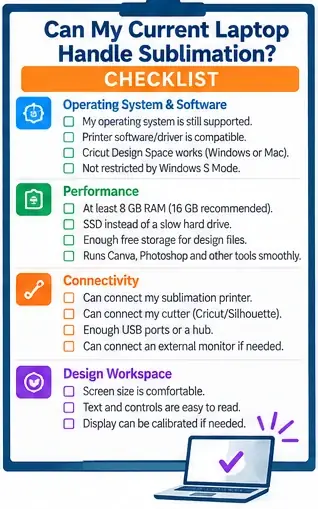
Can Your Current Laptop Handle Sublimation?
Use this checklist before buying anything.
Operating System and Software
- My operating system is still supported.
- My sublimation printer has a compatible driver or utility.
- My processor architecture is supported by the printer software.
- My design software installs and runs correctly.
- Cricut or Silhouette software works on the computer if I use a cutter.
- My computer is not blocked by an unsupported S Mode setup.
Performance
- I have at least 8 GB RAM.
- I have an SSD.
- I have enough free storage.
- My design files open without long delays.
- Normal multitasking does not freeze the computer.
Connectivity
- I can connect my sublimation printer.
- I can connect my cutter if needed.
- I have enough USB ports or a suitable hub.
- I can connect an external monitor if needed.
- Bluetooth and Wi-Fi work reliably.
Design Workspace
- The screen is large enough for my normal work.
- Text and Photoshop/Canva controls are comfortable to read.
- I can calibrate or manage the display if color accuracy matters.
If your current laptop passes most of those checks, there may be no practical reason to replace it.
Frequently Asked Questions
What laptop specs do I need for sublimation?
For a new purchase, 16 GB RAM, a 512 GB SSD, a modern Intel/AMD processor or supported Apple silicon, and a Full HD or better display are sensible targets.
The exact requirement depends on your software.
Is 8 GB RAM enough for sublimation?
Yes for lighter workflows.
Eight gigabytes can handle basic design software, browser tools, and printer utilities, but 16 GB gives you more room for Photoshop and multitasking.
Adobe and Sawgrass currently recommend 16 GB or more.
Is 16 GB RAM enough for Photoshop and Cricut?
For most normal sublimation-design work, yes.
Adobe recommends 16 GB or more for Photoshop, and Cricut’s requirements are considerably lighter.
Can I use a Chromebook for sublimation?
You can use browser applications such as Canva, but Chromebook is not a good default choice for a full sublimation workflow.
Cricut states that Design Space is not compatible with Chromebook.
Can I use a MacBook for sublimation?
Yes, provided your printer and software support macOS.
Current Sawgrass Print Utility supports Apple silicon, and Cricut Design Space and Photoshop both support Mac.
Is Windows or Mac better for sublimation?
Neither platform is automatically better for the sublimation process.
Windows provides more hardware choices and touchscreen options. Mac works well when your printer utility and software support macOS.
Choose based on your complete workflow.
Can Sawgrass work with a Snapdragon laptop?
Sawgrass currently states that Windows ARM processors, including Qualcomm Snapdragon, are not supported by Sawgrass Print Utility.
Choose Intel/AMD Windows or supported Apple silicon for a safer current Sawgrass setup.
Do I need a gaming laptop for sublimation?
Usually no.
Integrated graphics on a modern laptop are sufficient for many normal Canva, Cricut, printer-utility, and moderate Photoshop workflows.
Is a touchscreen useful for sublimation?
It can be useful for sketching, customer previews, and touch-based design work.
It does not improve the sublimation process itself.
Do I need an OLED screen for sublimation?
No.
OLED can provide an attractive, wide-gamut display, but it does not guarantee accurate sublimation color.
Color management depends on the full printing and pressing workflow.
How much storage do I need for sublimation designs?
A 512 GB SSD is a practical target for most users.
Choose 1 TB or add an external SSD if you store large Photoshop files, videos, mockups, product photography, and customer artwork.
Can I use my existing laptop instead of buying a new one?
Yes.
If your printer software, design programs, operating system, storage, RAM, and device connections already work reliably, replacing the laptop may not improve your sublimation results.
Which Laptop Makes Sense for Your Workflow?
Start with software compatibility.
A compact AMD Windows laptop such as the ASUS Zenbook 14 OLED fits a broad Windows-based workflow. The MacBook Air M5 is a strong choice for Mac users who rely on Adobe, Cricut, and supported Sawgrass software. The Lenovo Yoga 7 adds touchscreen and pen capability, while the HP OmniBook 5 16 gives a home business more screen space.
A lower-cost laptop such as the Dell Inspiron 15 can handle simpler work, but its 8 GB configuration is better suited to Canva, browser tools, and lighter design tasks than heavy Photoshop multitasking.
The hardware should support the work you actually do.
For most new sublimation setups, that means:
16 GB RAM + 512 GB SSD + supported Windows or macOS + enough ports for your equipment.
Spend beyond that only when your design software, file sizes, multitasking, or other creative work gives you a reason.