How to Change Sublimation Ink Brands Safely (Step-by-Step Guide)

Changing sublimation ink brands safely starts before you open a new bottle. First identify your printer, the ink already inside it, and the replacement ink’s exact compatibility instructions. Do not assume every printer needs flushing. Mixing formulas, running tanks too low, or using the wrong maintenance method can leave you with more problems than the old ink.
If your reason for switching is faded or inaccurate colors, check the printer and color workflow first. A different brand may not fix a profile mismatch, clogged nozzle, or unsuitable heat-transfer setup. Compare ink options in the sublimation ink buying guide before paying for another bottle.
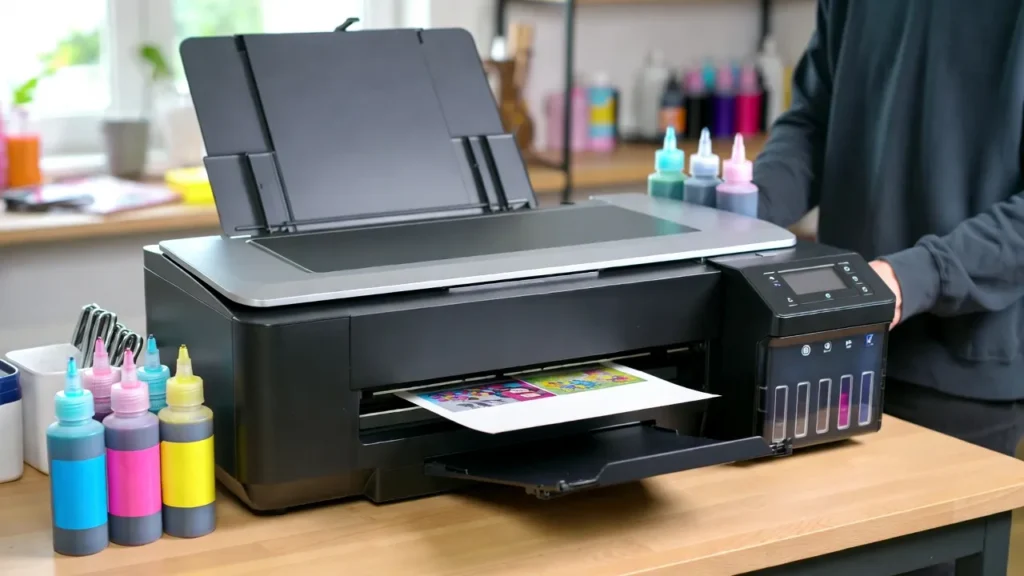
Before Switching Ink Brands: Five Checks That Prevent Expensive Mistakes
- Exact printer model: Find the complete model number, not just the EcoTank or WorkForce family name.
- Existing ink: Record the brand, formulation, and whether normal dye or pigment ink was ever installed.
- New ink: Confirm that its manufacturer currently supports your model and refill system. Bottle fit alone is not proof of compatibility.
- Switching method: Ask the ink supplier for instructions specific to your current ink, new ink, and printer. If no documented procedure exists, do not improvise a physical flush.
- Color plan: Check whether the new ink uses a supplier-provided ICC profile or a documented ICC-free driver workflow.
Keep the current bottle label or order details until a transition is complete. An ink brand can sell different formulations with different profiles, even when the packaging looks similar.
Which Printer Do You Have? Switching Rules by Ink System
| Printer setup | Before changing ink | Main risk |
|---|---|---|
| Converted Epson EcoTank | Confirm both formulations and an approved transition method with the ink supplier for the exact model | Residual ink, unsupported filling methods, color-profile mismatch, and loss of manufacturer support for conversion-related issues |
| Epson WorkForce with cartridges or CISS | Check cartridge/chip compatibility plus ink-system and supplier guidance | A new brand may not match the refill hardware or firmware |
| Epson SureColor dye-sublimation printer | Start with Epson’s specified genuine dye-sublimation ink; ask Epson about any unusual change | Using an unsupported ink system in a purpose-built printer |
| Sawgrass SG500/SG1000 | Keep the same supported ink family unless Sawgrass instructs otherwise | Different ink chemistries and warranty/service implications |
| Brother SP-1 | Use the Brother-supported cartridge system and follow Brother’s official replacement instructions | Assuming third-party conversion advice applies to a dedicated cartridge printer |
Sawgrass advises against changing ink families during a printer’s life without its direction: Sawgrass ink-set guidance. A converted EcoTank is a different situation, but it does not make third-party ink changes universally safe.
How to Change Sublimation Ink Brands: A Safer Five-Step Decision Process
These steps help you decide what to do next. They are not a universal set of instructions for draining tanks or injecting cleaning fluid.
Step 1. Confirm What Ink Is Inside the Printer
Check the old ink’s label, your purchase history, and the printer’s setup. A machine already used for ordinary document ink needs a different assessment from a converted EcoTank that has only ever held one sublimation formulation.
Do not deliberately print the tanks nearly empty to clear them. Epson says some maintenance cannot be performed at or below the minimum ink line. Power Cleaning on certain EcoTank models requires all tanks to be at least one-third full. Check Epson ET-2850 Power Cleaning instructions for the documented example.
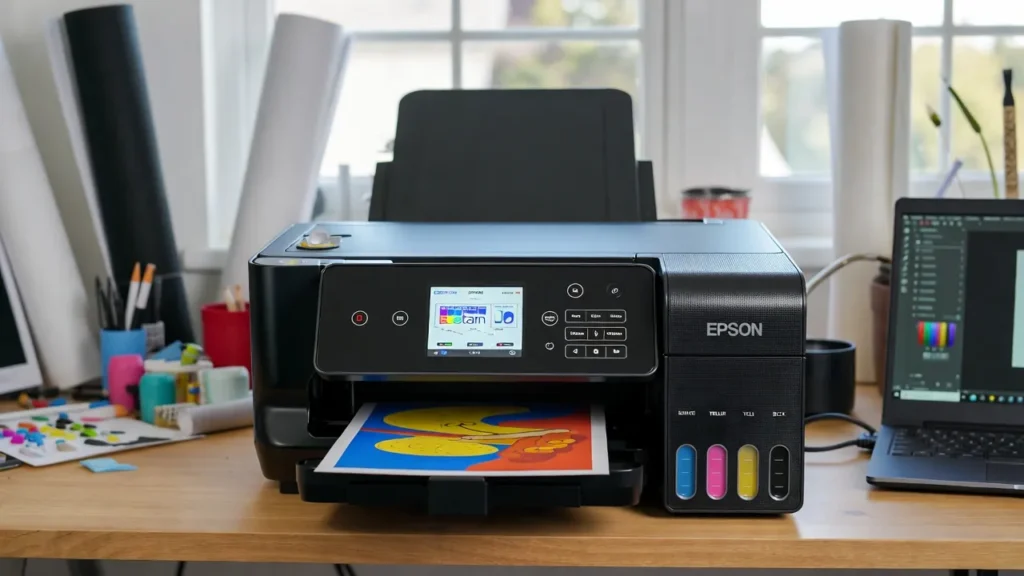
Step 2. Ask for a Documented Transition Before Mixing Anything
Contact the replacement ink supplier with your printer model, current ink, and new ink SKU. Ask whether the transition is supported, whether professional ink-system servicing is required, and which color settings are provided. Save the reply or support document.
Do not pour new ink over an unidentified old formulation. A profile is a color-management file, not a chemical-compatibility guarantee. The separate ink-mixing guide covers what can go wrong when different formulations share a tank.
Step 3. Decide Whether Any Physical Ink Removal Is Appropriate
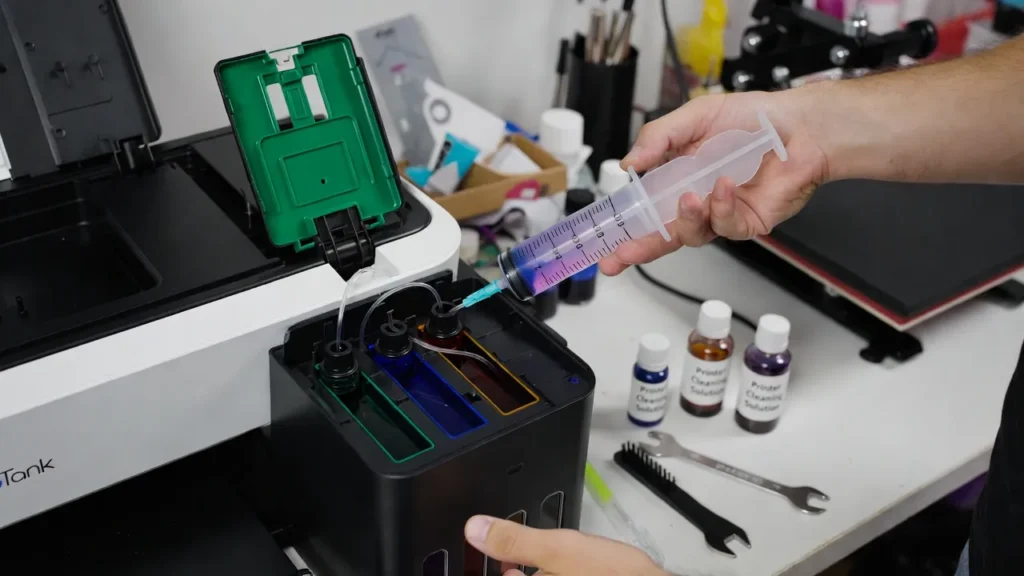
A normal refill with the same approved ink is not a flush. Switching to a different ink can require a transition plan, but syringe flushing, emptying tanks, and introducing cleaning fluids are not safe universal steps.
If the supplier has no model-specific procedure, pause the switch and ask a qualified service provider. Read the printer flushing and maintenance guide for the difference between a built-in cleaning cycle and invasive ink-line servicing.
Image note: The picture below illustrates physical flushing. It is not a DIY instruction to inject fluid into tubing or the printhead.
Step 4. Follow Only the Approved Fill and Maintenance Procedure
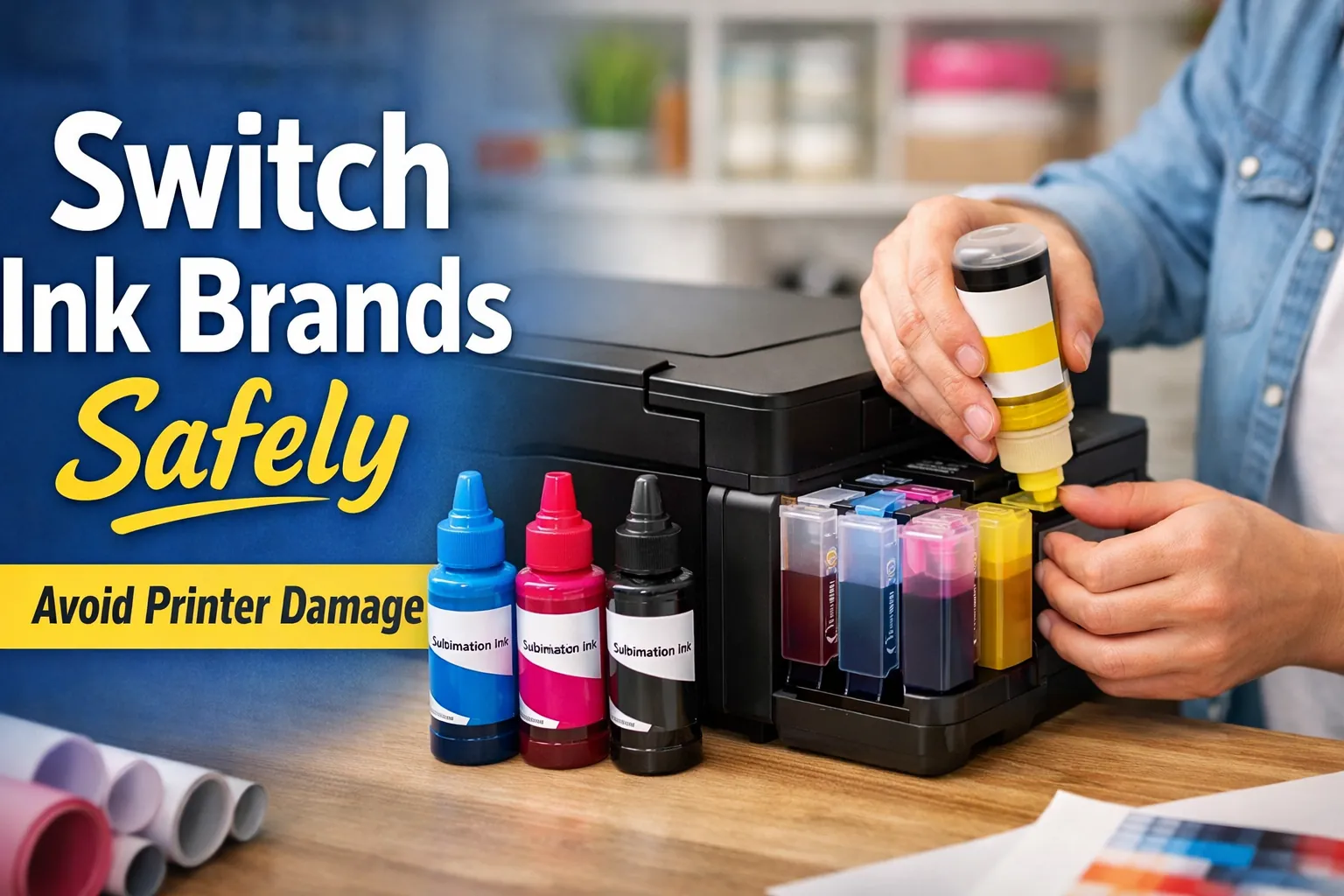
If a documented transition is supported and completed, refill or replace the ink exactly as that procedure specifies. Confirm the correct color in each reservoir or cartridge and avoid forcing bottles into keyed ports.
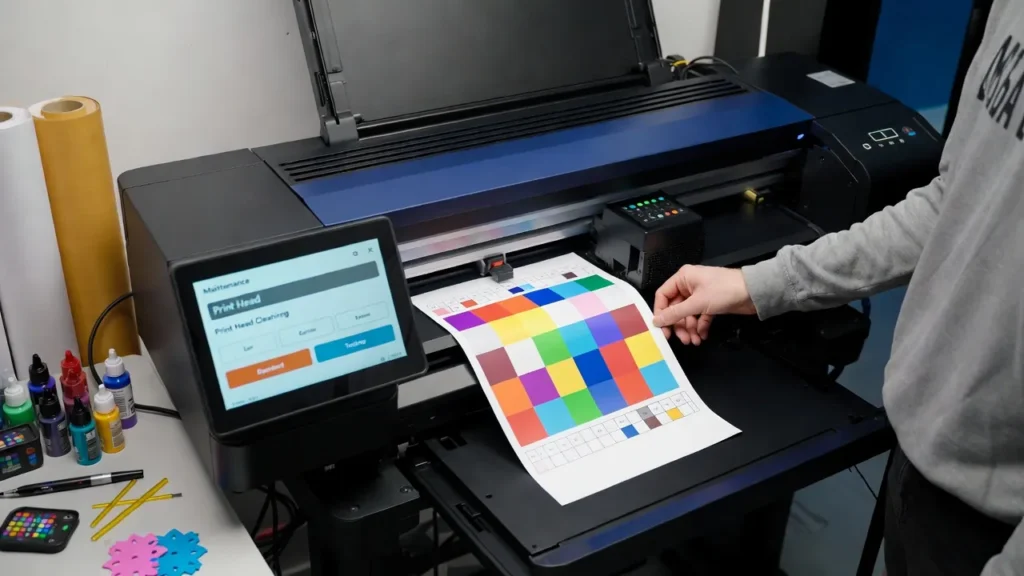
Run a nozzle check when directed. Use built-in Head Cleaning only for a demonstrated nozzle problem or when required by the model’s documented process. Do not run repeated cycles solely to push an unfamiliar new ink through the system. Epson notes that maintenance consumes ink and recommends checking nozzles before cleaning: Epson ink-tank maintenance guidance.
Image note: Refilling is appropriate only after compatibility and the transition method are confirmed.
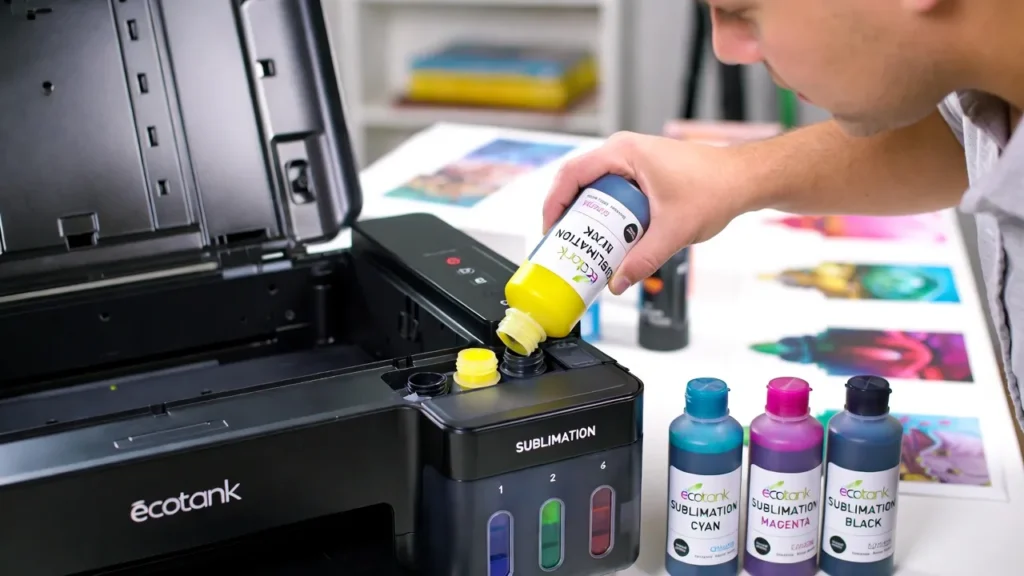
Image note: A nozzle check helps identify blocked nozzles. It does not prove that two ink formulations are compatible.
Step 5. Set Up Color Management and Test a Pressed Sample
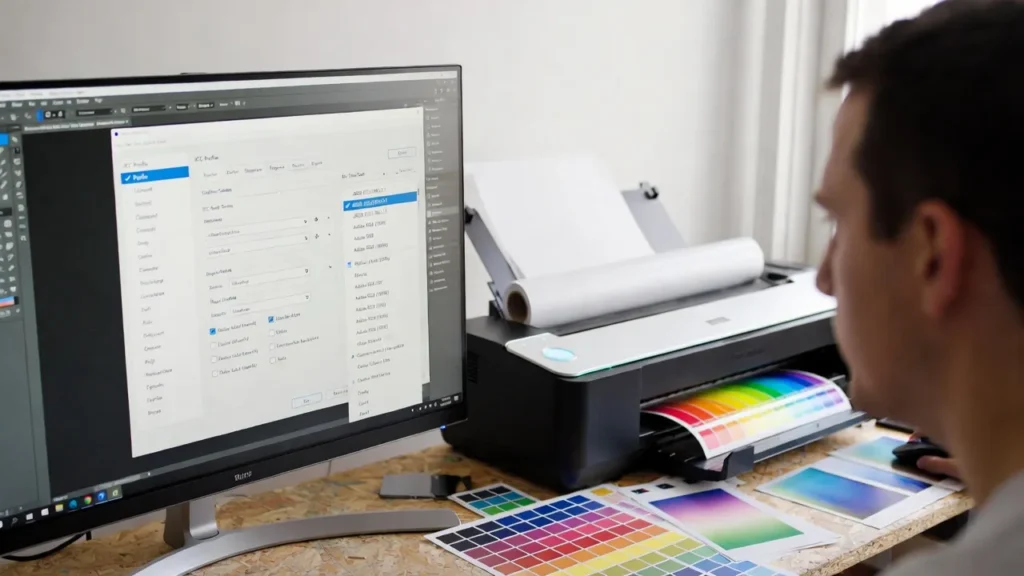
Check the new ink supplier’s directions before installing a profile. Some formulations include a model-specific ICC profile; others provide an ICC-free workflow with particular driver settings. Using an unrelated profile can create new color errors.
Run one controlled test using the same printer, paper, blank coating, and pressing conditions you plan to use for real orders. Compare the final pressed result, not only the appearance of unpressed transfer paper. For detailed setup, open the sublimation ICC profile guide.
Common Problems When Changing Sublimation Ink Brands
These situations come up when someone wants cheaper ink, a second printing method, or better colors. The right answer depends on what is already in the machine.
“I already filled my EcoTank with regular Epson ink. Can I convert it now?”
Do not top it off with sublimation ink. Ordinary office ink and sublimation ink serve different printing processes, and remnants can remain in the tanks and ink path. Ask a service professional about the exact model and costs before attempting a conversion. A dedicated, unused printer may be a more practical starting point.
If you are unsure which ink the printer contains, use the sublimation ink versus regular ink comparison before making a change.
“Can I alternate between sublimation ink and sticker-printing ink in one printer?”
Treat that as two separate workflows. Changing tank inks repeatedly is not like replacing paper. Old fluid remains in the delivery system and repeated changes can require costly, risky servicing. For a shop producing stickers as well as sublimation transfers, separate dedicated printers are usually the more practical option.
“I want to change from Hiipoo to another brand. Can I just top up the same colors?”
Matching cyan to cyan or black to black does not prove the formulations are compatible. Check the exact product and model with the supplier before adding new ink. If a supported switching method cannot be established, stay with the existing formulation or seek professional advice rather than experimenting in the tank.
“The new ink prints, but my colors look dark, green, or washed out.”
First print a nozzle check. If the nozzle pattern is complete, review the profile and driver settings for the exact ink and printer, then examine the pressed test on a known sublimation-compatible blank. A profile intended for different paper or another model can worsen colors. Use a controlled sublimation color-chart test to record what actually changed.
“The printer now shows missing colors or bands. Should I run Power Cleaning?”
Not automatically. Check the nozzle pattern, current ink levels, and any printer errors. Use the maintenance sequence for your model and stop before excessive cleanings. Epson warns that Power Cleaning uses substantial ink and can advance maintenance-box replacement; its listed limits depend on the model: Epson Power Cleaning precautions.
“The new ink bottle fits my printer. Does that mean it is safe?”
No. A matching cap or refill tip only establishes physical fit. It does not establish chemical compatibility, supported cartridge/chip operation, or the correct color workflow. Confirm the exact model and ink formulation in the current supplier documentation.
When Is Switching Ink Brands Worth It?
| Your situation | Practical choice |
|---|---|
| Current ink prints well and is still available | Avoid changing a stable setup for a small bottle-price difference |
| Current ink is discontinued or unavailable | Ask the supplier for a documented replacement and transition path before stock runs out |
| Colors shifted after a software or paper change | Check profiles, driver settings, and the pressed sample before blaming the ink |
| Printer contains unknown or ordinary ink | Do not top up. Get model-specific technical advice and compare repair cost against a dedicated printer |
| You need both stickers and sublimation jobs | Compare the cost of two dedicated printers against repeated ink-system conversions |
Include the cost of wasted ink, cleaning materials, downtime, test blanks, and service when judging a cheaper bottle. An uncertain transition can cost more than the savings.
Ink Change Record: What to Write Down Before Production
- Printer model and serial number (keep the serial number in your private shop records).
- Old and new ink brand, exact formulation, and supplier instruction link.
- Date of supported change, person or service provider who performed it, and any errors.
- Nozzle-check result before and after the change.
- ICC profile name or supplier-recommended ICC-free driver settings.
- Paper, blank type, and pressed color-test results.
This record helps you repeat the same output conditions later instead of guessing why one batch looks different.
Frequently Asked Questions
Do I always need to flush an EcoTank before changing sublimation ink brands?
No universal flushing rule applies to every EcoTank, and not every ink-brand change is supported. Confirm the old and new formulations and follow a supplier- or technician-approved method for your exact model. Do not use a generic syringe tutorial as a substitute.
Can I safely mix two sublimation ink brands if they are the same color?
The same color label does not make two ink formulas equivalent. Color shifts and physical compatibility problems are possible. Ask the supplier before mixing or topping off with a different formulation.
Do I need a new ICC profile after changing ink brands?
Recheck the color setup, but do not assume an ICC file is always required. Follow the new ink supplier’s supported profile or ICC-free method for your printer, paper, and software. Verify results on a pressed sample.
How long should I wait before printing customer orders with new ink?
No single waiting period guarantees readiness. Complete the documented ink transition, check for nozzle defects, and produce acceptable pressed test samples using your actual production settings before accepting paid output.
Will changing brands void my printer warranty?
Warranty terms vary by manufacturer and printer. Non-original ink and conversion-related damage can affect coverage, but do not assume every manufacturer’s policy is identical. Review the current terms for your exact machine before changing its intended ink system.
Choose a Supported Ink Setup Before You Switch
Changing sublimation ink brands is a compatibility decision first and a maintenance decision second. Identify what is installed, ask for a documented transition, avoid improvised flushing, then validate the new color workflow on a pressed sample. If a safe, supported path is unclear, keep the current ink or have the printer assessed before making a change.