How to Change Sublimation Ink Brands Safely (Step-by-Step Guide)

Many sublimation users eventually consider switching ink brands. Maybe your current ink is expensive, hard to find, or not producing the color vibrancy you expected.
But changing sublimation ink brands isn’t as simple as pouring new ink into the tank. Different ink formulas behave differently, and mixing them can cause color shifts, clogged print heads, or inconsistent prints.
In this guide, you’ll learn how to change sublimation ink brands safely, why flushing your printer matters, and how to avoid common mistakes during the transition.
Why People Change Sublimation Ink Brands
There are several practical reasons someone may switch sublimation inks.
Common reasons include:
- Lower ink costs
- Better color vibrancy
- Compatibility with specific printers
- Easier availability of refill bottles
- Recommendations from other sublimation users
Some users start with starter inks and later upgrade to higher-quality options. If you’re exploring ink options, it also helps to review best sublimation ink choices before making a switch.
However, changing brands should be done carefully to avoid damaging your sublimation printer.
Can You Mix Sublimation Ink Brands?
Technically, mixing sublimation inks might still produce prints, but it is not recommended.
Different brands use different chemical formulas, dye concentrations, and carrier liquids. When mixed, these differences can cause problems like:
- Ink separation
- Poor color accuracy
- Print head clogging
- Dull sublimation transfers
If you’re curious about compatibility issues, this guide explains more about mixing sublimation ink brands and why most professionals avoid it.
The safest approach is always to fully remove the old ink before introducing a new brand.
When Should You Change Sublimation Ink Brands?
Switching inks is safest when:
- Your printer tanks are almost empty
- You’re already performing printer maintenance
- You’re troubleshooting color accuracy problems
- You’re setting up a new sublimation workflow
If your printer still contains a lot of the current ink, it may be better to finish that ink first before switching.
Frequent brand switching can increase the risk of maintenance issues.
Step-by-Step: How to Change Sublimation Ink Brands
Follow this workflow to safely transition to a new sublimation ink.
1. Print Until Ink Levels Are Low
Before switching inks, use as much of the current ink as possible.
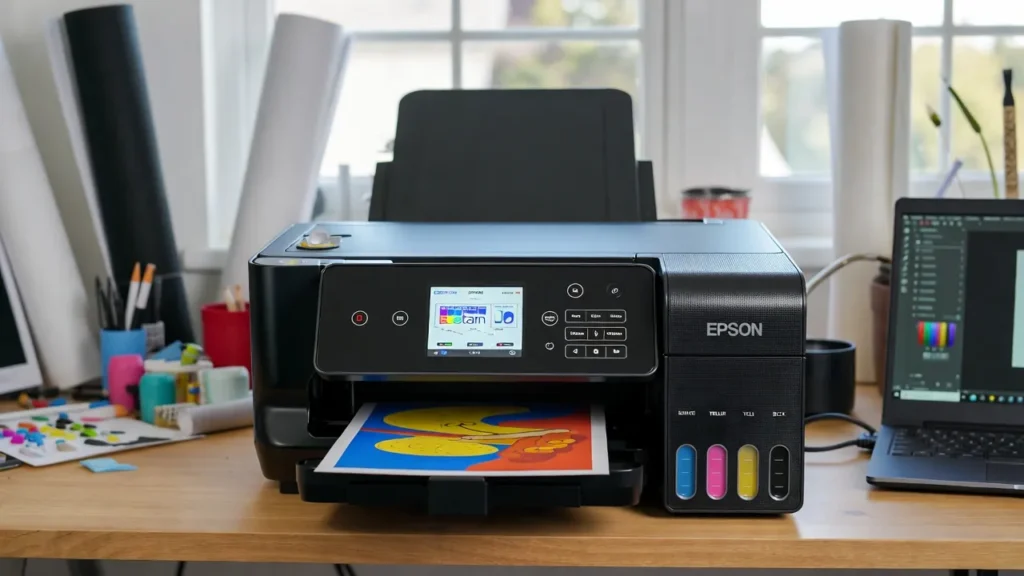
Running the tanks close to empty reduces:
- contamination between inks
- leftover dye residue
- color inconsistencies
Do not completely run the printer dry, but aim for very low ink levels.
2. Flush the Printer System
The most important step is flushing the old ink from the system.
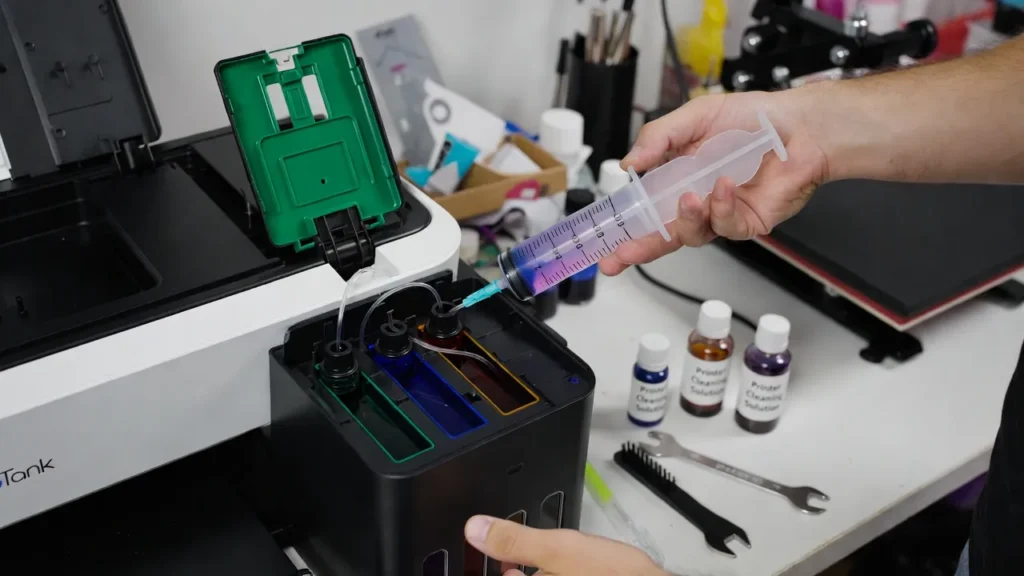
This process removes residual ink from:
- ink tanks
- ink lines
- dampers
- print head
Follow a proper cleaning method like the one explained in how to flush sublimation ink from printer to safely remove remaining ink.
Flushing usually involves:
- Emptying remaining ink from the tanks
- Adding cleaning solution or flushing fluid
- Running cleaning cycles
- Printing test pages to clear the lines
This ensures the new ink starts with a clean system.
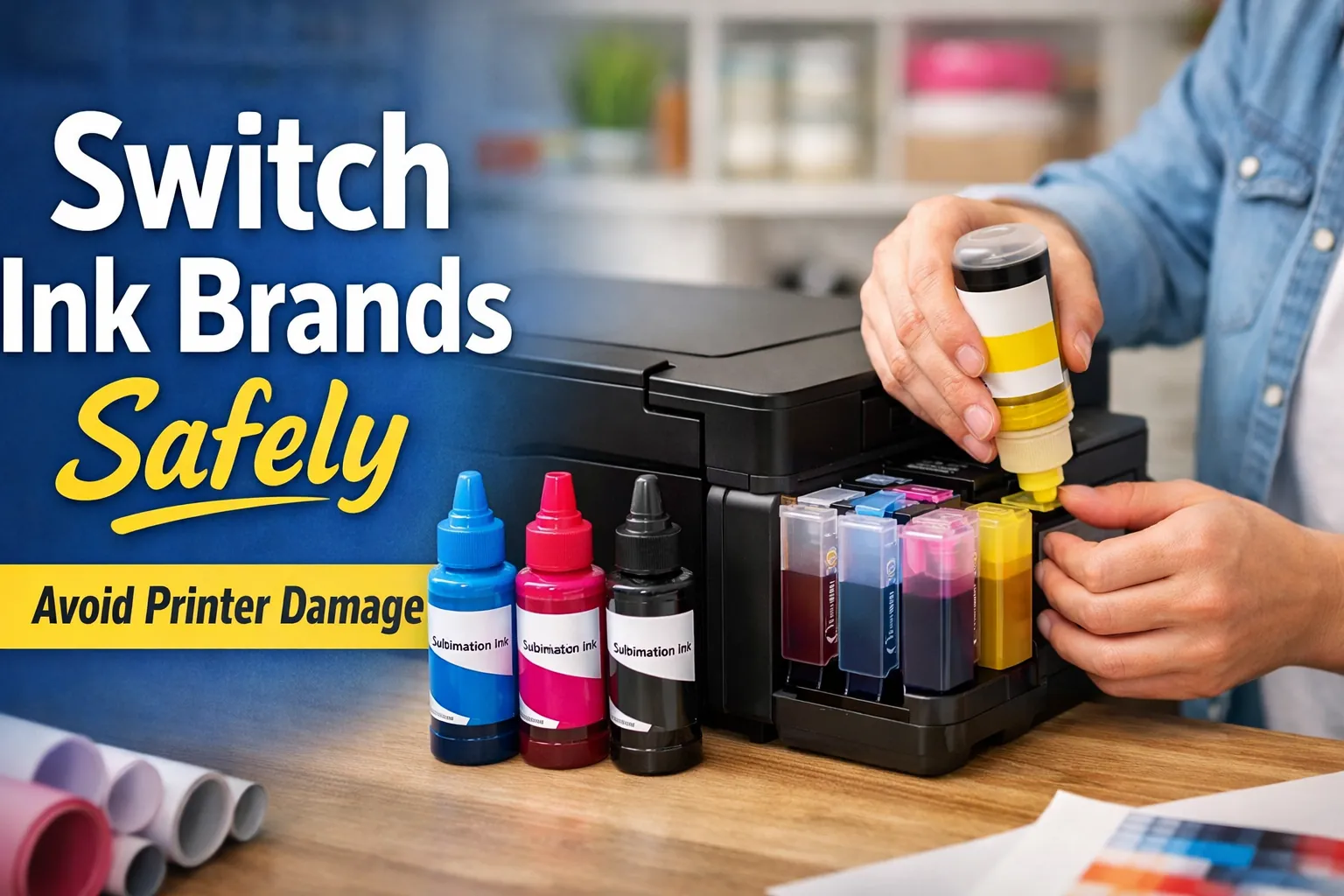
3. Refill With the New Sublimation Ink
Once the system is flushed, refill the printer tanks with the new ink brand.
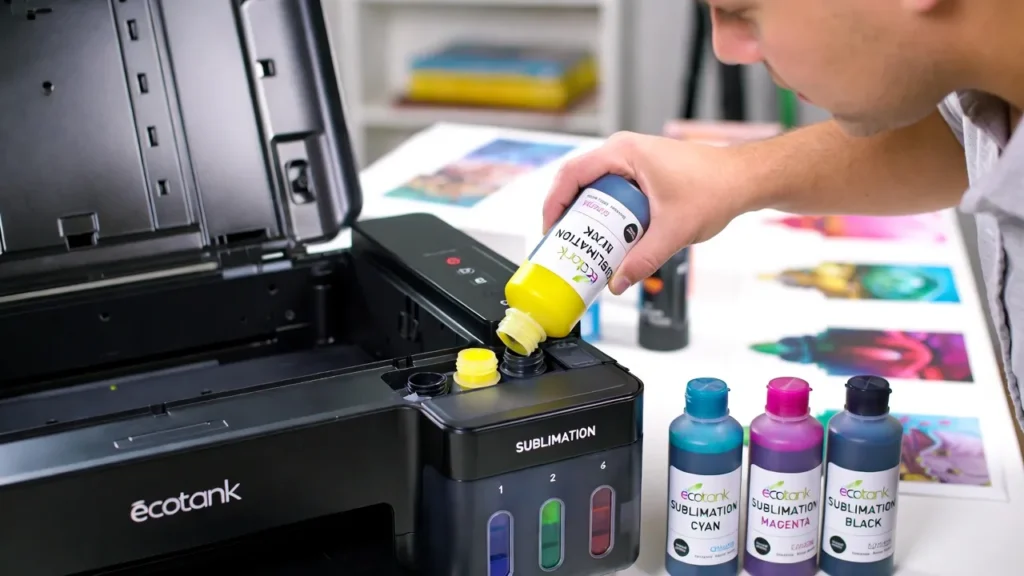
Tips for this step:
- Use the correct color bottle for each tank
- Avoid overfilling
- Wipe spills immediately
- Shake ink bottles gently before filling
Allow the printer a few minutes to stabilize after refilling.
4. Run Cleaning Cycles
After adding the new ink, run one or two print head cleaning cycles.
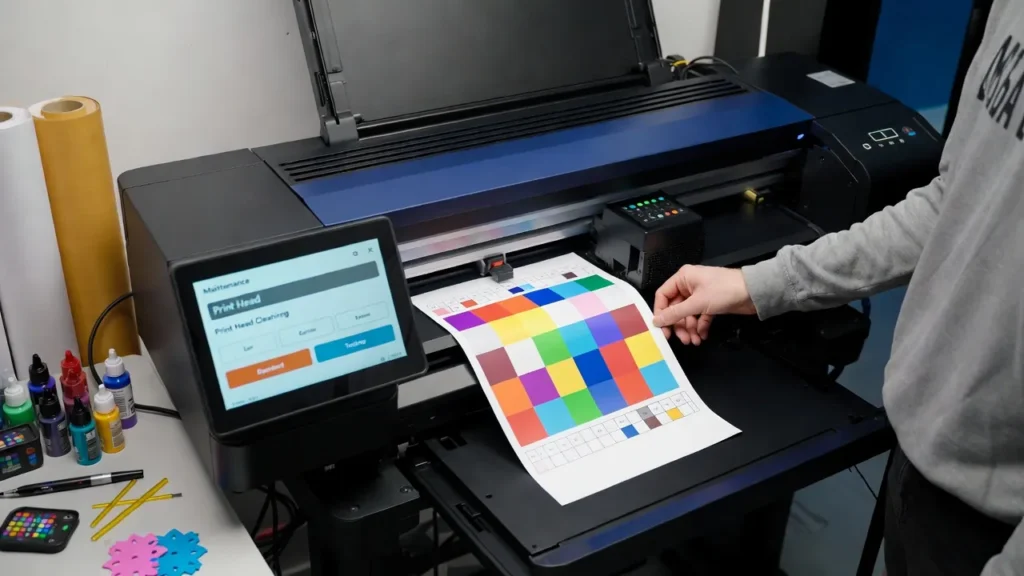
This helps:
- push new ink through the system
- remove any remaining flushing solution
- stabilize color output
Then print a test pattern or nozzle check.
5. Install the Correct ICC Profile
Every sublimation ink brand has slightly different color characteristics.
To maintain color accuracy, install the proper ICC profile for the new ink.
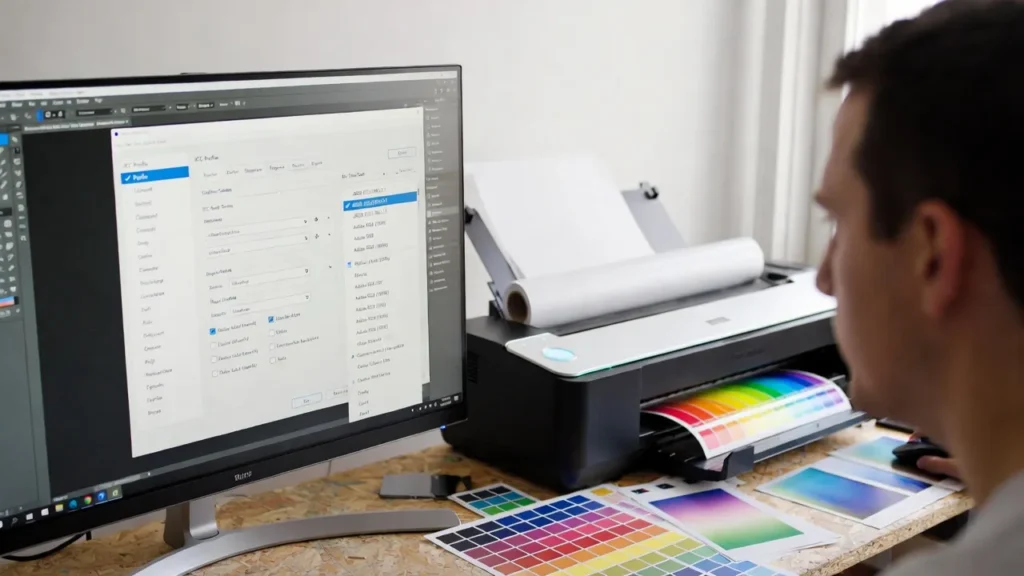
Incorrect profiles can cause:
- dull colors
- oversaturation
- inaccurate prints
Proper color management is explained in the sublimation color profile setup guide.
Common Problems When Switching Ink Brands
Some issues can appear after switching inks.
Temporary Color Differences
New ink may initially look different until the printer fully cycles the ink through the system.
Printing several test sheets usually stabilizes colors.
Print Head Clogging
If the old ink wasn’t fully flushed, residue can cause clogging.
Running additional cleaning cycles usually resolves this.
Color Profile Mismatch
Using the wrong ICC profile is one of the most common causes of color problems.
Always use a profile designed for your specific ink + printer combination.
If printing issues continue, this sublimation troubleshooting guide can help diagnose the problem.
Best Practices When Changing Sublimation Ink
To avoid issues, follow these tips:
- Avoid mixing ink brands directly
- Flush the system when switching
- Use compatible ICC profiles
- Perform test prints after the switch
- Avoid frequent ink brand changes
Consistency in your sublimation workflow usually produces the most reliable results.
Frequently Asked Questions
Can I mix sublimation ink brands if they are the same color?
It’s not recommended. Different formulas can react unpredictably and may cause color issues or clogged print heads.
Do I need to flush my printer before changing ink brands?
Yes. Flushing removes leftover ink and prevents chemical incompatibility between different ink formulas.
Is it safe to switch sublimation ink brands on Epson EcoTank printers?
Yes, many users do this successfully, but flushing the system first is important to avoid color contamination.
Will switching ink brands affect print quality?
It can. Print quality depends on ink quality, ICC profiles, and printer settings. Proper color management usually restores accuracy.
Final Thoughts
Changing sublimation ink brands is possible, but it should be done carefully.
The key is avoiding ink mixing and properly flushing the printer system before introducing new ink. This prevents clogged print heads, color inconsistencies, and long-term printer issues.
Once the new ink is installed and the correct ICC profile is applied, your printer should produce consistent and vibrant sublimation prints again.