Hiipoo ICC Profile: Compatible Models, Download, Setup

Hiipoo sells two different sublimation ink lines, and they handle color in opposite ways. One is built as “ICC-free,” meant to work with your printer’s stock color settings straight out of the box. The other ships with a downloadable ICC profile matched to a specific printer model. If your prints look dull, shifted, or inconsistent, the first thing to check is which version you actually bought.
Which Hiipoo Ink Do You Have?
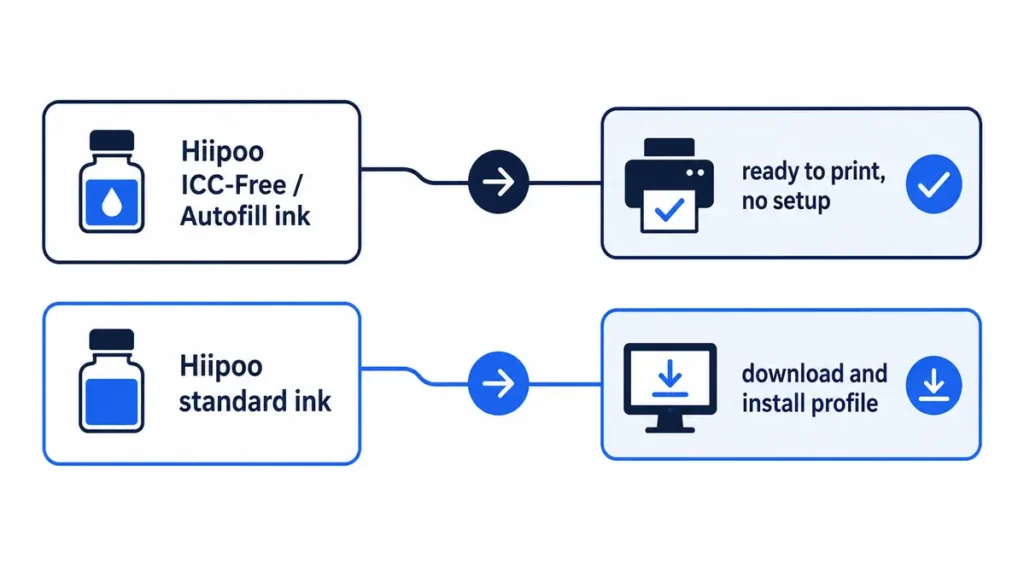
Look at the exact listing title or bottle label you bought from. Hiipoo markets some bundles as “Autofill / ICC-Free,” which means the ink is formulated to produce acceptable color using your printer’s default profile, no extra install needed.
Other listings advertise “Free ICC Printing” or reference an included color profile, which means a per-model file is available for that specific bundle.
If you’re not sure which one you have, check your order history or the product page you bought from. Both versions are common, and mixing up which type you’re using is the most frequent reason people search for a profile that was never meant to exist for their bundle.
If you’re still deciding between ink brands rather than troubleshooting one you already own, our sublimation ink comparison covers how Hiipoo stacks up against other options.
And if you want the fuller explanation of what an ICC profile actually does before you install one, our ICC profile primer breaks it down without the printer-specific detail this page focuses on.
Tip: If you have the ICC-free version and your colors already look right, you don’t need to install anything. Adding an unmatched profile on top of ICC-free ink can make colors worse, not better.
Compatible Printer Models
Hiipoo profiles are built for converted Epson EcoTank and WorkForce printers. The exact list changes as Hiipoo adds new bundles, so treat this as a starting point and confirm your model on the listing before you buy or switch ink.
| Printer Series | Common Models |
|---|---|
| EcoTank | ET-2720, ET-2760, ET-2800, ET-2803, ET-2850, ET-3760, ET-4700, ET-4800, ET-8550, ET-15000 |
| WorkForce | WF-3640, WF-7710, WF-7720 |
A profile built for one model can sometimes produce usable results on a closely related model in the same series, but it’s a starting point for test prints, not a guarantee.
How to Get the Official Profile
Go directly to hiipoo.com and look for their ICC profile library, listed by printer model. Download the file that matches your exact model and ink combination. Avoid installing a profile from a source you can’t confirm is current, an outdated or mismatched file will shift your colors instead of fixing them.
Once you have the file, install it based on your operating system:
Windows: Right-click the .icc file and choose “Install profile.” If that option doesn’t appear, copy the file into C:WindowsSystem32spooldriverscolor manually.
Mac: Copy the file into your user Library’s ColorSync Profiles folder (~/Library/ColorSync/Profiles). Restart any open design software after installing.
Setting It Up in Photoshop
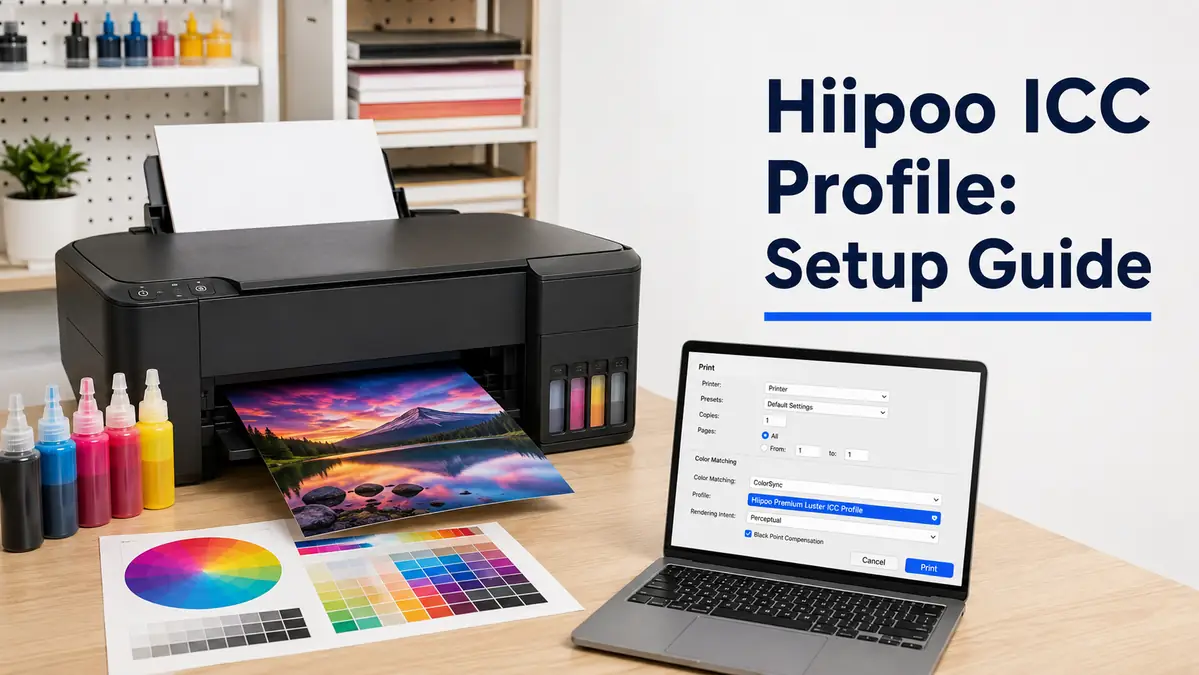
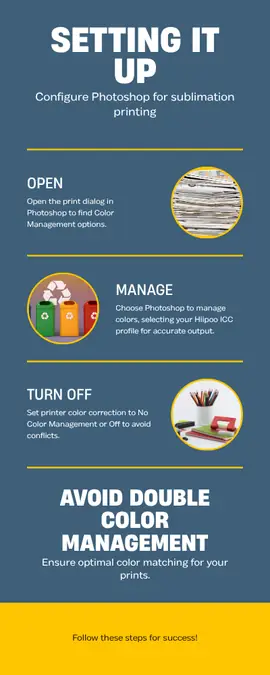
Open your print dialog, then find the color management section. Set Photoshop to manage colors, select the installed Hiipoo profile from the list, and set the printer driver’s color setting to “No Color Management” or “Off” so the two don’t fight each other.
If you skip this last step, the printer applies its own color logic on top of the profile and the print won’t match what Photoshop shows you.
Check your document’s color mode while you’re in there. Sublimation printers expect RGB files and convert to print colors internally, so a design built in CMYK will often look duller than expected no matter how well the profile is installed.
Our guide to choosing the right color mode covers this in more depth.
Fixing the Most Common Problem: Profile Installed But Not Showing Up
This is the single most reported Hiipoo ICC issue. The file installs without an error, but it never appears in Photoshop’s print settings list.
In almost every documented case, this comes down to a mismatch between the file’s external name (what you see in the folder) and its internal profile name (what design software reads). The fix is straightforward:
- 1. Remove the profile from your color folder.
- 2. Fully close Photoshop, not just the document.
- 3. Reinstall the profile.
- 4. Reopen Photoshop and check the print dialog again. Look for an entry labeled with your printer model rather than the word “Hiipoo,” since that’s usually how the internal name shows up.
Warning: If Epson’s Color Controls setting is still turned on in your print driver, the printer will override the profile even after it’s installed and selected correctly. Set the driver to no color management before testing.
If Colors Are Still Off After Installing
Double-check that the profile actually matches your printer model and not just a nearby one in the same series.
If it matches and results still look wrong, Hiipoo’s support team has a track record of working directly with customers on this exact problem, including building a closer-matched profile when a listed model doesn’t cover a reader’s exact setup.
Reach out through their official contact channel with your printer model, ink type, and a sample print for reference.
If you’d rather not wait on a reply, our manual color correction guide walks through adjusting hue, saturation, and brightness directly in your design software as a working alternative.
Troubleshooting Quick Reference
| Symptom | Likely Cause | Fix |
|---|---|---|
| Profile installs but doesn’t appear in Photoshop | Internal filename doesn’t match the external file name | Remove, fully close Photoshop, reinstall, reopen |
| Colors still off with profile selected | Printer driver’s Color Controls is overriding the profile | Set driver color management to Off or No Color Management |
| Prints look duller than the screen | Design file built in CMYK instead of RGB | Rebuild or convert the file to RGB before printing |
| No profile listed for your exact model | Hiipoo hasn’t published one for that specific model yet | Test a closely related model’s profile, then contact Hiipoo support |
Hiipoo vs. Printers Jack ICC Support
| Brand | Profile Required | How It’s Obtained |
|---|---|---|
| Hiipoo | Depends on the product line | Downloadable from hiipoo.com |
| Cosmos Ink | No, optional for wider gamut | Emailed after order ships |
| Printers Jack | Inconsistent by model | Not always available, contact manufacturer |
If you’re deciding between brands or already own one of the others, see our Printers Jack ICC profile page, our Cosmos Ink ICC profile page, or the full ICC profile roundup for a side-by-side view.
Quick Checklist
Save this as your setup order of operations:
☐ Confirm which Hiipoo ink line you have
☐ Download the profile for your exact model from hiipoo.com, if your line includes one
☐ Install it correctly for Windows or Mac
☐ Select it in your print dialog and turn off the printer driver’s color management
☐ Confirm your file is in RGB before printing
☐ Run a small test print before a full batch
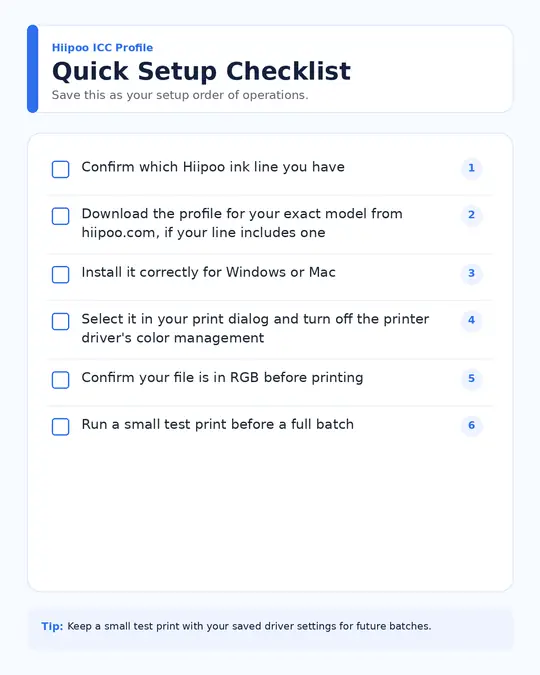
Download: Hiipoo ICC Setup Checklist (PDF), the full version you check below of this list with every step in order.
Frequently Asked Questions
Does Hiipoo ink need an ICC profile?
Only if you bought the standard line. Hiipoo’s “ICC-free” or “Autofill” bundles are designed to work with your printer’s default color settings without one.
Where do I download the Hiipoo ICC profile?
Directly from hiipoo.com, in their ICC profile library organized by printer model. Match the file to your exact model rather than the closest one you can find.
Why isn’t my Hiipoo ICC profile showing up in Photoshop?
This is almost always a filename mismatch between the installed file and how Photoshop reads it internally. Removing the profile, closing Photoshop completely, then reinstalling usually resolves it.
Can I use a Hiipoo profile made for a different printer model?
You can test one from a closely related model in the same series, but treat it as a starting point, not a guaranteed match. Run test prints before committing to a full production run.
What to Do Next
Confirm which Hiipoo ink line you’re actually running before you chase a profile you may not need. If you do need one, get it from hiipoo.com for your exact model, set your printer driver to no color management, and run a small test print before trusting it on a full batch. For related planning, see Silhouette Studio for Sublimation.
If the filename-mismatch fix above doesn’t resolve a missing profile, Hiipoo’s support team is worth contacting directly with your specific model.