Epson ET-2800 ICC Profile: Ink Match + Setup Chart

There is no single Epson ET-2800 ICC profile that works correctly with every sublimation setup. For related planning, see Why White Sublimation on Black Finally Works.
The right color workflow depends on your ink, paper, printer driver settings, software, and the profile supplied for that combination. Installing a random ET-2800 ICC file can make color accuracy worse instead of better. For related planning, see Halloween Treat Bags with Sublimation HTV.
Start with the ink-match chart below. Then verify your nozzle check, print settings, color-management method, and pressed result before changing profiles.
Important: Epson sells the ET-2800 as a standard EcoTank inkjet printer, not as a dye-sublimation printer. Epson states that ink not specified for the printer can cause damage that may not be covered by its warranty.
Epson ET-2800 ICC Profile and Ink Match Chart
Choose the color workflow based on the exact ink product in your printer, not just the ET-2800 model number.
| Ink or setup | ICC profile approach | Where to start | Important note |
|---|---|---|---|
| Hiipoo ICC-free ink | Do not automatically add an ICC | Follow Hiipoo’s recommended ICC-free workflow | Hiipoo currently sells ET-2800-compatible ink specifically marketed for ICC-free printing |
| A-SUB ink + A-SUB paper | Follow the instructions for the exact A-SUB product | Use A-SUB’s official workflow when applicable | A-SUB also publishes a Windows ICC specifically for its sublimation paper and ink |
| Printers Jack ink | Verify the current profile instructions for your exact ink | Manufacturer support or current product documentation | Do not assume a profile shared online matches your bottle, paper, OS, and driver setup |
| Another sublimation ink brand | Use a profile only when it matches your setup | Ink manufacturer’s current documentation | An ET-2800 profile made for another ink is not automatically compatible |
| No matching ICC available | Start with the manufacturer’s recommended driver workflow | Test a standardized color chart | Consider a custom ICC when tighter color accuracy is required |
Hiipoo’s current ET-2800-compatible products include versions explicitly advertised as ICC-free or Free ICC Printing.
A-SUB’s situation shows why checking the exact product matters. A-SUB currently lists EcoTank sublimation ink compatible with models including the ET-2800, while its separate official ICC download page says the published profile is designed specifically for A-SUB sublimation paper and ink and is compatible with Windows.
If you use another brand, confirm its current instructions before installing anything.
For a broader explanation of profile selection, see our best ICC profiles for sublimation guide.
Do You Actually Need an ICC Profile on the ET-2800?
You need an ICC profile only when your color-management workflow calls for one. Some sublimation inks are designed around a supplied ICC profile, while others are sold specifically for use without one.
Your ink manufacturer supplies a matched profile
Use that profile together with the printer and software settings specified by the provider.
Do not install the profile and then improvise the rest of the settings. Paper type, print quality, color correction, and software color management can all affect the result.
Your ink is marketed as ICC-free
Start without an extra ICC profile.
For example, Hiipoo currently lists ET-2800-compatible sublimation ink as ICC-free. Adding a profile built for another Hiipoo product, another printer, or another paper may change the color response the ink was designed to produce.
Our Hiipoo ICC profile guide explains the difference between its profile-based and ICC-free workflows.
No suitable profile exists
Do not download the first ET-2800 .icc file you find in a forum or file-sharing folder.
Start with the ink manufacturer’s recommended printer settings and run a controlled pressed color test. If repeatable color accuracy matters for customer work, a custom profile made for your actual printer, ink, paper, and workflow is the more controlled option.
Check These Problems Before Changing Your ICC Profile
An ICC profile cannot repair missing ink channels, a clogged nozzle, unsuitable substrate, or incorrect heat settings.
Check the physical printing process first.
1. Run a nozzle check
A missing cyan, magenta, yellow, or black channel changes the entire color mix.
If teal suddenly becomes blue or reds look weak, changing ICC profiles while one channel is partly clogged can send you in the wrong direction.
Use our Epson ET-2800 and ET-2803 purge sheet guide if your nozzle check shows a weak or missing channel.
2. Judge sublimation color after pressing
Sublimation transfer paper normally looks less vibrant than the finished pressed product.
Do not rebuild your color settings because the paper print looks dull. Press a controlled test onto the same type of sublimation-ready substrate you plan to use for production.
If the pressed result is still wrong, then troubleshoot the profile and print workflow.
3. Confirm the correct paper side
Printing on the wrong side of sublimation paper affects ink handling and transfer performance.
Check the paper manufacturer’s instructions instead of assuming every sheet has the same printable-side markings.
4. Verify the blank
Sublimation dye needs a compatible polyester or polymer-coated surface.
A color problem caused by the blank cannot be corrected by an ICC profile.
5. Stop changing several variables at once
If you change the ICC profile, paper type, heat setting, print quality, and substrate at the same time, you will not know which change fixed or worsened the print.
Record your setup and change one variable per test.
How to Install an Epson ET-2800 ICC Profile on Windows
Installing an ICC profile in Windows is straightforward. Using it correctly is the more important part.
Step 1: Download the profile from a verified source
Use the profile supplied or recommended for your ink and paper combination.
Avoid renaming unrelated ICC files so they are easier to remember. Keep the original filename where possible so you can identify the source later.
Step 2: Install the ICC file
For a standard Windows ICC file:
- Locate the downloaded
.iccor.icmfile. - Right-click the file.
- Select Install Profile.
- Close and reopen your printing or design application.
A-SUB gives this same basic Windows installation method for its current profile.
Step 3: Select the profile in color-managed software
If the profile provider tells you to let Photoshop or another application manage color:
- Open the print dialog.
- Choose the correct ET-2800 printer.
- Select the supplied ICC profile.
- Use the rendering settings recommended by the profile provider.
- Disable additional printer-driver color adjustment when required.
The critical point is not the location of the profile file. It is making sure the profile and printer driver are not both applying conflicting corrections.
How to Use an ET-2800 ICC Profile on Mac
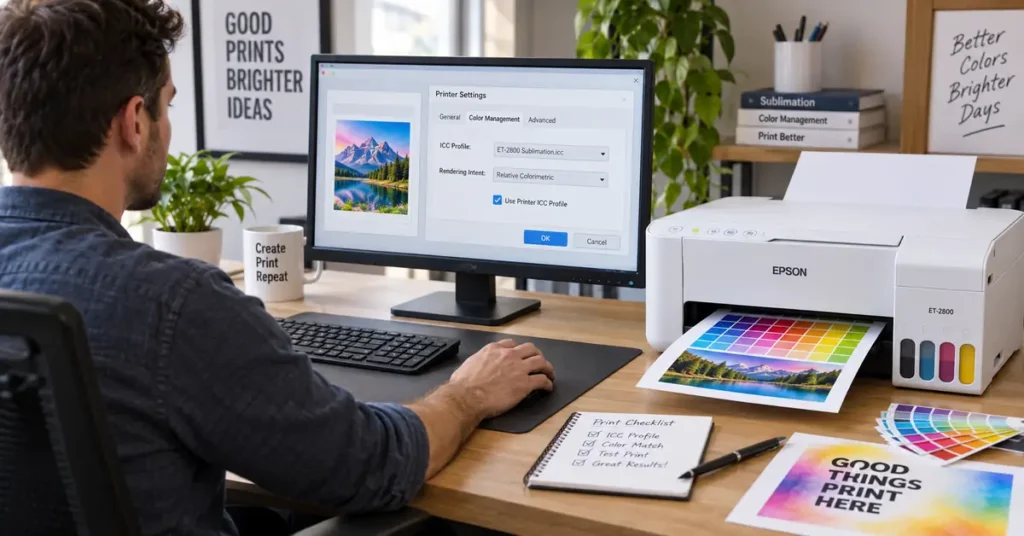
The Epson ET-2800 Mac driver supports Color Matching options, including EPSON Color Controls and ColorSync. Epson also documents an Off (No Color Adjustment) option when color is being managed by application software.
Your exact workflow still depends on the ICC provider.
If your profile supports macOS
- Install the ICC profile in the appropriate ColorSync profile location.
- Restart the application you use for printing.
- Open the print dialog.
- Check that the profile or expected color-management options are available.
- Follow the profile provider’s driver instructions.
If the profile is installed but does not appear
Check these before reinstalling everything:
- Restart the design application.
- Restart the computer if necessary.
- Confirm that you installed an actual ICC profile rather than only downloading it.
- Confirm that your software supports selecting printer ICC profiles.
- Check whether the profile provider supports macOS at all.
- Confirm that you are using the Epson driver rather than a limited generic printing path.
Do not assume that a Windows profile download has a supported Mac workflow.
For example, A-SUB’s current official ICC download page explicitly lists its supplied profile as Windows-only.
Avoid Double Color Management on the ET-2800
Color correction should have one clearly defined owner.
A common setup problem happens when your design software applies an ICC conversion and the Epson driver then performs another color correction on top of it.
The print path should look more like this:
Artwork → Color-managed application → ICC profile → Epson driver with additional color correction disabled → ET-2800
Not:
Artwork → ICC profile → application correction → Epson automatic correction → another color change
When the application manages color
If Photoshop or another supported application is instructed to manage color, the printer driver’s extra color management normally needs to be disabled according to the profile provider’s workflow.
Epson’s ET-2800 Windows documentation includes No Color Adjustment, which turns off color management in the printer software so color can be managed by the application.
A-SUB’s documented Photoshop workflow follows the same principle. Its instructions tell users to choose No Color Adjustment in the Epson driver, then select Photoshop Manages Colors and the installed ICC profile.
When the printer or system manages color
Do not copy Photoshop-managed ICC instructions into software that does not provide the same color-management controls.
Follow the workflow supplied for that ink or profile.
The mistake is not choosing one method over another. The mistake is mixing several correction methods without knowing which one is controlling the output.
Do Not Copy One Universal ET-2800 Paper Setting
The best Epson ET-2800 paper-type setting is the one required by the profile or ink workflow you are actually using.
A common online recommendation might tell you to select Matte, Premium Presentation Paper Matte, Plain Paper, or another media type. Those settings affect more than a label in the print dialog. They can influence ink handling and other driver behavior.
A-SUB, for example, currently instructs users of its published Photoshop ICC workflow to select EPSON Matte and Standard before disabling Epson color adjustment.
Another ICC may have been created around different settings.
Use our sublimation printer settings guide for the broader setup process, but let the ICC provider’s documented settings take priority when using a specific profile.
ET-2800 ICC Settings by Software
Your ICC workflow changes depending on where the software allows color management to happen.
Photoshop
Photoshop can use an application-managed ICC workflow.
When the profile provider supports this setup:
- Select Photoshop Manages Colors.
- Choose the correct printer ICC profile.
- Open the Epson printer settings.
- Select the media and quality settings required by the profile.
- Disable Epson’s additional color correction when instructed.
- Print a standardized test before production.
Do not select an ICC simply because its filename includes “Epson” or “ET-2800.” Match the full setup first.
Cricut Design Space
Cricut Design Space is different from Photoshop.
Cricut’s current Print Then Cut instructions tell users to choose Use System Dialog when they need to access the printer’s available quality and driver settings.
That makes the printer/system dialog especially important when using an ET-2800 with Design Space.
Do not expect Photoshop-style ICC controls inside Design Space itself.
If color accuracy is critical, establish exactly where color management is occurring before copying an ICC tutorial designed for Photoshop.
Silhouette Studio
Silhouette workflows vary by version and operating system.
Use the system printer dialog and your ink/profile provider’s instructions rather than assuming the settings from Photoshop or Cricut transfer directly.
Our Silhouette Studio for sublimation guide covers the broader design and print setup.
Why ET-2800 Colors Are Still Wrong After Installing an ICC Profile
A successful ICC installation does not guarantee correct color.
Use the symptom to decide what to check next.
| Problem after printing or pressing | Check first |
|---|---|
| Blue turns purple | Ink/profile mismatch, double color management, nozzle condition |
| Teal becomes blue | Cyan balance, nozzle check, profile match, driver correction |
| Print is too dark | Wrong profile, wrong media setting, excessive correction |
| Pink or red cast | Profile mismatch, double correction, magenta/cyan imbalance |
| Transfer paper looks dull | Press the test before changing color settings |
| Pressed image is dull | Nozzle check, substrate, ink/profile match, heat workflow |
| One color is weak | Ink flow or nozzle issue before ICC troubleshooting |
| ICC made the print worse | Return to the previous known setup and verify the profile’s intended ink/paper combination |
| Colors vary between blanks | Test substrate/coating consistency and press conditions |
| Screen looks different from print | Monitor calibration plus printer color workflow |
For deeper symptom-based troubleshooting, use the sublimation color problems and fixes guide.
The profile made everything worse
This is one of the clearest signs to stop changing settings.
Return to the last known setup that produced usable results. Then confirm:
- exact ink brand and product
- ICC source
- paper
- media type
- print quality
- application color-management setting
- Epson color correction setting
- nozzle condition
- substrate
- heat settings
An unmatched ICC can be worse than no ICC at all.
Hiipoo ICC Profile Settings for the Epson ET-2800
Check which Hiipoo ink you actually purchased before searching for an ICC file.
Hiipoo currently sells sublimation ink that specifically lists the ET-2800 among compatible printers and advertises ICC-Free Printing.
For that product, downloading an unrelated Hiipoo ICC because someone else uses one is not a good starting point.
Use this decision process:
- Find the exact Hiipoo product or packaging you purchased.
- Check whether it says ICC-free.
- Follow the instructions for that version.
- Run a clean nozzle check.
- Print and press a standardized color chart.
- Change settings only if the pressed output shows a repeatable problem.
If your Hiipoo product came with different profile instructions, follow those instructions instead of the workflow for the ICC-free version.
A-SUB ICC Profile Settings for the Epson ET-2800
A-SUB requires similar care because its current product lineup and ICC resources serve more than one workflow.
A-SUB currently lists EcoTank sublimation ink as compatible with the ET-2800. Its separate official ICC page provides a profile designed specifically for A-SUB sublimation paper and ink and says that profile is Windows-compatible.
For the published Photoshop workflow, A-SUB currently specifies:
- Install the supplied ICC profile.
- Open the artwork in Photoshop.
- Open the printer settings.
- Select the media and quality settings specified by A-SUB.
- Choose No Color Adjustment in Epson color correction.
- Return to Photoshop.
- Select Photoshop Manages Colors.
- Choose the installed A-SUB profile.
- Print and test the pressed output.
Do not assume those instructions apply to a different brand of ink or paper.
For more detail, see our A-SUB ICC profile setup guide.
What About a Printers Jack ET-2800 ICC Profile?
Treat a Printers Jack ET-2800 profile the same way you would any other third-party ICC: verify the current source and intended setup before installing it.
A manufacturer-hosted ET-2800 profile source could not be verified during the current research for this page, so we are not linking to an unofficial shared file as though it were universal.
If you use Printers Jack ink:
- Check the current product documentation.
- Ask the manufacturer for the correct profile or recommended driver settings if one is required.
- Confirm your operating system.
- Confirm the intended paper and printer model.
- Save the supplied instructions with the profile.
- Run a pressed color chart before customer work.
If your main goal is choosing usable colors rather than changing profiles, our Printers Jack sublimation color chart gives you a practical print-and-press reference.
How to Test an ET-2800 ICC Profile Without Wasting Blanks
Use one controlled test instead of repeatedly printing customer artwork.
Step 1: Start with a clean nozzle check
Do not begin color testing until all expected channels print correctly.
Step 2: Use a fixed color test file
The test should include:
- cyan
- magenta
- yellow
- black
- red
- green
- blue
- orange
- purple
- several neutral grays
- skin-tone or photographic gradients if relevant to your work
Keep the same test file for future comparisons.
Step 3: Print using one documented setup
Record:
- ink brand and exact product
- paper brand
- ICC filename or ICC-free method
- media type
- print quality
- color-management method
- software
- operating system
Step 4: Press onto your real production substrate
A profile test on polyester fabric does not tell you exactly how the same colors will appear on ceramic or coated metal.
Different substrates and coatings can shift the finished appearance.
Our sublimation color shift chart shows why the same design can look different across polyester, ceramic, and coated metal.
Step 5: Change one variable
If the result is poor, make one controlled change and print the test again.
Do not change the ICC, media type, print quality, temperature, and paper in the same round.
Step 6: Save the successful recipe
Once the result is acceptable, save the entire setup.
A filename such as:
ET2800-Hiipoo-PaperName-Windows-Photoshop
is more useful six months later than a folder full of files called profile1.icc, newprofile.icc, and final.icc.
Free Epson ET-2800 ICC Setup & Color Test Record
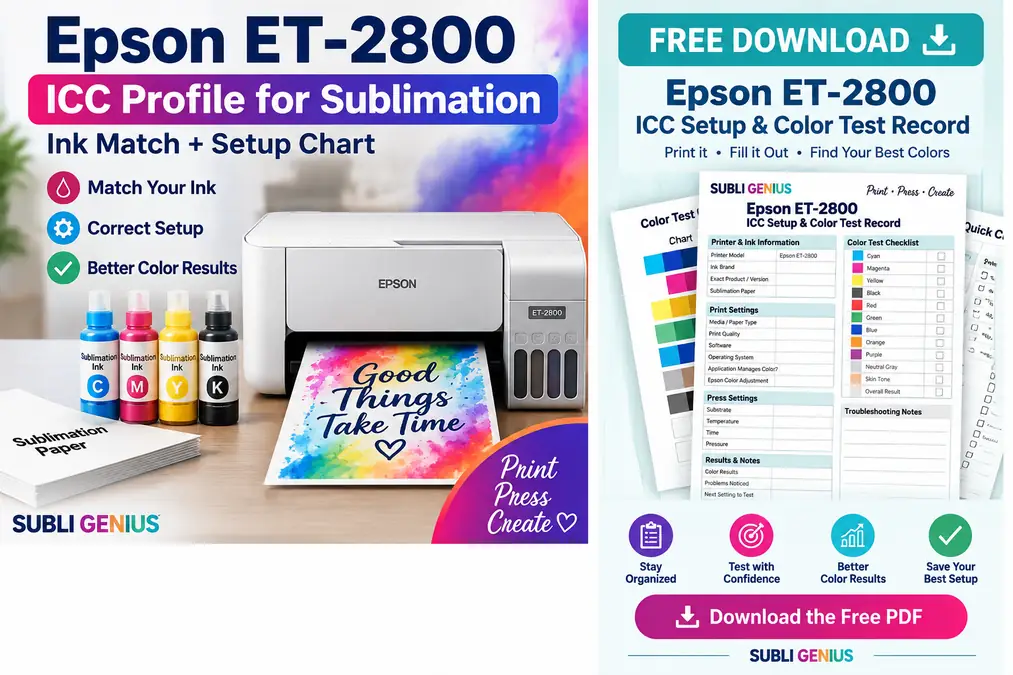
Testing ICC profiles gets confusing when you cannot remember which ink, paper, driver setting, or press setup produced each result. Use this free Epson ET-2800 ICC Setup & Color Test Record to keep every test organized.
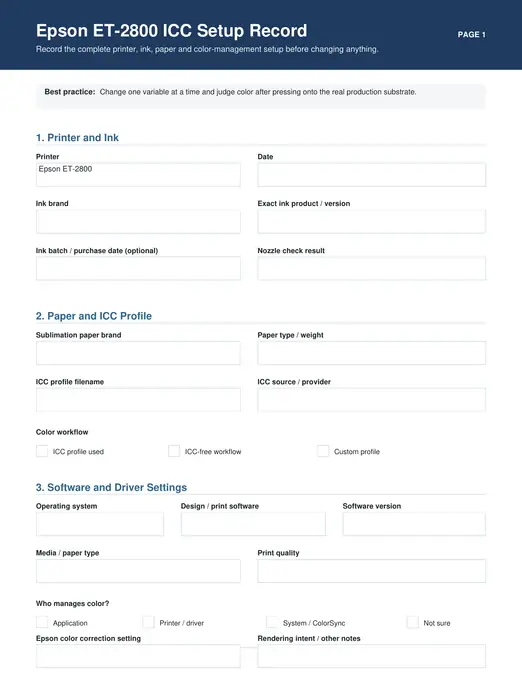
The printable record gives you one place to track:
- sublimation ink brand and exact product
- sublimation paper
- ICC profile filename and source
- Windows or Mac setup
- printing software
- media type and print quality
- application and Epson color-management settings
- substrate, temperature, time, and pressure
- pressed color results
- problems noticed and the next setting to test
It also includes a pressed-color checklist so you can compare cyan, magenta, yellow, black, red, green, blue, orange, purple, and neutral tones without changing several variables at once.
Download the Free Epson ET-2800 ICC Color Test Record PDF
Print a fresh copy when you change ink, paper, ICC profile, software, or substrate. Once you find a setup that produces reliable color, keep that completed record with your production settings instead of trying to rebuild the combination later.
ET-2800 Color Setup Test Record
Save or print this table when testing a new ink or ICC profile.
| Setting | Test record |
|---|---|
| Printer | Epson ET-2800 |
| Ink brand | |
| Exact ink product/version | |
| Sublimation paper | |
| ICC profile filename | |
| ICC source | |
| Software | |
| Operating system | |
| Media/paper type | |
| Print quality | |
| Application manages color? | |
| Epson color adjustment | |
| Substrate | |
| Temperature | |
| Press time | |
| Pressure | |
| Result | |
| Color problems noticed | |
| Change for next test |
This record becomes especially useful when you switch paper, ink, computer, software, or substrates.
Can You Use an ET-2803 ICC Profile on an ET-2800?
Do not assume an ET-2803 profile is correct for an ET-2800 solely because the printers are closely related.
ICC compatibility depends on how the profile was created and what the provider supports. The printer model is only one part of that combination.
Before using an ET-2803 profile on an ET-2800, confirm:
- the profile provider lists both models
- the ink is the same
- the intended paper is the same
- the driver settings match
- the operating-system workflow matches
If the provider does not document cross-model compatibility, treat the profile as an experiment rather than a verified production setup.
When Is a Custom ICC Profile Worth It?
A custom profile becomes more useful when repeatable color matters more than convenience.
Consider one when:
- you use the same ET-2800, ink, and paper every day
- manufacturer settings repeatedly miss important colors
- customer brand colors need tighter control
- you sell color-sensitive photographic products
- you have eliminated nozzle, paper, substrate, and heat problems
- you want a documented production workflow rather than constant manual correction
For occasional craft projects, a well-matched manufacturer workflow and a pressed color chart may be enough.
For paid production, consistent testing matters more because one incorrect color setup can affect an entire batch.
Epson ET-2800 ICC Profile FAQs
Does the Epson ET-2800 need an ICC profile for sublimation?
Not always. It depends on the sublimation ink and workflow. Some ET-2800-compatible inks are specifically sold as ICC-free, while other combinations use a manufacturer or custom ICC profile. Check the instructions for your exact ink before installing one.
Where can I download an Epson ET-2800 ICC profile?
Start with the manufacturer of your sublimation ink or paper. A profile should match the printer, ink, paper, and expected settings. Avoid random download sites unless you can verify exactly what setup the profile was created for.
What ICC profile should I use with Hiipoo ink on an ET-2800?
Check the exact Hiipoo ink product first. Hiipoo currently sells ET-2800-compatible ink marketed for ICC-free printing. If your product is one of those versions, begin with its recommended ICC-free workflow rather than adding an unrelated profile.
What profile should I use with A-SUB ink?
Use A-SUB’s instructions for the exact ink and paper combination you purchased. A-SUB’s current official ICC page provides a Windows profile designed for A-SUB sublimation paper and ink, but its product lineup also includes EcoTank ink marketed around an ICC-free workflow. Verify your product before deciding which route applies.
Is there a Printers Jack ICC profile for the ET-2800?
Availability and supported models can change. A current manufacturer-hosted ET-2800 profile was not verified during research for this page. Check Printers Jack’s current product documentation or support rather than installing an unverified shared profile.
Why doesn’t my ICC profile appear after installation?
Restart the application first. Then check that the profile was installed correctly, your software supports printer ICC selection, and the profile supports your operating system. A Windows-only profile will not automatically provide a supported Mac workflow.
Should Epson Color Controls be on or off when using an ICC profile?
It depends on who is managing color. If your application is managing color through the selected ICC profile, Epson documents a No Color Adjustment option that turns off color management in its printer software. Follow the instructions from the profile provider rather than combining both methods.
Why does my sublimation print look dull before pressing?
That can be normal. Sublimation ink develops its final appearance during heat transfer. Diagnose color from a properly pressed test on a compatible substrate rather than from the transfer sheet alone.
Can an ICC profile fix banding or missing colors?
No. Banding, missing lines, or a weak color channel usually points to printer or ink-flow problems. Run a nozzle check and correct those issues before evaluating color accuracy.
Can I use the same ICC profile after changing ink brands?
Do not assume so. Changing ink changes part of the color system the profile was designed to characterize. Check whether the profile provider explicitly supports the new ink or create a new tested workflow.
Save the ET-2800 Setup That Produces the Right Color
Finding a good Epson ET-2800 ICC profile is not about collecting as many profile files as possible. It is about building one repeatable combination of ink, paper, profile or ICC-free workflow, driver settings, software, and substrate.
Start with the instructions for your exact ink. Run a clean nozzle check. Print a fixed test chart. Judge the result after pressing. Change one variable at a time.
Once the colors are right, record every setting and save that configuration for production.
If you are still seeing shifts after verifying the profile and printer setup, use the sublimation color troubleshooting guide to separate printer-side color problems from heat, paper, and substrate problems.