Printer Purge Sheets: Free CMYK PDFs + How to Use Them

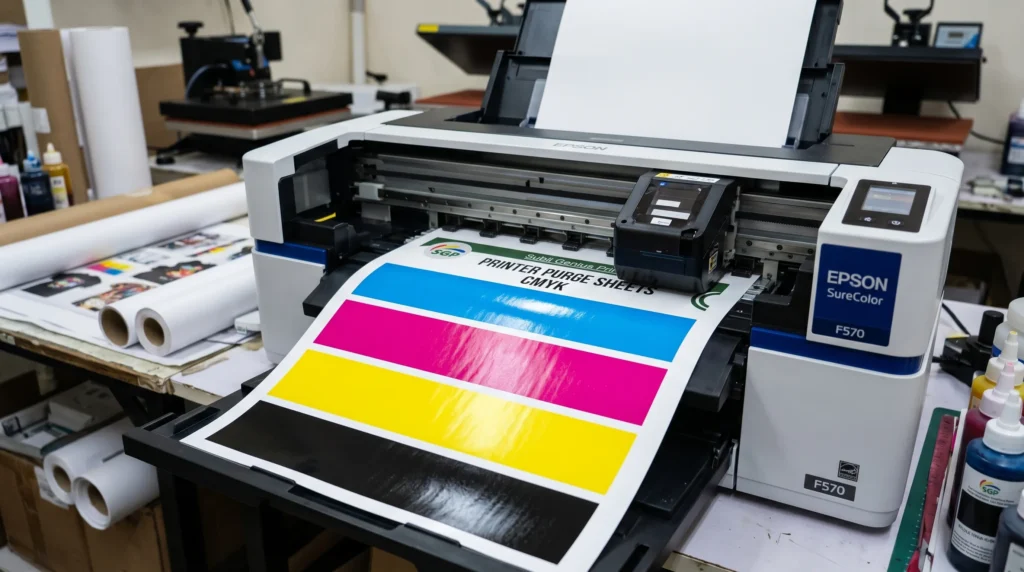
Printer purge sheets are high-coverage color files you can print when a nozzle check shows a weak or missing ink channel. Use the matching cyan, magenta, yellow, black, or CMYK file below, then run another nozzle check to see whether the pattern improves.
A purge sheet is an optional troubleshooting print, not a replacement for your printer’s built-in nozzle check or cleaning functions. Start with diagnosis, use the smallest useful purge file, and stop if the nozzle pattern is not improving.
The downloads on this page include individual CMYK colors plus full CMYK, 6-color, and 8-color files. The 6-color and 8-color files should only be used when their color channels match the ink set installed in your printer.
What Is a Printer Purge Sheet?
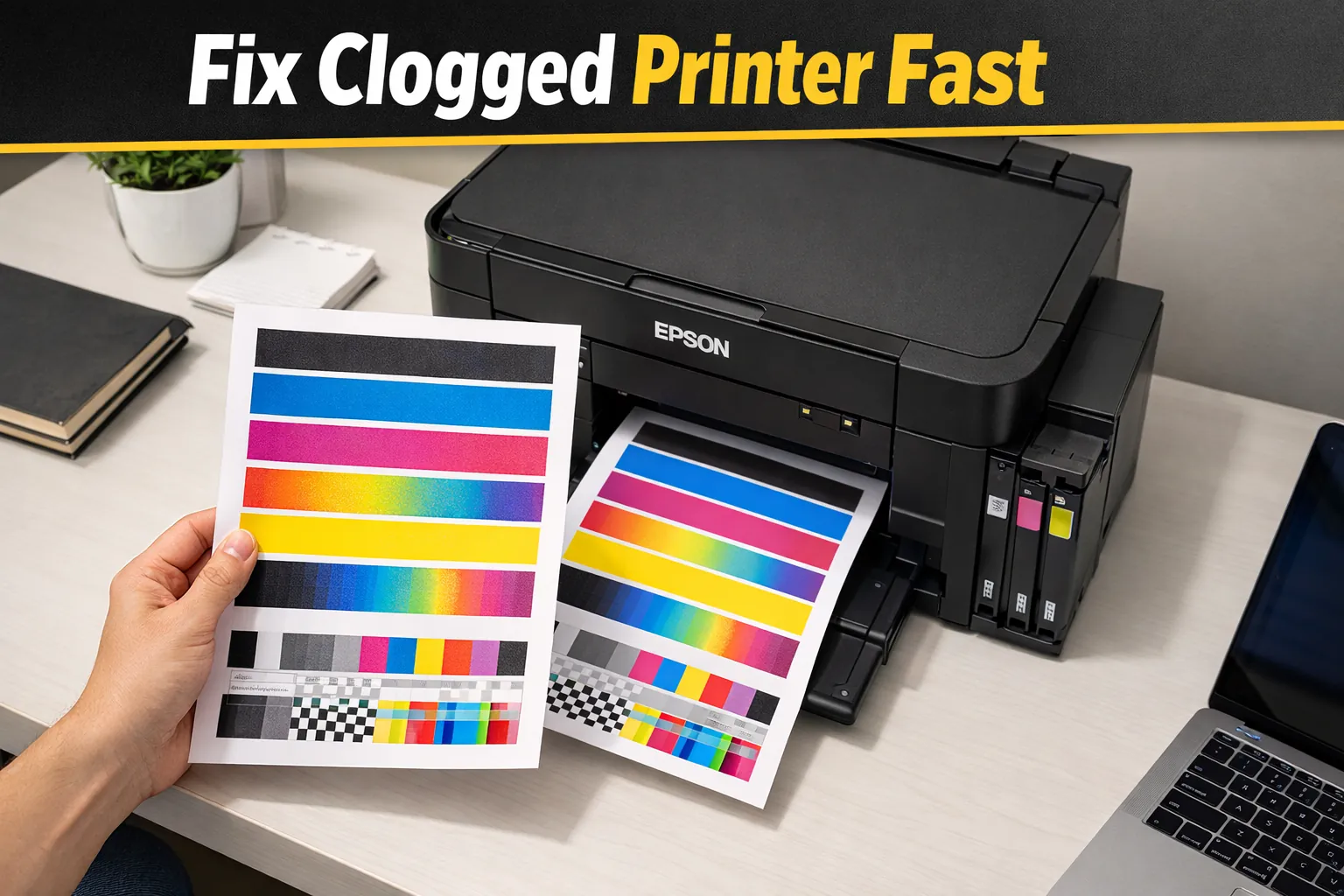
A printer purge sheet is a high-coverage color file that repeatedly prints one or more ink channels. It can be useful when a nozzle check shows small gaps or a weak color, because it gives that channel sustained print activity without opening the printer.
It is not the same as a nozzle check. A nozzle check is a diagnostic pattern that shows which channels are firing correctly. A purge sheet is an optional follow-up print after you already know which color is weak.
For Epson printers, use the built-in nozzle check and cleaning functions described in the model documentation as the primary maintenance workflow. A purge file should support that process, not replace it.
Download Free Printer Purge Sheets
Run a nozzle check first, then choose the smallest purge file that matches the problem. If one channel is weak, use that individual color instead of automatically printing a full CMYK page.
| Nozzle check result | Purge file to try |
|---|---|
| Cyan weak or missing | Cyan purge file |
| Magenta weak or missing | Magenta purge file |
| Yellow weak or missing | Yellow purge file |
| Black weak or missing | Black purge file |
| Several CMYK channels show small gaps | Full CMYK purge sheet |
| Nozzle check is clean | Do not use a purge sheet for clog diagnosis |
Important: 6-color and 8-color purge files are not universal. Only use them when the file’s color channels match the inks installed in your printer.
Full Printer Purge Sheet (CMYK)
Download:
Use the full CMYK page when the nozzle check shows small gaps in several CMYK channels. If only one color is weak, the matching individual-color file uses less ink and gives you a cleaner test.
6 Color Purge File
Download:
This 6-color file is for printers whose installed ink channels match the colors in the PDF. Check the printer’s actual ink set before using it. A six-channel printer may use a different combination of light or specialty inks.
8 Color Purge File
Download:
This 8-color file is only appropriate when all eight color channels in the PDF match the inks installed in your printer. Do not choose it only because the printer is described as an eight-color model.
Individual Color Purge Files
Use these when only one color is missing or weak.
Magenta Purge File
Download:
Magenta Purge File
Use this file when the nozzle check shows a weak or missing magenta pattern. Print one page, then check the nozzle pattern again.
Black Purge File
Download:
Black Purge File
Use this file when the black channel shows gaps or weak output on the nozzle check. Re-check before deciding whether another maintenance step is needed.
Cyan Purge File
Download:
Cyan Purge File
Use this file when the nozzle check identifies the cyan channel as weak or incomplete. Compare the next nozzle check with the first one.
Yellow Purge File
Download:
Yellow Purge File
Use this file when the yellow channel is the one showing gaps. Stop repeating purge prints if the nozzle check does not improve.
Purge Sheet vs Nozzle Check vs Head Cleaning
| Tool | What it does | Use it when |
|---|---|---|
| Nozzle check | Prints a diagnostic pattern for each channel | First step when color, banding, or missing-line problems appear |
| Purge sheet | Prints sustained coverage from one or more channels | A nozzle check identifies a weak channel and you want a controlled test print |
| Print Head Cleaning | Runs the printer’s built-in maintenance routine | The manufacturer workflow calls for cleaning after a failed nozzle check |
| Power Cleaning | Runs a stronger model-specific maintenance cycle | Only when supported and recommended for your printer model |
Epson’s maintenance sequence uses the nozzle pattern to decide what to do next. That is why a nozzle check should come before repeated purge pages or cleaning cycles.
Which Purge Sheet Should You Print?
Match the file to the channel that is actually weak. If magenta is the only problem, print the magenta page rather than repeatedly using a full CMYK sheet. If several CMYK channels show small gaps, the full CMYK file is the more logical choice.
If the nozzle check is clean, a purge sheet is usually not the right tool for diagnosing color-management, paper, heat-press, or design-file problems.
How to Use a Printer Purge Sheet
- Print the printer’s built-in nozzle check.
- Identify the weak or missing color channel.
- Download the matching individual-color file, or use the CMYK file if several CMYK channels show gaps.
- Use plain copy paper for the diagnostic print unless your printer or workflow requires something different.
- Print one purge page.
- Run another nozzle check.
- Repeat only if the nozzle pattern is measurably improving.
- If there is no useful improvement, stop and follow the printer manufacturer’s maintenance procedure.
If the issue continues, see the site’s sublimation printer cleaning guide. For a persistent blockage, the clogged sublimation printer guide covers the next troubleshooting steps.
When a Purge Sheet Will Not Fix the Problem
Stop printing purge pages when the problem is not responding or the symptoms point to something beyond a minor weak channel.
- The nozzle check shows no improvement after controlled attempts.
- Most lines in one or more channels are missing.
- The printer shows an error code.
- You see an ink leak or paper-path contamination.
- The printer makes unusual mechanical noises.
- A plug, cable, or other electrical component is damaged.
- The same clog returns immediately after apparent improvement.
In those cases, use the model-specific maintenance instructions instead of consuming more paper and ink.
Epson EcoTank Purge Sheet Guides
This page is the broad download hub. Use the model pages below when you need printer-specific nozzle-check and maintenance instructions.
| Printer | Model-specific guide |
|---|---|
| Epson ET-2800 / ET-2803 | ET-2800 / ET-2803 purge sheet guide |
| Epson ET-2400 | ET-2400 purge sheet guide |
| Epson ET-2850 | ET-2850 purge sheet guide |
| Epson ET-15000 | ET-15000 purge sheet guide |
4-Color vs 6-Color vs 8-Color Purge Files
A generic channel count does not guarantee compatibility. Two six-color printers can use different extra inks, and the same is true for eight-color systems.
- 4-color: use when the printer actually uses cyan, magenta, yellow, and black channels that match the file.
- 6-color: confirm the two additional channels before printing the file.
- 8-color: confirm every installed channel matches the purge layout.
If the file contains colors your printer does not use, choose a file that matches the installed ink set instead.
How Often Should You Print Purge Sheets?
There is no universal schedule such as every one or two weeks. Use your printer manufacturer’s maintenance guidance first and use a purge page when a nozzle check identifies a weak channel that you want to test.
A high-coverage purge page uses more ink than a nozzle check, so printing one without a diagnostic reason is usually unnecessary. If your printer has been idle, start with its normal nozzle-check procedure rather than automatically printing a full-page purge file.
Why Purge Sheets Can Help
A purge page repeatedly fires the selected channel across a much larger printed area than a nozzle check. When a problem is minor, that sustained printing can sometimes improve a weak channel enough to show a clearer nozzle pattern on the next check.
It should not be treated as proof that dried ink has been physically removed or that every clog can be cleared by printing. The useful measurement is the nozzle check before and after the attempt.
Common Purge Sheet Mistakes
- Skipping the nozzle check and guessing which color is failing.
- Using a full CMYK page when only one color is weak.
- Printing repeated pages without checking whether the nozzle pattern improves.
- Assuming every 6-color or 8-color file fits every printer with the same channel count.
- Continuing after the printer shows an error, leak, or mechanical problem.
- Treating a clean nozzle check as evidence that a color-profile or heat-transfer problem needs more purging.
Frequently Asked Questions
Is a purge sheet the same as a nozzle check?
No. A nozzle check is a diagnostic pattern that shows which ink channels have gaps. A purge sheet is a high-coverage print you can use after the nozzle check identifies a weak channel.
Which purge sheet should I use for missing magenta?
If the nozzle check shows only magenta is weak or missing, start with the magenta purge file rather than a full CMYK page. Run another nozzle check afterward to measure improvement.
Can I print a purge sheet on plain paper?
For a diagnostic purge print, plain copy paper is usually the practical choice unless your printer or workflow requires something different. The goal is to test ink-channel output, not to make a transfer.
How many purge sheets should I print?
Start with one matching purge page, then run another nozzle check. Repeat only when the nozzle pattern is measurably improving. If there is no useful change, stop and follow the manufacturer maintenance procedure.
Can a purge sheet damage a printer?
A normal print file does not replace the printer’s maintenance system, but repeated high-coverage pages can waste ink and paper. Stop if the printer reports an error, shows a leak, makes unusual noises, or the nozzle pattern is not improving.
What if a purge sheet does not improve the nozzle check?
Move to the model-specific cleaning workflow instead of printing more purge pages. Use the built-in cleaning function or other maintenance steps recommended for your printer.
Do Epson printers have an official purge-sheet function?
Epson documentation centers on built-in nozzle checks and cleaning functions rather than a downloadable purge-sheet feature. Treat the PDFs on this page as optional troubleshooting prints alongside the manufacturer’s maintenance workflow.