Epson ET-2850 Purge Sheet: CMYK Files + Nozzle Check Guide

An Epson ET-2850 purge sheet can help when one sublimation ink color is printing weak, missing, or uneven, but the purge page should not be your first diagnostic step.
Print an ET-2850 nozzle check first. It tells you whether cyan, magenta, yellow, or black is actually failing. From there, a targeted color purge page can help you exercise the affected channel without repeatedly printing colors that are already working.
Epson’s own maintenance sequence relies on nozzle checks, Print Head Cleaning, and Power Cleaning when necessary. A purge sheet is an optional printing aid, not a replacement for those built-in maintenance functions.
Quick ET-2850 Nozzle Check Decision Table
Use the nozzle pattern to decide what comes next instead of running cleaning cycles automatically.
| Nozzle check result | What to do next |
|---|---|
| All lines complete | Stop. The nozzles do not need cleaning. |
| A few gaps in one color | A targeted purge page may be useful, followed by another nozzle check |
| Gaps or faint lines remain | Run Epson Print Head Cleaning |
| Most of one or more patterns are missing | Follow Epson’s Power Cleaning guidance |
| Cleaning shows no improvement | Stop repeated cleaning and allow the printer to rest |
| Nozzle check is clean but colors are wrong | Check ICC profile, ink, driver settings, paper, and color management |
Epson says a clean nozzle pattern needs no further cleaning. If the pattern contains gaps or looks faint, run Print Head Cleaning. If most of the pattern is missing, Epson directs the user toward Power Cleaning.
Download the Epson ET-2850 CMYK Purge Sheet Pack
The planned ET-2850 purge-sheet pack contains five printable pages:
- Cyan purge sheet
- Magenta purge sheet
- Yellow purge sheet
- Black purge sheet
- Combined CMYK diagnostic sheet
Download the Epson ET-2850 CMYK Purge Sheet PDF
The individual color pages are useful when the nozzle check clearly identifies one weak channel. The combined CMYK page is better when several colors look weak or you need a quick visual comparison.
For other Epson models and general purge files, use the printer purge sheet PDF library.
Which ET-2850 Purge Sheet Should You Print?
Match the purge page to what the nozzle check shows.
| Problem shown by nozzle check | Purge page to try |
|---|---|
| Cyan missing or broken | Cyan |
| Magenta missing or broken | Magenta |
| Yellow missing or broken | Yellow |
| Black missing or broken | Black |
| Two or more colors weak | Combined CMYK |
| No gaps at all | Do not use a purge page for clog troubleshooting |
A full CMYK sheet is not automatically better. If only yellow is failing, repeatedly printing cyan, magenta, and black at the same time only uses additional ink.
Target the channel that actually needs attention.
Print a Nozzle Check Before Using a Purge Sheet
A nozzle check is the fastest way to tell whether your ET-2850 has an ink-flow problem.
On the ET-2850 control panel, Epson provides the nozzle check under the printer’s Maintenance menu. Load plain paper, print the pattern, then look for complete or broken lines.
Epson divides the result into three practical conditions:
| Pattern | Meaning |
|---|---|
| Complete pattern | Print head is clean |
| Gaps or faint sections | Print head needs cleaning |
| Most lines missing | More severe clogging and Power Cleaning may be required |
Epson also recommends plain paper for the nozzle-check procedure.
Why the nozzle check matters
Suppose your sublimation design should contain red but the printed transfer comes out green or yellow.
That can look like an ICC profile problem, but red requires magenta as part of the color mixture. If the magenta nozzles are not firing, changing profiles will not restore the missing ink.
The nozzle check separates ink-flow failure from color-management failure before you start changing unrelated settings.
For a deeper comparison, see Epson purge files vs nozzle checks.
How to Use an Epson ET-2850 Purge Sheet
Use the purge sheet as a controlled diagnostic print rather than printing page after page and hoping the clog clears.
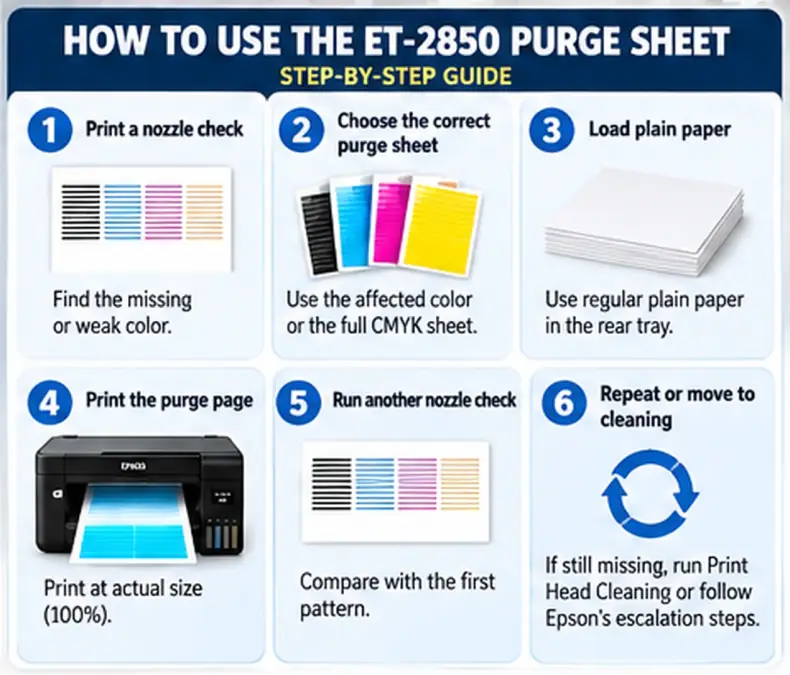
- Print an ET-2850 nozzle check.
- Identify the weak or missing ink channel.
- Load ordinary plain paper.
- Print the matching cyan, magenta, yellow, or black purge page.
- Allow the print job to finish normally.
- Print another nozzle check.
- Compare the new pattern with the first one.
- Stop when the nozzle pattern is complete or when purge printing stops producing improvement.
The important part is step 7. The nozzle pattern, not the appearance of the purge page alone, tells you whether the print head is improving.
How many purge sheets should you print?
There is no reliable universal number.
Advice online ranges from a few pages to very large batches, but a fixed number ignores what the printer is actually doing. A better approach is to print conservatively and check the nozzle pattern between attempts.
If the pattern does not improve, do not continue feeding dozens of solid-color pages through the printer.
Move back to Epson’s documented maintenance process.
Purge Sheet vs Nozzle Check vs Head Cleaning
These tools do different jobs.
| Tool | Main job | Best time to use |
|---|---|---|
| Nozzle Check | Shows which nozzles are firing | Always diagnose first |
| Purge Sheet | Sends a controlled color through normal printing | Optional aid for an identified weak channel |
| Print Head Cleaning | Runs Epson’s built-in nozzle-cleaning cycle | When nozzle pattern has gaps or faint sections |
| Power Cleaning | Moves a larger amount of ink through the system | Severe or persistent ink-flow problems |
A purge page is simply a print file. The printer processes it like other artwork.
Head Cleaning and Power Cleaning are maintenance routines built into the ET-2850.
This distinction matters because repeatedly printing purge pages will not solve every type of blockage, while repeatedly running cleaning cycles can consume unnecessary ink.
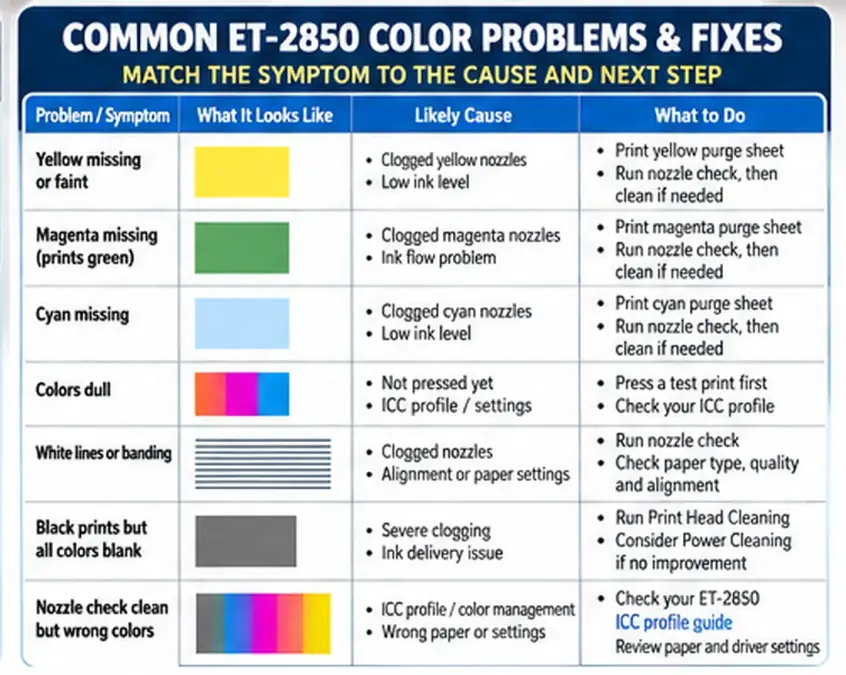
Magenta Is Missing and the ET-2850 Prints Green
A missing magenta channel can cause reds, neutral grays, purples, and other mixed colors to shift dramatically.
Start with the nozzle pattern.
If the magenta section has gaps or is completely missing:
- Do not adjust the ICC profile yet.
- Print the magenta purge page.
- Run another nozzle check.
- If the channel remains broken, use Epson Print Head Cleaning.
- Recheck before escalating further.
A color cast caused by missing ink cannot be corrected reliably with software.
Nozzle check clean but colors are still green?
That changes the diagnosis.
If cyan, magenta, yellow, and black all print correctly on the nozzle check but your sublimation colors are still shifted, inspect your ICC profile and color-management workflow instead.
Use our Epson ET-2850 ICC profile guide to check the profile source, ink compatibility, driver color management, and common color-shift problems.
That link is especially useful when the printer itself is healthy but pressed colors remain wrong.
Yellow Purge Sheet Prints Pink, Orange, or Very Faint
A yellow purge page that does not look yellow does not automatically mean the purge file is bad.
Run a nozzle check and look specifically at the yellow pattern.
Possible situations include:
| What you see | What to check |
|---|---|
| Yellow nozzle pattern is mostly missing | Ink-flow problem |
| Yellow pattern has scattered gaps | Partial nozzle blockage |
| Yellow pattern is clean but solid yellow looks wrong | Check ink, color settings, paper, and file |
| Purge sheet improves with each attempt | Continue cautiously and recheck the nozzle pattern |
| Nothing improves | Stop purge printing and use Epson maintenance |
Do not judge sublimation ink only by how bright it appears on ordinary paper. The goal of a purge page is to check whether ink is flowing consistently through the channel.
Cyan Is Missing or Weak
Use the same diagnostic order for cyan.
Print the nozzle check first. If cyan shows gaps, a targeted cyan page can exercise that channel without sending large amounts of magenta, yellow, and black at the same time.
After the purge print, run another nozzle check.
A cleaner pattern means ink flow changed. A pattern that looks exactly the same tells you the purge print is not solving the problem and you should move to the printer’s maintenance routine.
Black Prints but Cyan, Magenta, and Yellow Are Blank
When black works but most or all color channels are missing, treat the problem as more serious than one small nozzle gap.
Do not spend hours printing full-page CMYK sheets if the nozzle pattern shows that the color channels are almost entirely absent.
Epson says that when most of the nozzle-check lines are missing or not printed, Power Cleaning is the next maintenance level rather than repeated ordinary cleaning.
Check the actual tank levels before doing anything aggressive.
If the printer has recently been converted to sublimation, refilled after running very low, or left unused for a long period, ink delivery through the tubes can also become part of the diagnosis.
ET-2850 Printing White Lines or Horizontal Banding
White lines are often associated with clogged nozzles, but a clog is not the only possible cause.
Epson lists several checks for white or dark lines on ET-2850 output:
- Run a nozzle check and clean the print head if required.
- Confirm the paper-type setting matches the paper.
- Load the correct printable side.
- Turn off high-speed printing.
- Align the print head.
- Check print-quality settings.
- Check ink levels.
- Inspect the paper path when smearing or vertical banding is present.
If the nozzle check has gaps
Work on the ink-flow problem first.
A purge page, followed by another nozzle check, can show whether the affected channel is improving.
If the nozzle check is perfect
Stop cleaning.
Look instead at alignment, paper settings, print quality, high-speed mode, and the print job itself.
Our guide to preventing banding, clogging, and print-head problems covers the broader causes without turning every line problem into a clogged-nozzle diagnosis.
When to Run Print Head Cleaning on an ET-2850
Use Epson Print Head Cleaning when the nozzle pattern contains gaps or faint sections.
Epson’s ET-2850 procedure follows a simple loop:
Nozzle check → Head Cleaning when needed → nozzle check again.
If the pattern becomes complete, stop cleaning.
If there is no improvement after cleaning the print head up to three times, Epson says to turn the printer off and wait at least 12 hours. After that rest period, run another nozzle check and try cleaning again. If quality still does not improve, Power Cleaning is the next documented escalation.
Repeated cleaning without checking the pattern wastes ink and gives you little information about whether the printer is improving.
When to Use Power Cleaning
Power Cleaning is for more serious or persistent ink-flow problems. It should not be the automatic next step after one bad sublimation print.
Epson warns that Power Cleaning consumes a large amount of ink. Before running it, each ET-2850 ink tank must be at least one-third full. Epson also warns that running Power Cleaning with low ink can damage the printer.
Use it when the nozzle pattern and previous maintenance justify the escalation.
Epson’s Power Cleaning conditions
According to Epson:
- Power Cleaning is appropriate when missing nozzles remain after repeated Print Head Cleaning.
- It may be appropriate when most of the nozzle-check pattern is missing.
- Each tank should be at least one-third full.
- Run another nozzle check after Power Cleaning.
- Wait at least 12 hours before running another Power Cleaning if the first attempt does not fix the problem.
- Power Cleaning uses substantial ink.
- It can cause the printer’s ink pads to reach their service limit sooner.
That is why a purge sheet, ordinary Head Cleaning, and Power Cleaning should not be treated as interchangeable actions.
When a Purge Sheet Will Not Fix Your ET-2850
A purge page only helps when normal printing through an ink channel is relevant to the problem.
It will not correct every ET-2850 issue.
| Problem | Better place to look |
|---|---|
| Nozzle check clean but colors wrong | ICC profile and color management |
| Design prints the wrong size | Printer/software settings |
| Horizontal lines with clean nozzles | Alignment, quality, high-speed mode, paper |
| Blank page caused by a print-job error | Software, driver, document settings |
| Paper is smearing | Paper path and media setup |
| Persistent severe ink-delivery failure | Epson maintenance/support |
| Wrong colors after heat pressing | ICC, ink, substrate, press settings |
If your ET-2850 produces a completely blank page even though the print job appears to run normally, use the sublimation printer blank-page troubleshooting guide to separate ink-flow problems from software and setup issues.
Do not change the ICC profile to fix a missing nozzle
An ICC profile changes color conversion. It does not physically restore ink flow through a blocked nozzle.
If the nozzle check has missing sections, repair the ink-flow problem first.
If the nozzle check becomes complete and the pressed colors are still wrong, then move to the ET-2850 sublimation ICC profile setup.
That order prevents you from trying to compensate for a mechanical ink problem with software.
ET-2850 Maintenance After the Nozzles Are Clear
Once the nozzle check is clean, stop cleaning and return to normal printing.
A few habits make troubleshooting easier later:
- Use the printer’s power button when shutting it down.
- Check the nozzle pattern before an important production run if output looks suspicious.
- Avoid unnecessary Head Cleaning when the pattern is already complete.
- Watch the physical ink levels instead of waiting for a channel to disappear.
- Keep a record of which color channel had the problem and what corrected it.
For ongoing purge-page frequency, see how often to print purge sheets on a sublimation printer.
That article covers routine frequency. This ET-2850 page should remain focused on diagnosing an active print problem.
Epson ET-2850 Purge Sheet FAQ
Can I use a purge sheet on an Epson ET-2850 converted for sublimation?
Yes. A purge sheet is simply a color print file, so an ET-2850 running sublimation ink can print one. Use it as an optional diagnostic aid after a nozzle check rather than treating it as a replacement for Epson’s built-in maintenance functions.
Does the ET-2850 need a special purge file?
It does not need a proprietary ET-2850 file format. A useful purge pack separates cyan, magenta, yellow, and black so you can target the ink channel identified by the nozzle check.
Should I print the full CMYK page or only the missing color?
Use the individual color page when the nozzle check clearly shows one weak channel. A combined CMYK page makes more sense when several channels appear weak or you want to compare them in one print.
Why does my yellow purge sheet print pink?
Check the yellow section of the nozzle pattern first. If yellow is missing or severely restricted, the printer cannot reproduce the intended solid yellow correctly. Fix the ink-flow problem before changing ICC profiles.
Why is my ET-2850 printing green instead of red or gray?
A missing or weak magenta channel can cause major green or yellow shifts. Run a nozzle check. If all channels are complete, move to the ET-2850 ICC profile and color-management checks.
How many purge sheets should I print?
There is no fixed number that applies to every clog. Print conservatively and run another nozzle check. If the pattern stops improving, move to Epson’s documented cleaning process instead of printing an arbitrary stack of purge pages.
Is a purge sheet better than Print Head Cleaning?
They serve different purposes. A purge sheet pushes an image through a selected color channel during normal printing. Epson’s Print Head Cleaning is a built-in maintenance procedure specifically intended for nozzle problems. Epson’s official ET-2850 workflow relies on nozzle checks and cleaning when gaps appear.
When should I use Power Cleaning?
Power Cleaning is for more severe or persistent problems, such as a nozzle pattern with most lines missing or failed improvement after normal cleaning. Epson requires the tanks to be at least one-third full and warns that the procedure consumes substantial ink.
Can I run Power Cleaning repeatedly?
Do not run it repeatedly without following Epson’s waiting interval. Epson says to turn the printer off and wait at least 12 hours before another Power Cleaning when the first attempt does not improve the output.
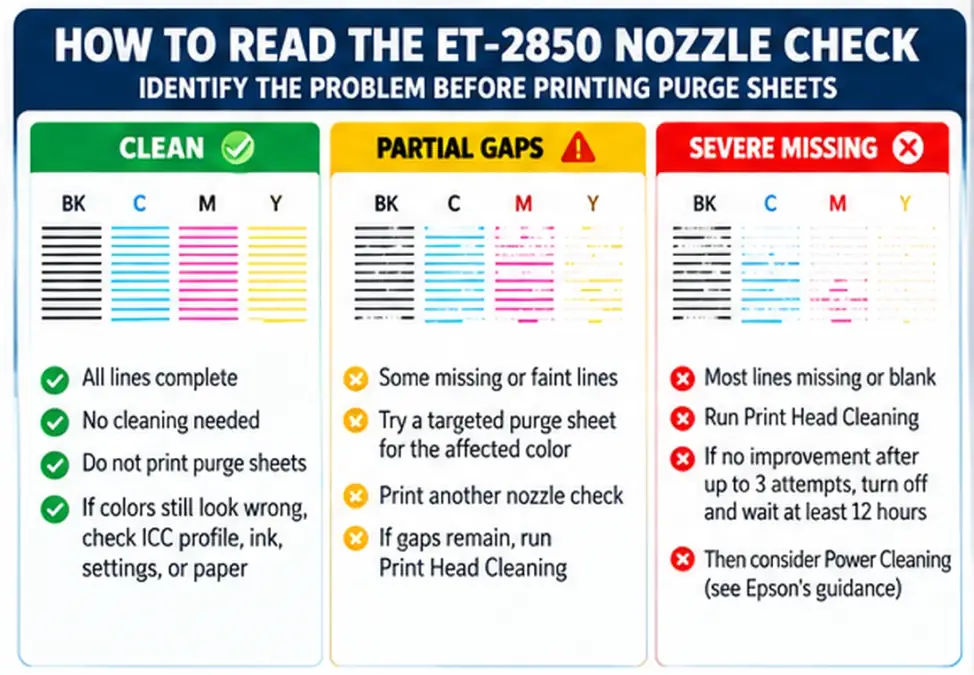
Use the Nozzle Check to Decide the Next Step
The most useful ET-2850 purge workflow is not “print purge sheets until the color comes back.”
Use the nozzle pattern as your decision tool.
Start with a nozzle check. Target only the weak channel when a purge page makes sense. Print another nozzle check and compare the result. If the pattern still has gaps, move through Epson’s Head Cleaning process. Save Power Cleaning for the conditions Epson describes as severe or persistent.
If the nozzle pattern is complete but sublimation colors still look wrong, stop cleaning the printer. At that point the more useful next check is your Epson ET-2850 ICC profile, ink, and color-management setup.
For purge files for other printer models, use the free printer purge sheet resource hub.