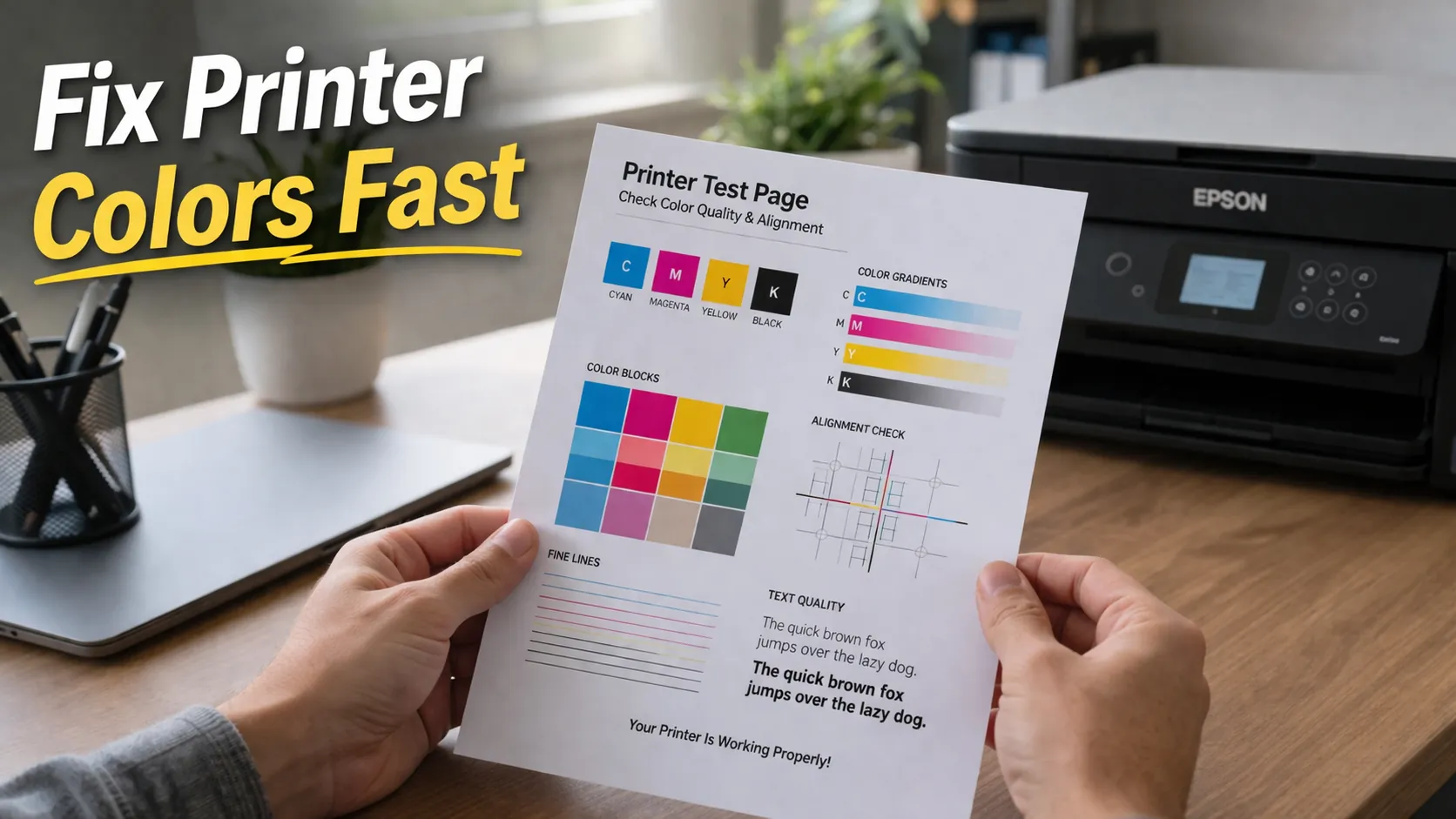
Color Printer Test Page: How to Check and Fix Print Colors

If your prints look dull, faded, or completely different from what you see on your screen, the problem usually isn’t your design it’s your color output.
A color printer test page is the fastest way to diagnose what’s going wrong. Instead of guessing settings or wasting ink, you can clearly see whether your printer is producing accurate colors.
In this guide, you’ll learn how to print a color test page, how to read it correctly, and how to fix the most common color problems.
What Is a Color Printer Test Page?
A color printer test page is a diagnostic print designed specifically to check how accurately your printer produces colors.
Unlike a general printer test, this one focuses on:
- Color balance
- Ink distribution
- Gradient smoothness
- Color consistency
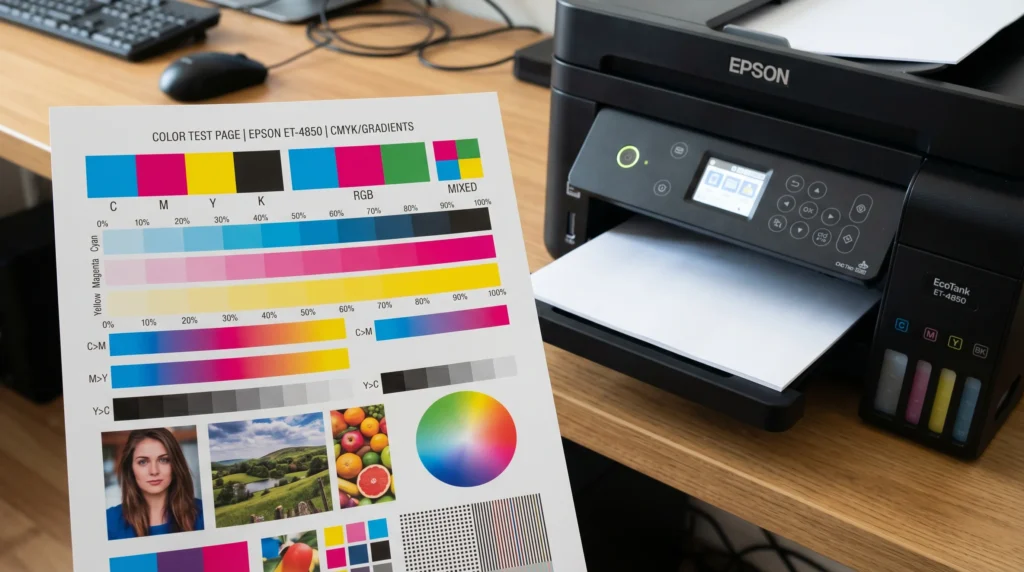
What a Color Test Page Includes
Most color test pages contain:
- CMYK color blocks (Cyan, Magenta, Yellow, Black)
- Gradient transitions from light to dark
- Color blending sections
- Saturation and contrast samples
These elements help you quickly identify whether your printer is producing clean, accurate colors.
If you’re new to testing, it helps to first understand the basics in this printer test page guide.
When Should You Use a Color Test Page?
Many beginners only check prints after something goes wrong. A better approach is to test early.
Use a color printer test page when:
- Your prints look faded or dull
- Colors don’t match your screen
- You’ve replaced ink cartridges
- You’ve cleaned the print head
- You’re preparing for important print jobs
If you’re doing sublimation printing, this step is critical. Small color issues can become much more noticeable after heat pressing.
How to Print a Color Printer Test Page
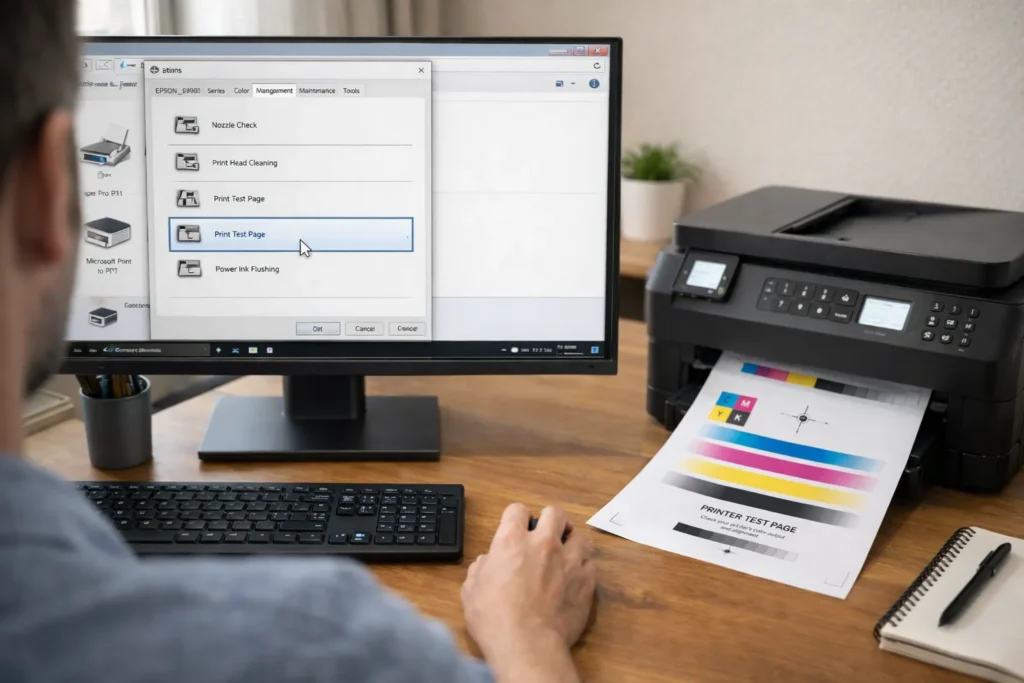
Using Printer Settings
Most printers include a built-in test option.
- Open printer settings
- Go to maintenance or tools
- Select “Print Test Page” or “Color Test”
This gives you a quick diagnostic output.
Using Downloadable Color Test Pages
Downloadable test pages are often more detailed and reliable.
They provide:
- Better gradient testing
- More accurate color blocks
- Consistent results across printers
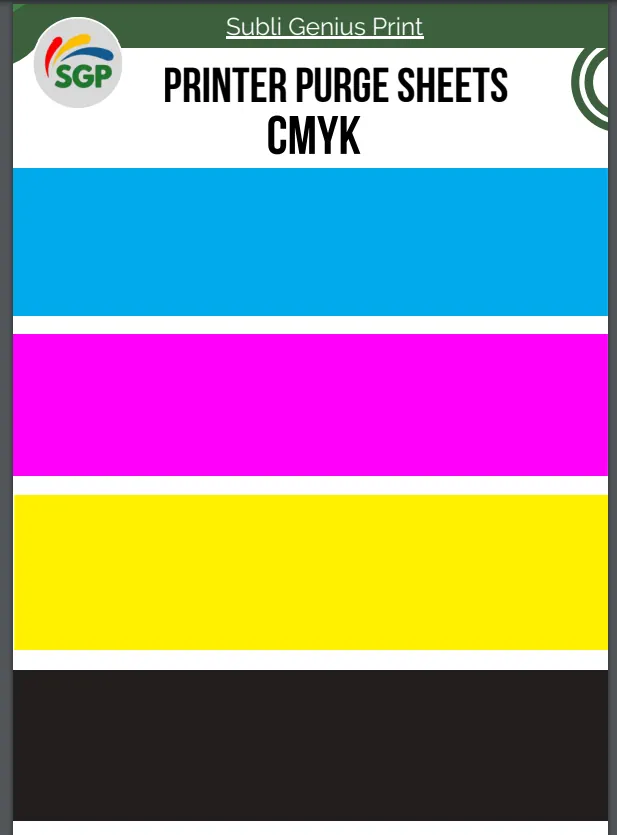
You can use ready-made files from this printer purge sheets and test files resource to test and clean your printer at the same time.
Using Design Software (Advanced Method)
If you want full control:
- Create a CMYK color chart
- Print at high quality settings
- Disable color adjustments
This method is useful for professionals and sublimation workflows.
How to Read a Color Printer Test Page
Printing a test page is only useful if you know what to look for.
What Good Colors Look Like
A healthy printer will produce:
- Bright, vibrant colors
- Smooth gradients
- No visible lines or gaps
- Even color distribution
Faded Colors
If colors look weak or washed out:
- Ink levels may be low
- Print quality may be set to draft
- Incorrect settings may be applied
Incorrect Color Tones
If colors look wrong (like blue appearing purple):
- Your color profile is likely incorrect
Fixing this usually requires proper color correction and ICC profile setup.
Banding or Lines
If you see lines across colors:
- Your print head may be clogged
You’ll need proper sublimation printer maintenance to restore smooth output.
Color Shifting
If colors look different from your screen:
- RGB vs CMYK mismatch
- Incorrect print settings
- Monitor not calibrated
Common Color Test Page Problems (And Fixes)
Colors Look Washed Out
Fix:
- Increase print quality settings
- Check ink levels
- Use correct paper
Colors Are Too Dark
Fix:
- Adjust color settings
- Reduce ink density
- Check profile settings
Colors Don’t Match Screen
Fix:
- Use proper color profiles
- Calibrate your display
- Print using correct color mode
Missing Colors
Fix:
- Run a nozzle check
- Clean the print head
- Replace empty cartridges
If your colors don’t match what you expect, it’s often related to how your printer handles color processing. Modern printers rely heavily on calibration and color accuracy systems, as explained in this color accuracy in modern printing guide, which highlights how printers manage consistent color output.
Best Practices for Accurate Color Testing
To get reliable results:
- Always print in high quality mode
- Avoid draft settings
- Use proper paper
- Let prints dry before evaluating
- Check colors under good lighting
Skipping these steps can lead to misleading results and wrong adjustments.
Color Test Page vs Regular Test Page
These two are related but serve different purposes.
- A color test page focuses on color accuracy
- A general test page checks overall printer function
If you need a full diagnostic overview, refer back to the printer test page guide.
When a Color Test Page Is Not Enough
Sometimes the issue goes deeper than basic testing.
If problems continue, it may involve:
- Incorrect ICC profiles
- Hardware issues
- Advanced color calibration problems
In that case, follow a complete sublimation troubleshooting guide to fix the root cause.
Quick Summary
A color printer test page helps you:
- Check color accuracy
- Detect ink issues
- Identify print head problems
- Fix color mismatches quickly
It’s one of the most important steps for maintaining consistent print quality.
Frequently Asked Questions
Can I print a color test page without software?
Yes, many printers allow basic color tests directly from the control panel.
Why are my colors dull on the test page?
This usually means low ink, incorrect settings, or wrong color profiles.
Do I need a color test page for sublimation?
Yes, it ensures accurate color transfer before heat pressing.
What’s the difference between CMYK and RGB test pages?
CMYK is used for printing, while RGB is used for screens.
How often should I check color accuracy?
Check whenever you change ink, paper, or notice color issues.