Silhouette Studio for Sublimation: Free Download and Setup Guide

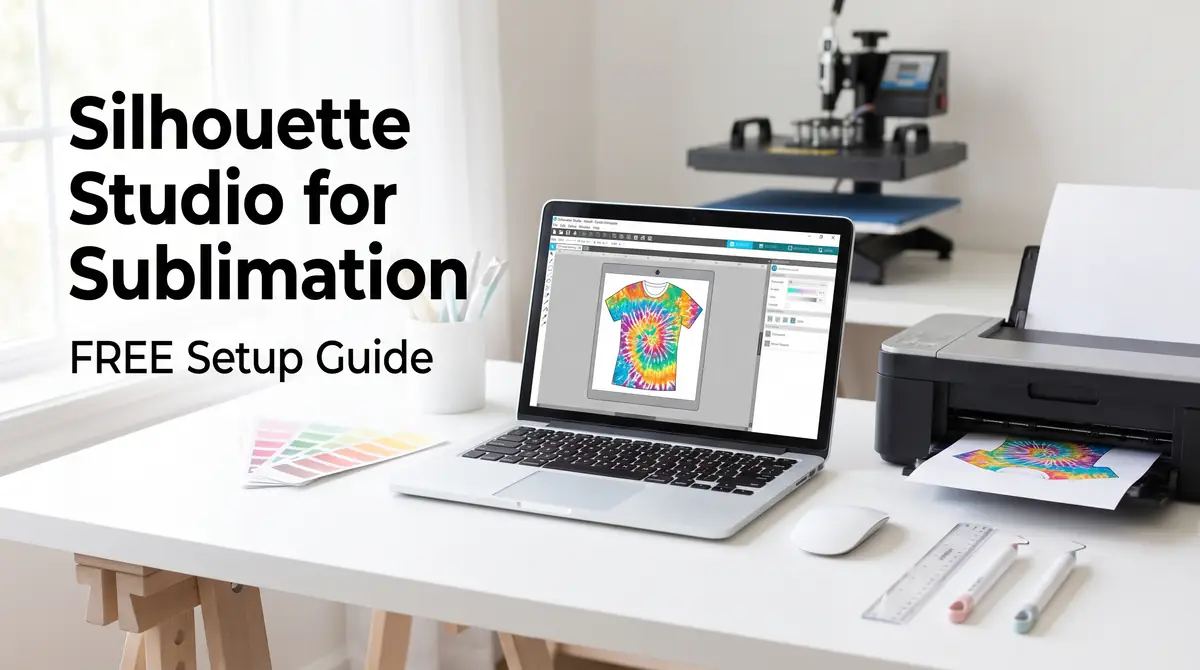
Silhouette Studio isn’t sublimation software in the strict sense, but it handles the design and layout side of a sublimation workflow well, and the free version covers most beginner needs without a subscription.
The parts that actually control your print quality, color accuracy, and heat settings still come down to your printer, your ICC profile, and your press.
Once your design workflow is sorted, the rest of your studio setup is what determines whether your prints turn out consistent.
If you haven’t nailed down the equipment side yet, this guide to building a budget sublimation studio setup covers the printer, press, and paper choices that pair with the software decisions in this guide.
Quick answer: Yes, you can use Silhouette Studio for sublimation. It works as free design and print layout software. It doesn’t apply sublimation ink or control print color on its own, and you don’t need to own a Silhouette cutting machine to use it for this purpose.
Can You Use Silhouette Studio for Sublimation?
Silhouette Studio was built to design and prepare files for Silhouette’s own cutting machines, like the Cameo and Portrait. That’s its core job. But a large part of what sublimation crafters need before printing, resizing designs, arranging multiple images on a page, mirroring text, and setting up a clean print layout, is exactly what Studio was designed to do.
What Silhouette Studio Actually Does
Think of Studio as a design and layout tool, not a sublimation tool. It handles:
- Creating or importing artwork and arranging it on a virtual page
- Resizing and mirroring designs before they’re printed
- Grouping multiple images together to fill a full sheet of sublimation paper efficiently
- Sending the finished layout to your printer
What it doesn’t do is apply sublimation ink, control heat press settings, or manage color output on its own. Those parts of the process depend entirely on your printer and the blank you’re pressing onto.
For a full rundown of the equipment sublimation actually requires alongside your design software, see this introduction to sublimation printing.
Do You Need a Silhouette Cutting Machine to Use Studio?
No. This is the part that trips up most beginners. Studio can be downloaded and used purely as design and print layout software, even if you never own a Silhouette cutter.
If your workflow is print-and-press rather than print-and-cut, you can ignore the cutting features entirely and use Studio just to prepare your sublimation designs before sending them to print.
How Printing From Silhouette Studio to a Sublimation Printer Works
Once your design is laid out in Studio, the print process runs through your computer’s normal printer driver, the same as printing from any other program. Studio hands off the layout. Your printer and its settings determine how the colors actually come out.
Studio Doesn’t Control Color, Your Printer Settings Do
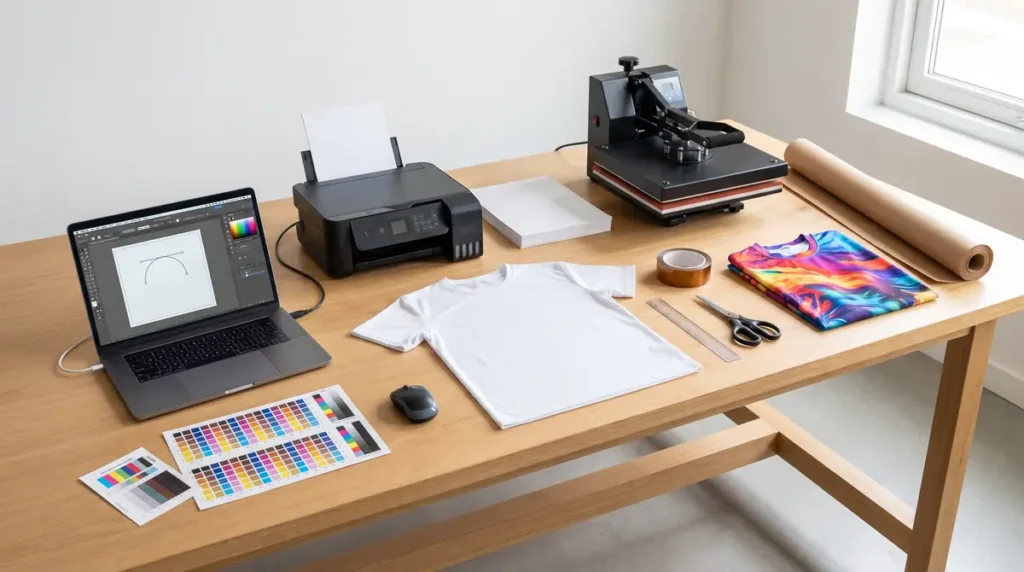
This is the single most misunderstood part of using Studio for sublimation. Studio has no built-in sublimation color management. If your prints look faded, oversaturated, or off compared to your screen, the fix lives in your printer’s settings and ICC color profile, not in Studio itself.
Setting Up a Sublimation Preset in Your Print Driver
Most sublimation printers (or converted inkjets running sublimation ink) let you save a print preset once you’ve dialed in the right paper type, color profile, and quality setting.
Creating that preset once means every future print from Studio uses the correct settings automatically, instead of you reconfiguring the driver each time.
If you’re printing from an Epson setup specifically, this guide to the best sublimation software for Epson printers covers profile setup in more detail.
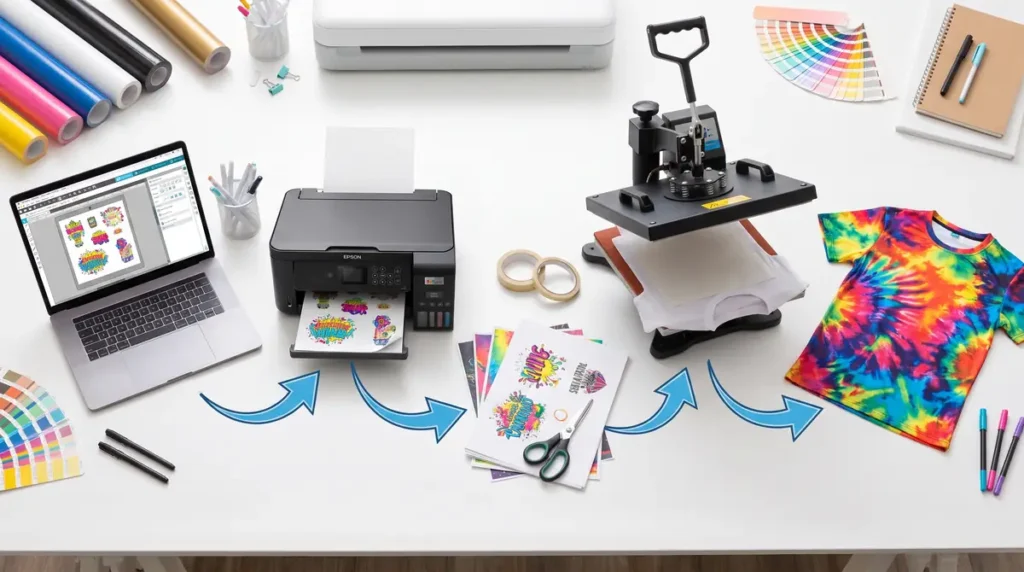
Step-by-Step: Setting Up a Sublimation Print in Silhouette Studio
Basic Workflow: Design, Print, Press
- Create or import your design into Studio and size it to fit your blank.
- Mirror the design horizontally. This step is easy to forget, and skipping it is one of the most common first-project mistakes.
- Arrange your design (or multiple designs) on the page to use your paper efficiently.
- Print using your saved sublimation preset, not a default document setting.
- Trim, tape, and press the transfer according to your blank’s specific time and temperature.
Sizing Images and Working Around Print Area Limits
Studio’s print-and-cut area is limited mainly by your printer’s paper size, not by a fixed software restriction.
That’s a meaningful advantage if you regularly print larger designs for shirts or hoodies, since some other design programs cap the print area well below a full sheet.
If you’re working with oversized designs specifically, this guide on printing large sublimation images without losing quality covers sizing strategies that apply whether you’re tiling a design or fitting it to a single sheet.
Is Silhouette Studio the Best Program for Sublimation Printing?
What “Best” Depends On
There isn’t a single best program for every sublimation workflow, because “best” depends on what you’re actually doing. If you need to design original artwork from scratch, a full graphic design program may serve you better.
If you mainly need to resize, mirror, and lay out designs efficiently before printing, Studio does that job well without a subscription cost.
For a broader comparison of software options across different sublimation workflows, see what program should I use for sublimation.
Why Many Sublimation Sellers Still Choose Studio
Studio earns its place in a lot of sublimation workflows for a few practical reasons:
- It’s free to download and use at a basic level, with no recurring subscription required
- The print-and-cut area scales with your printer rather than a fixed software limit
- It handles multi-design page layouts cleanly, which saves paper
- It works offline once installed, so you’re not dependent on an internet connection to design or print
How Much Does Silhouette Studio Cost? Free Version vs Paid Editions
Silhouette Studio is free to download and use at its base level, and that free version covers most of what a sublimation workflow needs: importing artwork, resizing, mirroring, and page layout. The paid upgrades exist mainly for features outside of basic sublimation prep.
What’s Included Free
The free Basic Edition covers core design tools, shape creation, text, tracing, and page layout for printing. For sublimation specifically, this is typically enough to design, mirror, arrange, and print your files without paying anything.
Designer, Designer Plus, and Business Edition Upgrades
Studio offers three paid upgrade tiers above the free version, each unlocking additional features rather than replacing the software entirely.
| Edition | Typical Use Case | Cost Structure |
|---|---|---|
| Basic (Free) | Design, resize, mirror, and layout for printing. Covers most sublimation needs. | Free |
| Designer / Designer Plus | Adds more advanced design and cutting tools, useful mainly for cutting-machine owners. | One-time paid upgrade |
| Business Edition | Adds file export formats like SVG, PNG, and JPEG, plus tools aimed at higher-volume production. | One-time paid upgrade, commonly priced in the $50 to $100 range depending on retailer and current promotions |
Business Edition is a one-time purchase, not a subscription, and pricing varies by retailer and sale timing.
For most beginners doing straightforward sublimation layout work, the free version is enough to start. The Business Edition mainly matters if you need to export your designs as image files for use in other software.
Silhouette Studio vs Cricut Design Space for Sublimation
Both programs can prepare sublimation designs, but they’re built around different priorities, and the differences matter more once you’re printing at volume.
| Factor | Silhouette Studio | Cricut Design Space |
|---|---|---|
| Cost | Free at the base level, with optional one-time paid upgrades | Free to use, with an optional paid subscription for premium design assets |
| Access | Downloaded software, works offline once installed | Primarily web-based, with limited offline functionality |
| Print area for sublimation | Limited mainly by your printer’s paper size | Limited to a set of fixed print-and-cut sizes, which can restrict larger designs |
| File export | Free version exports PDF; paid Business Edition adds SVG, PNG, and JPEG export | Does not support exporting designs as image or cut files |
| Learning curve | Slightly steeper for complete beginners, more design flexibility | Generally easier to pick up for first-time users |
Which One Fits Your Sublimation Workflow
If you’re printing larger sublimation designs regularly, or you want to design and export your own artwork for reuse elsewhere, Studio’s larger print area and export options tend to fit better.
If you’re brand new to design software and mainly working with smaller designs on a Cricut machine you already own, Design Space is the easier starting point.
Many sellers who own a Cricut machine still use it for sublimation work; if that’s your setup, this guide on using Cricut for sublimation walks through the process specific to that software, and how to print sublimation on Cricut step by step covers the print-then-press workflow in detail.
Frequently Asked Questions
Can I use Silhouette Studio for sublimation?
Yes. Silhouette Studio works as free design and print layout software for sublimation projects. It doesn’t apply ink or manage print color itself, and you don’t need a Silhouette cutting machine to use it this way.
What is the best program to print sublimation images?
There’s no single best option for every workflow. Silhouette Studio suits sellers who need larger print areas and file export options, while simpler tools may suit those who only need basic resizing and layout. The right choice depends on your printer, your design needs, and whether you already own a specific cutting machine.
How much does Silhouette Studio cost?
The base version is free and covers most sublimation design and layout needs. Paid upgrades, including the Business Edition, are one-time purchases rather than subscriptions, and are typically priced in the $50 to $100 range depending on the retailer and any current promotions.
What’s better, Cricut or Silhouette Studio?
Neither is universally better. Silhouette Studio offers a larger print area for sublimation and more file export options once upgraded. Cricut Design Space is generally easier for complete beginners but limits print-and-cut size and doesn’t support exporting your designs as image files.