
Cricut Design Space Not Working? Fix Crashes, Login & Errors Fast

If Cricut Design Space keeps crashing, won’t load, or refuses to let you log in, you’re not alone. These issues are common, especially when you’re trying to finish a project quickly. For related planning, see What Is a Sublimated Patch? Differences, Uses & Benefits.
The good news is most problems come from a few predictable causes and you can fix them in minutes.
In this guide, you’ll learn exactly why Cricut Design Space stops working and how to fix login errors, crashes, and connection problems step by step.
Why Cricut Design Space Keeps Crashing or Not Loading
Short answer: Cricut Design Space usually crashes due to outdated software, cache issues, weak internet, or server problems.
Here’s what’s typically happening behind the scenes:
- The app is outdated and conflicts with your system
- Cached data is corrupted
- Your internet connection is unstable
- Cricut servers are temporarily down
- Your device doesn’t meet performance requirements
Understanding this helps you avoid random guessing and go straight to the right fix.
If Cricut Design Space suddenly stops working, check the official Cricut machine status page to see if there is a system outage.
Quick Fixes (Try These First)
Before diving deeper, try these fast fixes. They solve most issues.
- Restart your device and reopen Design Space
- Check your internet connection (minimum 3 Mbps recommended)
- Update Cricut Design Space to the latest version
- Log out and log back in
- Check Cricut server status (downtime happens more than expected)
If the problem continues, move to the specific fixes below.
How to Fix Cricut Design Space Login Issues
Login problems are one of the most frustrating issues, especially when the app won’t move past the sign-in screen.
Fix “Invalid Credentials” Error
This usually means your password or email is incorrect.
Fix:
- Reset your password from the Cricut website
- Make sure Caps Lock is off
- Try logging in from a browser to confirm your account works
Fix App Stuck on Login Screen
If the app freezes during login, the issue is often cache-related.
Fix:
- Clear app cache
- Reinstall Cricut Design Space
- Disable VPN if you’re using one
Fix “Server Unavailable” Error
This is usually not your fault.
Fix:
- Switch to a different network if possible
- Wait 10–15 minutes and try again
- Check Cricut’s server status
How to Fix Cricut Design Space Crashing Issues
Crashes can happen during startup, designing, or even while cutting.
Fix Crashes on Startup
Windows:
- Right-click → Run as Administrator
Mac:
- Hold Option key while launching
Both:
- Reinstall the app if crashes continue
Fix Freezing During Design
This usually happens with complex or multi-layer designs.
Fix:
- Reduce layers in your design
- Close other apps using memory
- Use desktop instead of mobile
Fix App Closing During Cutting
This can ruin your entire project.
Fix:
- Switch from Bluetooth to USB connection
- Keep your device awake (disable sleep mode)
- Avoid running heavy apps in the background
Connection Issues (Bluetooth & USB Fixes)
Connection problems often look like software issues but they’re not.
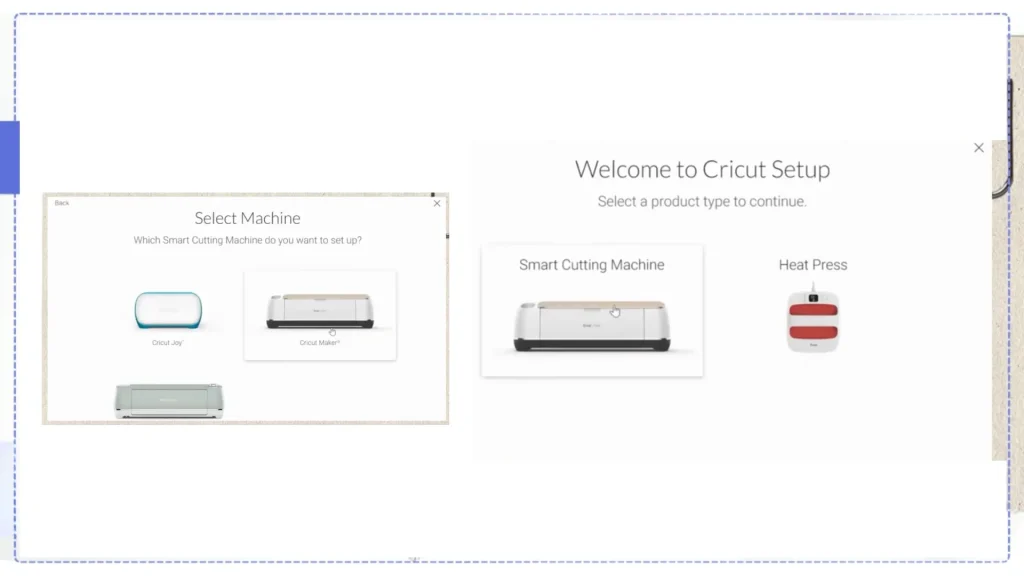
Bluetooth Not Pairing
Fix:
- Turn Bluetooth off and on
- Remove old Cricut pairings
- Restart your machine
Machine Not Detected
Fix:
- Use a direct USB connection (avoid hubs)
- Update device drivers
- Restart both machine and computer
Cutting Stops Mid-Project
Fix:
- Move closer to the machine (for Bluetooth)
- Use USB for stable cuts
- Avoid interference from other devices
Common Cricut Error Messages (Explained + Fixes)
| Error Message | What It Means | Fix |
|---|---|---|
| Mat Detection | Machine can’t read material | Clean rollers |
| Cutting Sensor Error | Light interference issue | Use white backing |
| Load Tool Error | Blade not seated properly | Reinsert blade housing |
| Connection Lost | Device disconnected | Switch to USB |
When Cricut Design Space Issues Are NOT Your Fault
Sometimes, everything on your end is fine.
Cricut servers can go down especially during peak hours.
Typical signs:
- App won’t load at all
- Login fails repeatedly
- Projects won’t sync
In these cases, the only solution is to wait until servers stabilize.
How to Prevent Cricut Design Space Problems
Once everything is working, keep it that way with these habits:
- Keep the app updated
- Clear cache regularly
- Avoid using VPN while designing
- Use desktop for complex projects
- Save backups of important designs
If you’re working with sublimation projects, understanding the full Cricut sublimation workflow helps reduce design-related issues.
Bonus: Using Cricut for Sublimation
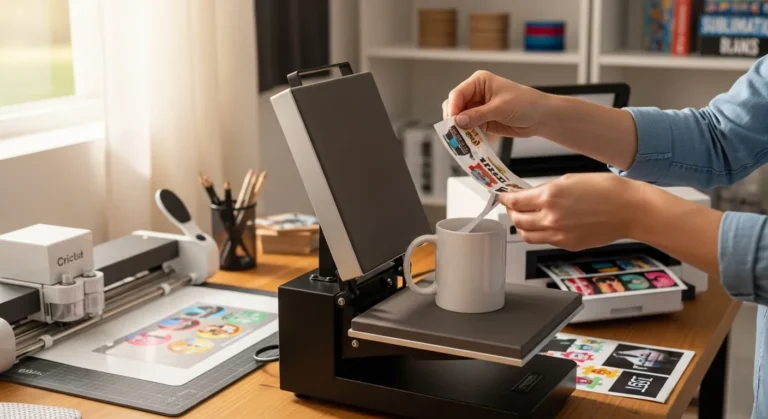
If you’re using Cricut with sublimation, Design Space becomes part of a larger workflow.
For example:
- You design in Design Space
- Print using a sublimation printer
- Transfer using heat press
If you’re printing larger designs, this guide on printing large sublimation images on Cricut can help avoid sizing and cutting issues.
Frequently Asked Questions
Why does Cricut Design Space keep crashing?
It usually crashes due to outdated software, cache issues, or low device memory.
Can I use Cricut Design Space offline?
Yes, but only on desktop and with limited features.
Do I need Cricut Access to fix errors?
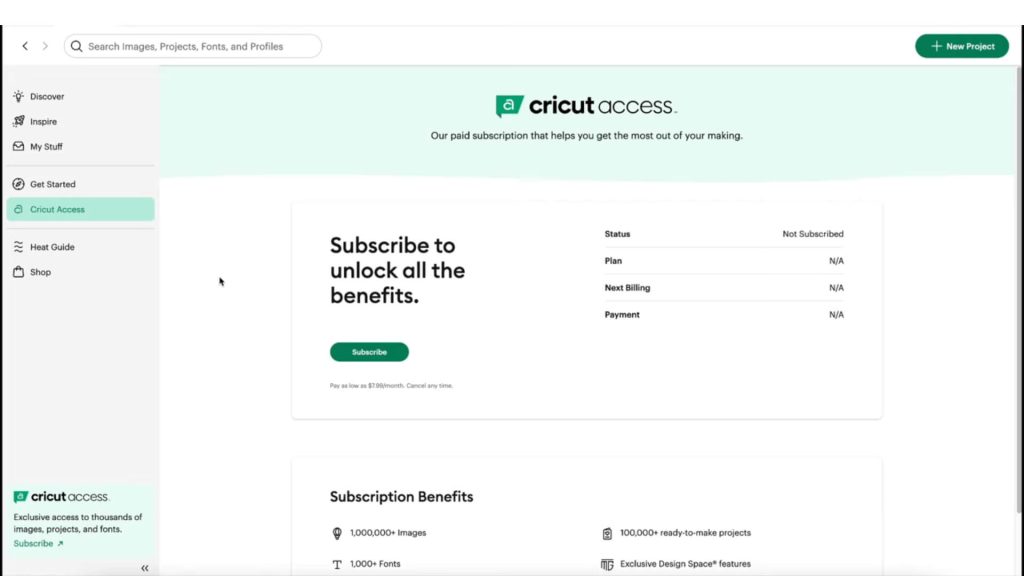
No, Cricut Access is optional and does not affect app performance.
Why won’t my Cricut connect?
Connection issues are usually caused by Bluetooth instability or outdated drivers.




One Comment