Epson Purge Files vs Nozzle Checks: What’s the Difference?

If your Epson printer starts showing missing lines, faded colors, or banding, you will usually hear two common troubleshooting suggestions: run a nozzle check or print a purge file.
Many beginners assume they do the same thing. They do not.
Understanding the difference between Epson printer purge files and nozzle checks helps you fix clogs faster, waste less ink, and avoid unnecessary cleaning cycles.
This is especially important for converted Epson EcoTank sublimation printers that sit unused for long periods.
What Is an Epson Printer Purge File?
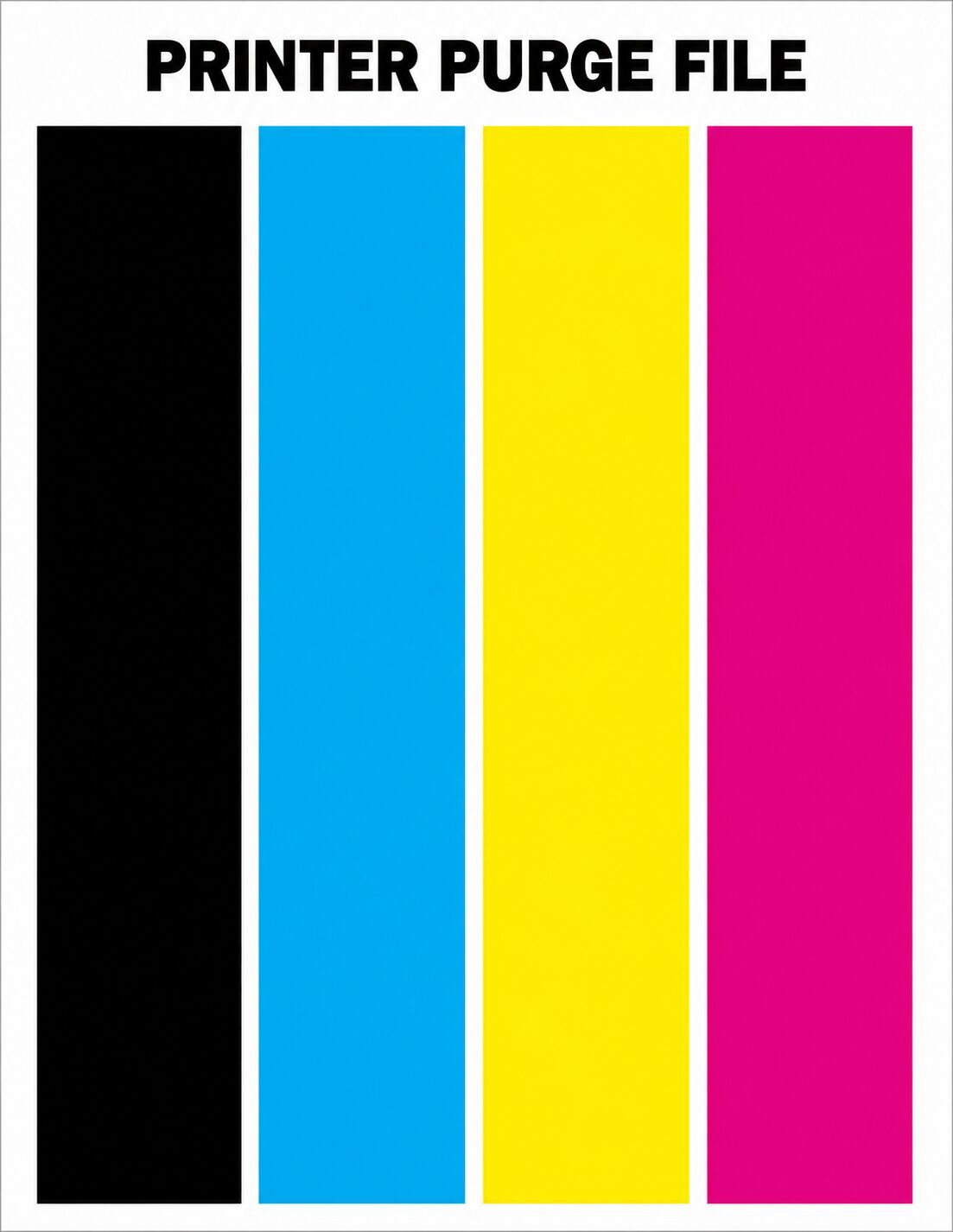
An Epson printer purge file is a solid-color print designed to force a large amount of ink through a specific color channel.
Most purge print files contain:
- Solid cyan
- Solid magenta
- Solid yellow
- Solid black
- Combined CMYK patterns




The goal is simple: push ink through partially clogged nozzles without running repeated automatic cleanings.
Unlike standard print jobs, purge files intentionally use heavy ink coverage to help restore ink flow.
Common names include:
- Epson printer purge files
- Purge print files
- Print head purge sheets
- Epson cyan purge page
- Purge pages
According to multiple troubleshooting discussions and print workflow guides, purge files are commonly used when only one color is partially clogged.
What Is a Nozzle Check on an Epson Printer?
A nozzle check is a built-in printer maintenance test.
Instead of printing large blocks of color, the printer creates a small pattern made of thin lines and grids for each ink channel.
The purpose is diagnostic, not corrective.
A nozzle check helps you identify:
- Missing nozzles
- Banding
- Ink flow interruptions
- Partial clogs
- Air bubbles in ink lines
Most Epson printers allow you to run nozzle checks directly from:
- The printer control panel
- Epson printer utility software
- Epson Smart Panel app
If all lines print correctly, your print head is usually healthy.
If lines are missing, you likely have a clog developing.
Reddit users and Epson troubleshooting communities often recommend nozzle checks as the safest first maintenance step because they activate all nozzles with minimal ink usage.
You can also print a full color printer test page to spot fading, banding, or missing ink channels before running a purge cycle.
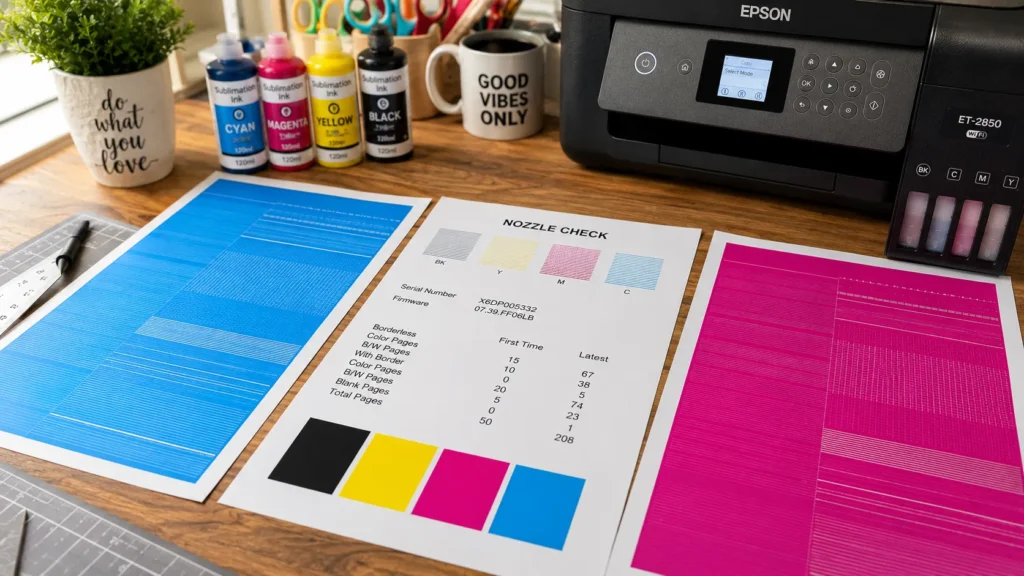
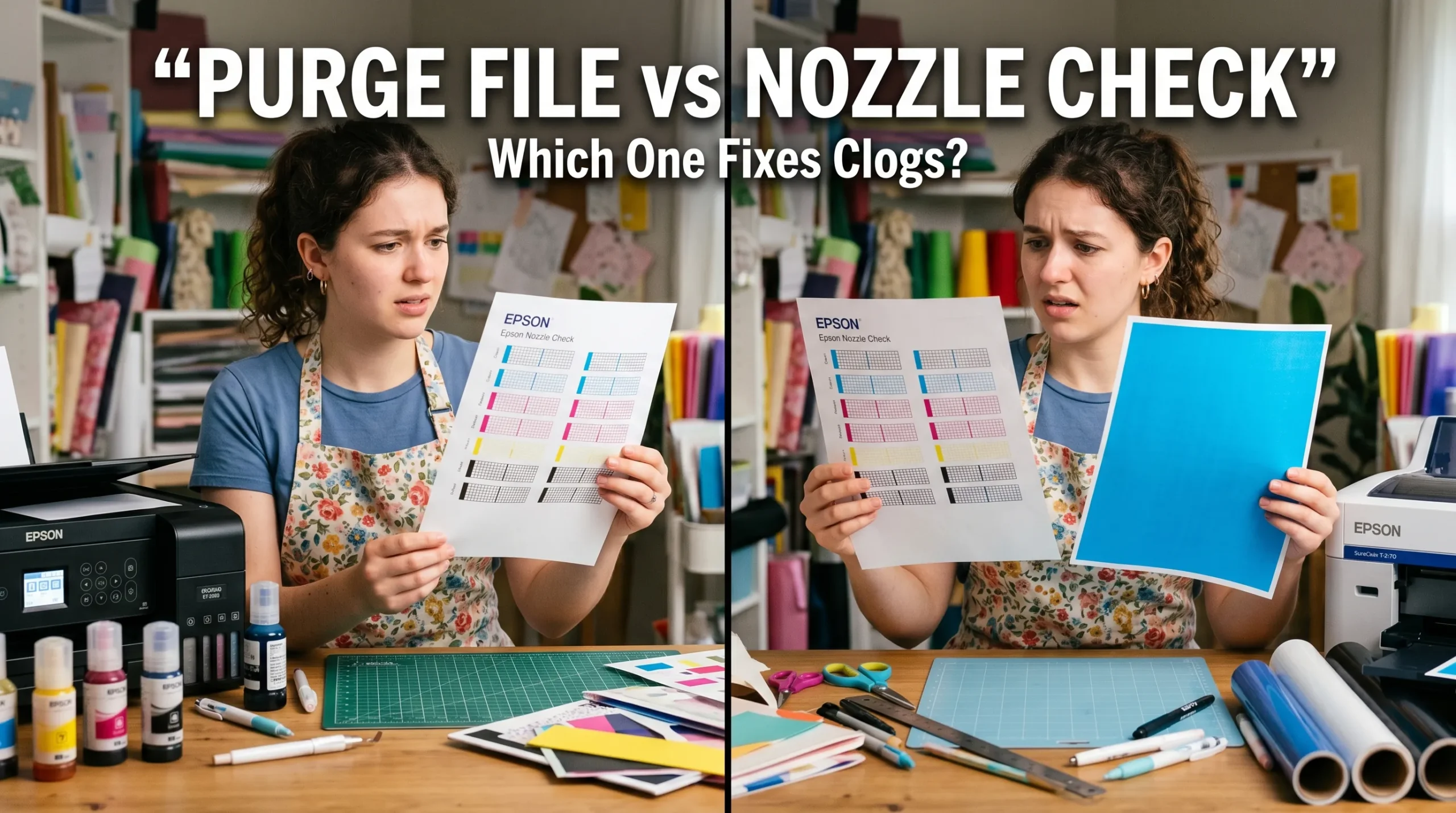
Epson Purge Files vs Nozzle Checks
Here is the main difference:
| Feature | Purge File | Nozzle Check |
|---|---|---|
| Purpose | Push ink through clogged channels | Diagnose nozzle health |
| Ink Usage | High | Very low |
| Fixes Clogs? | Sometimes | No |
| Best For | Partial clogs in one color | Routine maintenance |
| Print Coverage | Full solid colors | Small grid patterns |
| Risk of Ink Waste | Higher | Minimal |
A nozzle check tells you if a problem exists. For printer-specific instructions, see our Sawgrass SG500 nozzle check and head-cleaning guide or our Epson SureColor F170 / SC-F100 nozzle check and head-cleaning guide.
A purge file attempts to improve the problem by moving more ink through the affected channel.
For targeted maintenance, these free printer purge sheets PDF files make it easier to push ink through specific Epson color channels without wasting unnecessary cleaning cycles.
When Should You Use a Nozzle Check?
A nozzle check should usually be your first troubleshooting step.
Use it when:
- Prints show banding
- Colors look faded
- Lines appear missing
- The printer sat unused for several days
- You recently changed ink
- You suspect a clog
A nozzle check is fast and uses very little ink, making it ideal for regular maintenance.
Many sublimation users print nozzle checks weekly to prevent dry print heads.
You can also use a printable printer test page to monitor color consistency and detect print quality problems early.
When Should You Use a Purge File?
Use a purge file only after identifying a specific clogged color.
For example:
- Cyan missing in nozzle check
- Magenta showing gaps
- Yellow printing inconsistently
Instead of running repeated head cleanings that waste all four colors, you can print a purge file for the affected channel.
This targeted approach may reduce:
- Ink waste
- Waste tank usage
- Excess cleaning cycles
Purge files work best for:
- Mild clogs
- Inconsistent ink flow
- Early banding problems
- Printers left unused temporarily
They are less effective for severe blockages or dried print heads.
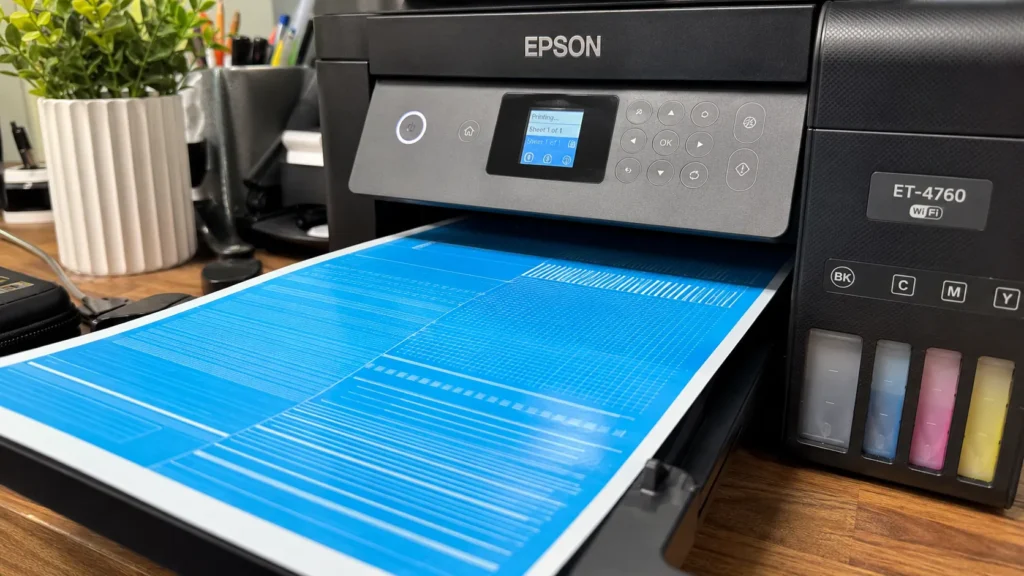
Do Purge Files Actually Unclog Epson Printers?
Sometimes.
Purge print files can help restore ink flow if the clog is minor and ink is still partially moving through the nozzle.
They work because heavy ink coverage continuously pulls fresh ink through the affected channel.
However, purge files are not magic fixes.
If the clog is severe, you may still need:
- Standard head cleaning
- Power cleaning
- Manual cleaning
- Flush solution
- Print head maintenance
A common mistake is repeatedly printing purge pages without checking progress. That wastes sublimation ink quickly.
The better workflow is:
- Run a nozzle check
- Identify the affected color
- Print a targeted purge file
- Wait 10 to 20 minutes
- Run another nozzle check
- Repeat only if improvement appears
What Is the Difference Between Head Cleaning and Nozzle Check on Epson Printers?
A nozzle check diagnoses the problem.
A head cleaning attempts to fix the problem automatically by forcing ink through the print head internally.
Here is the difference:
| Function | Nozzle Check | Head Cleaning |
|---|---|---|
| Uses Ink | Minimal | Moderate to high |
| Identifies Clogs | Yes | No |
| Clears Clogs | No | Yes |
| Safe for Frequent Use | Yes | Limited |
| Requires Maintenance Tank Usage | Very little | Higher |
Many beginners overuse head cleaning cycles.
Too many cleanings can:
- Waste sublimation ink
- Fill the maintenance tank quickly
- Overheat the print head
- Shorten printer lifespan
That is why many Epson users try purge files before repeated cleaning cycles.
For deeper maintenance workflows, read this guide on how to clean an Epson sublimation printer.
Are Purge Files Better Than Automatic Head Cleaning?
Not always.
Each method serves a different purpose.
Purge Files Are Better For:
- Targeting one clogged color
- Light maintenance
- Reducing unnecessary cleaning cycles
- Daily or weekly preventive printing
Head Cleaning Is Better For:
- Multiple missing colors
- Severe clogs
- Air bubbles
- Ink starvation
- After long inactivity
In many sublimation setups, the best results come from combining both methods strategically.
Common Mistakes When Using Epson Purge Files
Printing Too Many Purge Pages
Large solid-color prints use a lot of ink.
Excessive purge printing can drain tanks quickly without fixing severe clogs.
Ignoring Nozzle Checks
Always confirm the actual clogged color first.
Otherwise, you may waste ink purging the wrong channel.
Running Too Many Head Cleanings
Repeated cleaning cycles can create more problems than they solve.
Waiting Too Long Between Prints
Sublimation ink dries faster than regular ink in some environments.
Consistent printer activity matters.
If your printer already has severe clogging, follow this guide on how to unclog a sublimation printer.
Best Maintenance Workflow for Epson Sublimation Printers
A simple maintenance routine usually works better than aggressive cleaning.
Recommended Weekly Workflow
- Print a nozzle check
- Print a small color test image
- Run a purge file only if needed
- Avoid unnecessary cleanings
- Keep the printer powered on if possible
Consistent ink movement helps prevent:
- Banding
- Dried nozzles
- Ink separation
- Air gaps
This is especially important for converted Epson EcoTank sublimation printers.
If black text looks streaky or uneven, a quick black and white printer test page can help confirm whether the black nozzle channel is partially clogged.
Frequently Asked Questions
What is a printer purge file?
A printer purge file is a solid-color print designed to force ink through specific print head channels to help improve ink flow and minor clogs.
What is the difference between a purge file and a nozzle check?
A nozzle check diagnoses print head problems, while a purge file attempts to improve ink flow by printing heavy color coverage.
How many times should I run a nozzle check?
You can safely run nozzle checks regularly because they use very little ink. Many users print one weekly for maintenance.
Can purge files damage Epson printers?
Occasional use is usually safe, but excessive purge printing wastes ink and may overwork the printer unnecessarily.
Do purge files work for sublimation printers?
Yes. Many sublimation users use purge files to help maintain Epson EcoTank printers and reduce clogging.
Should I run a head cleaning or purge file first?
Usually start with a nozzle check. If only one color is affected, try a purge file before repeated head cleaning cycles.