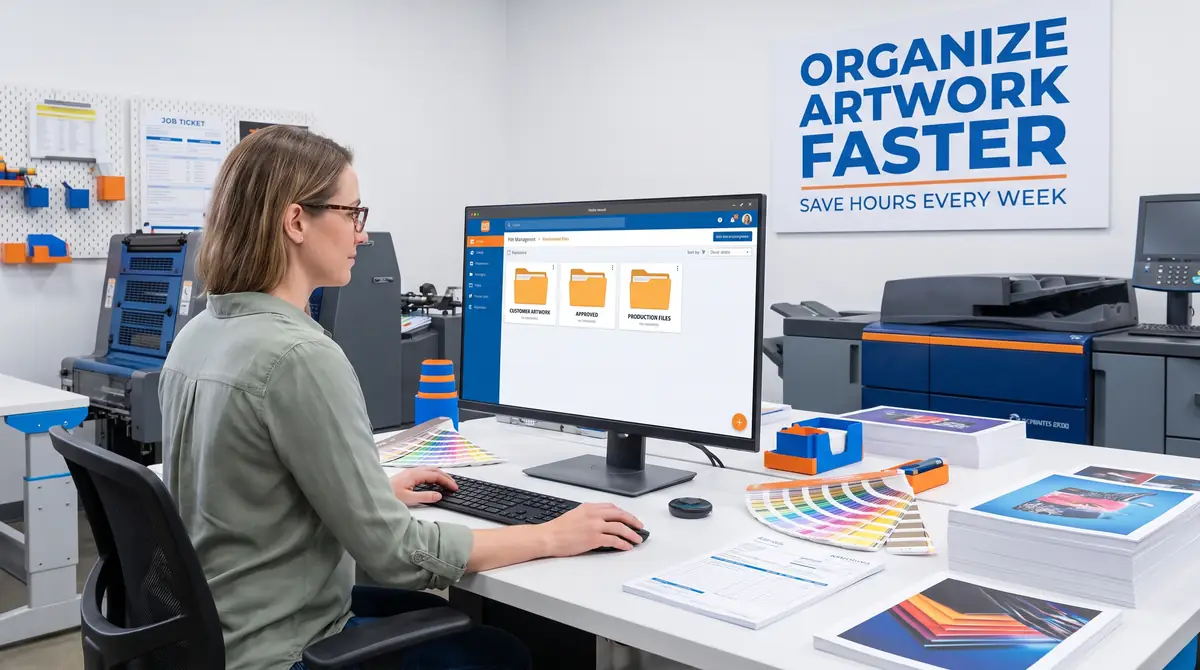
How to Organize Customer Artwork Files for Faster Production

Organizing customer artwork isn’t simply about keeping folders tidy it’s about creating a production system your entire team can rely on. For related planning, see Product Liability Insurance for Custom Apparel Sellers Explained.
A consistent folder structure, standardized naming convention, clear version control, and organized production workflow reduce costly mistakes while helping every order move through your shop more efficiently.
As your business grows, combine artwork organization with better order management, quoting, inventory tracking, and production software to create a workflow that scales with your shop.
If you’re building or improving your production process, don’t miss our guides on creating a print shop workflow, order tracking for sublimation print businesses, and POS systems for print shops. Together, these resources can help you create a more organized, efficient, and profitable operation.
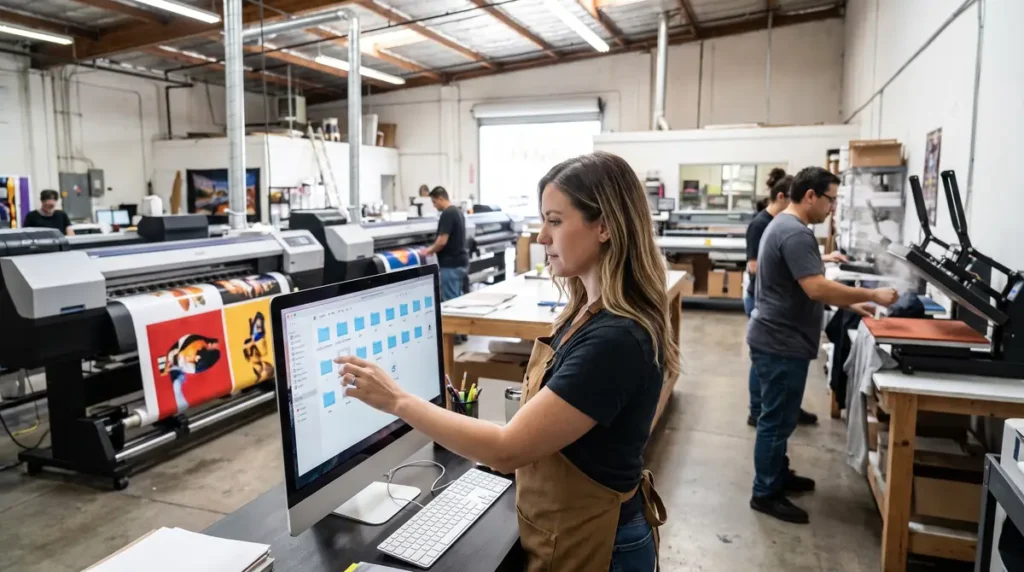
Why Artwork Organization Matters in a Print Shop
Disorganized artwork rarely causes problems on the first order. The issues appear months later when customers request reorders, multiple employees work on the same project, or someone accidentally sends an outdated proof to production.
Some of the most common bottlenecks include:
- Searching multiple folders for the latest artwork
- Printing the wrong revision
- Missing linked images or fonts
- Duplicate customer folders
- Delays while requesting replacement files
- Employees using different naming systems
Even losing five minutes per order quickly adds up across dozens of daily jobs.
A standardized artwork library helps your shop:
- Locate customer files in seconds
- Reduce production errors
- Speed up design revisions
- Improve collaboration between designers and production staff
- Simplify repeat orders
- Train new employees faster
Artwork organization becomes even more important when combined with a structured order management process. If your shop handles multiple jobs simultaneously, implementing a dedicated order tracking system for a sublimation print business ensures artwork and production stay synchronized from approval to delivery.
Create a Standard Folder Structure
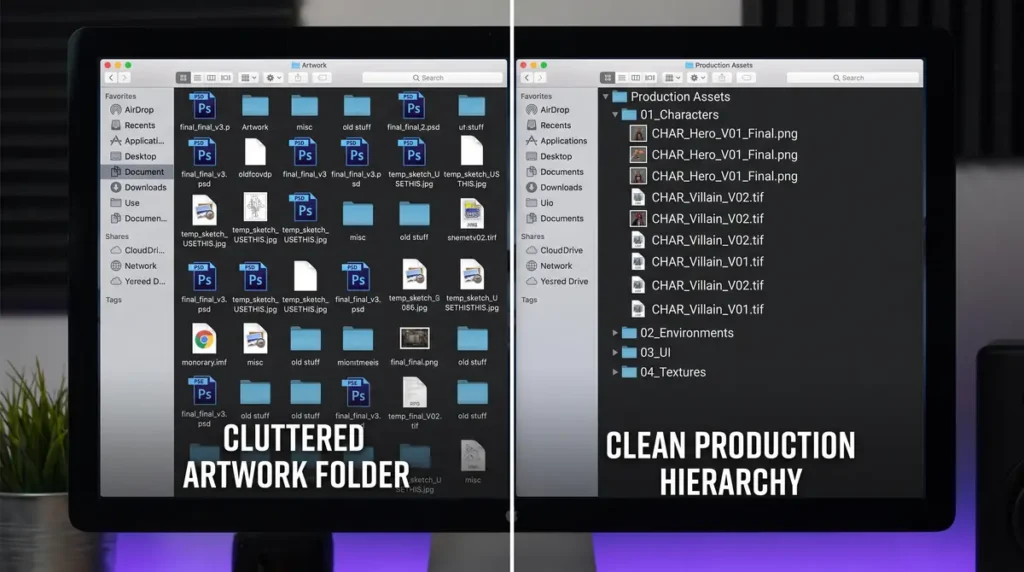
One of the easiest ways to eliminate confusion is to ensure every customer project follows exactly the same folder hierarchy.
Instead of allowing each designer to organize projects differently, adopt one company-wide structure that everyone follows.
A simple example looks like this:
Customers
│
├── Customer Name
│   ├── Job 1001 - Business Cards
│   │   ├── Artwork
│   │   ├── Fonts
│   │   ├── Linked Images
│   │   ├── Proofs
│   │   ├── Production Files
│   │   └── Archive
Customer Folder
Create one master folder for every customer.
This folder should contain long-term assets such as:
- Company logos
- Brand guidelines
- Approved color palettes
- Previous projects
- Frequently used artwork
- Contact information
Keeping everything together dramatically reduces setup time for repeat customers.
Project Folder
Each new order should receive its own project folder.
Include identifiers such as:
- Job number
- Customer name
- Product type
- Order date
For example: 2026-0148_TriStar_Safety_Shirts
A standardized format allows employees to identify projects instantly without opening multiple folders.
Job-Specific Assets
Inside every project folder, separate files according to their purpose rather than storing everything together.
Recommended folders include:
- Artwork
- Production Files
- Proofs
- Fonts
- Linked Images
- Mockups
- Vendor Assets
- Final Deliverables
This simple separation prevents editable artwork from being confused with approved production files.
Archive Folder
Completed jobs shouldn’t be deleted.
Instead, move older revisions and unused assets into an Archive folder.
Archived materials often include:
- Previous revisions
- Customer comments
- Early design concepts
- Obsolete proofs
- Reference materials
Keeping these files separate keeps active projects clean while preserving valuable history for future reorders.
Use a Consistent File Naming Convention
Even a perfectly organized folder structure becomes difficult to manage if everyone names files differently.
A consistent naming convention allows anyone on your team to identify the correct file immediately.
A practical format is: Customer_JobNumber_Product_Version_Date
Example: Acme_1045_TShirt_v03_2026-06-28.ai
From one filename, your team immediately knows:
- The customer
- The order number
- The product
- The current revision
- The creation date
Avoid vague names such as:
- Final.ai
- Final-New.ai
- Latest.ai
- Artwork2.ai
These quickly become confusing after several customer revisions.
Instead, use structured version numbers:
- v01
- v02
- v03
- Approved-v01
- Production-v01
This creates a clear revision history and reduces the risk of sending outdated artwork to production.
Separate Production-Ready Files from Working Files
One of the most expensive production mistakes occurs when editable design files are accidentally used instead of approved print-ready artwork.
The safest approach is to separate active design files from final production assets.
Working Files
These include editable files such as:
- Adobe Illustrator (.AI)
- Photoshop (.PSD)
- CorelDRAW (.CDR)
- Affinity Designer
- Editable PDF files
These remain under active revision until customer approval.
Production Files
Only approved artwork belongs here.
Examples include:
- Print-ready PDF
- EPS
- Flattened TIFF
- Final PNG
- Approved vector artwork
Once approved, avoid making further edits to these files unless a new revision is created.
Supporting Assets
Keep every supporting resource inside the project folder, including:
- Fonts
- Linked images
- Customer logos
- Brand guidelines
- Color references
- Production notes
This ensures another designer can open the project immediately without searching multiple computers or requesting missing assets.
As your business grows, centralized management becomes increasingly important. Many print shops eventually integrate their artwork storage with dedicated production software. If you’re evaluating platforms, our comparison of Printavo vs. ShopVOX explains how modern shop management systems handle artwork, job tracking, and production workflows.
Likewise, if you also sell custom products online, organizing artwork alongside customer orders becomes much easier when your ecommerce platform is integrated into your workflow. See our comparison of Shopify vs. WooCommerce for sublimation products to understand how each platform supports production management.
Build an Artwork Intake Checklist
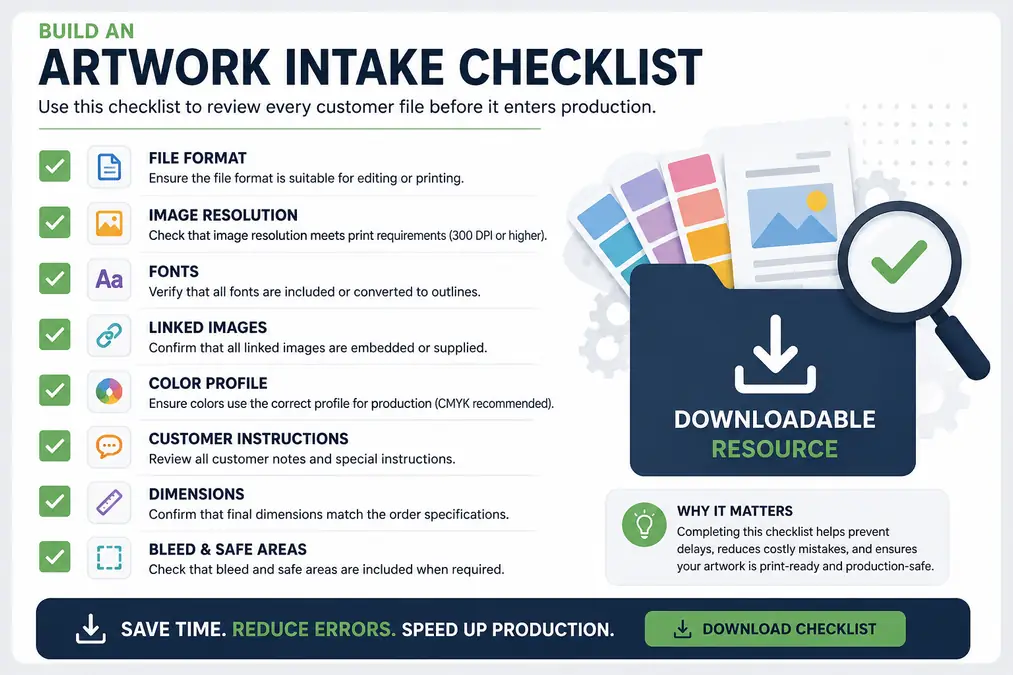
An organized folder system only works if every customer file is reviewed before it enters production. A standardized artwork intake checklist helps your team catch problems early, preventing delays and expensive reprints later.
Before creating a production folder, verify the following:
- File format is suitable for editing or printing
- Image resolution meets print requirements
- Fonts are included or converted to outlines
- Linked images are embedded or supplied
- Colors use the correct profile for production For related planning, see The Role of Artificial Intelligence in Modern Print Production.
- Customer instructions are complete
- Final dimensions match the order
- Bleed and safe areas are included when required
Completing the same checklist for every order ensures consistency, regardless of which employee receives the artwork.
If artwork repeatedly fails these checks, it may be worth creating standardized submission guidelines for customers to reduce revision requests.
Handle Non-Production-Ready Customer Artwork
Not every customer understands print-ready artwork. Many submit screenshots, low-resolution images, social media graphics, or files missing fonts and linked images.
Rather than immediately starting revisions, first identify exactly what prevents the artwork from entering production.
Common issues include:
- Low-resolution graphics
- RGB artwork intended for print
- Missing fonts
- Missing linked images
- Incorrect document size
- No bleed
- Flattened artwork requiring edits
- Raster logos instead of vector files
Once identified, decide whether the issue can be corrected internally or whether updated artwork should be requested from the customer.
A simple approval process prevents unnecessary back-and-forth:
- Review incoming artwork.
- Document any problems.
- Notify the customer with clear instructions.
- Receive corrected artwork.
- Perform a second quality check.
- Mark the project as production-ready.
Following one repeatable workflow keeps projects moving while reducing production surprises.
Version Control Without Confusion
One of the easiest ways to create production mistakes is by saving multiple “final” files.
Instead of relying on names like:
- Final.ai
- Final Final.ai
- Really Final.ai
Adopt version control that everyone understands.
For example:
v01
v02
v03
Approved-v01
Production-v01
Archived-v01
Once a customer approves artwork:
- Lock the approved version.
- Move earlier revisions into the Archive folder.
- Prevent further editing unless a new revision is created.
This approach protects approved artwork while preserving a complete history of customer changes.
Organize Artwork by Production Status
Folders become much easier to manage when projects are separated by their production stage rather than simply by customer name.
A practical production pipeline might look like this:
New Orders
│
├── Awaiting Artwork
├── Artwork Review
├── Customer Approval
├── Ready for Production
├── In Production
├── Quality Control
└── Completed
This allows everyone in the shop to immediately see where each project stands.
If your production schedule includes dozens of simultaneous orders, combining artwork organization with a dedicated order tracking system for your sublimation print business gives your team complete visibility from artwork approval through final delivery.
Store Files for Fast Team Access
Artwork should never be stored only on one employee’s desktop.
Instead, keep projects in a centralized location accessible to authorized team members.
Many print shops use:
- Network Attached Storage (NAS)
- Dedicated file servers
- Cloud storage
- Hybrid local and cloud backups
Whichever solution you choose, every employee should access the same folder structure.
Remember to:
- Schedule automatic backups.
- Restrict deletion permissions.
- Control editing rights.
- Archive completed jobs regularly.
A searchable, centralized library saves countless hours as your customer database grows.
Automate Repetitive File Management Tasks
As production volume increases, manually creating folders and renaming files becomes inefficient.
Several simple automations can save significant time each week:
- Folder templates
- Batch file renaming
- Automatic backup scheduling
- Artwork approval notifications
- Job number generation
- Project templates
Many print management platforms include these features alongside production scheduling.
If you’re considering upgrading your shop software, our comparison of Printavo vs. ShopVOX explains how modern systems automate artwork management, approvals, and production tracking.
For businesses handling large B2B orders, dedicated quoting software for wholesale apparel orders can also streamline job creation by connecting customer estimates directly to production records.
Common Artwork Organization Mistakes
Even experienced print shops occasionally struggle with artwork management.
Watch for these common mistakes:
- Saving files on personal computers
- Multiple employees using different folder structures
- Mixing editable and production-ready files
- Storing fonts separately from artwork
- Using inconsistent file names
- Keeping duplicate customer folders
- Deleting previous revisions
- Forgetting regular backups
Avoiding these habits dramatically improves long-term efficiency.
Recommended Workflow for Every New Customer Order
An effective artwork workflow doesn’t need to be complicated. The goal is to make every order follow the same predictable process.
- Receive customer artwork.
- Create a standardized project folder.
- Complete the artwork intake checklist.
- Request revisions if necessary.
- Save editable files separately.
- Generate customer proofs.
- Receive final approval.
- Create production-ready artwork.
- Move approved files into the Production folder.
- Archive completed projects after delivery.
When this workflow becomes standard practice, your team spends less time searching for files and more time producing quality work.
As your shop grows, you can expand this workflow further by integrating POS systems for print shops, allowing customer orders, payments, artwork, and production data to remain connected throughout the entire fulfillment process.
Best Practices for Scaling Your Artwork Library
The system you use today should still work when your business has ten times as many customers. Scaling isn’t about creating more folders it’s about creating a process everyone can follow.
As your artwork library grows, adopt these best practices:
- Create a written Standard Operating Procedure (SOP) for artwork management.
- Use the same folder structure for every customer.
- Standardize file naming conventions across your team.
- Schedule quarterly reviews to remove duplicate or outdated files.
- Archive completed jobs instead of deleting them.
- Back up your artwork library automatically.
- Limit editing permissions to authorized team members.
- Keep customer approvals and production files together for future reorders.
If you’re expanding your business, efficient artwork organization should be part of your overall operations strategy. Our Sublimation Business Guide shares additional tips for improving daily workflows, while the Sublimation Supply Tracker can help organize inventory alongside customer projects.
For shops producing custom apparel at scale, combining organized artwork management with accurate estimating is equally important. Our guide to best quoting software for wholesale apparel orders explains how automated estimates reduce administrative work before production even begins.
Frequently Asked Questions
How do you organize customer artwork files?
The most effective method is to use a standardized folder hierarchy, consistent file naming conventions, separate working files from production-ready artwork, and archive completed projects instead of deleting them.
What file formats should customers provide?
Whenever possible, request editable vector formats such as AI, EPS, SVG, or editable PDF files. High-resolution PNG or TIFF files may also be suitable depending on the product and printing method.
Should editable files and production files be stored separately?
Yes. Editable files should remain in a dedicated design folder, while only approved, print-ready artwork should be placed inside the Production Files folder. This minimizes the risk of printing outdated or unfinished artwork.
How long should customer artwork be kept?
Many print shops keep customer artwork for several years, especially for repeat clients. Your retention policy should match your storage capacity and business requirements while ensuring regular backups.
What’s the best way to name artwork files?
Include the customer name, job number, product, version number, and date.
For example: Acme_1045_TShirt_v03_2026-06-28.ai
This naming structure makes searching and identifying files much easier.
Can shop management software organize artwork automatically?
Many modern print management systems allow artwork to be attached directly to customer orders, reducing manual organization. If you’re comparing platforms, our review of Printavo vs. ShopVOX explains how they manage artwork, production scheduling, and customer records.