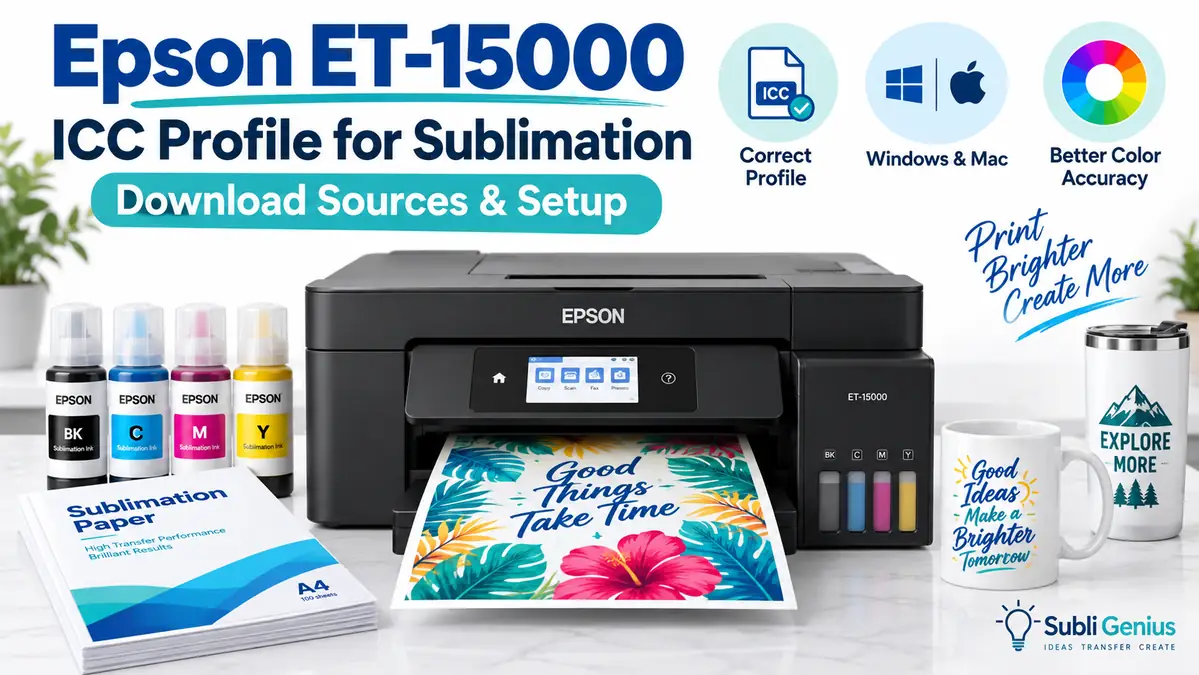
Epson ET-15000 ICC Profile for Sublimation: Download Sources & Setup

An Epson ET-15000 ICC profile should match the color workflow it was created for. A profile made for one ink, paper, or printer setup can make colors worse when used with another.
Start with your sublimation ink brand, not a random ET-15000 profile download.
Some suppliers provide an ET-15000-specific profile. Others use an ICC-free workflow. Some require their own ink and transfer paper combination.
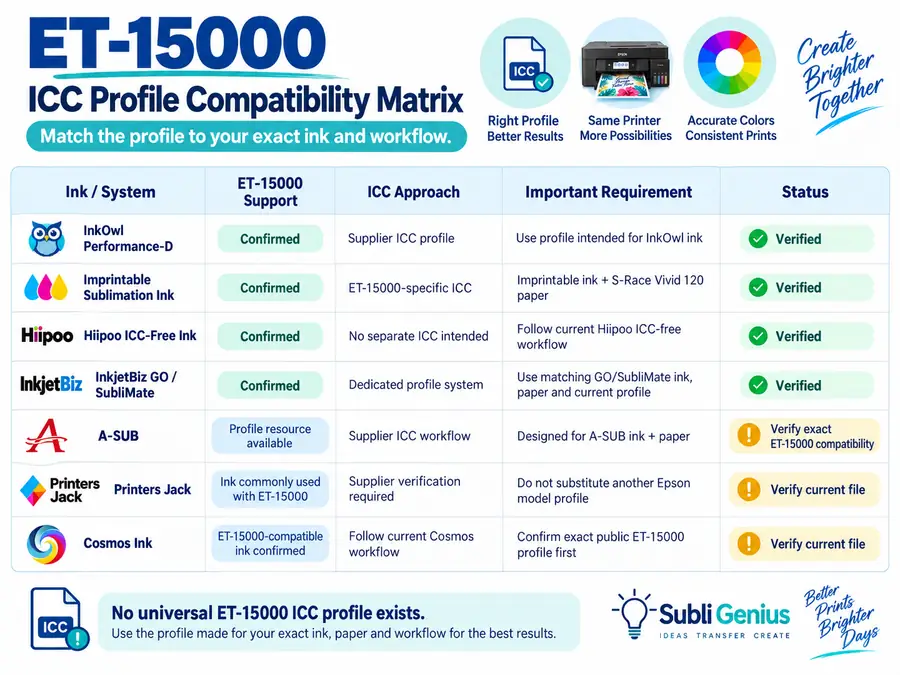
The compatibility table below shows which path makes sense before you install anything.
Which ICC Profile Should You Use With the Epson ET-15000?
The correct ET-15000 profile depends primarily on the sublimation ink in your printer.
Do not choose an ICC file just because the filename includes ET-15000.
| Ink or color system | ET-15000 support | ICC approach | Important requirement | Status |
|---|---|---|---|---|
| InkOwl Performance-D | Confirmed | Supplier ICC profile | Use profile intended for InkOwl ink | Verified |
| Imprintable Sublimation Ink | Confirmed | ET-15000-specific ICC | Imprintable ink + S-Race Vivid 120 paper | Verified |
| Hiipoo current ICC-Free ink | Confirmed | No separate ICC intended | Follow current Hiipoo ICC-free workflow | Verified |
| InkjetBiz GO / SubliMate | Confirmed | Dedicated profile system | Use matching GO/SubliMate ink, paper and current profile | Verified |
| A-SUB | Profile resource available | Supplier ICC workflow | Designed for A-SUB ink + paper; current page is Windows-only | Verify exact ET-15000 compatibility |
| Printers Jack | Ink commonly used with ET-15000 | Supplier verification required | Do not substitute a profile from another Epson model unless explicitly supported | Verify current file |
| Cosmos Ink | ET-15000-compatible ink confirmed | Follow current Cosmos workflow | Exact public ET-15000 profile should be confirmed before installation | Verify current file |
InkOwl currently includes the ET-15000 in its EcoTank profile finder and states that its downloadable profiles are calibrated specifically for InkOwl sublimation ink.
Imprintable provides a dedicated ET-15000 profile, but the company is unusually clear about its limitation: the profile is specifically for Imprintable sublimation ink with S-Race Vivid 120 paper. Changing the ink, printer, or paper changes the color behavior the profile was built to correct.
Hiipoo takes a different approach with its current ET-15000-compatible ink. Its product page specifically markets that ink as ICC-free, so adding an unrelated profile on top of that workflow can defeat the supplier’s intended color setup.
For a broader look at how supplier profiles differ, use the Best ICC Profiles for Sublimation resource.
Bottom line: Match the profile to the ink system first. Printer model alone is not enough.
Before You Download an ET-15000 ICC Profile
An ICC profile is not a universal color correction file. It describes how a particular printing condition reproduces color so compatible software can compensate for that behavior.
For sublimation, that condition can involve several variables:
- Printer model
- Sublimation ink
- Transfer paper
- Printer-driver settings
- Software color-management settings
- The conditions used when the profile was created
The ink is especially important.
Two bottles labeled “sublimation ink” can have different color characteristics. A profile created to correct one formulation cannot automatically predict how another formulation behaves.
Paper can matter too. Imprintable’s ET-15000 profile, for example, specifies both its own ink and S-Race Vivid 120 paper rather than describing the file as a generic ET-15000 correction.
Do not choose profiles by filename alone
A download named something like:
ET15000-Sublimation.icc
does not tell you enough.
Before installing it, confirm:
- who created it
- which ink it was built for
- which paper was used
- whether your operating system is supported
- what printer-driver settings the supplier requires
- whether the supplier expects the application or driver to manage color
If those details are missing, treat the profile as unverified.
Verified Epson ET-15000 ICC Profile Sources
The safest profile source is normally the company that made the ink or the complete color system you are using.
InkOwl ET-15000 ICC Profiles
InkOwl currently lists the Epson EcoTank ET-15000 in its ICC profile finder.
Its Performance-D ink line is also listed as compatible with the ET-15000, and InkOwl states that its Epson sublimation ICC profiles are calibrated specifically for its own sublimation ink.
That gives this setup a clear workflow:
ET-15000 + InkOwl ink + matching InkOwl profile
This is much safer than downloading a community profile originally created for another ink brand.
InkOwl’s profile finder also asks for the printer, operating system, and graphics software. That is useful because installing an ICC file is only part of the setup. The software still needs to use it correctly.
Imprintable ET-15000 ICC Profile
Imprintable currently offers one of the clearest ET-15000-specific profile resources.
Its profile is intended for:
- Epson ET-15000
- Imprintable sublimation ink
- S-Race Vivid 120 sublimation paper
The company explicitly says the profile should not be used with a different ink, printer, or paper combination.
Its published workflow also specifies:
- Epson Matte or Presentation Matte paper setting
- Standard print quality
- No Color Adjustment in the printer driver
- application-managed color
- the appropriate Imprintable ET-15000 ICC profile
Those settings matter as much as the profile file itself.
A correct ICC file combined with conflicting driver correction can still produce poor color.
InkjetBiz GO ET-15000 and SubliMate Profiles
InkjetBiz offers a converted GO ET-15000 dye-sublimation system built around its SubliMate ink, transfer paper, and ICC color profiles.
The company currently provides profile resources and installation instructions for its ET-15000-based system, including Windows and Mac resources on some current bundle pages.
There is one important complication.
InkjetBiz has also published a technical bulletin explaining that a GO ET-15000 firmware update can affect which SubliMate ICC color profile should be used. The bulletin instructs users to identify the printer’s firmware version before choosing the matching profile.
That is a good example of why copying an old profile from another user can create problems even when both people own an ET-15000.
Use the current profile provided for your exact GO/SubliMate setup.
A-SUB ICC Profile
A-SUB provides an official ICC profile resource and installation instructions, but its current public profile page describes the file as designed specifically for A-SUB sublimation paper and ink.
The same page currently says the profile is compatible only with Windows.
A-SUB’s published Photoshop workflow uses:
- Epson Matte
- Standard quality
- Custom color correction
- No Color Adjustment
- Photoshop Manages Colors
- the installed A-SUB profile
Do not assume that an A-SUB file is automatically the correct ET-15000 profile solely because you use A-SUB paper.
Confirm the current profile’s printer compatibility before installing it.
Hiipoo ET-15000: When You May Not Need an ICC Profile
Not every ET-15000 sublimation setup is intended to use a separate ICC file.
Hiipoo currently sells sublimation ink that lists the ET-15000 among its compatible EcoTank models and specifically describes the product as ICC-Free.
That changes the setup process.
If you are using that exact Hiipoo ink line, start with the manufacturer’s current printing instructions rather than automatically adding a downloaded ICC profile.
Installing an unrelated profile because another ET-15000 owner uses one can create an unnecessary second correction layer.
The Hiipoo ICC Profile guide explains the difference between Hiipoo workflows that use a profile and products marketed around ICC-free printing.
Printers Jack and the ET-15000
Printers Jack ICC profiles require more caution.
A current, official public ET-15000-specific profile source could not be verified during this update. That does not prove a compatible file is unavailable through direct supplier support, but it does mean a random community file should not be treated as an official match.
Do not use an ET-2800, WF-7710, WF-7720, or another Epson profile on the ET-15000 just because someone reports acceptable colors.
A profile built for another printer and ink combination is not automatically transferable.
Use the Printers Jack ICC Profile guide to check the current brand-specific options before changing your ET-15000 color workflow.
Cosmos Ink and the ET-15000
Cosmos Ink currently lists the ET-15000 among the Epson EcoTank models compatible with its sublimation ink.
Printer compatibility is not the same as verifying an ET-15000-specific ICC file.
Follow Cosmos Ink’s current setup instructions for your ink before adding another manufacturer’s profile.
The Cosmos Ink ICC Profile guide covers the brand’s color-management approach in more detail.
How to Install an Epson ET-15000 ICC Profile on Windows
Install the profile first, then configure the application and Epson driver so only one part of the workflow performs color conversion.
The exact menus can differ between Windows versions and design programs, but the basic process is consistent.
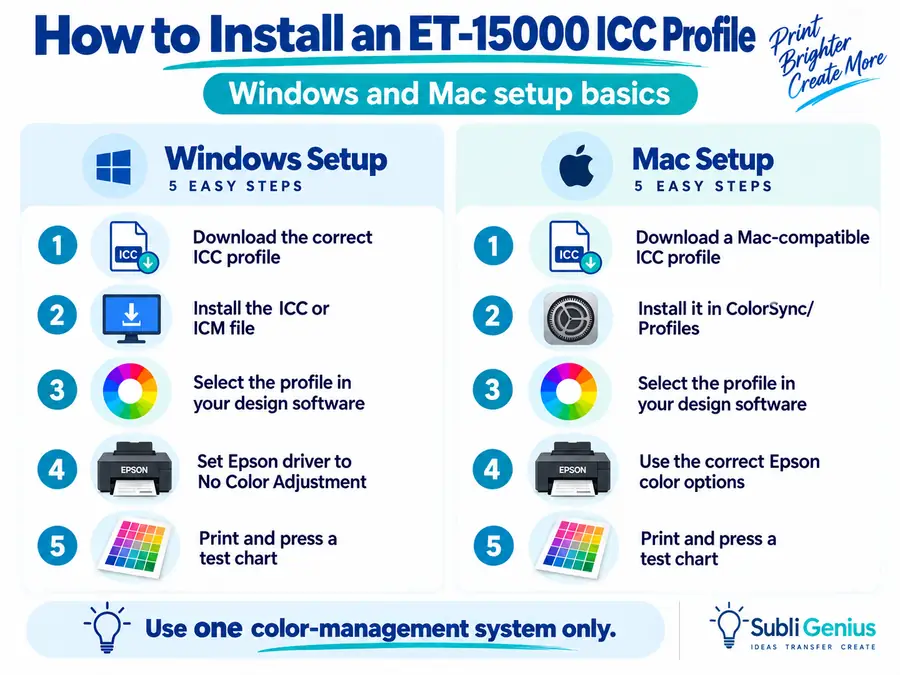
1. Download the profile from the correct supplier
Confirm that the profile matches your:
- ET-15000
- ink
- paper, when specified
- operating system
Keep the supplier’s setup instructions with the file.
Do not rename multiple profiles until you have recorded which one belongs to each ink and paper combination.
2. Install the ICC or ICM file
A-SUB currently instructs Windows users to right-click the downloaded ICC file and choose Install Profile.
Its documentation also gives the Windows color-profile folder as:
C:\Windows\System32\spool\drivers\color
That path can be useful when a profile needs to be copied manually.
3. Select the profile in your design application
Applications with color-management controls may allow you to choose a printer profile during printing.
For example, a Photoshop workflow commonly uses:
Photoshop Manages Colors
Then select the correct ET-15000 profile provided for your ink system.
Do not choose a profile based only on a similar printer name.
4. Disable competing Epson color correction when required
When the application is managing color through the ICC profile, the printer driver normally should not apply its own second correction.
Epson documents an Off (No Color Adjustment) setting for turning off printer-driver color management so the application can manage color instead. Epson also notes that an ICC profile is required when this mode is used.
Supplier instructions may label the path slightly differently, such as:
Custom → Advanced → No Color Adjustment
Follow the profile supplier’s current instructions.
5. Save the working setup
Once a test press produces acceptable color, record:
- ICC profile filename
- ink brand
- transfer paper
- paper type selected in the Epson driver
- print quality
- rendering intent
- application
- substrate
- heat settings
Changing several variables later makes troubleshooting much harder.
How to Use an ET-15000 ICC Profile on Mac
Mac color management follows the same principle: use the correct profile and avoid allowing multiple systems to correct the same print job.
1. Install the correct Mac-compatible profile
Imprintable’s current ET-15000 instructions place Mac ICC profiles in:
/Library/ColorSync/Profiles
The supplier also provides a Mac-specific workflow for its profile.
Do not assume a Windows-only supplier profile has a supported Mac workflow.
A-SUB, for example, currently identifies its public ICC profile as Windows-only.
2. Check Color Matching
The ET-15000’s Epson documentation provides Mac color-management controls through the Color Matching and Color Options menus.
Available choices include Epson Color Controls and ColorSync. Epson’s driver documentation also includes an Off (No Color Adjustment) option for workflows where the application handles color.
3. Follow the profile provider’s application settings
Do not combine instructions from unrelated vendors.
If your profile provider says:
- application manages color
- ColorSync is required
- Epson correction must be disabled
- a particular rendering intent should be selected
use those instructions as one complete workflow.
Mixing half of one supplier’s settings with half of another’s makes the test difficult to interpret.
Avoid Double Color Management
Double color management happens when your design application corrects the print through an ICC profile and the Epson printer driver applies another color correction on top of it.
The result can be worse than printing without the profile.
Typical symptoms include:
- colors that become too dark
- excessive saturation
- strange red or magenta casts
- teal turning blue
- muddy neutrals
- colors changing dramatically after the profile is enabled
For a conventional application-managed ICC workflow, the setup usually looks like this:
| Color workflow | Design application | Epson driver |
|---|---|---|
| ICC profile workflow | Manages color using the matched ICC profile | No Color Adjustment |
| Supplier ICC-free workflow | Follow ink supplier instructions | Follow ink supplier instructions |
| Printer-managed workflow | Does not apply a second printer profile | Driver manages color |
Epson describes Off (No Color Adjustment) as the setting that turns off color management in the printer software so application software can manage it instead.
That distinction matters.
Do not select an ICC profile in Photoshop and then start manually increasing saturation, cyan, magenta, or yellow in the Epson driver unless the profile supplier specifically instructs you to do so.
For a deeper comparison, see Manual Color Correction and ICC Profiles.
Do Not Confuse Softproof Profiles With Print Profiles
An ICC file associated with the ET-15000 is not automatically a profile you should select when printing.
PrintFab provides a useful example.
Its current ET-15000 page offers softproof ICC files for several media types, including dye-sublimation transfer. The company explicitly states that these softproof files are intended to simulate printed colors on the monitor and are not printer color profiles for application printing.
That means:
Softproof profile: helps preview expected print appearance on screen.
Print profile: performs the color conversion used to create the actual print.
Using one in place of the other can produce incorrect results.
Read the supplier’s description of the file before installing it into your printing workflow.
Print and Press a Test Before Judging the Profile
A sublimation transfer should not be judged only by how it looks on the paper.
Sublimation ink changes when heat activates the dye and transfers it into polyester or a compatible polymer coating.
Use a controlled test instead.
1. Start with a known color chart
A grid containing reds, blues, greens, skin tones, neutrals, grays, and saturated colors makes profile changes easier to compare than a random design.
The Sublimation Color Chart gives you a repeatable reference instead of guessing from one artwork file.
2. Change only the color workflow
Keep these variables the same between tests:
- printer
- ink
- paper
- print quality
- substrate
- temperature
- time
- pressure
If you change the profile, paper, temperature, and blank at once, you will not know which change affected the result.
3. Print the chart with the intended ICC settings
Record:
- profile filename
- software
- rendering intent
- Epson paper setting
- quality setting
- driver color-management setting
Take a screenshot of the settings if necessary.
4. Press onto a known sublimation substrate
Use a blank or polyester test material that has already produced consistent transfers.
Do not evaluate a new profile for the first time on an unfamiliar blank.
5. Judge the pressed result
Look at:
- neutral grays
- skin tones
- reds
- dark blues
- teal
- greens
- gradients
- black density
- shadow detail
A profile that makes one bright red look impressive but damages neutrals or gradients is not necessarily a better profile.
6. Save the successful combination
Once you find a stable workflow, stop changing settings without a reason.
Record it as:
Printer + ink + paper + ICC + driver settings + substrate + press settings
That record becomes far more useful than trying to remember which combination “looked good last time.”
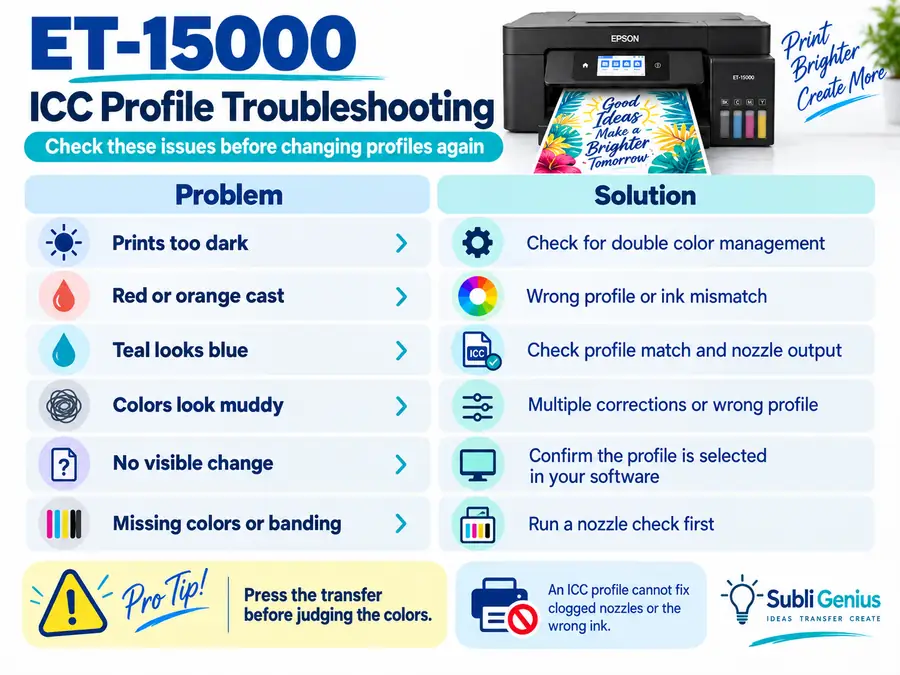
ET-15000 ICC Profile Makes the Colors Worse
If an ICC profile makes the ET-15000 output worse, do not immediately download another profile.
Use the symptom to narrow the problem.
| Problem after applying profile | Check first |
|---|---|
| Print becomes extremely dark | Double color management |
| Strong red or orange cast | Wrong profile or ink mismatch |
| Teal becomes blue | Profile, ink output and nozzle condition |
| Greens shift heavily | Yellow/cyan output and profile match |
| Colors become muddy | Multiple corrections or wrong profile |
| Profile appears to do nothing | Application may not be applying it |
| Transfer paper looks dull | Press the image before judging |
| One color disappears or bands | Nozzle issue, not an ICC problem |
| Colors changed after switching ink | Old profile no longer matches |
Epson’s own ET-15000 troubleshooting guidance recommends checking the paper setting, grayscale settings, nozzle condition, ink levels, driver color settings, and other print conditions when colors are incorrect.
That matters because an ICC profile cannot restore a missing cyan nozzle or correct contaminated ink.
For broader troubleshooting, use Sublimation Color Problems & Fixes.
When an ICC Profile Is Not the Problem
Color accuracy depends on more than the profile.
Before replacing the ICC file, check the printing system itself.
Run a nozzle check
Every color channel needs to print correctly before color profiling makes sense.
If cyan, magenta, yellow, or black has missing segments, the profile is receiving the wrong physical output from the printer.
Fix the nozzle problem first.
Check whether ink brands were mixed
A profile built around one ink formulation cannot reliably compensate for a tank containing a mixture of old and new ink brands.
If ink was recently changed, make sure the printer has reached a stable state before making profile decisions.
Verify your transfer paper
If the profile supplier specifies a particular paper, use it during the first test.
Changing paper introduces another variable.
Verify the blank
Sublimation requires polyester or a compatible polymer-coated surface.
A poor or inconsistent coating can make a perfectly good color workflow appear faulty.
Check heat and time
Incorrect pressing can change the final color enough to look like a profile problem.
Do not use an ICC profile to compensate for a heat-press problem.
Check the design color space
RGB, CMYK, document profiles, working spaces, and output profiles solve different parts of the color workflow.
If that distinction is causing problems, use RGB vs CMYK and Choosing the Right ICC Profile before changing more printer settings.
Should You Use an ICC-Free ET-15000 Workflow?
An ICC-free workflow can make sense when the ink manufacturer specifically designed and documented the product that way.
Hiipoo’s current ET-15000-compatible product is an example. It is explicitly sold around ICC-free printing.
That does not mean ICC profiles are useless.
It means the manufacturer expects its ink to produce acceptable output under its recommended standard printing workflow without requiring the customer to install a custom output profile.
The practical rule is:
If the ink supplier provides a tested ICC-free workflow, test that workflow before adding another profile.
If the pressed colors are already consistent and acceptable for your work, adding more color correction can create new problems.
If accurate brand colors, calibrated photographic output, or tighter production consistency is required, a custom profile may still be worth considering.
When Should You Order a Custom ET-15000 ICC Profile?
A custom ICC profile becomes more useful when an off-the-shelf supplier profile cannot describe your actual production conditions closely enough.
Consider custom profiling when:
- exact customer or brand colors matter
- your ink supplier has no profile for the ET-15000
- you use a less common ink and paper combination
- supplier profiles continue producing repeatable color errors
- you require consistent photographic reproduction
- color accuracy affects paid production work
- your workflow has been stabilized but measurable color problems remain
Do not order a custom profile while the printer is still producing an imperfect nozzle check.
The profile would be created around a faulty condition.
The same applies if you are still switching inks, experimenting with transfer paper, or changing the main driver settings every few prints.
Stabilize the production workflow first.
Then profile it.
The Free vs. Paid ICC Profiles for Sublimation Printing comparison can help decide when a supplier profile is enough and when custom profiling is worth paying for.
Epson ET-15000 ICC Profile Questions
Does the Epson ET-15000 need an ICC profile for sublimation?
Not always.
The answer depends on the sublimation ink and color workflow you use. InkOwl and Imprintable provide profile-based workflows for supported setups, while Hiipoo currently sells ET-15000-compatible ink specifically marketed as ICC-free.
Follow the instructions for your exact ink rather than assuming every converted ET-15000 needs the same setup.
Where can I download an ET-15000 ICC profile?
Get the file from the company that created the matching ink or complete printing system.
InkOwl currently lists the ET-15000 in its profile finder. Imprintable offers a dedicated ET-15000 profile for its ink and S-Race Vivid 120 paper. InkjetBiz provides profiles for its GO/SubliMate ET-15000 system.
Avoid generic file-sharing links when the profile’s ink and paper combination cannot be verified.
Can I use an ET-2800 ICC profile on an ET-15000?
Do not assume that you can.
Both printers may use four-color EcoTank systems, but the profile is intended to characterize a particular printing condition. Only use one profile across multiple printer models when the profile provider explicitly lists those models as supported.
Can one ET-15000 ICC profile work with any sublimation ink?
No reliable universal profile covers every sublimation ink.
Ink formulations reproduce color differently. Imprintable explicitly warns that its ET-15000 profile will not work correctly with different inks or paper, and InkOwl states that its profiles are calibrated to its own inks.
Does Hiipoo need an ICC profile on the ET-15000?
Hiipoo currently sells ET-15000-compatible sublimation ink that it describes as ICC-free.
If you use that exact product, begin with Hiipoo’s current workflow rather than automatically installing a third-party ICC file.
Why does my ET-15000 ICC profile make the colors worse?
The most common checks are profile compatibility and double color management.
Confirm that the ICC file matches your ink, printer, and specified paper. Then verify that the application and Epson driver are not both applying separate color corrections.
Also run a nozzle check before blaming the profile.
Should Photoshop or the Epson printer manage color?
In a typical application-managed ICC workflow, Photoshop applies the selected ICC profile and the Epson driver is set to No Color Adjustment.
Epson describes that setting as disabling printer-software color management so the application can manage color.
Follow the specific instructions that came with your profile, because supplier workflows can differ.
Can I use a PrintFab softproof profile to print through Photoshop?
Not if the file is identified as a softproof-only profile.
PrintFab specifically states that its downloadable ET-15000 softproof ICC files are intended to simulate print color on a monitor and are not application print profiles.
Use One Verified ET-15000 Color Workflow and Record It
The most reliable Epson ET-15000 ICC profile workflow is not the one with the most downloaded files or the most manual adjustments.
It is the one you can identify and reproduce:
Ink → correct supplier profile or ICC-free instructions → printer settings → color-management setting → test chart → pressed result
Once that combination produces consistent output, save it.
If you later change the sublimation ink, paper, or color-management method, treat that as a new color workflow rather than assuming the old profile will still be accurate.
For ET-15000 specifications, conversion considerations, print size, and operating costs, use the Epson EcoTank ET-15000 for Sublimation guide instead of changing settings blindly.
For color work, keep the process narrower: use one verified profile path, disable conflicting correction where required, press a controlled test chart, and record the combination that works.