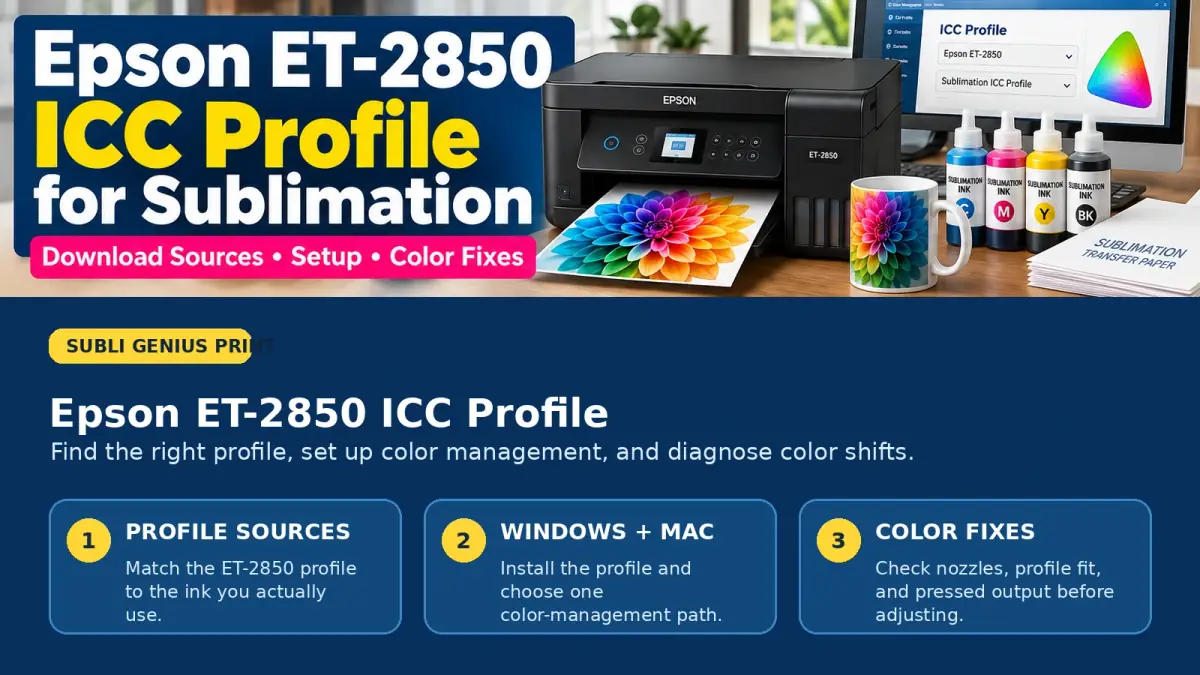
Epson ET-2850 ICC Profile: Downloads, Setup & Fixes

An Epson ET-2850 ICC profile can improve sublimation color, but only when the profile matches the ink and printing workflow it was created for.
There is no single universal ET-2850 sublimation profile that works correctly with every ink, paper, design program, and substrate. Some ink suppliers provide ET-2850-specific profiles, while some current ink products are designed to work without an ICC profile at all.
The safest setup is:
- Identify your exact sublimation ink.
- Check whether that ink requires an ICC profile.
- Use a profile made for the ET-2850 and that ink whenever possible.
- Let only one part of the print workflow manage color.
- Print and press a controlled test before changing more settings.
If you need the bigger picture first, see our ICC profiles for sublimation guide.
Quick ET-2850 ICC Profile Decision Table
| Your setup | What to do |
|---|---|
| Ink supplier provides an ET-2850 profile | Start with that profile |
| Ink is specifically sold as ICC-free | Test the supplier’s recommended default workflow before adding a profile |
| Supplier has profiles, but not for ET-2850 | Contact the supplier before using another printer’s profile |
| Colors became worse after installing a profile | Check for a profile mismatch or double color management |
| Print looks dull only on transfer paper | Press a test before judging the color |
| Colors are wrong even without a profile | Run a nozzle check and verify the printer before editing color settings |
Where to Get an Epson ET-2850 ICC Profile
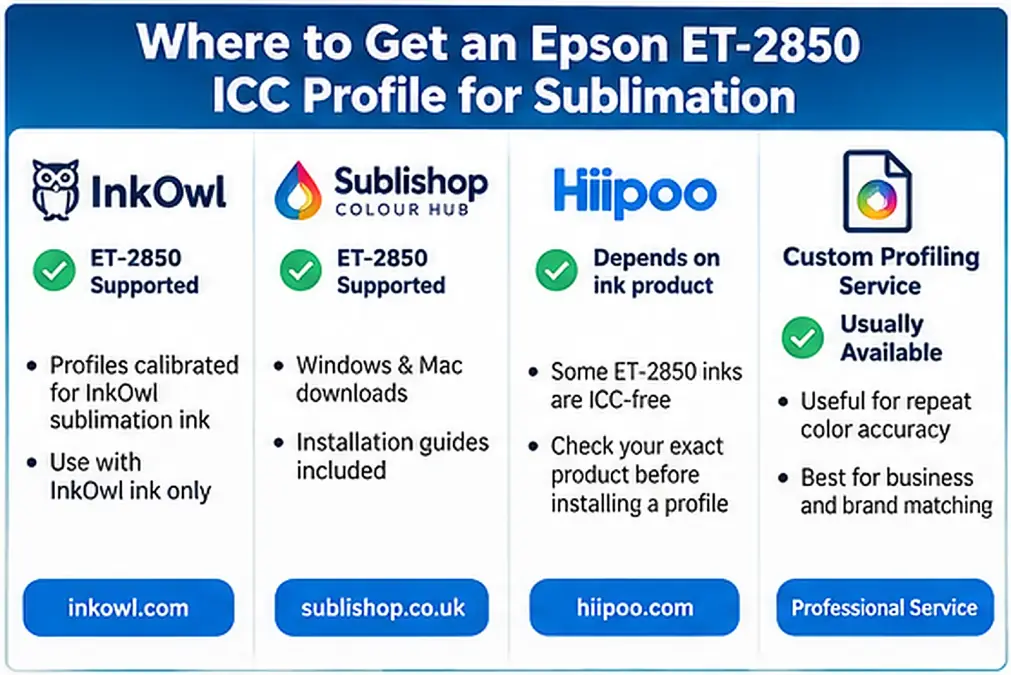
The best Epson ET-2850 ICC profile source is normally the company that made your sublimation ink. A profile is most useful when it was created around the printer and ink combination you are actually using.
Several current sources list ET-2850 support.
| Source | ET-2850 support | What to know |
|---|---|---|
| InkOwl | Yes | ET-2850 is listed in its profile finder. InkOwl states its sublimation profiles are calibrated for its own sublimation inks. |
| Sublishop Colour Hub | Yes | Provides separate ET-2850/ET-2851 profile downloads for Windows and Mac plus installation guides. |
| Hiipoo | Depends on ink product | Some current ET-2850-compatible Hiipoo ink is explicitly marketed as ICC-free, so installing a separate profile may not be part of the intended workflow. |
| Custom profiling service | Usually | Useful when repeat color accuracy matters and no supplier profile matches the complete setup. |
InkOwl currently lists the ET-2850 in its profile finder and describes its Epson sublimation ICC files as profiles calibrated specifically for InkOwl sublimation ink.
Sublishop’s Colour Hub currently provides dedicated ET-2850/ET-2851 downloads for both Windows and Mac, along with separate installation guides.
Download source: InkOwl
Use an InkOwl ET-2850 profile when the printer is running the InkOwl sublimation ink for which the profile was created.
InkOwl ET-2850 ICC profile finder
Do not treat an InkOwl profile as a generic ET-2850 file for unrelated ink. InkOwl specifically says its profiles are calibrated to its sublimation inks.
Download source: Sublishop
Sublishop currently lists an ET-2850/ET-2851 profile for Windows and a separate version for Mac.
The page also recommends testing paper settings and evaluating the color after pressing rather than judging the transfer sheet alone.
Before using a third-party profile, confirm that the provider’s expected ink and workflow match yours. A profile that happens to list the ET-2850 is not automatically correct for every sublimation ink.
What about Hiipoo ET-2850 ICC profiles?
Check the exact Hiipoo ink product before installing anything.
Hiipoo currently sells ET-2850-compatible sublimation ink that is explicitly labeled ICC-Free. Its product page says the ink is intended to produce its results without an ICC profile.
Hiipoo also has other ET-2850-compatible product listings with different labeling, so do not assume every Hiipoo bottle uses the same color-management workflow.
If you use Hiipoo ink, compare your bottle or order listing with our Hiipoo ICC profile setup guide before changing the printer.
Practical rule: if your exact ink is sold as ICC-free, test it using the supplier’s intended settings before adding an unrelated profile.
Which ICC Profile Should You Use With an ET-2850?
Match the profile to the complete printing setup, not only the words “Epson ET-2850.”
Use this order:
- Printer: Epson ET-2850.
- Ink: Exact sublimation ink brand and product line.
- Profile source: Prefer the ink supplier or a profile built for that combination.
- Operating system: Use the correct Windows or Mac version if the supplier separates them.
- Print workflow: Follow the profile provider’s instructions for software and printer-driver color management.
- Paper and output settings: Use the settings specified by the profile provider rather than copying a random screenshot from another setup.
- Test substrate: Press the same type of material you normally sell.
Paper choice, driver settings, ink formulation, and the final substrate can all influence the result. That is why a profile from another Epson model can look acceptable for one color and still fail badly on grays, skin tones, gradients, or brand colors.
Can you use an ET-2800 or ET-15000 profile?
You can physically install many ICC files, but installation does not prove compatibility.
A profile describes a specific color response. Using a profile made for another printer or ink combination means you are asking the software to correct color based on a different output condition.
For production work, use an exact match or a custom profile instead of relying on a profile simply because the printer model looks similar.
Printable ET-2850 ICC Profile Compatibility Checklist
Fill this out before changing color settings. It gives you a record of the setup that produced each test.
| Setup item | Your value |
|---|---|
| Printer | Epson ET-2850 |
| Sublimation ink brand | __________ |
| Exact ink product/line | __________ |
| ICC required by supplier? | Yes / No / Unknown |
| ICC profile filename | __________ |
| Profile source | __________ |
| Operating system | Windows / macOS |
| Design software | __________ |
| Who manages color? | Application / Printer driver |
| Paper brand | __________ |
| Driver paper/media setting | __________ |
| Print quality | __________ |
| Mirror enabled? | Yes / No |
| Test substrate | __________ |
| Heat settings used | __________ |
| Date tested | __________ |
| Result/problems | __________ |
PDF asset recommendation: turn this table into an ET-2850 ICC Setup & Color Test Checklist that readers can print and keep next to the printer.
Download the ET-2850 ICC Setup & Color Test Checklist
Use this printable checklist to record your Epson ET-2850 sublimation setup before changing profiles or printer settings. It gives you one place to track your ink, ICC profile, software, paper setting, print quality, substrate, heat settings, and color test results.
That makes it easier to compare changes without guessing which setting caused a color shift.
Download the Epson ET-2850 ICC Setup & Color Test Checklist PDF
Use it to record:
- Sublimation ink brand and product line
- ICC profile filename and source
- Windows or macOS setup
- Design software and color-management method
- Paper and printer-driver settings
- Test substrate and heat press settings
- Pressed color results
- Problems such as green grays, dull colors, or shifted reds and blues
Print a fresh copy whenever you test a different ink, profile, paper, or substrate. Keeping each test separate makes it much easier to find the setup that produces the most consistent color.
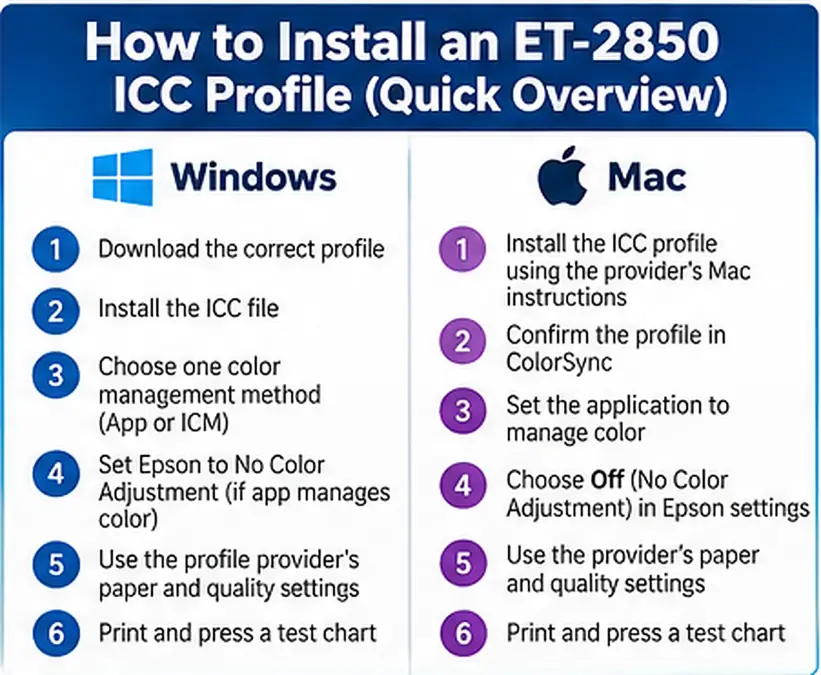
How to Install an ET-2850 ICC Profile on Windows
Installing the file is only the first step. You still need to choose how color will be managed when you print.
Step 1: Download the correct profile
Get the ICC file from the ink supplier or another source that clearly states which printer and workflow it supports.
Avoid downloading a profile from a forum or shared drive when you cannot verify what ink and printer it was created for.
Step 2: Install the ICC file
Windows supports installed color profiles, although the exact interface can vary by Windows version and the software you use.
After installing the profile, close and reopen your graphics program if the new profile does not immediately appear.
Step 3: Choose one color-management method
The Epson ET-2850 driver provides two particularly important options:
- ICM: Epson says this lets you manage color using installed color printing profiles.
- No Color Adjustment: turns off printer-driver color management so the application software can handle color instead.
Do not combine both approaches without a specific reason.
Application-managed workflow
Use this when Photoshop, Affinity, or another color-managed application is applying the ICC profile.
Typical workflow:
- Select the ET-2850 ICC profile inside the application.
- Set the application to manage printer colors.
- Open the Epson printer properties.
- Set Epson color correction to No Color Adjustment.
- Select the paper and quality settings required by the profile provider.
- Print the test chart.
Epson describes No Color Adjustment specifically as the option for turning off driver color management when the application manages color.
Driver-managed ICM workflow
Some profile suppliers document a Windows ICM workflow instead.
In that case:
- Install the ICC profile.
- Follow the supplier’s Windows profile-assignment instructions.
- Open Epson’s color correction controls.
- Select ICM where instructed.
- Do not apply a second ICC conversion in the graphics program.
The exact interface can differ by driver and application, so follow the profile provider’s method from start to finish instead of mixing steps from two tutorials.
How to Set Up an ET-2850 ICC Profile on Mac
macOS uses ColorSync for system color-profile management.
Apple’s ColorSync Utility can display installed profiles, change device profiles, and verify profiles when needed.
Basic Mac workflow
- Install the supplied ICC profile using the provider’s Mac instructions.
- Restart the graphics application.
- Confirm the profile appears in the application’s printer-profile list or ColorSync.
- Set the application to manage color when using an application-managed workflow.
- Open Epson’s printer color settings.
- Choose Off (No Color Adjustment) when the application is managing the ICC conversion.
Epson states that Off (No Color Adjustment) disables printer-software color management, and its ET-2850 documentation notes that an ICC profile is required when color management is turned off in that Mac workflow.
If the profile is installed but not visible, Apple’s ColorSync Utility can help confirm whether the profile is present and readable.
Photoshop, Affinity, Cricut, or the Epson Driver: Who Should Manage Color?
Only one stage should perform the main ICC conversion.
| Printing workflow | Recommended color-management owner |
|---|---|
| Photoshop with a supplier ICC | Photoshop |
| Affinity with a supplier ICC | Affinity |
| Supplier specifically documents Windows ICM | Epson/Windows ICM |
| ICC-free ink | Follow the ink supplier’s documented printer workflow |
| Cricut Design Space | Use System Dialog to reach the Epson driver and follow the ink/profile provider’s workflow |
Photoshop or Affinity
A common controlled workflow is:
Application manages colors → correct ICC selected → Epson driver set to No Color Adjustment.
This prevents the printer driver from adding another color correction after the application has already converted the image.
For a deeper explanation of this difference, see manual color correction vs ICC profiles.
Cricut Design Space
Cricut’s current Print Then Cut instructions tell users to select Use System Dialog when they need access to the printer’s full settings.
That system dialog is important for converted Epson workflows because it gives you access to the ET-2850 driver settings.
Do not assume Design Space itself is applying your custom sublimation ICC profile unless your complete workflow specifically documents how that profile is being used.
ET-2850 Print Settings to Test With an ICC Profile
There is no single paper-type setting that belongs to every ET-2850 ICC profile.
Different profile providers document different workflows, so start with the settings supplied with the profile.
Use this test sequence:
- Run a nozzle check.
- Confirm the ICC profile matches the ink.
- Select the profile provider’s recommended paper/media setting.
- Select the recommended print quality.
- Turn off conflicting color correction.
- Mirror the artwork once if required for the transfer.
- Print a controlled color chart.
- Press it onto the intended substrate.
- Evaluate the pressed result under consistent lighting.
Sublishop, for example, currently recommends trying Plain Paper or Epson Matte with Best quality in its own ET-2850 profile troubleshooting instructions. It also warns users not to judge sublimation color from the unpressed paper.
That does not mean those settings are correct for every ink brand. Use the instructions tied to your profile.
For broader driver options, see our sublimation printer settings guide.
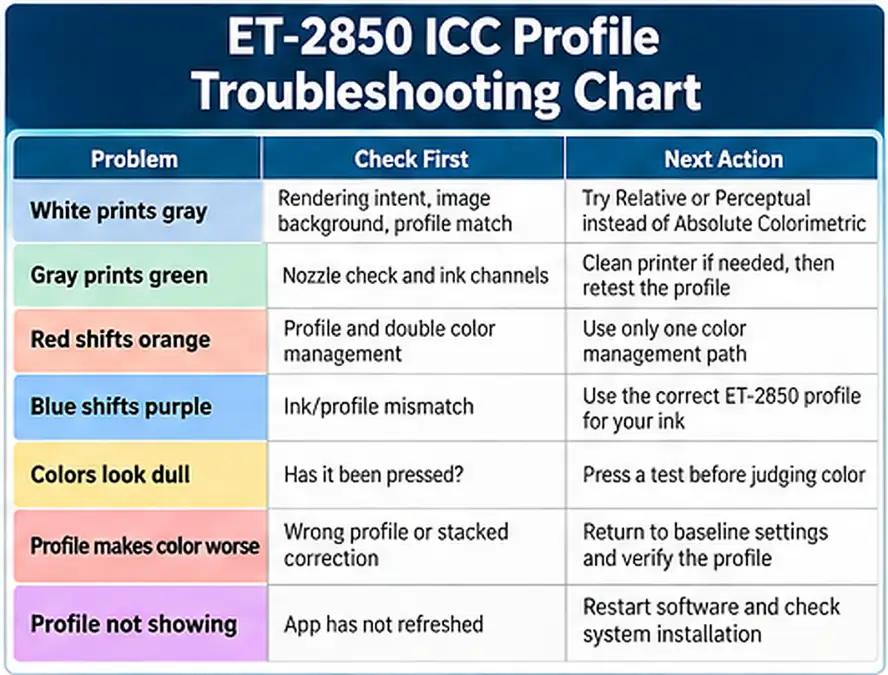
ET-2850 ICC Profile Troubleshooting Chart
Use one change at a time. Changing the profile, paper type, saturation, heat, and design file simultaneously makes it almost impossible to identify the real cause.
| Problem | Check first | Next action |
|---|---|---|
| White background prints gray | Rendering intent, image background, ICC/profile behavior | Test Relative or Perceptual instead of Absolute Colorimetric where supported |
| Gray prints green | Nozzle check and profile match | Verify yellow/magenta/cyan channels, then retest the ICC |
| Red shifts orange | Profile and double color management | Confirm one color-management path |
| Blue shifts purple | Ink/profile mismatch | Test supplier profile and pressed chart |
| Black looks brown or muddy | Nozzle condition and ICC | Verify printer first, then profile |
| Transfer looks dull | Has it been pressed? | Judge the final substrate, not transfer paper |
| Pressed output is still dull | Substrate, heat, ink, profile | Test one variable at a time |
| Profile makes color worse | Wrong profile or stacked correction | Return to known baseline settings |
| Profile is installed but missing | Application has not refreshed | Restart software and verify system installation |
| Mug and polyester colors differ | Different substrate response | Keep separate pressed reference charts |
Gray box around a white or transparent design
This issue has been reported specifically by an ET-2850 user working with a Hiipoo ICC profile.
In an Adobe Community discussion, the user reported that pure white and transparent backgrounds developed a gray tint. An Adobe Community Expert pointed to Absolute Colorimetric rendering intent as a likely cause and recommended trying Relative or Perceptual handling instead.
Treat that as a troubleshooting lead, not proof that every gray-background problem has the same cause.
Check:
- Is the source background truly white or transparent?
- Is JPEG compression introducing faint non-white pixels?
- Are you using Absolute Colorimetric?
- Does the problem disappear without that ICC?
- Is the profile actually intended for your exact ink?
Gray prints green
A green cast is often blamed on the ICC profile immediately, but check the printer first.
If one ink channel is weak or partially blocked, the printer cannot reproduce the color response that the ICC profile expects.
Run a nozzle check before editing the design or replacing the profile.
Epson’s ET-2850 support documentation includes print-quality troubleshooting for incorrect or faint colors, and the user guide directs users toward nozzle checks, print-head cleaning, and related maintenance when print quality is wrong.
Only evaluate the ICC after the nozzle pattern is clean.
Colors look dull on the transfer paper
That is not enough information to diagnose a bad profile.
Sublimation dye can look noticeably different before heat activation. Press a small test onto a known compatible substrate before deciding the colors are wrong.
A pressed sublimation color chart is much more useful than comparing the paper transfer with a bright monitor.
Profile installed, but colors became worse
Return to the previous known-good workflow and check these five points:
- Is the profile built for the ET-2850?
- Does it match your exact ink?
- Is another color correction still active?
- Did you change the driver paper setting at the same time?
- Are you comparing pressed samples from the same substrate?
A technically valid ICC file can still be the wrong profile for your output condition.
Before Blaming the ICC Profile, Check the Printer
Color management cannot fix missing ink.
Run the printer through this order before chasing software settings:
- Print a nozzle check.
- Confirm every color channel is complete.
- Clean the print head only when the nozzle check shows a problem.
- Confirm the ink tanks contain the intended sublimation ink.
- Make sure different ink brands have not been mixed unintentionally.
- Print the same controlled test file again.
- Press the sample before judging final color.
Epson notes that Power Cleaning uses a large amount of ink and recommends it only when normal head cleaning does not restore print quality.
That matters because repeated deep cleaning is not a substitute for diagnosing the color workflow.
If the printer itself is healthy but colors still shift, use our sublimation color problems and fixes checklist before making large manual adjustments.
When a Custom ICC Profile Is Worth Paying For
A supplier profile is often enough for hobby printing and general personalized products. A custom profile becomes more valuable when the same setup is used repeatedly and color accuracy has a direct business cost.
Consider custom profiling when:
- Customers require close logo or brand-color matching.
- You repeat the same product in batches.
- You have already stabilized the ink, paper, printer settings, and substrate.
- Supplier profiles still produce repeatable but unacceptable color shifts.
- Reprints cost more than maintaining a controlled color workflow.
A custom profile will not fix clogged nozzles, mixed inks, poor heat control, or changing blanks.
The workflow has to be stable first.
Epson ET-2850 ICC Profile FAQ
Does Epson provide an official sublimation ICC profile for the ET-2850?
Epson provides normal color-management controls for the ET-2850, including ICM and application-managed color options, but the converted ET-2850 sublimation profiles discussed here come from third-party ink/profile providers rather than an Epson ET-2850 sublimation package.
Do I need an ICC profile for Hiipoo ink on an ET-2850?
Not always.
Hiipoo currently sells at least one ET-2850-compatible sublimation ink product specifically labeled ICC-Free. Check the exact bottle or product listing before installing a profile.
Can I use an ET-2800 ICC profile on an ET-2850?
Installing it is possible, but that does not make it a correct match. Use a profile created for the ET-2850 and your ink whenever one is available.
Can I use an ET-15000 ICC profile on the ET-2850?
It is safer to treat an ET-15000 profile as a different output condition. For reliable production color, use an exact ET-2850 profile or have a profile created for your setup.
Why does my ET-2850 profile print white areas gray?
Check the source file, rendering intent, profile compatibility, and color-management path. A documented ET-2850/Hiipoo case linked a gray background problem with rendering-intent behavior, particularly Absolute Colorimetric.
Why are my grays printing green?
Start with a nozzle check. Missing or weak ink channels can create a color cast that an ICC profile cannot correct. If the nozzle check is clean, verify the profile and color-management setup.
Should I use ICM or No Color Adjustment?
Use the method required by your color-management workflow.
Epson describes ICM as using installed color-printing profiles. No Color Adjustment disables Epson driver color management so the application can handle color instead.
Do not use both as competing correction systems.
Can Cricut Design Space use my ET-2850 ICC profile?
Cricut provides a Use System Dialog option that opens the printer’s full settings.
Your exact ICC workflow then depends on the ink/profile provider and operating system. Use the system dialog to access the Epson settings rather than relying only on Design Space’s simplified print screen.
Why does my sublimation print look dull before pressing?
Sublimation transfer paper is not the final color reference. Press the print onto a compatible substrate before evaluating the result. Sublishop gives the same advice in its current ET-2850 profile troubleshooting guidance.
Get the ET-2850 Color Workflow Stable Before Production
The right Epson ET-2850 ICC profile is the one built for the ink and workflow you actually use, not simply the first file with “ET-2850” in its name.
Start with the ink supplier. Confirm whether the product requires a profile at all. Install the exact match when one exists, choose one color-management path, verify the printer with a nozzle check, then print and press a controlled color chart.
Once you get a good result, record the profile, paper setting, software, print quality, substrate, and press settings. That saved setup becomes more useful than repeatedly changing color controls every time one design looks different.
For other Epson models, ink brands, and profile options, use our sublimation ICC profile resource.