
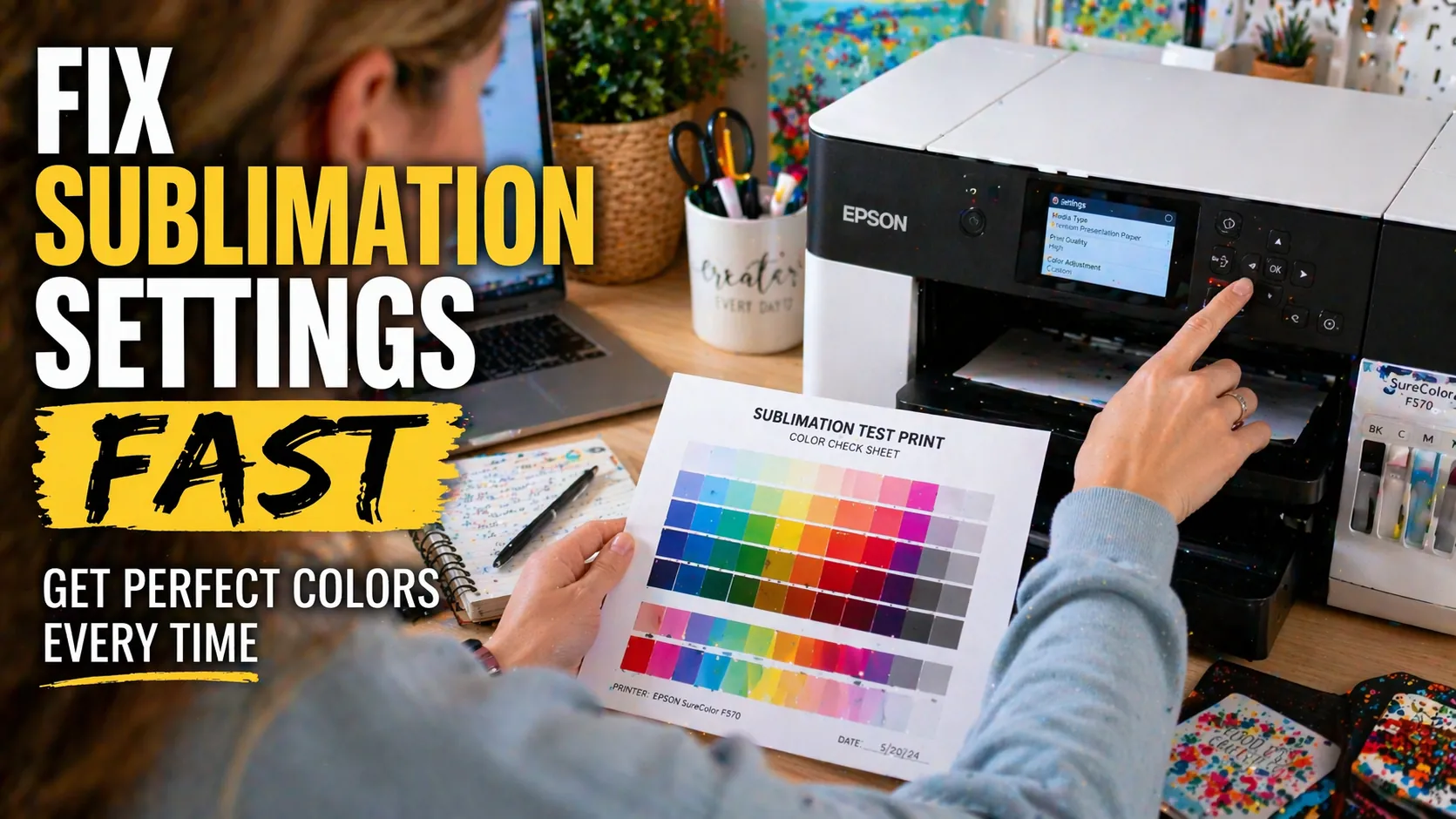
Sublimation Printer Settings: Fix Print Quality, Colors & Alignment

Sublimation printer settings should match your printer, ink, transfer paper and software. Start with the recommended media type, an appropriate print-quality mode, the correct paper size and one color-management workflow. Mirror when the transfer method requires it and avoid flipping the design twice.
An image that looks dull on transfer paper can look different after pressing. If a flaw only appears on the finished blank, it may involve the substrate or heat press rather than the printer. This article focuses on printer-side decisions; see the complete sublimation printing workflow for the wider process.
Quick Sublimation Printer Settings Checklist
Use these checks before printing. They are not one universal setup for every Epson EcoTank conversion or Sawgrass printer.
| Setting | Check before printing | Purpose |
|---|---|---|
| Ink and driver | Confirm the printer model and ink supplier’s supported workflow | Avoids incompatible color-management instructions |
| Paper or media type | Choose the tested media setting for your specific transfer paper | Controls ink coverage and quality options |
| Print quality | Start with the supplier’s quality recommendation; compare modes if needed | Balances detail and print speed |
| Size and scale | Match paper size, orientation and printable margins | Avoids unexpected cropping and scaling |
| Mirroring | Mirror once for ordinary face-down transfers; review exceptions | Keeps lettering and artwork oriented correctly |
| Color handling | Use software-managed ICC, printer-managed or supplier-managed color | Prevents conflicting color conversions |
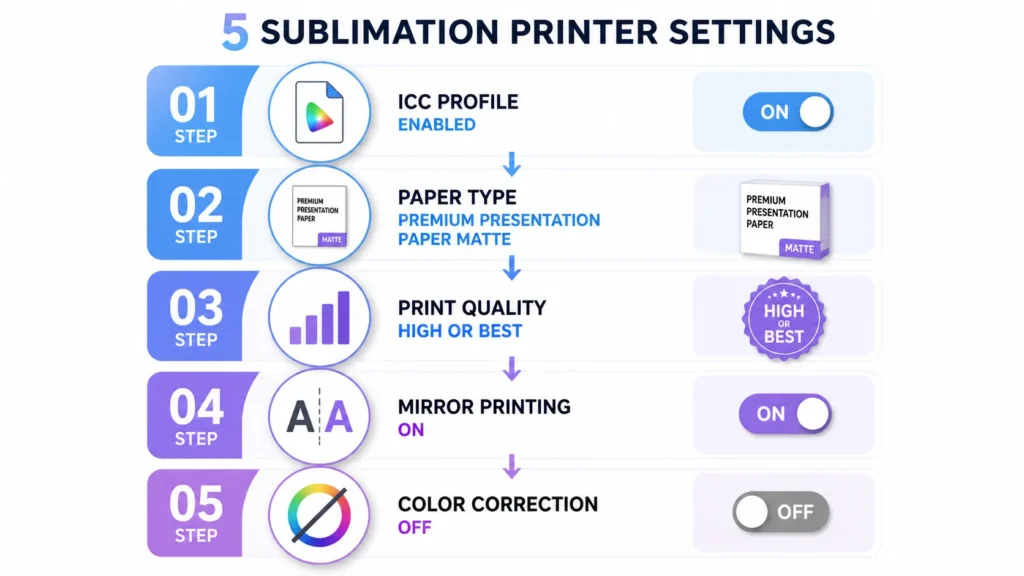
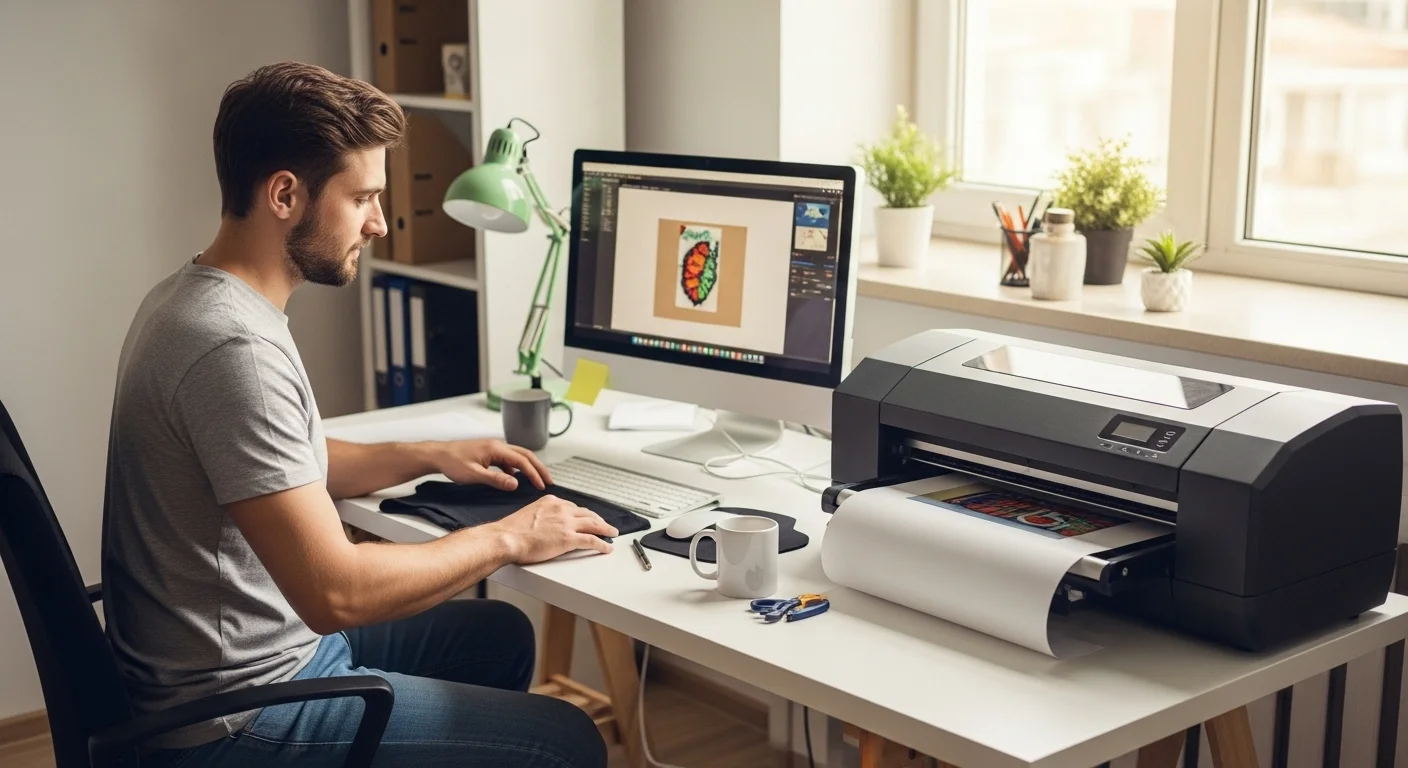
Print and press a small swatch with the actual blank before producing a batch. The existing five-setting illustration below is a reminder of what to check, not a model-independent set of values.
Choose Paper Type, Quality and Mirror Settings
Set the paper type for your actual ink and transfer sheet
On converted Epson printers, the driver media selection affects how ink is applied. Premium Presentation Paper Matte is a common setting in some sublimation workflows, but it is not a universal requirement. Use a documented ink- or paper-supplier recommendation for your printer. Epson explains how media type changes ink coverage.
Set the loaded paper’s true dimensions and orientation. Check which side of the transfer sheet is printable and confirm the feed guides and print margins. Our sublimation paper guide covers choosing media for different jobs.
Select quality mode and artwork resolution separately
Higher-quality or slower-pass print modes can help fine detail, but may increase print time and cannot fix missing nozzle segments. Begin with the paper/ink supplier’s recommended quality setting, then compare pressed samples. Standard is not necessarily wrong, and Best is not always required.
An artwork file around 300 pixels per inch at its intended physical print size is a practical starting point for fine images. That describes source image PPI, not the printer’s dot resolution or a universal 300-DPI driver setting.
Mirror once when the transfer method requires it
Standard face-down sublimation transfers containing text usually need horizontal mirroring. Inspect the print preview and confirm whether the design application or the printer utility will do the flip. Avoid enabling both.
Some specialty reverse-side substrates need a different orientation. Sawgrass documents mirror settings and exceptions; always verify the receiving surface and blank instructions.
Epson EcoTank Conversions vs Sawgrass Workflows
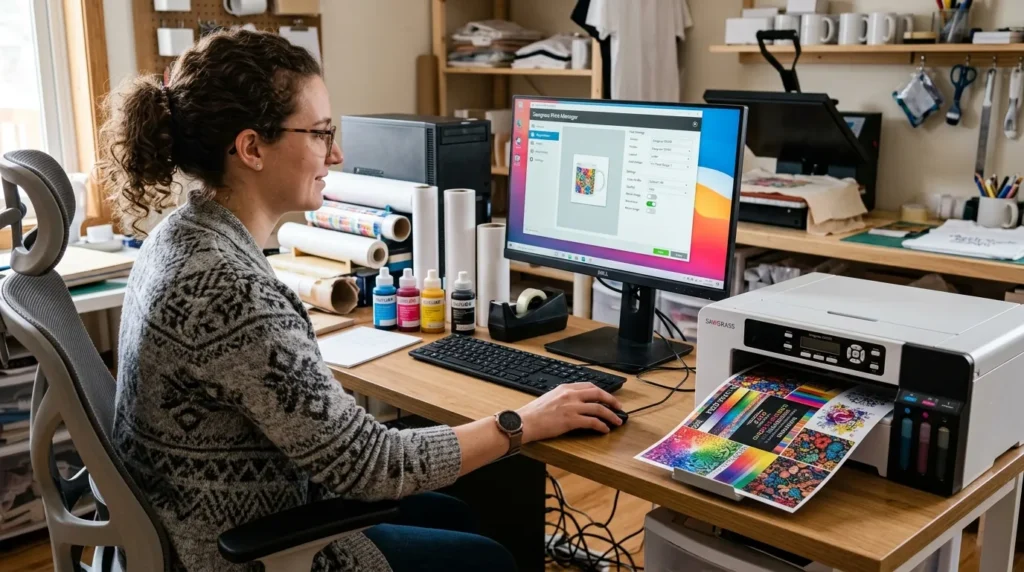
Do not use the same recipe on every printer. Converted Epson EcoTank printers with third-party sublimation inks commonly rely on ink-supplier driver and color settings. Dedicated Sawgrass printers use supported Sawgrass Print Utility product and color options.
| Workflow | Typical setup | Avoid |
|---|---|---|
| Converted Epson, application-managed ICC | Select a matching profile in compatible design software; disable driver color adjustment if that workflow requires it | Correcting color twice |
| Converted Epson, supplier-managed or ICC-free | Use the complete documented paper, quality and color settings | Installing an unrelated ICC file as a generic fix |
| Sawgrass with Print Utility | Select the right printer, product, media and quality; review color mode and mirroring | Applying an Epson conversion workflow |
Sawgrass Smart Print Settings can select recommended quality, color handling and mirroring for the chosen product and material. Review those options before printing, especially on unusual blanks. Read Sawgrass Smart Print Settings guidance.
ICC Profiles and Color Management
A sublimation ICC profile is useful only when it matches the relevant printer, ink and paper combination and your software actually applies it. Downloading or installing a file is not enough to guarantee color matching.
- Application-managed ICC: Select the correct output profile in ICC-aware design software. For a compatible Epson driver, choose Off (No Color Adjustment) to stop its color conversion when the application is managing color.
- Printer-managed: Let the printer driver or supported print utility manage the output; do not apply a second printer profile conversion in the application.
- Ink-supplier workflow: Follow that supplier’s full configuration if the ink is marketed for an ICC-free or specially managed setup.
Epson’s color-management documentation explains that Off (No Color Adjustment) delegates conversion to the application. It is not a universal instruction for Sawgrass or every ink supplier.
When pressed prints show an unexpected green or magenta cast, dark neutrals or oversaturation, check the color workflow before moving saturation sliders. Learn how to select ICC profiles for sublimation and compare ICC profiles versus manual correction.
Troubleshooting Printer Settings and Print Defects
Look at when the problem appears. Lines already visible on the printed paper are more likely to involve the nozzles, artwork, driver or paper feed. Ghosting that appears only after pressing points instead to transfer movement or heat-press setup.
| Symptom | Start by checking | Next action |
|---|---|---|
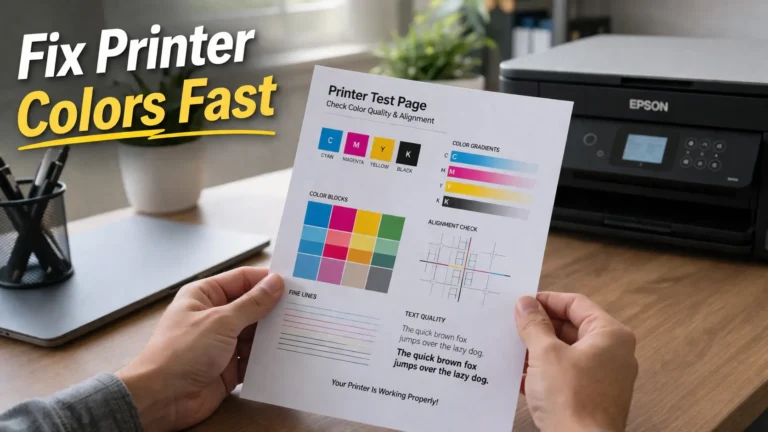
| Missing lines or bands on the sheet | Printer’s built-in nozzle-check pattern | Follow its manufacturer maintenance guidance if segments are missing |
| Dull-looking paper transfer | Same design after a controlled press | Do not judge final color from unpressed paper alone |
| Dark, green or magenta pressed colors | Profile match and double color management | Use one documented color workflow; press a test swatch |
| Jagged lettering or softness | Source artwork at final size and print scaling | Correct file quality before raising print mode |
| Ghosted or doubled finished image | Whether the transfer shifted while pressing | Review secure placement and blank-specific heat instructions |
| Off-center or clipped print | Loaded paper, margins, driver sheet size and scaling | Correct feed and layout settings |
| Patchy pressed colors despite clean paper | Blank coating, fiber content and heat cycle | Check the blank supplier’s transfer instructions first |
For Epson maintenance, compare nozzle checks versus purge files before using extra ink. For other symptoms, use the sublimation troubleshooting chart to separate printer faults from press-side failures.
Save and Repeat a Working Print Setup
Once a small sample prints and presses correctly, save a preset when your driver or utility allows it. Record the printer model, ink brand, paper, receiving blank, media type, quality mode, mirroring, color workflow and finished pressed result.
- Confirm the loaded paper’s printable face, dimensions and margins.
- Choose the tested media setting and desired quality mode.
- Check the preview for scaling and a single correct mirror operation.
- Use one color-management workflow; note any actual ICC profile selected.
- Run a nozzle check if you see missing lines, then test one pressed sample before a production run.
Change one variable between tests, then label the good result so you do not apply settings from a different paper or ink setup.
Frequently Asked Questions
Do I always need an ICC profile for sublimation?
No. Many converted Epson workflows use an appropriate ink- and paper-matched ICC file, but some suppliers provide other settings. Sawgrass printers use the supported Print Utility. Follow the workflow specific to the equipment and ink.
Is Premium Presentation Paper Matte always correct?
No. It is common for certain converted-printer setups, but it changes ink coverage and is not appropriate for every paper or ink. Start with supplier instructions and compare a pressed sample.
Should I always select High or Best print quality?
Not necessarily. Choose the mode recommended for your paper and job. Compare a slower or higher-quality mode when detail or visible bands justify it. Higher quality cannot repair poor source artwork.
Why do sublimation colors change after pressing?
The dyes change appearance when transferred and the receiving surface affects the final color. Evaluate pressed color swatches. If they are still wrong, verify color management and the blank’s transfer instructions.
Should mirror printing always be turned on?
Most ordinary face-down transfers with text need mirroring once. Specialty reverse-side products can be exceptions, and your software may already mirror the artwork. Inspect the preview and blank instructions.
Will printer settings fix ghosting or fading after pressing?
Not when the issue comes from the blank, heat conditions or a shifting transfer. Check whether the paper print itself is sound and whether the receiving surface is compatible before changing printer color settings.


14 Comments