Cosmos Ink ICC Profile for Sublimation: Do You Need One?

Cosmos Ink markets itself as ready to use straight out of the box, no ICC profile required. That claim holds up for most setups. But it’s not the full picture for every printer, and there’s an optional profile most buyers don’t even know exists.
What Cosmos Actually Claims
Cosmos builds its sublimation ink to work with the color profile already installed on your printer, the one Epson shipped it with. That’s a real difference from Hiipoo and Printers Jack, both of which generally expect you to install a separate, ink-matched profile to get accurate color. According to Cosmos, most users won’t need to touch color management settings at all. For related planning, see Sublimation Material List.
Note: “No profile required” means you can print without one and get workable results. It doesn’t mean color management stops mattering entirely, design mode and monitor calibration still affect what comes out of the printer.
If you’re weighing Cosmos against other ink brands rather than troubleshooting ink you already own, our sublimation ink comparison covers how it stacks up. And if you want the general explanation of what an ICC profile does before deciding whether you need one at all, our ICC profile primer covers that separately from the brand-specific details here.
Do You Actually Need the Optional Profile?
For everyday hobby projects, mugs, t-shirts, tumblers with solid colors and simple graphics, the default setup is usually enough.
Cosmos’s optional profile is built for a wider color gamut, and it earns its keep on work where color accuracy actually matters more: saturated photo prints, gradients, or repeat orders where a customer expects the same shade every time.
If your prints already look right without one, there’s no reason to add it. Installing an unnecessary profile can shift colors that were already accurate.
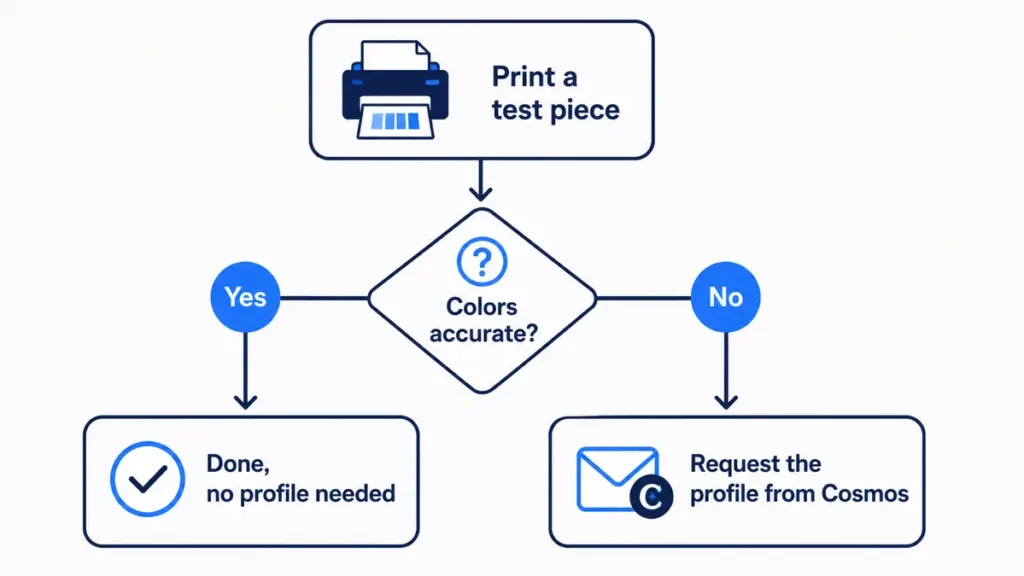
A practical way to decide: print a small test piece with a mix of skin tones, deep blues, and a gradient if your design has one. If those areas look muddy or flat compared to your screen, that’s the specific problem the wider-gamut profile is built to fix.
If everything looks close enough for the product you’re making, skip it and save yourself the extra setup step.
How to Get the Optional Profile
This is the part that trips people up. The wider-gamut profile isn’t posted as a download on the Cosmos site. It’s sent by email once your order ships, built and distributed directly by Cosmos rather than sourced from a third party.
If you ordered Cosmos ink and want the profile:
- 1. Check the email address used at checkout, including spam and promotions folders, for a message sent around your shipping confirmation.
- 2. If it never arrived, contact Cosmos Ink directly through their site and ask for it by order number.
- 3. Cosmos also runs tutorials through their YouTube channel and a Facebook community if you want to see the setup process before committing to it.
Setting Up the Profile Once You Have It
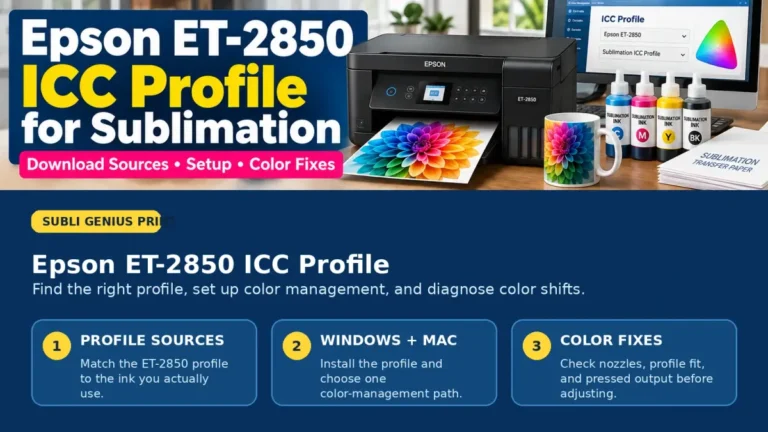
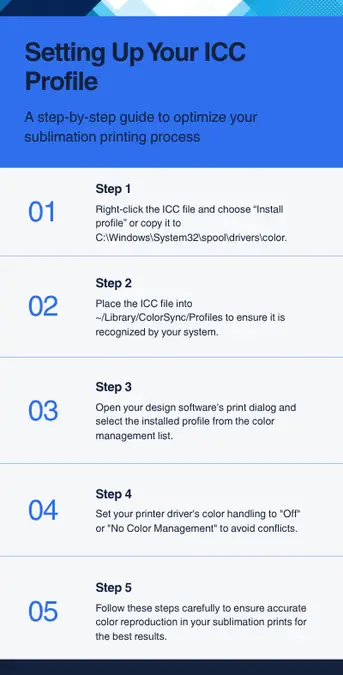
Install the file the same way you would any ICC profile: on Windows, right-click it and choose “Install profile,” or copy it into C:WindowsSystem32spooldriverscolor. On Mac, place it in ~/Library/ColorSync/Profiles. Then select it inside your design software’s print dialog, and set your printer driver’s color handling to off so the two settings don’t conflict.
Cosmos Ink and the Epson ET-15000 are a common pairing among sublimation print shops running higher volume, so if that’s your printer, this profile is more likely to be worth requesting.
If Your Colors Look Off Without a Profile
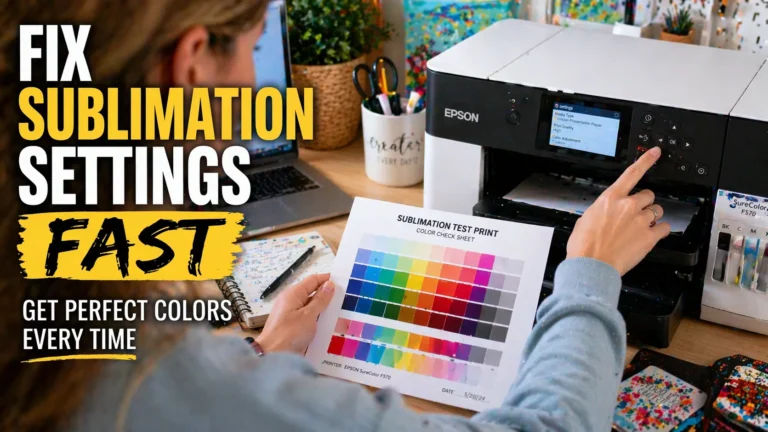
Before assuming you need the optional profile, rule out the more common causes. Confirm you’re designing in RGB rather than CMYK, since sublimation printers handle the RGB-to-print conversion internally and CMYK files often print duller than expected. Check that your monitor isn’t running an aggressive color or night-mode setting that’s making the on-screen preview misleading. Our RGB vs. CMYK guide covers this in more detail.
If those check out and colors are still off, our manual color correction guide walks through adjusting the print directly rather than relying on a profile at all.
Warning: Don’t install an ICC profile built for Hiipoo or Printers Jack ink on a Cosmos setup, or the reverse. Profiles are tied to a specific ink formulation, and mixing brands will shift your colors rather than fix them.
Cosmos vs. Hiipoo vs. Printers Jack
| Brand | Profile Required | How It’s Obtained |
|---|---|---|
| Cosmos Ink | No, optional for wider gamut | Emailed after order ships |
| Hiipoo | Depends on the product line | Downloadable from hiipoo.com |
| Printers Jack | Inconsistent by model | Not always available, contact manufacturer |
See our Printers Jack ICC profile page or the full ICC profile roundup if you’re comparing ink brands before you buy.
Troubleshooting Quick Reference
| Symptom | Likely Cause | Fix |
|---|---|---|
| Skin tones or blues look muddy | Default profile is hitting its gamut limit | Request the optional wider-gamut profile from Cosmos |
| Colors look duller than the screen shows | Design file built in CMYK instead of RGB | Rebuild or convert the file to RGB before printing |
| Never received the emailed profile | Landed in spam, or shipping confirmation email is delayed | Check spam folder, then contact Cosmos with your order number |
| Colors shifted after installing a profile | Profile was built for a different ink brand | Remove it and confirm you’re using the Cosmos-issued file only |
Quick Checklist
Run through this before deciding either way:
☐ Print a test piece with default settings, no profile installed
☐ Check skin tones, deep blues, and gradients specifically
☐ If accurate, stop here, no profile needed
☐ If muddy or flat, check your order confirmation email for the profile
☐ Contact Cosmos directly if it never arrived
☐ Confirm your file is in RGB before assuming the profile is the fix
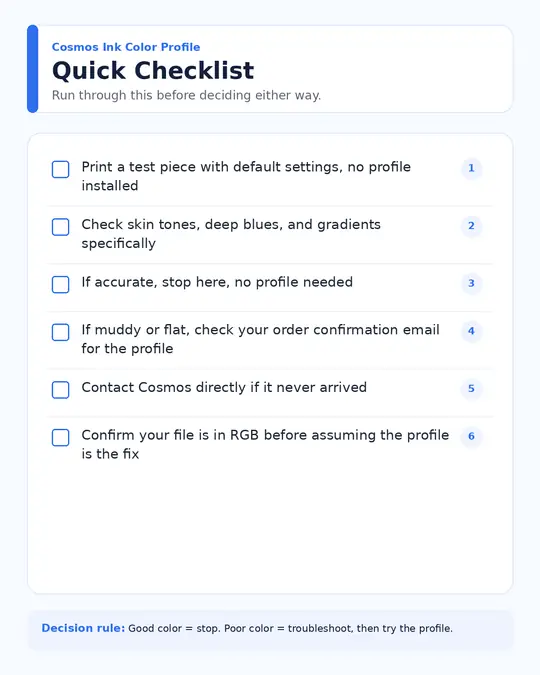
Download: Cosmos Ink: Do You Need the Profile? (PDF), below is the full decision checklist to run through before you buy or reach out to support.
Frequently Asked Questions
Does Cosmos ink require an ICC profile?
No, Cosmos builds its ink to work with your printer’s existing color profile. An optional profile is available for a wider color gamut, but it isn’t required for standard printing.
How do I get the Cosmos color profile?
It’s emailed to you after your order ships rather than offered as a website download. If you don’t receive it, contact Cosmos directly with your order number.
Does Cosmos ink work with the Epson ET-15000?
Yes, it’s a commonly documented pairing, especially among shops running higher print volumes.
What if my colors still look off without a profile?
Check your design mode (RGB, not CMYK) and monitor settings first. If the issue persists, request the optional profile from Cosmos or work through manual color correction instead.
What to Do Next
Print a test piece with your default settings before assuming you need anything extra. If colors already look right, there’s nothing to install. If you’re running higher-volume or color-sensitive work and want the wider gamut, request the profile from Cosmos directly rather than searching for a download that doesn’t exist on their site.