Why Is My Sublimation Printer Printing Blank Pages?

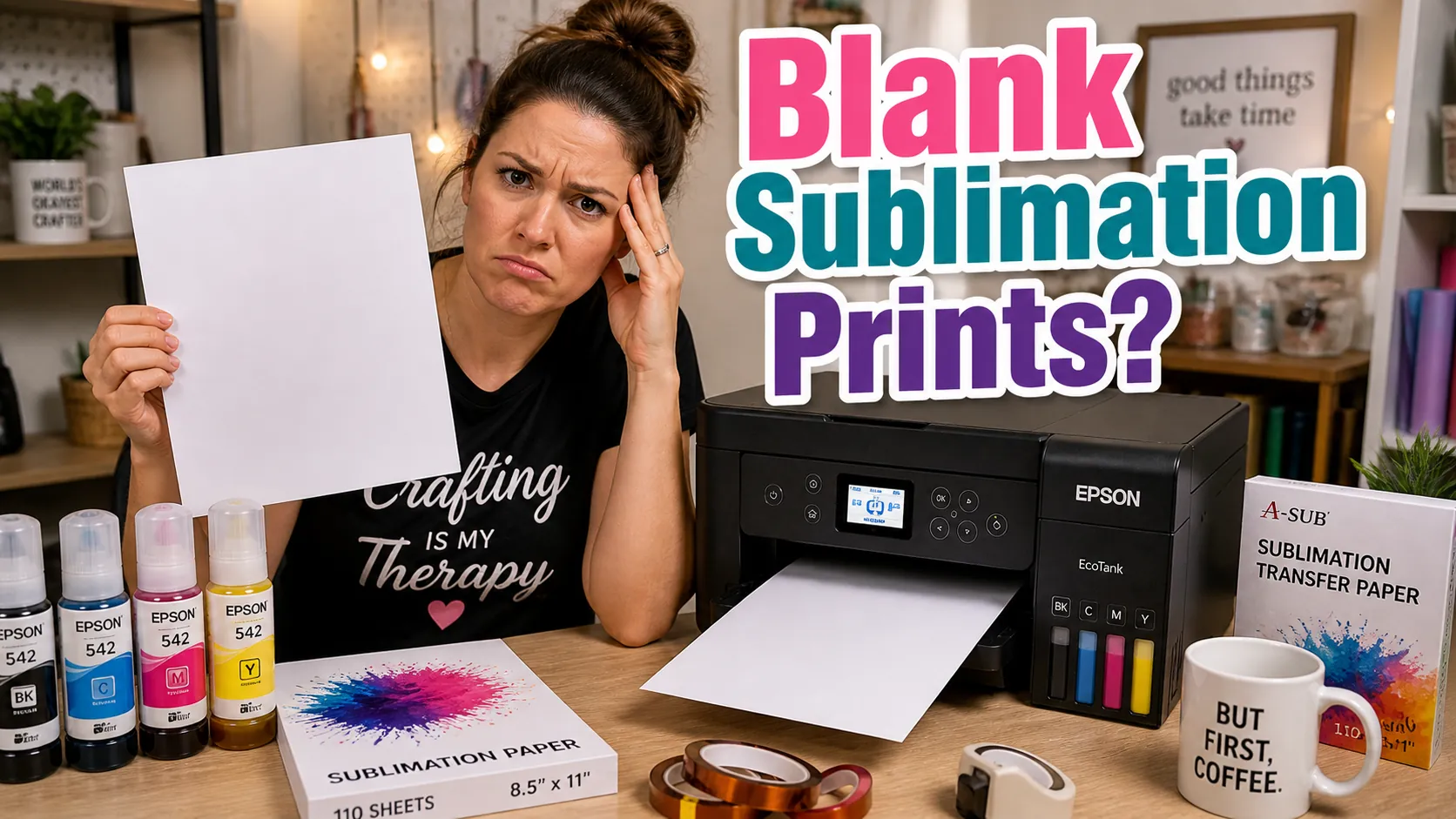
A sublimation printer printing blank pages can be incredibly frustrating, especially when your printer sounds normal but nothing appears on the paper.
This problem is common with converted Epson EcoTank printers, printers left unused for long periods, or systems with clogged print heads and ink flow issues.
The good news is that most blank page problems are fixable without replacing your printer.
In this guide, you’ll learn the most common reasons sublimation printers print blank pages, how to diagnose the issue, and the exact steps to fix it.
If you are troubleshooting multiple sublimation problems, start with this complete sublimation troubleshooting guide.
What Causes a Sublimation Printer to Print Blank Pages?
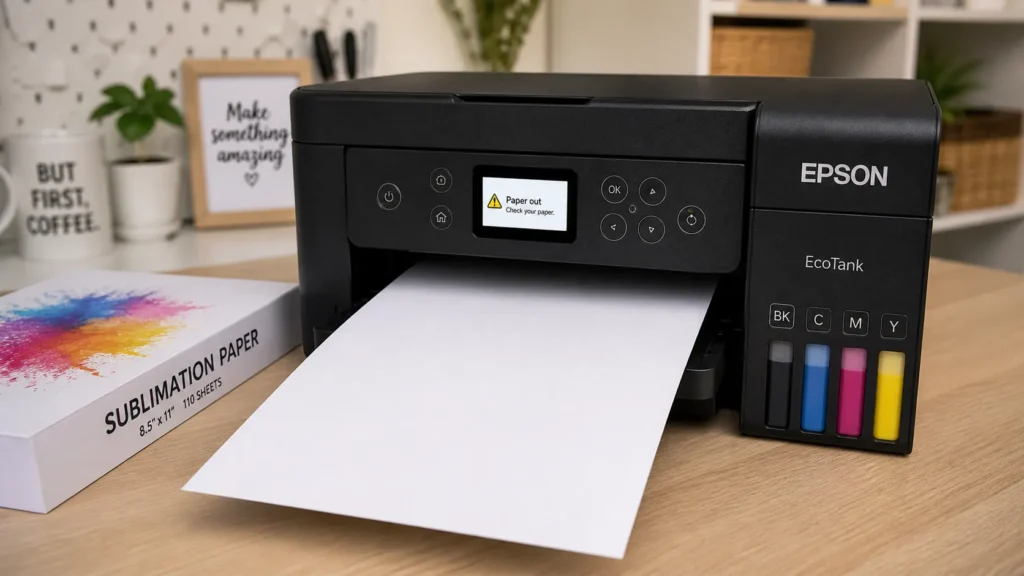
Most blank page problems come from one of these issues:
- Clogged print heads
- Air bubbles in ink lines
- Dried sublimation ink
- Incorrect printer settings
- Ink charging failures
- Poor printer maintenance
- Firmware or EcoTank system issues
In many cases, the printer itself is not broken. The issue is usually blocked ink flow somewhere in the sublimation printing system.
Check Ink Levels First
Before running deep troubleshooting steps, verify your printer actually has proper ink flow.
Low Ink Does Not Always Mean Empty Tanks
With EcoTank sublimation printers, visible ink inside the tanks does not always mean the ink is reaching the print head correctly.
Sometimes:
- air blocks the flow
- ink settles after long inactivity
- the printer loses prime after refill
How to Verify Proper Ink Flow
Follow these steps:
- Inspect ink tank levels visually
- Check ink lines for gaps or bubbles
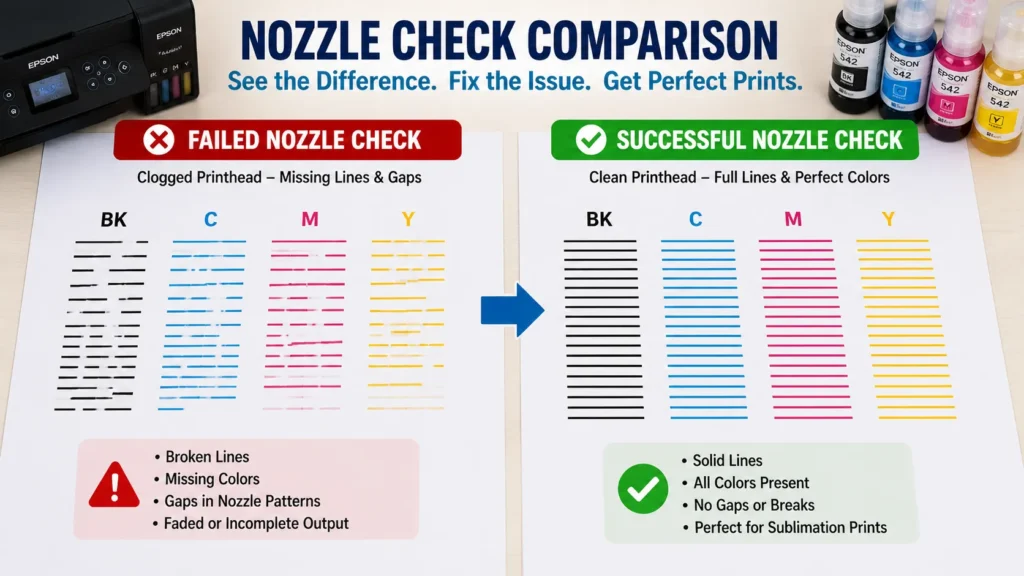
- Run a nozzle check pattern
- Look for missing colors or faded sections
- Confirm vent caps are open properly
If the nozzle check prints partially or completely blank, the issue is likely inside the ink delivery system.
You can also estimate printer usage patterns using this sublimation ink usage guide.
Image suggestion:
Close-up of EcoTank sublimation ink tanks with visible air gaps inside the ink lines.
Clogged Print Heads Are the Most Common Cause
Clogged print heads are the leading reason sublimation printers print blank pages.
This happens because sublimation ink dries faster than regular ink, especially when printers sit unused.
Signs of a Clogged Sublimation Print Head
Common symptoms include:
- completely blank pages
- missing colors
- horizontal white lines
- faded nozzle checks
- weak print saturation
Why Sublimation Ink Clogs Easily
Sublimation printers clog more often because:
- printers sit unused too long
- dry environments accelerate evaporation
- poor maintenance habits develop buildup
- low-quality inks leave residue
Converted EcoTank printers are especially sensitive to inactivity.
How to Fix Clogged Print Heads
Try these steps carefully:
- Run a nozzle check
- Perform one printhead cleaning cycle
- Wait 10–15 minutes
- Print another nozzle check
- Repeat only if necessary
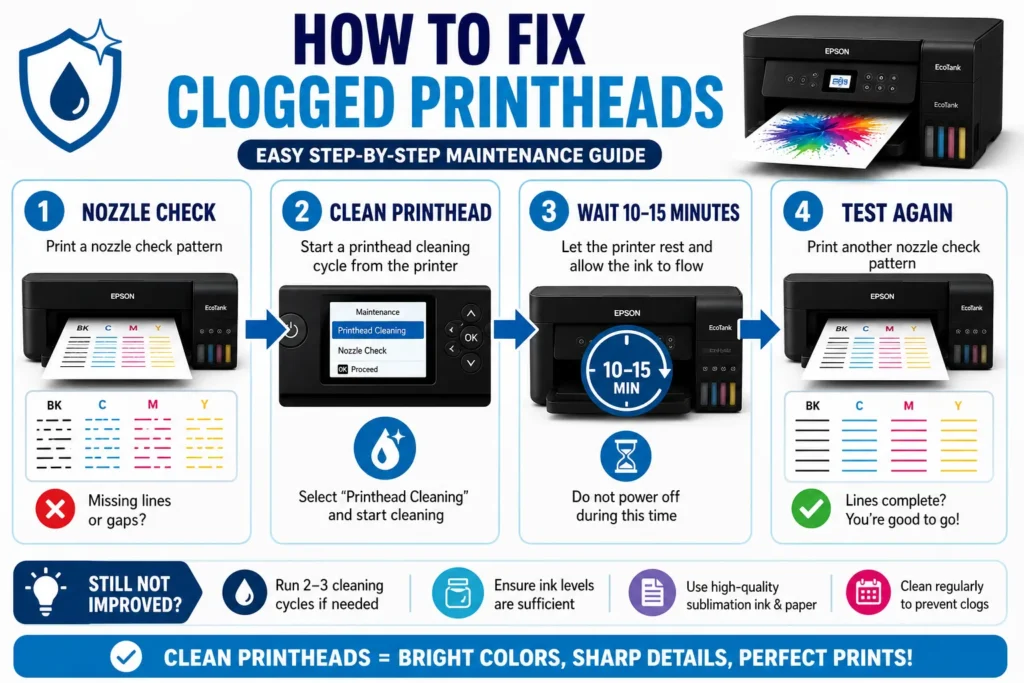
Avoid running excessive cleaning cycles because they waste ink and can overfill maintenance systems.
If cleaning does not help, follow this detailed guide on how to unclog a sublimation printer.
You can also review proper sublimation printer head cleaning methods for stubborn clogs.
Image suggestion:
Printer nozzle check sheet showing missing color lines beside a corrected nozzle pattern.
Air Bubbles in Ink Lines
Air bubbles are another major cause of blank sublimation prints.
This issue often appears:
- after refilling tanks
- after transporting printers
- after long inactivity
- after improper maintenance
Symptoms of Air in Ink Lines
You may notice:
- intermittent blank pages
- random missing colors
- incomplete prints
- fading during large prints
How to Remove Air From Ink Lines
- Run a power cleaning or ink charging cycle
- Let the printer rest afterward
- Print several small test pages
- Check whether ink lines refill evenly
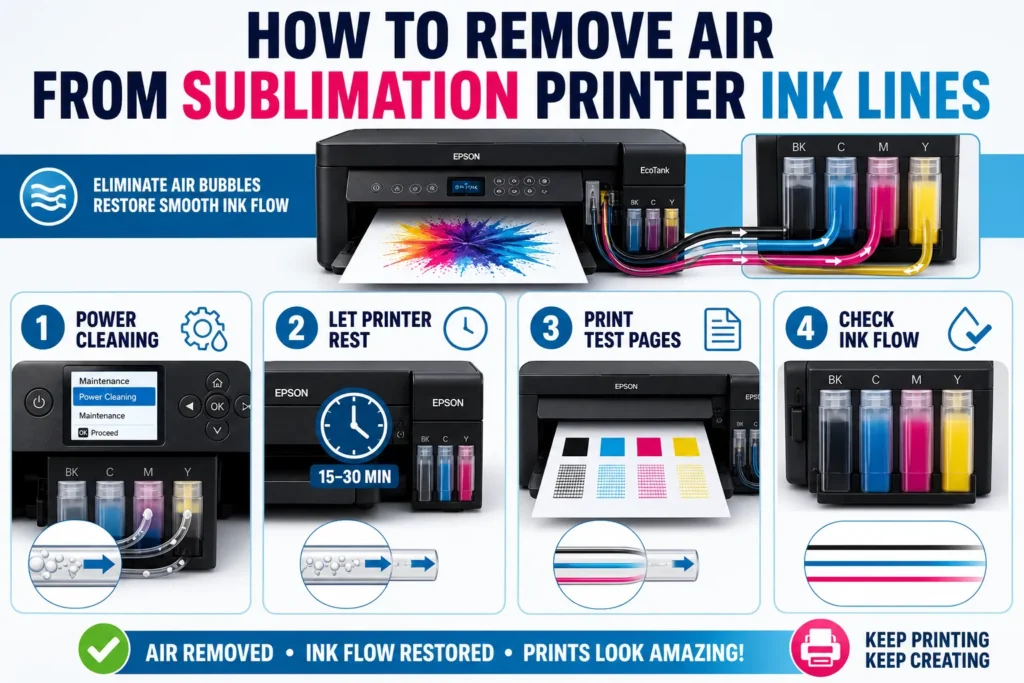
Be patient after deep cleaning cycles because ink flow sometimes takes time to stabilize.
If needed, follow this guide on how to flush sublimation ink from printer systems.
Incorrect Printer Settings Can Cause Blank Prints
Software settings can sometimes stop proper sublimation output.
Wrong Paper or Media Settings
Incorrect settings may reduce ink output too aggressively.
Common mistakes include:
- draft print mode
- plain paper mode
- grayscale settings
- incorrect media profiles
Always print using:
- high-quality mode
- proper sublimation paper settings
- correct driver configuration
ICC Profile and Color Management Problems
Incorrect color settings can interfere with print communication and output consistency.
Review:
- ICC profile setup
- printer-managed color settings
- software color conflicts
These guides help correct sublimation color management:
Image suggestion:
Computer print settings window beside a blank sublimation test print.
Why EcoTank Sublimation Printers Print Blank Pages
EcoTank printers are extremely popular for sublimation, but they have unique maintenance requirements.
Ink Charging Problems
After converting a printer for sublimation, ink may not fully reach the print head immediately.
This is common:
- after first setup
- after long inactivity
- after refilling tanks
Maintenance Box Problems
Some Epson printers stop printing correctly when the maintenance box becomes full.
Watch for:
- warning messages
- cleaning cycle failures
- firmware interruptions
EcoTank Recovery Steps
- Run nozzle check
- Perform one cleaning cycle
- Run power ink flush if needed
- Allow printer to sit for 30 minutes
- Print several small color pages
If you use Epson sublimation setups, review this Epson 8550 sublimation setup guide.
You can also follow these steps for cleaning Epson sublimation printers.
Run a Nozzle Check Before Replacing Parts
Many users replace parts too quickly before testing the actual issue.
A nozzle check can quickly reveal:
- clogged channels
- missing ink flow
- partial blockages
- weak saturation
Always run a nozzle check before assuming the print head is permanently damaged.
Use this free printer test page to evaluate print quality.
When Your Sublimation Printer Needs Professional Repair
Sometimes the issue goes beyond normal maintenance.
Professional repair may be necessary if:
- the print head fails completely
- ink systems leak internally
- motherboard communication fails
- cleaning cycles no longer restore output
If repeated maintenance does not improve printing, professional inspection may save more time and ink waste.
How to Prevent Blank Sublimation Pages
Good maintenance habits reduce most sublimation printer problems.
Best Practices
- Print at least once weekly
- Store printers in moderate humidity
- Use quality sublimation ink
- Avoid mixing ink brands
- Keep printers covered from dust
- Perform regular nozzle checks
Consistent workflows reduce future clogs and ink flow failures.
For long-term maintenance help, read how to prevent banding and clogged print heads.
You may also want to understand why converted printers fail after 6 months.
Quick Troubleshooting Checklist
Before replacing parts, check:
- Ink levels
- Ink line bubbles
- Nozzle check results
- Printhead condition
- Media settings
- ICC profile setup
- Cleaning cycle performance
- Maintenance box status
Most blank page issues are solved during these early checks.
Frequently Asked Questions
Why is my sublimation printer printing completely blank pages?
Completely blank pages usually happen because of clogged print heads, blocked ink flow, or air inside the ink system.
Can dried sublimation ink cause blank prints?
Yes. Sublimation ink dries faster than standard ink and can clog print heads if printers sit unused too long.
Why is my EcoTank printer printing blank pages after refill?
The printer may need an ink charging cycle or power cleaning after refilling the tanks.
How often should I print to prevent clogs?
Printing at least once every few days or weekly helps keep sublimation ink flowing properly.
Can incorrect settings cause blank sublimation prints?
Yes. Draft mode, grayscale settings, or incorrect media profiles can reduce ink output significantly.
Quick Recap
A sublimation printer printing blank pages is usually caused by clogged print heads, air bubbles, incorrect settings, or poor maintenance.
Start with the basics first:
- run a nozzle check
- inspect ink flow
- clean print heads carefully
- verify printer settings
- check for air bubbles
Most sublimation printers recover once proper ink flow is restored and regular maintenance becomes part of the workflow.