Epson ET-8550 ICC Profile for Sublimation: Downloads & Setup

Your Epson ET-8550 is printing reds too orange, gray with a color cast, or blues that change after pressing. An ICC profile might help, but downloading a file labeled "ET-8550" is not enough.
The correct Epson ET-8550 ICC profile for sublimation must match the sublimation ink and the printing workflow you actually use. The ET-8550 has six ink positions, and some suppliers provide their own profiles or recommend specific driver settings instead. Start by confirming your ink brand and formulation, then use the supplier’s instructions. Test the result on a pressed blank before changing your production settings.
Does the Epson ET-8550 Need an ICC Profile for Sublimation?
Not always. A separate ICC profile can improve color consistency when it was made for your printer, ink and intended printing conditions. But an ink supplier may recommend a driver-managed workflow without an additional custom ICC file.
An ICC profile describes how a particular printing condition reproduces color. It does not unclog nozzles, correct a poorly pressed blank, or guarantee an exact match to an uncalibrated monitor.
The distinction matters because the Epson ET-8550 is sold as a six-color photo printer using Epson Claria ET Premium ink. Epson’s standard paper profiles are intended for Epson’s documented printing combinations, not automatically for a printer refilled with third-party sublimation ink.
| Your situation | Best next step |
|---|---|
| Your ink supplier provides a matching ET-8550 ICC profile | Follow that supplier’s exact installation and print-settings instructions. |
| Your ink supplier recommends the printer’s existing color workflow | Start with that supported workflow; do not add a random ICC file. |
| Your supplier lists a profile for a different Epson EcoTank | Ask for ET-8550 compatibility before using it. |
| No supported profile exists and accurate repeatability is essential | Ask the supplier about custom profiling for your specific ink, paper and transfer conditions. |
If you are still preparing the machine, follow the separate ET-8550 sublimation setup steps before changing color profiles.
Before Downloading: Check Your ET-8550 Ink and Printer Setup
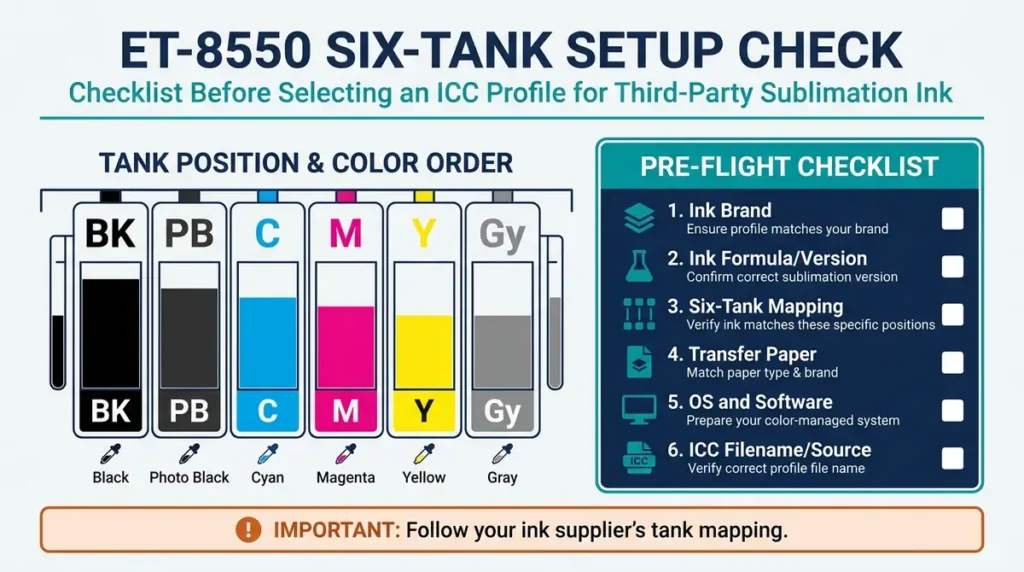
Identify all six tank positions and the actual replacement ink in them. A profile that suits a four-channel printer or a different six-ink formulation may produce poor color on this model.
Epson lists these six ET-8550 channels:
| Tank label | Epson’s original 552 ink type | What to record after conversion |
|---|---|---|
| BK, Black | Pigment black | Exact replacement sublimation ink supplied for BK |
| PB, Photo Black | Dye photo black | Exact replacement ink supplied for PB |
| C, Cyan | Dye cyan | Sublimation cyan brand and product |
| M, Magenta | Dye magenta | Sublimation magenta brand and product |
| Y, Yellow | Dye yellow | Sublimation yellow brand and product |
| Gy, Gray | Dye gray | Sublimation gray brand and product |
These original ink types come from Epson’s 552 ink specification. They do not tell you which third-party sublimation bottle belongs in each tank. For example, InkOwl’s ET-8550 six-bottle Performance-D kit includes two bottles of its black sublimation ink rather than a separate original-Epson-style pigment black and dye photo black. Always use the selected ink supplier’s tank mapping.
Record the following before downloading anything:
- Ink brand, product name and formulation or version.
- Which ink was placed in BK, PB, C, M, Y and Gy.
- Sublimation transfer paper brand and product.
- Windows or macOS version, Epson driver and printing application.
- The profile filename and official download source.
- The material on which you will evaluate the pressed result.
A profile may work well for one ink formulation and poorly for another. Mixing old ink with a different brand or changing paper and driver settings also makes a controlled comparison harder.
Where to Download an Epson ET-8550 Sublimation ICC Profile
Download from the supplier of the ink inside your ET-8550, not from an unrelated profile-sharing site. Check the exact printer model and ink version on the supplier page before installing the file.
| Source | What is currently documented | What to check before using it |
|---|---|---|
| Cosmos Ink color-profile directory | Separate ET-8550 links for Cosmos Sublimation Ink 1.0 and 2.0. | Which Cosmos ink formulation you own and its current recommended settings. |
| InkOwl Performance-D ET-8550 ink kit and profile finder | InkOwl lists the ET-8550 as compatible with its specific six-bottle kit and provides a printer/profile selection system. | Select the ET-8550 and the relevant operating system and software; use the Performance-D instructions. |
| Hiipoo official website | The site has a Get ICC Files link, and its product catalog lists a six-bottle BK/PB/C/M/Y/GY ET-8550 ink set. | Confirm the downloadable file explicitly supports your exact Hiipoo ET-8550 formulation. A specific matching file was not independently confirmed during this review. |
What about Epson’s original ICC profiles?
An Epson photo profile may be installed along with the printer driver, but it describes a different intended ink and paper setup. It is not a verified substitute for a custom profile made for your sublimation ink.
Epson also warns that non-genuine ink can cause damage not covered under its limited warranty. Review that risk before converting a printer originally sold for photo printing.
Avoid downloads with an unclear origin
Skip a file when you cannot identify its creator, supported ink, printer and recommended settings. An .icc or .icm extension only identifies the file format; it does not prove the profile is appropriate for sublimation.
For broader brand comparisons, see how to choose a sublimation ICC profile. If you already have Hiipoo ink, the Hiipoo profile setup page covers that brand’s separate selection process.
How to Install an ET-8550 ICC Profile on Windows 11
Install the correct ICC file, then select it inside an application that supports printer-profile color management. Installing a profile does not automatically mean your next print will use it.
- Download the profile from the ink supplier’s official page. Extract the ZIP archive if necessary.
- Confirm the file ends in
.iccor.icmand matches your ET-8550 ink formulation. - Right-click the file and select Install Profile. Some Windows versions show this option under the extended context menu.
- Close and reopen Photoshop or the other supported printing application.
- Open the application’s print dialog and confirm that the installed printer profile appears in its profile list.
- Select the supplier-supported color-management workflow and driver settings. Save a clearly named preset if the application allows it.
If Install Profile is unavailable, Adobe documents the Windows color-profile folder as C:\Windows\System32\spool\drivers\color. Copying a trusted profile there is a fallback, not a reason to install unknown files. See Adobe’s color-profile installation guidance.
Do not set a printer ICC profile as your monitor profile. Windows display-profile settings and Photoshop’s printer-profile choice serve different purposes.
How to Install and Use the Profile on Mac
Place the supplier’s profile in a supported ColorSync Profiles folder, then choose the correct print workflow. Merely copying the file will not automatically make every app use it.
- Extract the trusted
.iccprofile from the supplier download. - In Finder, use Go > Go to Folder and open
/Library/ColorSync/Profilesfor a system-wide installation, or~/Library/ColorSync/Profilesfor your user account. - Copy the file into the folder you can access. Administrative permission may be required for the system-wide folder.
- Restart the supported printing application.
- Open ColorSync Utility > Profiles to confirm the profile is visible. Apple’s ColorSync troubleshooting instructions also explain profile verification.
- Select the matching profile in your color-managed application and follow the ink supplier’s Epson driver instructions.
Epson’s ET-8550 Mac printing documentation distinguishes ColorSync, EPSON Color Controls and Off (No Color Adjustment). The available menus can differ by driver version, application and macOS release.
Do not turn off printer color management unless your application is actually performing the conversion with a compatible output ICC profile. Otherwise, you may remove both color-management methods.
Set Up Photoshop to Print with the Correct ICC Profile
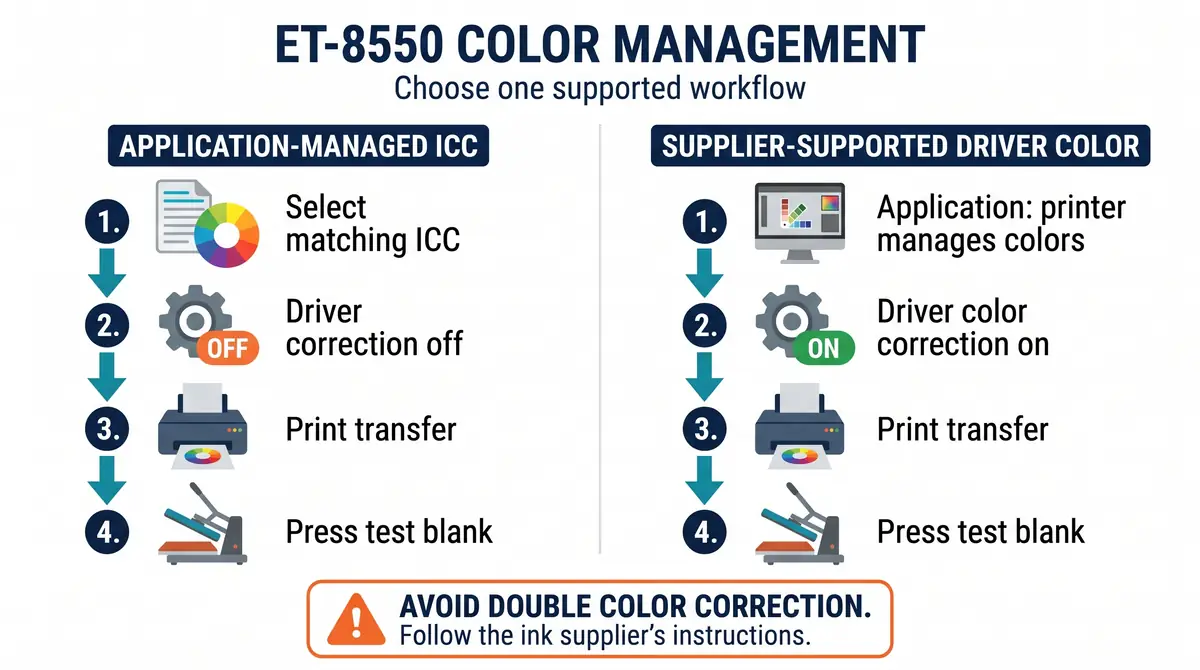
For a supplier-supported custom profile, Photoshop should manage the color conversion while the Epson driver avoids a second correction. Use the following workflow only if your ink supplier specifies an application-managed profile.
- Open the artwork in Photoshop and confirm its document color profile.
- Select File > Print and open Color Management.
- Under Color Handling, choose Photoshop Manages Colors.
- Under Printer Profile, choose the profile that matches your sublimation ink and ET-8550 settings.
- Use the rendering intent specified by your profile supplier. If none is given, compare only supported alternatives using the same test image; do not assume one intent works best for every design.
- Open Print Settings. Select the supplier’s documented transfer-paper/media type and quality settings.
- In the Epson driver’s color correction settings, choose No Color Adjustment when available and when required for this application-managed workflow.
- Confirm the correct mirror-print setting for your transfer job. Print one test transfer.
Adobe’s current Photoshop color-managed printing instructions describe this division of responsibility between Photoshop and the printer driver.
The two workflows must not be mixed
| Workflow | Application | Epson driver |
|---|---|---|
| Application-managed, compatible custom ICC | Manages color with the supplier-matched profile. | Color correction off, as directed by the supplier. |
| Supplier-supported driver-managed method | Uses the supplier’s documented printer-managed settings. | Performs the selected color correction. |
Turning on color conversion in both places can shift the output. Turning it off in both places leaves no intended ICC conversion. For exact menus on your system, check the printer settings walkthrough.
Test Your ET-8550 ICC Profile Before Printing Customer Orders
Compare two pressed samples made from the same artwork and matched blanks. A transfer can look dull or strange before pressing, so judging the paper alone will not tell you whether the ICC profile is useful.
Free PDF: ET-8550 Six-Ink ICC Match & Press Test Kit. Download the free three-page ET-8550 ICC color test kit (PDF) to record your six-tank ink setup and compare pressed A/B color samples. Use the ink supplier’s supported workflow and press settings.
The original three-page resource contains a six-tank ink record, a labeled 20-patch color target with a gray ramp, and an A/B results sheet. Its printed color values are reference patches, not certified spectrophotometer measurements.
Run a controlled A/B comparison
- Check the nozzle pattern first. Resolve missing channels or banding before evaluating color profiles.
- Complete the setup record. Write down the ink bottle used in each of the six tanks, the transfer paper, software and driver versions, and the blank supplier.
- Print Sample A. Use the ink supplier’s supported baseline settings and the kit’s test-target page.
- Print Sample B. Use a genuinely compatible ICC workflow for the same ink. Change only the color-management method being evaluated. If no supported alternate workflow exists, do not improvise one.
- Press matched blanks. Use the manufacturer or blank supplier’s instructions for that material. Keep time, temperature, pressure and handling consistent between samples.
- Compare under the same lighting. Look for gray neutrality, distinct reds and oranges, clean teal and blue separation, shadow detail, and visible bands.
- Record the result. Choose the workflow that is more repeatable and appropriate for your actual work, not whichever screen preview appears more vivid.
If you switch to a different ink, transfer paper or coated blank, keep the old record and make a new comparison. The general sublimation color chart PDF is useful for building a separate color-reference library after the workflow is stable.
Why ET-8550 Sublimation Colors Still Look Wrong
A correct ICC profile cannot compensate for every source of bad color. Check the problem before downloading another file.
| What you see | Check first | Why it matters |
|---|---|---|
| Profile installed but missing from Photoshop | Extracted file, installation folder, application restart and selected print workflow | Installation and selection are separate steps. |
| Pressed colors are very dark or oversaturated | Two color-management methods active at once | Double correction can distort tone and saturation. |
| Gray or black has a noticeable color cast | Six-tank ink mapping, nozzle pattern and profile match | One incorrect or weak ink channel can affect neutral tones. |
| Red becomes orange, teal becomes blue | Whether profile and ink actually match; pressed substrate | Some shifts come from the selected printing condition or material, not the design alone. |
| Horizontal bands or missing colors | ET-8550 nozzle check and ink supply | A damaged or missing printed channel is not an ICC problem. |
| Paper looks dull but pressed blank looks normal | Compare the final pressed result | Transfer-paper appearance is not the finished product. |
| Screen and final blank differ | Monitor condition, lighting, profile, blank and pressing | A glowing display and a printed surface do not reproduce color identically. |
Epson’s ET-8550 incorrect-color troubleshooting recommends checking paper-type settings, the nozzle pattern, ink levels and color-management settings. Some recommendations apply to normal Epson photo printing, so retain your sublimation ink supplier’s instructions when using a converted unit.
Use routine nozzle-check and maintenance guidance before a more intensive cleaning procedure. Frequent unnecessary cleaning wastes ink, and Epson cautions that power cleaning uses substantial ink.
If the printer is mechanically healthy but the pressed color is still inconsistent, compare an ICC-managed workflow with manual color correction and ICC profiles to decide what needs adjusting.
What If No ICC Profile Matches Your ET-8550?
Do not substitute a profile from an ET-15000 or another four-ink EcoTank simply because the download is available. Look for a supported method that matches your actual six-ink setup.
Try these steps in order:
- Check the ink supplier’s product page for ET-8550-specific driver settings and profile links.
- Confirm the exact ink version or batch with supplier support. Include the six-tank mapping and operating system.
- Use the supplier’s documented printer-managed workflow if it supports your ink and software.
- Press a controlled color chart to establish whether the baseline is acceptable for your products.
- For demanding commercial color work, ask a qualified profiling service about building a custom profile for your ink, printer, paper and intended output condition.
Custom profiling usually needs an instrument-based process and controlled samples. The printable test kit here helps compare existing workflows; it does not create or certify an ICC profile.
Epson ET-8550 ICC Profile FAQs
Can I use an Epson photo ICC profile with sublimation ink?
Not as a verified general solution. Epson’s photo profiles target its documented ink and paper combinations. A profile may load successfully yet produce inaccurate colors with replacement sublimation ink. Start with the supplier’s ET-8550 instructions or an appropriate custom profile.
Is an ET-8550 ICC profile free?
Some ink suppliers provide a profile download as part of their ink-support offering, including ET-8550-specific links. Compatibility matters more than price. A free profile for another ink brand is not automatically the right file for your machine.
Does Hiipoo provide an ICC profile for the ET-8550?
Hiipoo has an official Get ICC Files link and sells an ET-8550 six-bottle ink product. The precise matching ET-8550 download for every Hiipoo formulation has not been independently confirmed here. Check the official file directory and ask Hiipoo to verify your particular ink before installing it.
Can I use the same profile for polyester, ceramic mugs and coated metal?
Only when the profile supplier documents that workflow. The same printed transfer can look different on different substrates, coatings and press conditions. Keep separate pressed references for materials where color consistency matters.
Why are my colors still wrong after installing the profile?
The profile may not be selected in the printing app, or the driver may be applying a second correction. An incorrect six-ink mapping, partial nozzle clog, incompatible paper setting or pressing variation can also cause problems. Check the workflow and a nozzle test before downloading more profiles.
Choose the Profile That Matches Your Actual Setup
An Epson ET-8550 ICC profile for sublimation is useful only when its supported ink and print conditions match your converted printer. Verify the six tanks, use the supplier’s profile or recommended driver method, and judge the result after pressing on a suitable blank.
Keep the completed ET-8550 test record beside your printer. It will be more useful for repeat jobs than a folder full of unidentified ICC downloads.