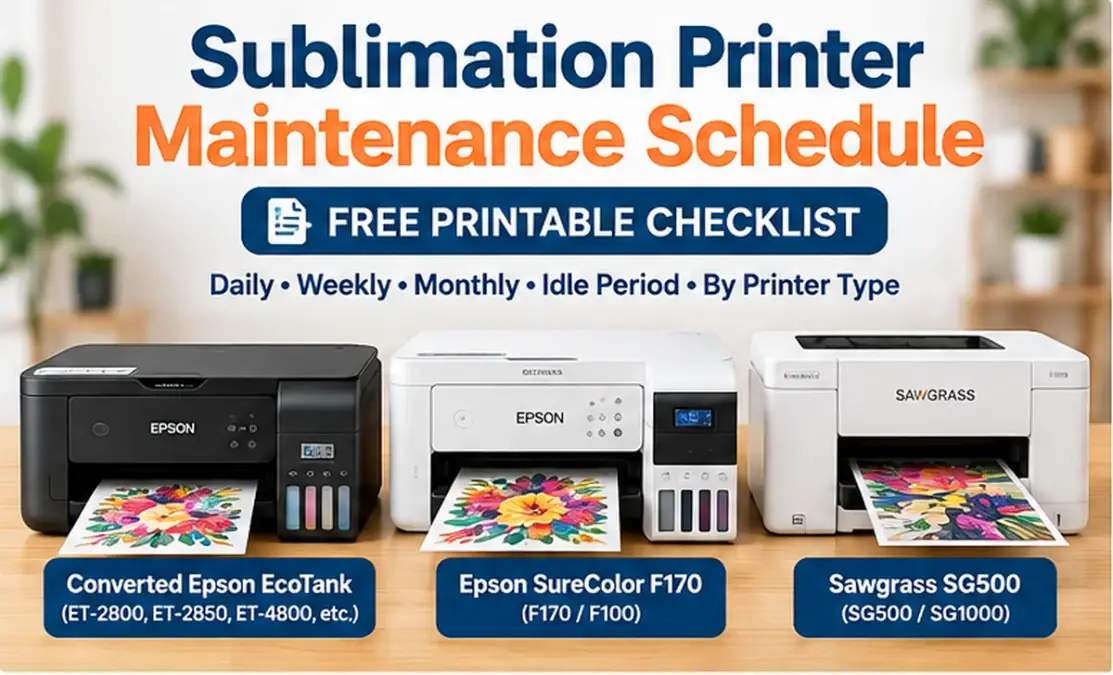
Sublimation Printer Maintenance Schedule: Free Printable Checklist

A good sublimation printer maintenance schedule is mostly about checking the printer before problems become expensive, not running head-cleaning cycles on a calendar.
Nozzle checks, ink levels, regular printing, paper-path inspection, and correct shutdown or standby habits do more for preventive maintenance than aggressive cleaning.
The exact routine depends on the printer. A converted Epson EcoTank, an Epson SureColor F170, and a Sawgrass SG500 should not all be maintained the same way.
Use the schedule below as a baseline, then follow your printer manufacturer’s instructions whenever they differ.
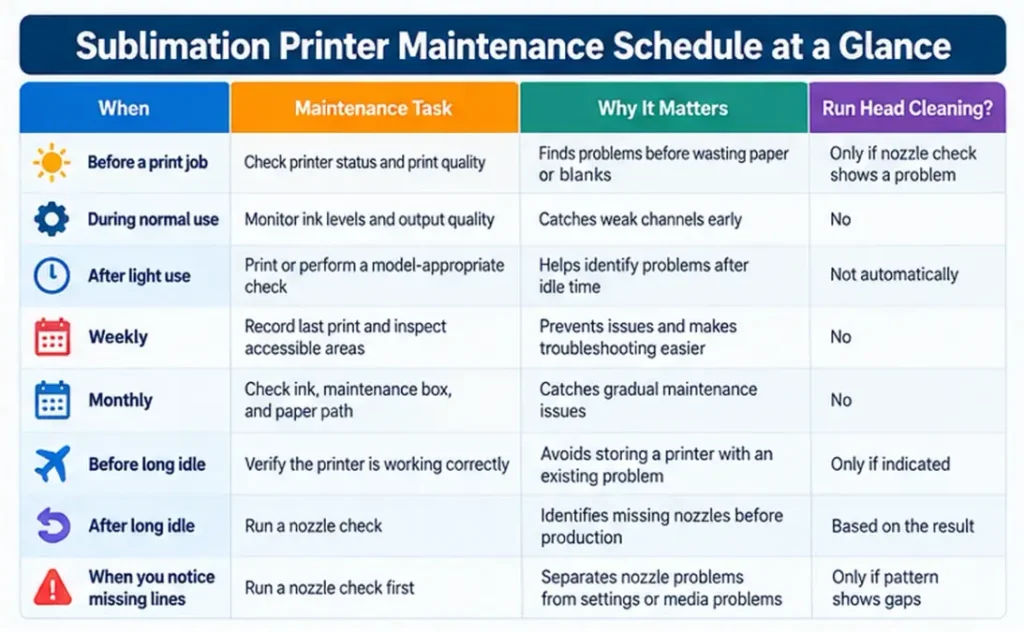
Sublimation Printer Maintenance Schedule at a Glance
| When | Maintenance task | Why it matters | Run head cleaning? |
|---|---|---|---|
| Before an important job | Check printer status and print quality | Finds problems before wasting sublimation paper or blanks | Only if a nozzle check shows a problem |
| During normal use | Watch ink levels and output quality | Catches weak channels and feed problems early | No |
| After light or infrequent use | Print or perform a model-appropriate check | Helps identify problems after idle time | Not automatically |
| Weekly | Record last successful print and inspect accessible areas | Makes recurring problems easier to spot | No |
| Monthly | Review ink, maintenance consumables, dust and feed condition | Catches gradual maintenance issues | No |
| Before a long idle period | Verify the printer is working correctly | Avoids storing a printer that already has a nozzle problem | Only if indicated |
| After a long idle period | Run the appropriate diagnostic check | Identifies missing nozzles before production | Based on the result |
| When output develops missing lines | Run a nozzle check first | Separates nozzle problems from settings or media problems | Only if the pattern shows gaps |
The most important rule is simple:
A clean nozzle check does not need a head cleaning.
On Epson printers, the nozzle-check pattern is used to decide whether cleaning is necessary. Epson’s ET-2800 guidance says that if there are no gaps, the print head is clean. If gaps appear, normal cleaning is the next step.
Free Sublimation Printer Maintenance Checklist
A maintenance log works best when it records what actually happened instead of forcing you to perform unnecessary cleaning.
Use this checklist on paper, in a spreadsheet, or as a printable shop log.
Printer information
- Printer make and model:
- Sublimation ink:
- Paper:
- Date:
- Last successful print date:
- Current ink levels:
- Maintenance box or waste status:
- Current printer warning or error:
Quick maintenance check
- Printer powers on normally
- No maintenance or ink warning is showing
- Paper path is clear
- No obvious ink marks or debris are present
- Ink levels are adequate
- Recent output looks normal
- Nozzle check completed if needed
- Nozzle pattern is complete
- Head cleaning performed only if required
- Issue and action recorded
Record the result
| Date | Printer | Last print | Nozzle result | Ink level | Cleaning performed | Problem found | Follow-up |
|---|---|---|---|---|---|---|---|
A valid maintenance result can be:
Nozzle pattern good. No cleaning needed.
That result is better than using ink on a cleaning cycle the printer did not need.
Identify Your Sublimation Printer Before Following a Maintenance Schedule
Maintenance advice that works for one printer can be wrong for another.
Start by identifying which type of sublimation printer you operate.
Converted Epson EcoTank
A converted EcoTank is a standard Epson EcoTank printer being used with sublimation ink instead of its original intended ink system.
The printer’s built-in nozzle-check and cleaning tools still provide useful diagnostic functions, but Epson’s standard documentation is written for the printer in its original configuration.
That distinction matters.
Do not assume that every recommendation from another converted-printer owner applies to your exact model, ink, environment, or conversion.
For example, Epson’s ET-2800 maintenance process starts with a nozzle check. If the pattern has gaps, normal head cleaning follows. If cleaning does not improve the pattern after up to three attempts, Epson instructs users to stop and wait at least 12 hours before continuing the recovery process.
Repeated cleaning without checking the pattern wastes ink and can make troubleshooting harder.
Epson SureColor F170
The Epson SureColor F170 is designed as a dye-sublimation printer, so its maintenance instructions are specific to that printer.
When print quality shows lines, Epson recommends running a nozzle check first. If the pattern contains gaps, clean the print head. If the nozzle pattern is complete, Epson directs users toward other possible causes such as print quality settings, paper type, and print adjustment instead of assuming the head is clogged.
That makes the F170 a good example of why maintenance and troubleshooting should be separated.
A banded print does not automatically mean the printer needs another cleaning cycle.
For model-specific steps, use the Epson SureColor F170 nozzle check and head cleaning guide.
Sawgrass SG500 and SG1000
Sawgrass maintenance works differently.
Sawgrass says the SG500 and SG1000 perform an automatic cleaning cycle approximately every 10 hours to help reduce clogged nozzles. Because that automatic process requires power, Sawgrass recommends leaving these printers plugged in and switched on.
That means advice such as “turn your printer off whenever you are not using it” is not appropriate for a Sawgrass SG500 or SG1000.
Sawgrass also recommends printing a nozzle check periodically or before a large print job, while separately explaining that a nozzle check is mainly a diagnostic tool.
For the complete model-specific process, see the Sawgrass SG500 nozzle check and head cleaning guide.
Daily Sublimation Printer Maintenance
A printer used every day rarely needs a long daily maintenance routine.
Most daily maintenance is observation.
Check the Printer Before an Important Production Run
Before loading a large job, check for:
- warning messages
- low ink
- feed problems
- unusual noises
- ink marks on paper
- missing colors
- banding or unexplained lines
The point is to catch a problem before you print 20 transfer sheets.
If yesterday’s output was clean and today’s first print is clean, there is no reason to create a cleaning problem where none exists.
Use a Nozzle Check When You Have a Reason
Useful times to run a nozzle check include:
- after the printer has been idle
- before a large paid order
- when one color appears weak
- when lines or gaps appear in output
- after a cleaning cycle to verify improvement
A nozzle check is a diagnosis.
It tells you whether the printer is laying down each ink channel correctly.
If the pattern is complete, stop looking for a clogged print head and investigate the next likely cause.
Your printer test page guide can help when the problem is broader than one missing ink channel.
Watch for Early Warning Signs
Small problems often appear before a complete color channel disappears.
Look for:
- repeated horizontal gaps
- one color becoming weaker
- a sudden color cast
- ink smears
- inconsistent feeding
- the same defect appearing in the same location
- unusual maintenance warnings
Recording these symptoms helps you distinguish a one-time bad print from a repeating printer problem.
Weekly Maintenance for a Lightly Used Sublimation Printer
A printer used only once or twice a week needs more attention to idle time than a printer running orders every day.
Avoid Long Periods With No Ink Movement
Inkjet print heads work best when the printer is used regularly.
The correct interval depends on the printer and manufacturer, so there is no responsible universal rule such as “print every Tuesday.”
Instead, track the last time your printer produced a clean full-color print.
If a converted printer regularly develops missing channels after long idle periods, shorten the time between normal prints rather than relying on repeated cleaning cycles afterward.
Your existing guide on how often to print purge sheets covers purge-print frequency in more detail.
Record the Last Successful Print
A maintenance log becomes much more useful when something goes wrong.
Instead of thinking:
“I haven’t printed in a while.”
you can see:
- last good print date
- last nozzle-check date
- which color caused the previous problem
- whether cleaning solved it
- how long the printer had been idle
Patterns become easier to spot.
If cyan repeatedly disappears after similar idle periods, that history is useful troubleshooting information.
Inspect Accessible Areas
Look for:
- paper dust
- scraps
- loose paper
- visible ink contamination
- dirty output rollers
- feed obstructions
Do not start dismantling a working printer as part of weekly maintenance.
Use your sublimation printer cleaning guide when actual cleaning is required.
Monthly Sublimation Printer Maintenance
Monthly maintenance should focus on printer condition and recurring patterns, not forced cleaning.
Check Ink and Maintenance Consumables
Depending on your printer, review:
- ink tank levels
- ink cartridges
- maintenance box
- waste-ink warnings
- printer status messages
- available replacement consumables
Low ink can create its own problems during aggressive recovery procedures.
Epson specifically requires ET-2800 ink tanks to be at least one-third full before Power Cleaning. Epson warns that performing Power Cleaning with insufficient ink can damage the printer.
Inspect the Paper Path
Look for ink marks, dust, or feed problems.
Do not confuse a dirty paper path with clogged nozzles.
Epson includes paper-path cleaning among the troubleshooting steps for certain banding and smearing problems.
Review the Maintenance Log
Look for trends such as:
- cleaning is required more often
- the same channel repeatedly develops gaps
- banding continues despite a clean nozzle check
- paper-feed marks are becoming more frequent
- recovery takes more cleaning cycles than before
A recurring issue deserves investigation.
It should not automatically become part of the maintenance schedule.
What to Do Before Leaving a Sublimation Printer Unused
Long idle periods cause more anxiety than normal daily operation.
The best preparation depends on the printer.
Converted EcoTank
Before leaving a converted EcoTank unused:
- Print something representative of normal color output.
- Run a nozzle check if you suspect an issue.
- Confirm all channels are printing correctly.
- Correct an existing nozzle problem before the idle period.
- Check ink levels.
- Follow the power and storage instructions for your exact model.
Avoid running unnecessary cleaning simply because you are going away.
A clean printer does not become better prepared because you forced an extra cleaning cycle.
Sawgrass SG500 and SG1000
Do not routinely shut down a Sawgrass printer for an idle period.
Sawgrass says its SG500/SG1000 printers perform automatic maintenance and recommends leaving them plugged in and switched on so the maintenance cycle can operate.
Sawgrass also recommends disabling Auto Off on applicable models so the printer remains available for its maintenance process.
Epson SureColor F170
Treat the F170 as its own printer rather than borrowing habits from converted EcoTank owners.
Before a long idle period, verify good output and follow the current F170 documentation for storage and maintenance.
When you return, use a nozzle check before assuming a cleaning cycle is necessary.
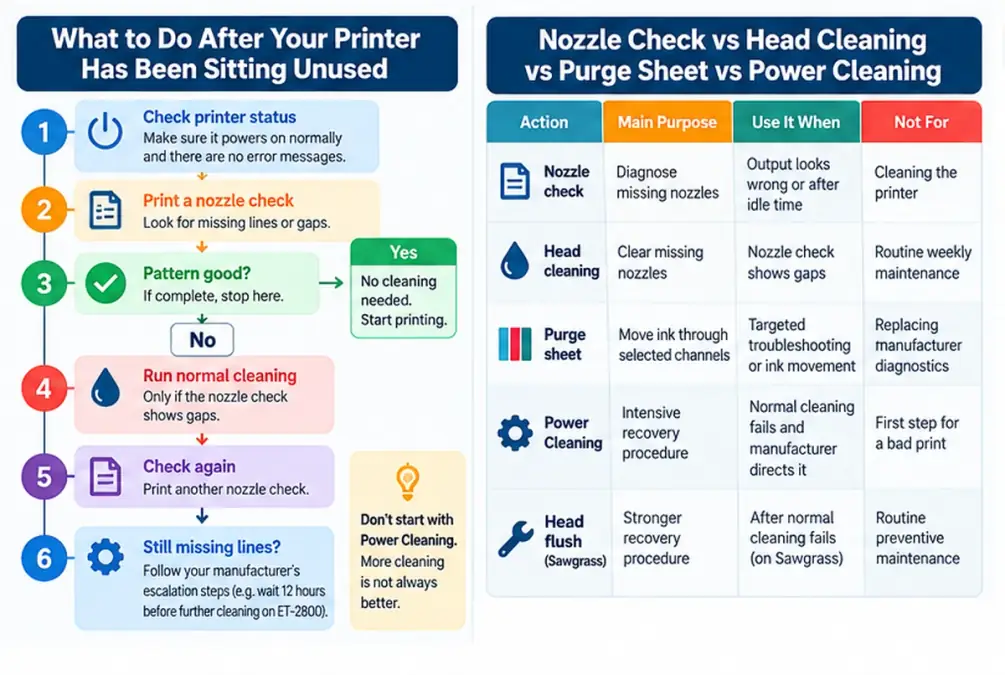
What to Do After a Sublimation Printer Has Been Sitting Unused
A printer that has been idle for weeks should be diagnosed before it is aggressively cleaned.
Use this order.
Step 1: Check Printer Status
Confirm:
- the printer starts normally
- there are no maintenance errors
- ink levels are adequate
- paper is loaded correctly
Step 2: Print a Nozzle Check
Look for missing segments or weak lines.
If the nozzle pattern is complete, stop.
Do not run head cleaning because you expected a clog.
Step 3: Run Normal Cleaning Only if the Pattern Requires It
On the ET-2800, Epson directs users with gaps or a faint pattern to normal print-head cleaning first.
Step 4: Print Another Nozzle Check
Compare it with the first test.
You want evidence that the cleaning changed something.
Step 5: Do Not Repeat Cleaning Indefinitely
For the ET-2800, Epson says that if the nozzle condition does not improve after cleaning up to three times, turn the printer off and wait at least 12 hours before trying again.
That pause matters.
More cleaning is not automatically better cleaning.
Step 6: Escalate According to the Printer Manual
Power Cleaning, head flushing, or deeper maintenance should happen only when the normal recovery process points there.
Different printers use different escalation procedures.
Nozzle Check vs Head Cleaning vs Purge Sheet vs Power Cleaning
These tools do different jobs.
| Action | Main purpose | Use it when | Do not use it as |
|---|---|---|---|
| Nozzle check | Diagnose missing nozzles | Output looks wrong, printer sat idle, before critical work | A cleaning procedure |
| Normal head cleaning | Clear missing nozzles | Nozzle pattern contains gaps | Automatic weekly maintenance |
| Purge sheet | Print concentrated color through selected channels | Appropriate targeted troubleshooting or ink movement | Replacement for manufacturer diagnostics |
| Power Cleaning | Intensive ink-system recovery | Normal cleaning fails and manufacturer guidance calls for it | First response to a bad print |
| Head flush | Stronger Sawgrass recovery procedure | Head cleaning has failed according to Sawgrass procedure | Routine preventive maintenance |
| Manual internal cleaning | Physical intervention | Specific model-supported problem | Monthly habit |
The distinction between purge files and nozzle diagnostics causes a lot of confusion. Read Epson purge files vs nozzle checks before choosing one.
If you actually need a purge file, the free printer purge sheet library has the downloadable files and instructions.
Why Power Cleaning Should Not Be Your First Step
Power Cleaning moves a large amount of ink through the system.
Epson describes it as a recovery procedure for situations where most or all nozzle-check lines are missing or normal cleaning has failed. Epson also warns that it consumes a lot of ink.
For the ET-2800, Epson requires each tank to be at least one-third full and says to wait at least 12 hours before another Power Cleaning.
Running it every time a print looks slightly wrong wastes ink and may not address the real cause.
A clean nozzle check points away from a clogged print head.
Sawgrass Head Cleaning and Head Flush Are Different
Sawgrass has its own escalation sequence.
Its preventative-maintenance guidance says to check the nozzle pattern, use head cleaning for missing nozzles, and move to a head flush only when the missing nozzles do not recover through normal cleaning.
Sawgrass notes that head flushing consumes more ink than head cleaning.
Again, the sequence matters:
diagnose → normal recovery → check progress → stronger recovery only when needed
That principle applies across printer brands even though the actual commands differ.
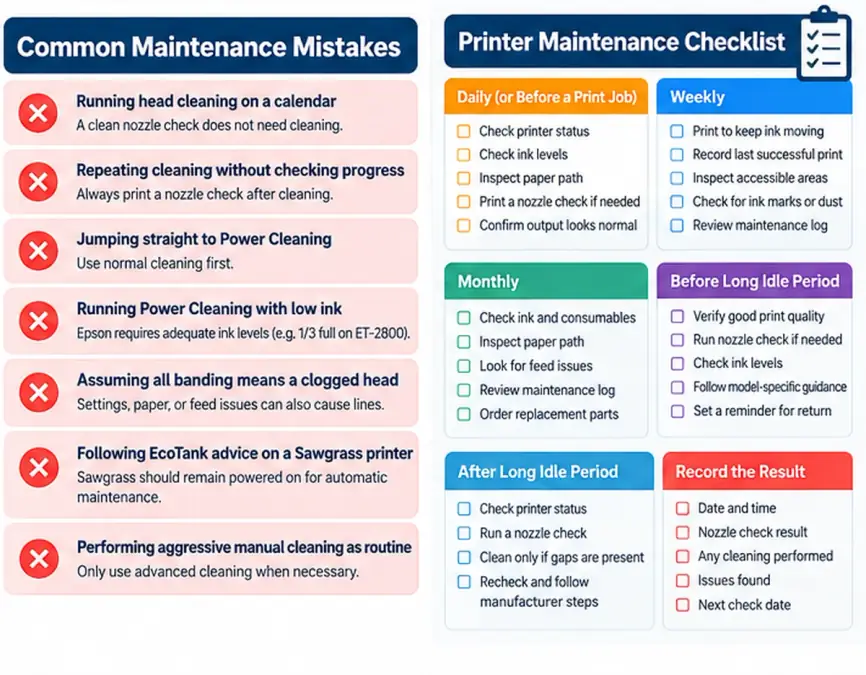
Sublimation Printer Maintenance Mistakes That Waste Ink
Running Head Cleaning on a Weekly Calendar
A calendar cannot see your nozzle-check pattern.
If the printer is producing a clean pattern, scheduled head cleaning is unnecessary.
Use the schedule to remind yourself to check, not to force a cleaning cycle.
Repeating Cleaning Without Checking Progress
Each cleaning cycle should have a reason.
After cleaning, print another nozzle check.
If nothing improves, follow the manufacturer’s escalation instructions instead of pressing “Clean” repeatedly.
Jumping Straight to Power Cleaning
Power Cleaning is not the normal first step for a slightly faded print.
Epson treats normal cleaning and Power Cleaning as separate levels of recovery.
Running Power Cleaning With Low Ink
On the ET-2800, Epson requires all tanks to be at least one-third full before Power Cleaning and warns against performing the procedure with low ink.
Treating Every Banding Problem as a Clog
Banding can come from:
- clogged nozzles
- paper settings
- print quality settings
- print-head alignment
- high-speed printing
- media condition
- feed contamination
Epson’s troubleshooting procedures check these possibilities rather than assuming every line means a clogged head.
Following EcoTank Advice on a Sawgrass Printer
This is one of the easiest maintenance mistakes to avoid.
Sawgrass printers perform automatic maintenance while powered on.
A converted EcoTank is a different system.
Use model-specific maintenance guidance.
Performing Aggressive Manual Cleaning as Preventive Maintenance
Syringes, flushing fluids, print-head removal, tubing work, and internal disassembly do not belong in a routine maintenance checklist.
Those procedures can create new problems when used without a clear diagnosis.
Move to advanced repair only when the printer’s documented recovery methods are no longer solving the issue.
Quick Symptom-to-Maintenance Decision Chart
| Symptom | First check | Next step |
|---|---|---|
| One color is missing | Nozzle check | Clean only the appropriate way if the pattern has gaps |
| Horizontal white lines | Nozzle check | If clean, check media and print settings |
| Printer sat unused for weeks | Printer status + nozzle check | Follow model-specific recovery |
| Colors look wrong but nozzle check is clean | Color-management and print settings | Do not head-clean for an ICC/profile problem |
| Ink marks appear on paper | Paper path and feed area | Clean according to model instructions |
| Normal cleaning makes no improvement | Stop repeating blindly | Follow manufacturer escalation |
| Maintenance or waste warning appears | Check consumable status | Replace/service the indicated component |
| Print is blurry but nozzle check is clean | Artwork, paper, resolution and settings | Troubleshoot print setup |
| Same channel keeps failing | Review maintenance log | Investigate recurring ink/head issue |
When Routine Maintenance Becomes Troubleshooting
Preventive maintenance is no longer enough when you have:
- a completely missing color
- repeated failed nozzle checks
- a persistent clog
- a maintenance-box or waste-system warning
- leaking ink
- repeated paper-feed errors
- banding despite a clean nozzle check
- cleaning cycles that no longer improve the pattern
- recurring printer error codes
At that point, stop treating the issue as a scheduling problem.
Use the dedicated cleaning, purge, nozzle-check, or model-specific troubleshooting procedure instead.
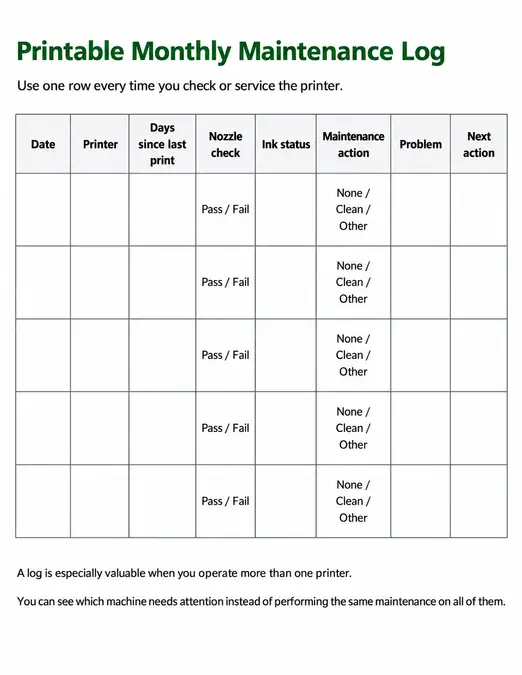
Printable Monthly Maintenance Log
Use one row every time you check or service the printer.
| Date | Printer | Days since last print | Nozzle check | Ink status | Maintenance action | Problem | Next action |
|---|---|---|---|---|---|---|---|
| Pass / Fail | None / Clean / Other | ||||||
| Pass / Fail | None / Clean / Other | ||||||
| Pass / Fail | None / Clean / Other | ||||||
| Pass / Fail | None / Clean / Other | ||||||
| Pass / Fail | None / Clean / Other |
A log is especially valuable when you operate more than one printer.
You can see which machine needs attention instead of performing the same maintenance on all of them.
Frequently Asked Questions
How often should I use my sublimation printer?
There is no single manufacturer-approved interval for every sublimation printer.
Frequent normal use reduces long idle periods, but the correct routine depends on the printer. Sawgrass printers perform their own automatic maintenance while powered on, while converted EcoTank users need to monitor their individual setup and idle behavior.
Track the last successful print and watch how your own printer behaves rather than inventing an arbitrary cleaning schedule.
Should I clean my sublimation print head every week?
No universal weekly head-cleaning schedule is appropriate.
Run a nozzle check when needed. If the pattern is complete, head cleaning is unnecessary. Epson specifically uses the nozzle-check result to decide whether cleaning is required.
Should I leave my sublimation printer turned on?
It depends on the printer.
Sawgrass recommends leaving SG500 and SG1000 printers plugged in and powered on because they perform automatic maintenance cycles.
For other printers, follow the power and storage guidance for the exact model.
How often should I run a nozzle check?
Use a nozzle check when print quality changes, after significant idle time, before an important production run when confidence matters, or according to the printer manufacturer’s guidance.
Sawgrass describes the nozzle check primarily as a diagnostic tool and says it does not need to be treated as a routine maintenance function.
What should I do if my sublimation printer has not been used for a month?
Start with diagnosis.
- Check ink and printer status.
- Run a nozzle check.
- If the pattern is complete, do not clean the head.
- If gaps appear, use the normal model-specific cleaning procedure.
- Check the nozzle pattern again.
- Escalate only if normal recovery fails.
Do not start with the strongest available cleaning procedure.
Does Power Cleaning damage a printer?
Power Cleaning is an intensive maintenance procedure, not a routine task.
Epson says it consumes a large amount of ink and warns ET-2800 users not to run it with tanks below the required level. It can also cause the printer’s waste-ink system to reach capacity sooner.
Use it only when the printer’s maintenance instructions call for it.
Do purge sheets prevent clogs?
Purge sheets move ink through one or more channels and can be useful in certain maintenance or troubleshooting workflows.
They are not a substitute for a nozzle check, and they do not replace the printer manufacturer’s cleaning process.
Use the purge sheet frequency guide to decide when they make sense for your setup.
A Better Maintenance Habit
Use the maintenance schedule to answer three questions:
- Is the printer producing clean output?
- Has anything changed since the last successful print?
- Does the diagnostic result actually call for cleaning?
If the printer is healthy, record the result and keep printing.
If a nozzle check shows a problem, follow the model-specific recovery sequence.
That approach uses less ink, makes recurring problems easier to identify, and keeps preventive maintenance separate from repair.