Epson SureColor F170 / SC-F100: Settings, Specs and Real Ink Costs

If you have narrowed your printer search down to the Epson SureColor F170, you have probably run into two problems. The specs are scattered across a dozen retailer pages that all copy each other, and nobody publishes a real number for what it costs to run per print.
This page pulls the specifications straight from Epson’s own documentation, explains the driver settings that matter for sublimation, and gives you a calculator that works out your actual cost per print using your own usage, not a made-up average.
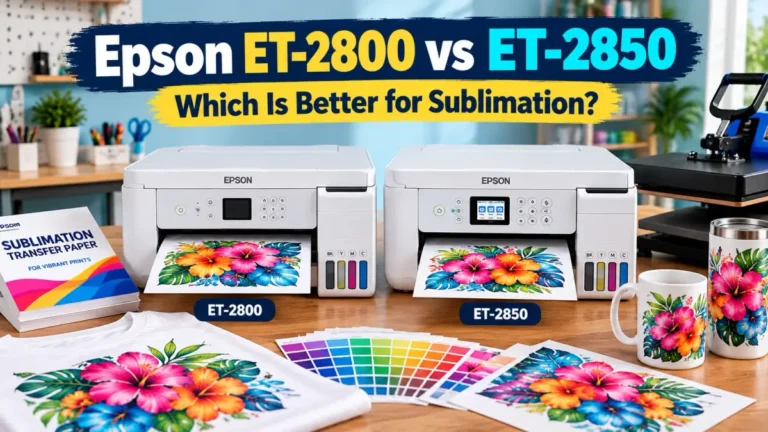
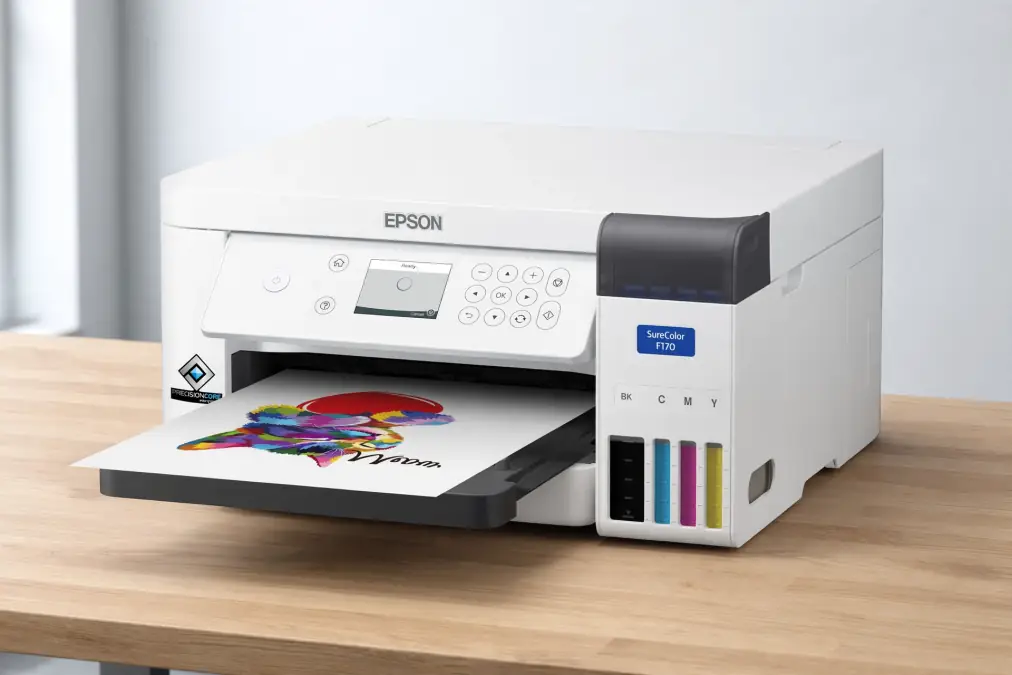
The F170 and the SC-F100 are the same printer
If you have seen both names while shopping and wondered which one to buy, stop wondering. They are the same machine sold under two regional names.
- Epson SureColor F170 is the North American name, model number C11CJ80201.
- Epson SureColor SC-F100 is the same printer sold in Europe and several other regions, model number C11CJ80302.
Epson describes the SC-F100 as its first A4 dye sublimation printer, and the specifications, ink system, and physical design match the F170 exactly. For related planning, see 5 Real Ways Women Profit With Sublimation (Without Burnout).
The only meaningful difference buyers run into is the warranty terms, which are set regionally rather than by the printer itself. In the US, the F170 carries a standard one-year unit exchange warranty with toll-free phone support.
In Europe, Epson covers the SC-F100 for one year or 6,000 printed sheets, whichever comes first, a detail worth knowing if you are running it at production volume rather than as a hobby printer.
Full specifications
| Spec | Detail |
|---|---|
| Model numbers | C11CJ80201 (F170, US) / C11CJ80302 (SC-F100, EU) |
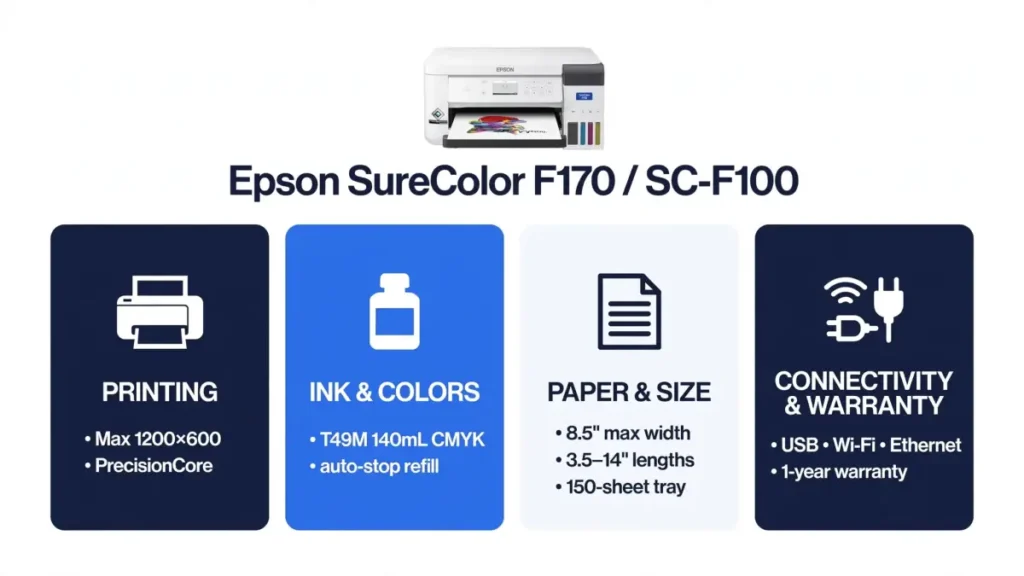
| Printhead | PrecisionCore MicroTFP |
| Nozzle configuration | 784 total: 400 black, 128 each for cyan, magenta, and yellow |
| Maximum resolution | 1200 x 600 dpi |
| Ink system | Epson T49M ink bottles, 140 mL each, auto-stop refill, four colors (C, M, Y, K) |
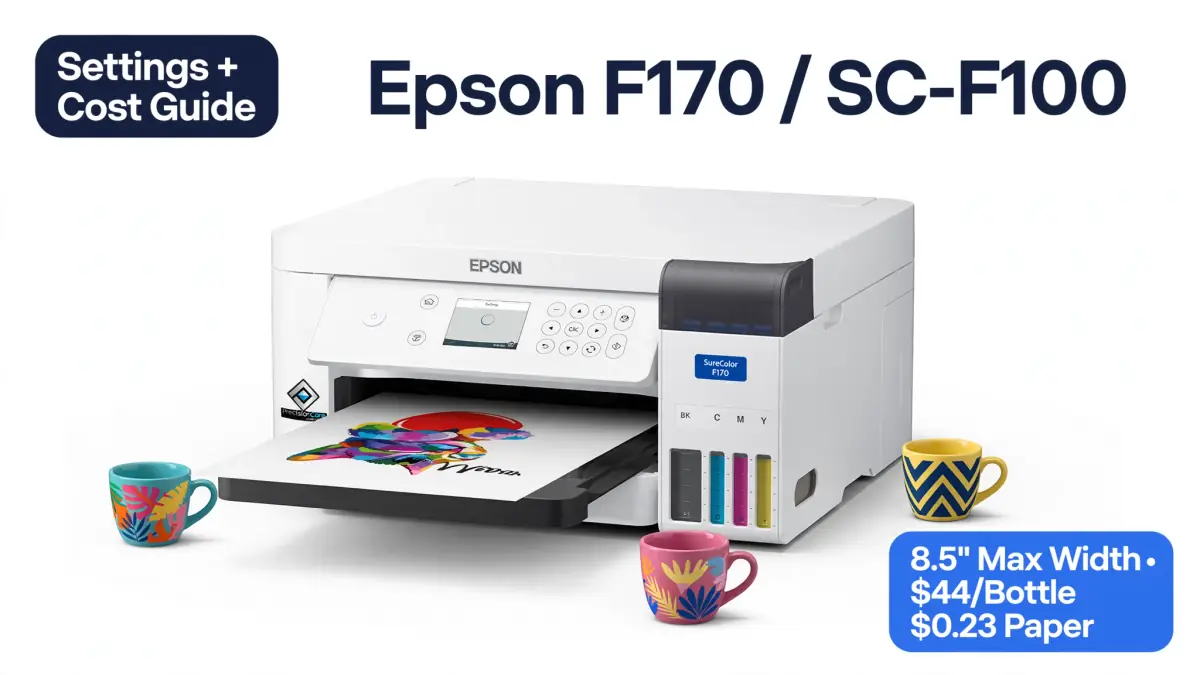
| Maximum paper width | 8.5 inches |
| Supported paper sizes | 3.5″ x 5″ up to 8.5″ x 14″, sheet-fed only, no roll option |
| Paper tray | 150-sheet auto-feed tray |
| Connectivity | USB, Wi-Fi (802.11 b/g/n), Wi-Fi Direct, Ethernet (10/100 Mbps) |
| Operating systems | Windows 10 and 11; macOS 10.7 through 15 |
| Dimensions (printing) | 14.8″ x 19.8″ x 7.4″ |
| Weight | 10.2 lb |
| Warranty (US) | 1-year unit exchange, toll-free support Monday to Friday |
| Warranty (EU, SC-F100) | 1 year or 6,000 sheets, whichever comes first |
| Country of origin | Philippines |
| Maintenance tank | C13S210125 |
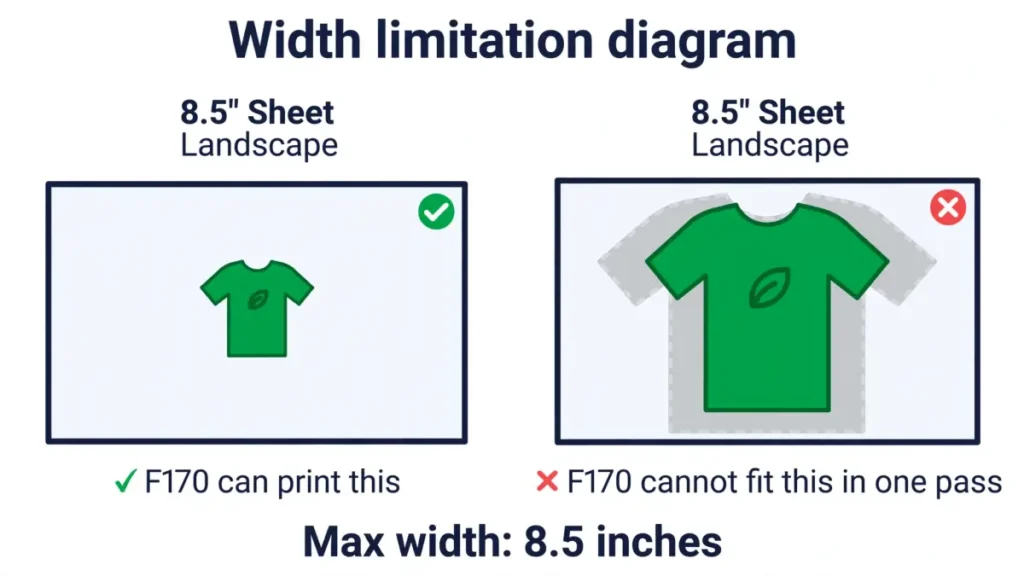
The width limit is the number that matters most. At 8.5 inches maximum, the F170 cannot print a full adult shirt front in one pass. It is built for mugs, small panels, ornaments, keychains, and shirt graphics you are willing to piece or size down. If your business runs on full-front apparel designs, size that expectation before you buy, not after.
Printer settings for sublimation on the F170
The F170 arrives set up for sublimation out of the box, using Epson’s own T49M ink and driver defaults. Most of what you will adjust lives in the standard Epson print driver dialog rather than anything unique to this model.
Media type and print quality
In the driver’s Media Type menu, select the Epson DS Transfer paper you are using. This tells the printer how much ink to lay down and how it handles the paper feed.
For Print Quality, use the higher-quality setting for anything with gradients, photos, or skin tones, and the faster setting for flat-color designs like text or simple logos where speed matters more than fine detail.
Color management: when to let the driver handle it
If you are printing with Epson’s own DS Transfer paper and default ink profile, leave the driver’s color management on its default setting. For related planning, see Sublimation Printing with Affinity Designer.
If you have installed a third-party ICC profile, whether from your ink supplier or built with a color-measuring device, set Color Management to Off (No Color Adjustment) in the Epson driver.
Otherwise the driver applies its own profile on top of yours, which is where washed-out or shifted colors usually come from. Our ICC profile guide covers how to install and select one correctly.
Mirroring, margins, and the 8.5 inch width
Sublimation prints transfer as a mirror image, so enable Mirror Image in the driver’s layout options before you print, not after you have burned through a stack of paper. Keep your artwork inside the 8.5 inch width with a small margin buffer.
Epson’s spec sheet lists a 3 mm margin on each side, which sounds generous until you are trying to bleed a design to the paper edge. Build a small white border into your file rather than fighting the printer’s hard limit.
Settings that cause the most F170 complaints
- Printing on plain copy paper instead of Epson DS Transfer or an approved third-party sublimation sheet, which produces dull, uneven color regardless of any other setting.
- Leaving Mirror Image off, which prints artwork the right way round and reverses it on the press instead.
- Double color management, applying both an ICC profile and the driver’s own color handling at once.
- Designing to the full 8.5 inch width with no margin, which clips or distorts the edges of the print.
For general print quality troubleshooting beyond these four, our sublimation printer settings guide covers the wider set of fixes that apply across printer brands.
What the F170 actually costs to run
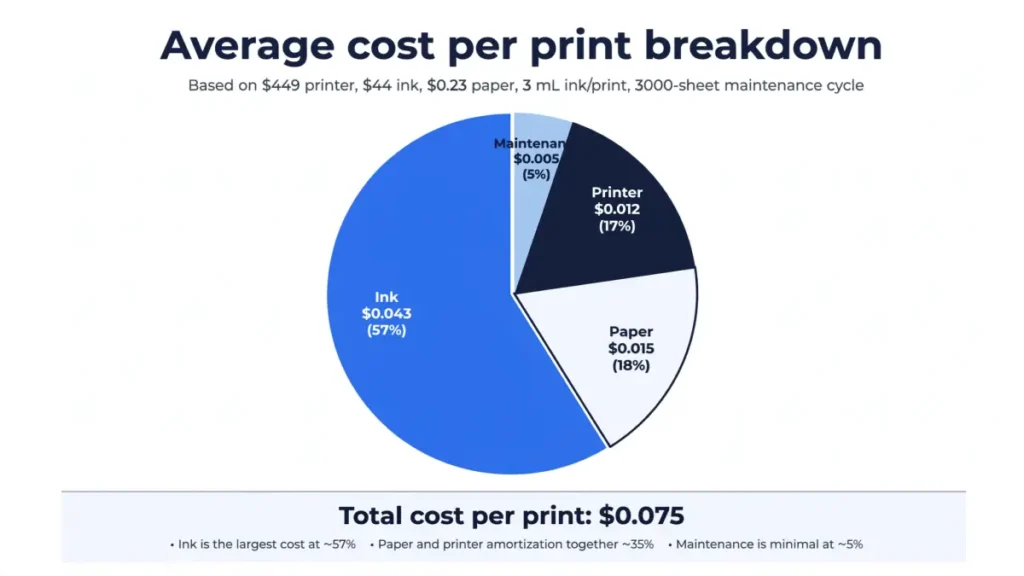
This is the number most retailer listings skip entirely. Here is what Epson actually charges for the consumables, checked directly against Epson’s own store as of August 19, 2026.
| Item | Epson price | Notes |
|---|---|---|
| Printer (F170) | $449.99 MSRP | Street price has ranged from roughly $349 to $460 across retailers; check current pricing before buying, since sales move this figure often. |
| T49M ink bottle (each color) | $44.00 | 140 mL per bottle. A full set of four colors runs $176.00. |
| DS Transfer Multi-Use paper, 8.5″ x 11″, 100 sheets | $23.00 | $0.23 per sheet |
| DS Transfer Multi-Use paper, 8.5″ x 14″, 100 sheets | $25.00 | $0.25 per sheet |
| Maintenance tank (C13S210125) | $24.00 | Replaced when the printer’s software flags it as full |
The one number Epson does not publish
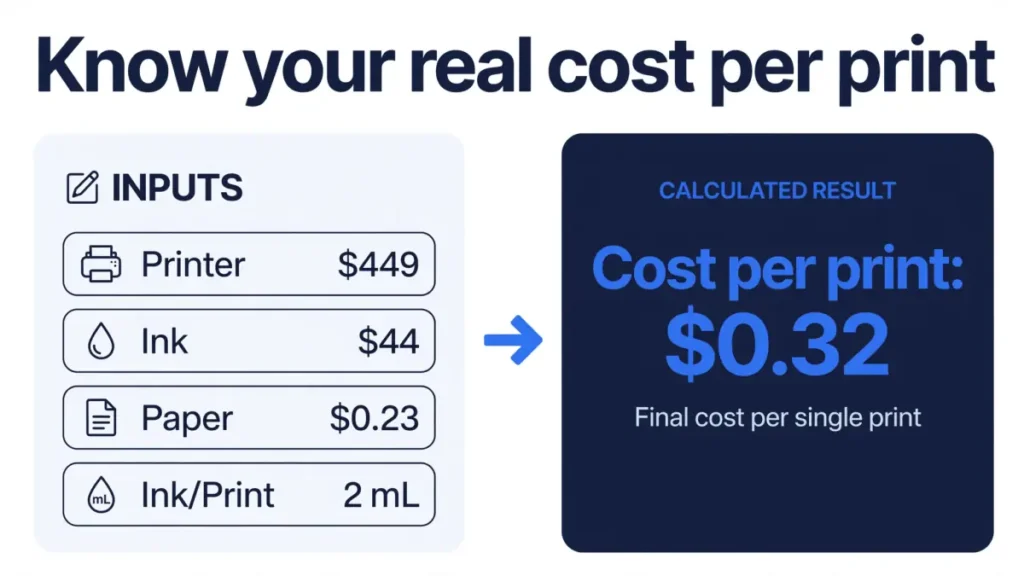
Epson does not release an official page yield for the T49M bottles, the way inkjet manufacturers often do for document printers. That number depends heavily on how much ink your specific designs use, which varies with coverage, so any fixed “cost per print” figure you see quoted elsewhere is either a rough guess or based on someone else’s print habits, not yours.
The honest way to get your real number is to measure it once. Weigh a full ink bottle, print 20 to 30 typical jobs, weigh the bottle again, and divide the ink used by the number of prints. Ten minutes with a kitchen scale gets you a figure specific to your actual designs, which is more useful than any number we could put on this page.
Third-party ink and the warranty question
Compatible T49M-style ink exists from several third-party suppliers at a lower cost than Epson’s own bottles. Using it does not damage the printer in any way that has been documented, but it does change your position if something goes wrong during the warranty period.
Epson’s own documentation states it recommends genuine ink for optimal quality and performance, and manufacturers generally reserve the right to attribute ink-related failures to non-genuine ink during a warranty claim.
Weigh the savings against that risk, particularly in the first year while the printer is still under exchange coverage.
Cost per print calculator
Enter your own numbers below. The printer price, ink price, and paper price are pre-filled with Epson’s own figures. The ink-per-print field is the one you need to measure yourself, since nobody, including Epson, publishes it.
Print Cost Calculator
Work out your real cost per print
Enter your printer, ink, paper and maintenance costs to estimate how much each print costs before labor and the blank product.
Estimated production cost
$0.00 per print
Cost breakdown
This estimate excludes the blank product, labor, electricity, shipping, failed prints and other overhead.
Once you know your real cost per print, our sublimation profit margin calculator turns that number into a price you should actually charge.
Who should buy the F170, and who should skip it
Based strictly on the verified specs above, not on a hands-on test:
- Good fit: mug and tumbler sellers, keychain and ornament makers, small-panel and plaque work, anyone starting a home-based sublimation side business who does not need full apparel width.
- Skip it if: you need full-front adult shirt printing in one pass, since 8.5 inches will not cover that. Look at a wide-format sublimation printer or a converted EcoTank instead, and compare running costs in our Epson EcoTank vs Sawgrass cost breakdown.
- Also worth comparing: Sawgrass runs its own dedicated sublimation line at a similar price point. Our Sawgrass sublimation printer guide lays out the differences in ink system and running cost.
Common F170 mistakes
- Expecting shirt-front coverage. The 8.5 inch width fits a chest logo or a smaller graphic, not a full adult front print, in a single pass.
- Buying paper wider than the feed. Anything over 8.5 inches wide will not load. Double-check paper dimensions before ordering in bulk.
- Letting the printer sit idle for weeks. Like any inkjet-based sublimation printer, extended idle time risks clogged nozzles. Our guide on unclogging a sublimation printer covers recovery if this happens.
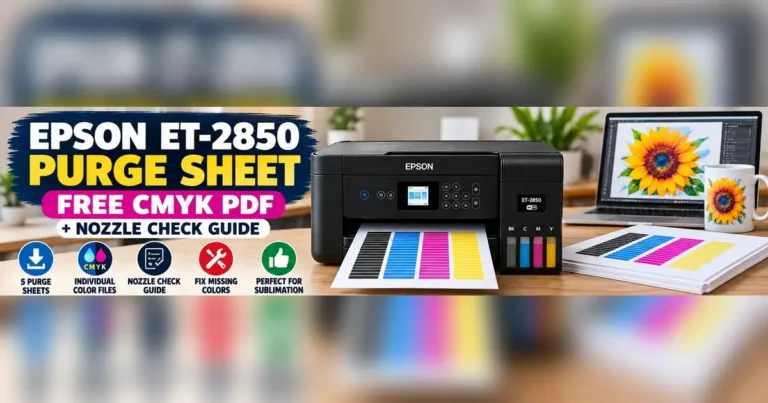
- Ignoring the maintenance tank warning. The printer stops printing once it is full. Keep a spare on hand so a warning does not turn into a production stall. Regular purge sheets also help keep the nozzles clear between jobs.
- Skipping the third-party ink and warranty tradeoff. Decide deliberately rather than defaulting to the cheapest ink without reading what it means for your coverage.
Frequently asked questions
Is the SC-F100 the same as the F170?
Yes. They are the same printer under two regional model names: F170 in North America, SC-F100 in Europe and other regions. Specs and ink system are identical. Warranty terms differ by region.
Can the F170 print white?
No. It uses standard CMYK sublimation ink with no white channel, the same limitation every dye-sublimation printer shares. See our guide on why sublimation printers can't print white for the full explanation.
What is the largest size the F170 can print?
8.5 inches by 14 inches maximum, sheet-fed only. There is no roll-feed option on this model.
Can you use third-party ink in the F170?
Physically yes, several compatible T49M-style options exist. It has not been documented to damage the printer. It does affect your standing during a warranty claim, since Epson recommends genuine ink for optimal performance and can attribute ink-related issues to non-genuine ink.
Does the F170 need a computer, or can it print wirelessly?
It connects over USB, Ethernet, or Wi-Fi, including Wi-Fi Direct, so it does not need to sit tethered to a single computer. You still need a device to send the print job from; it is not a standalone print-from-USB-drive unit.
How does the F170 compare to a converted EcoTank?
The F170 ships ready for sublimation with its own ink system, so there is no conversion step and no risk of leftover pigment ink contaminating your results.
A converted EcoTank can cost less upfront and print wider, but the conversion voids Epson's standard warranty. The comparison section above links to a full cost breakdown if you want the numbers side by side.
The bottom line
The F170 and SC-F100 are the same compact, letter-width dye-sublimation printer, priced for hobbyists and small operations that do not need full-shirt coverage.
The specs are solid for its size class, the ink system is straightforward, and the real running cost comes down to how much ink your specific designs use, which is worth measuring once rather than guessing at forever.
Run your own numbers through the calculator above before you buy, so the total cost of ownership is a decision you made with real figures, not a marketing price tag. Once you have the printer, see our F170 / SC-F100 nozzle check and head-cleaning guide for the maintenance steps to use when print quality drops.