Epson ET-2800 / ET-2803 Purge Sheet: What to Print

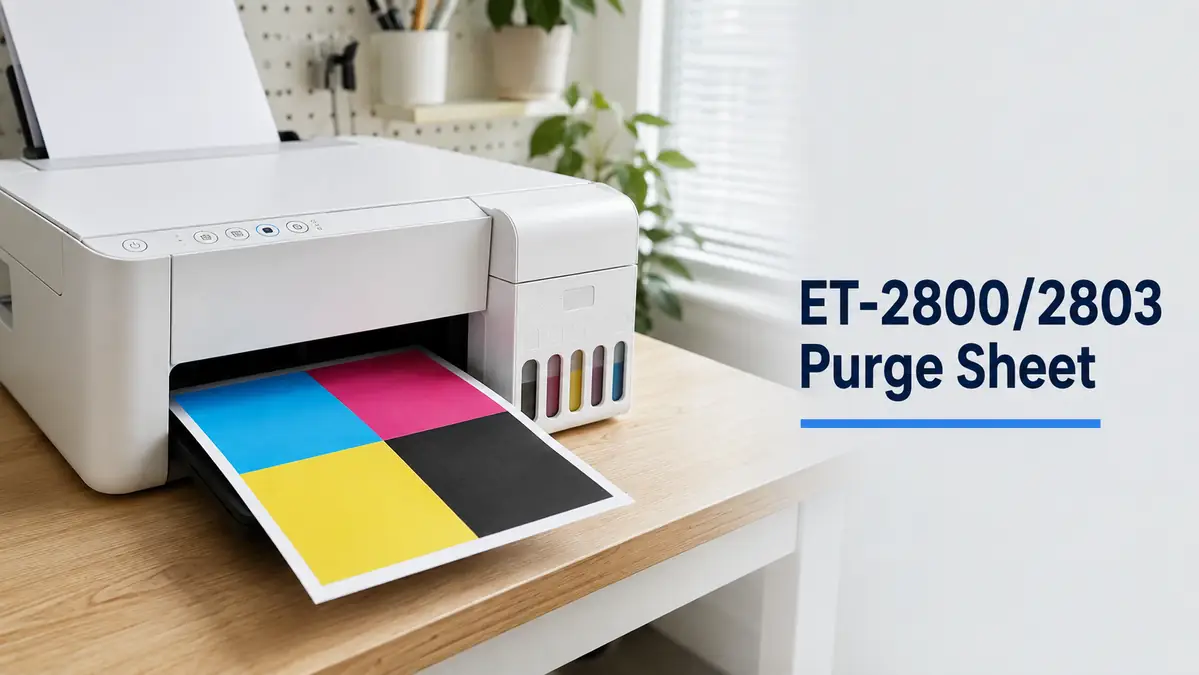
The ET-2800 and ET-2803 are standard 4-color EcoTank printers, the same CMYK setup as most converted sublimation printers in this price range. You don’t need a special purge file for this model.
The CMYK purge sheet on our main purge sheet resource is the correct one, this page covers how to use it specifically on this printer and what to watch for.
Why Converted ET-2800/ET-2803 Printers Need This More Than Most
These printers weren’t built for sublimation ink. Epson designed them for standard dye or pigment inkjet ink, and the tank system, capillaries, and print head weren’t engineered around sublimation ink’s specific behavior.
Once converted, sublimation dye particles can settle faster during idle periods than the ink Epson originally intended for this hardware, which is exactly why converted EcoTanks tend to clog sooner than factory units if they sit for more than a few days.
Which File to Use
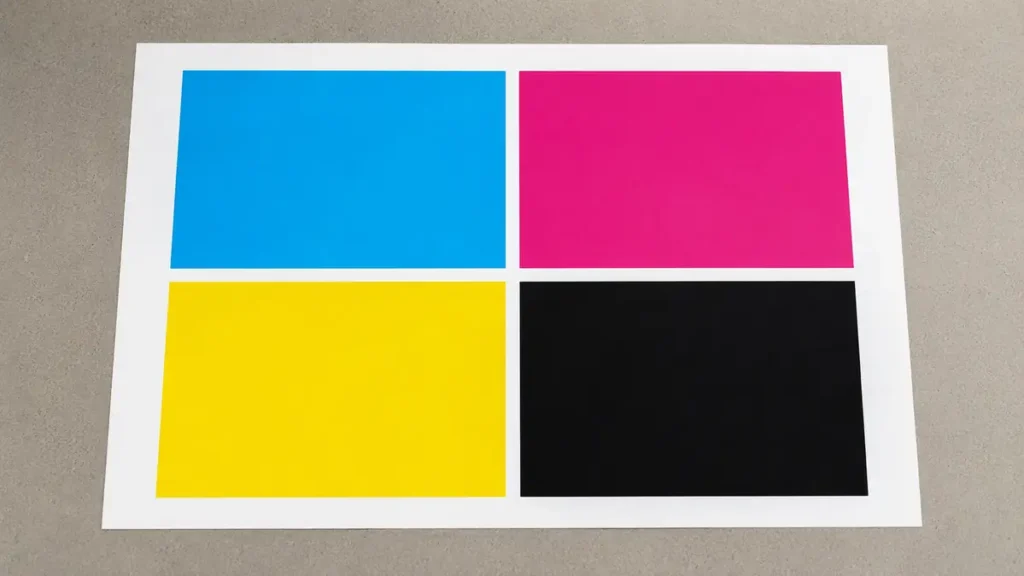
Use the CMYK purge sheet. The ET-2800/ET-2803 only has four ink channels, cyan, magenta, yellow, and black, so the 6-color and 8-color files on the main hub aren’t built for this printer and won’t map correctly to its channels.
| Printer | Ink Channels | File to Use |
|---|---|---|
| ET-2800 / ET-2803 | 4 (CMYK) | CMYK purge sheet |
Download: Get the CMYK purge sheet PDF directly, or visit the individual color files if only one channel is giving you trouble.
How to Print It Correctly on This Model
1. You don’t need sublimation paper for this. Plain copy paper works fine for a purge print since the point is pushing ink through the nozzles, not transferring the design. Save your sublimation paper for actual jobs.
2. The ET-2800/2803 supports letter, A4, and smaller sizes down to 4×6. Any of these work for a purge print, letter or A4 gives you the most ink coverage per sheet.
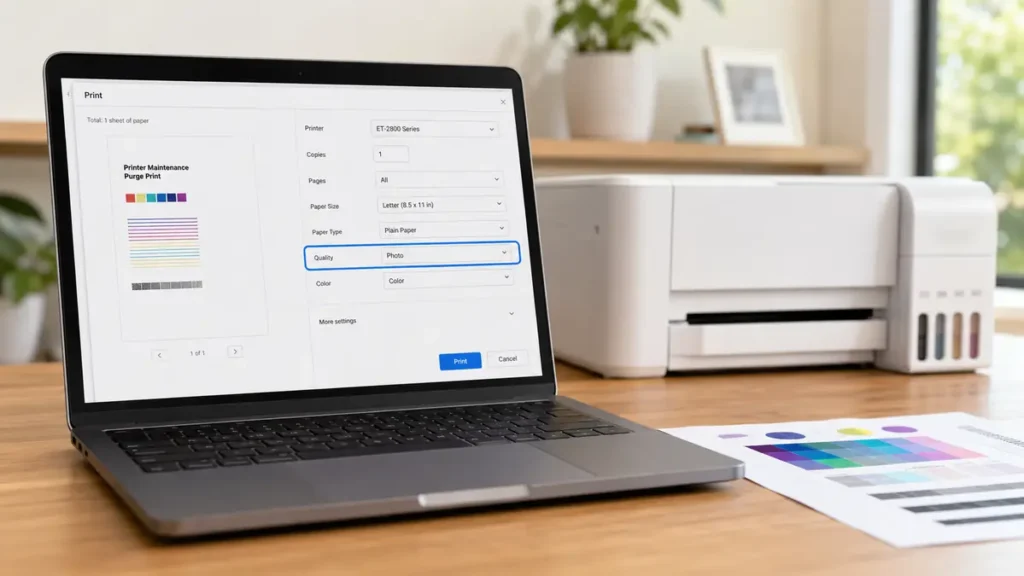
3. Open the file and set the printer to its highest quality or photo print mode. Draft mode uses less ink and won’t push enough through the nozzles to help.
4. Print one copy, then check the result against a nozzle check before printing again. Repeating a purge sheet without checking in between just burns extra ink for no reason.
5. If one color is still weak after two purge prints, switch to that color’s individual purge file rather than repeating the full CMYK sheet.
Signs You Need to Run One
On a converted ET-2800/2803, the most common signs are horizontal banding across a print, a color that comes out faded or missing entirely after the printer has sat unused for several days, and prints that looked fine a week ago suddenly looking dull or streaky with no other changes to your files or settings.
If the problem shows up right after refilling the ink tanks rather than after idle time, that’s usually air in the lines rather than a settled clog, a purge print still helps, but expect to run it two or three times before it fully clears.
How Often to Run One
This depends more on how often you print than on the printer model itself. Our purge sheet frequency guide covers the general rule of thumb and how daily production changes it.
If a Purge Sheet Doesn’t Fix It
Run a nozzle check first to confirm which channels are actually affected before you keep burning ink on purge prints. Our purge files vs. nozzle checks guide explains when to use each. If the problem persists after a few rounds of both, it’s likely a more stubborn clog that needs the deeper cleaning steps in our full printhead cleaning guide.
Frequently Asked Questions
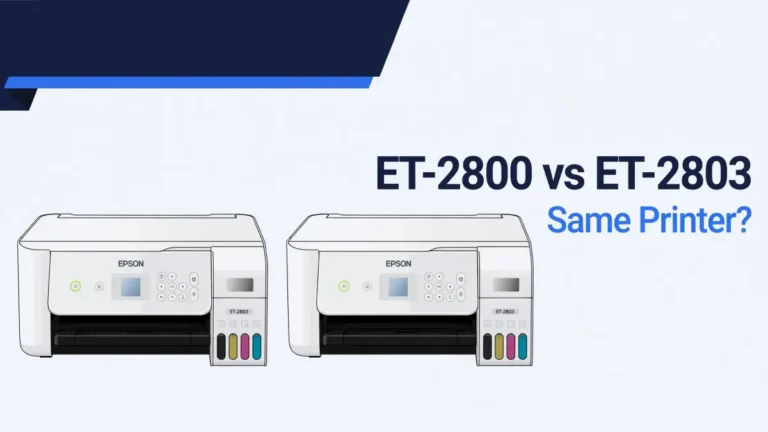
Is the ET-2800 purge sheet different from the ET-2803 purge sheet?
No. They’re the same printer sold through different retailers, so they use the identical CMYK purge file.
Do I need the 6-color or 8-color purge file for this printer?
No. The ET-2800/2803 only has four ink channels. Those files are built for printers with additional ink channels and won’t map correctly here.
Why does my converted ET-2800/2803 clog more than it used to as a regular printer?
Sublimation ink wasn’t what Epson designed this printer’s tank system and print head around. Dye particles in sublimation ink settle faster during idle periods than the ink this printer originally shipped with.
What if only one color looks weak?
Run a nozzle check to confirm which channel is affected, then use that color’s individual purge file instead of the full CMYK sheet.
What to Do Next
Download the CMYK purge sheet above, print one copy on high quality mode, and check a nozzle test before running it again. If your ET-2800/2803 has sat idle for more than a few days, this is usually all it takes to bring color back to normal.