iColor 560 White Toner Printer: 15 Project Ideas + What It Can Print

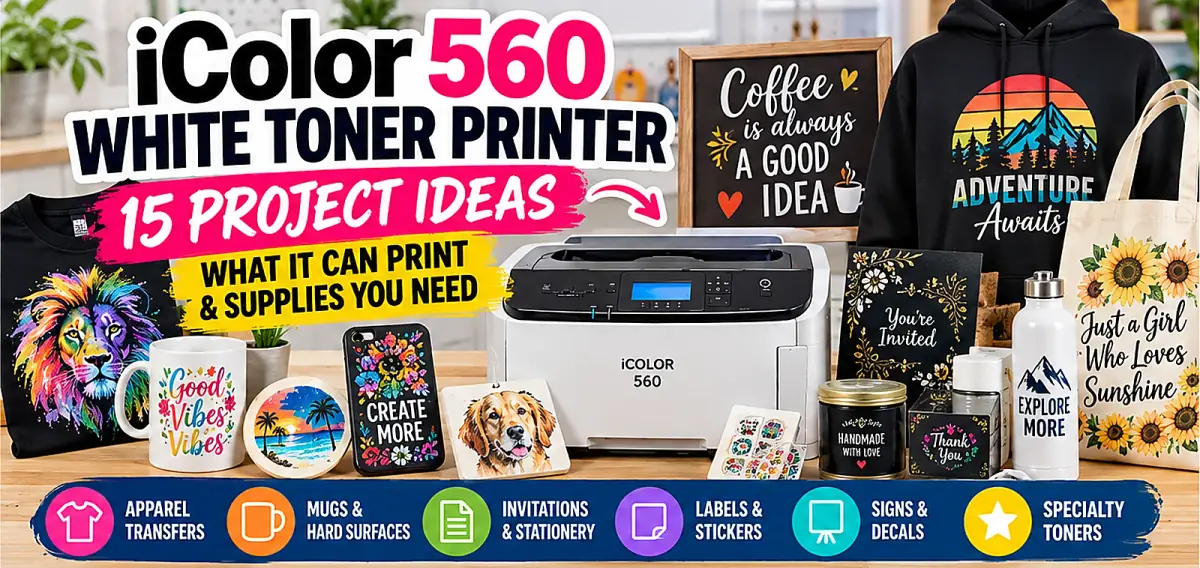
The iColor 560 white toner printer can produce custom T-shirts, hoodies, tote bags, mugs, invitations, labels, and specialty transfers. Its standard white-toner setup supports opaque white alongside full-color graphics, which makes it useful for dark fabrics and dark or transparent print media.
Not every project works with the printer alone. Apparel transfers need compatible transfer media and a heat press; glitter and fluorescent effects require optional toner kits. Use the chart and project notes below to choose the right supplies before investing in a new product line.
What Can You Make With the iColor 560?
The iColor 560 is a toner-based transfer printer. UNINET supplies five standard cartridges for CMYW printing plus true black, together with ProRIP Essentials and SmartCUT. The available output depends on which toner configuration, print mode, and media you use.
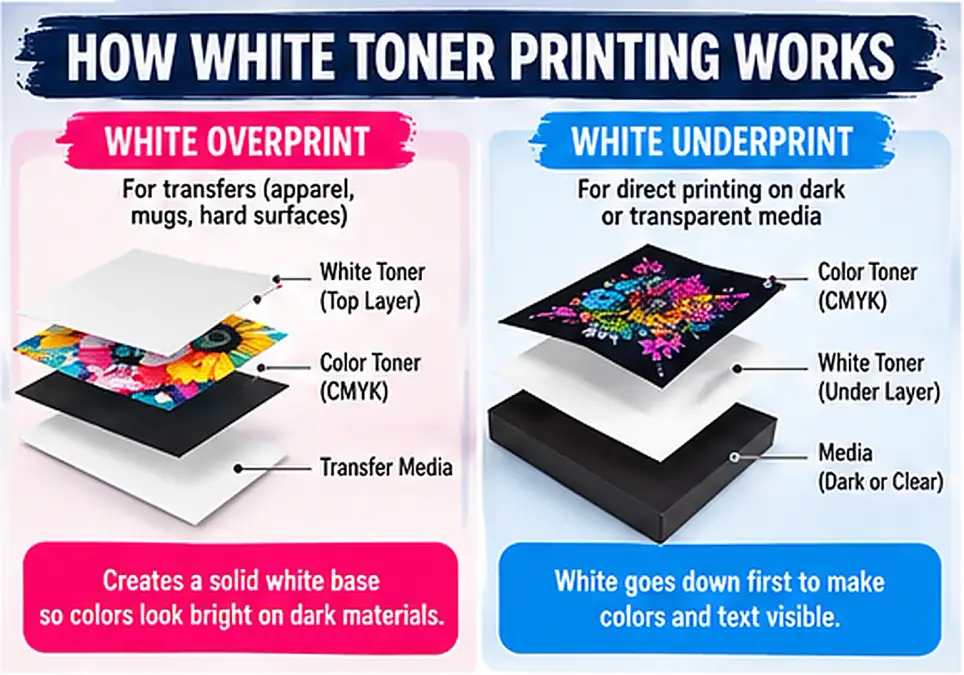
- White overprint: used for compatible textile and hard-surface transfers. White becomes the backing layer after the transfer is applied.
- White underprint: puts white behind artwork for direct printing on compatible dark or transparent paper, labels, and window-cling media.
- Regular CMYK: handles ordinary color printing on compatible light-colored media when no white base is needed.
The cartridge setup must match the ProRIP print mode. Changing from transfer work to direct printing may require moving toner/drum positions as instructed by UNINET.
For the technology differences rather than individual projects, see our white ink sublimation printer buying guide. This article focuses on what the iColor 560 can make and the consumables each project needs.
iColor 560 Project Compatibility Chart
This quick reference covers 15 projects. “Standard” means the printer uses its included CMYW and true-black cartridge set; it does not mean transfer paper, a heat press, or the blank is included.
| Project | Toner configuration | Media | Heat press | Optional toner |
|---|---|---|---|---|
| 1. Dark T-shirts | Standard + white | Two-step textile | Yes | No |
| 2. Hoodies | Standard + white | Two-step textile | Yes | No |
| 3. Tote bags | Standard + white | Two-step textile | Yes | No |
| 4. Aprons | Standard + white | Two-step textile | Yes | No |
| 5. Ceramic mugs | Standard + white | Ceramic hard-surface transfer | Yes, suitable equipment | No |
| 6. Tiles/coasters | Standard + white | Ceramic hard-surface transfer | Yes | No |
| 7. Wood signs | Standard + white | Wood-compatible transfer | Yes | No |
| 8. Metal items | Standard + white | Metal-compatible transfer | Yes | No |
| 9. Dark invitations | Standard + white | Laser-compatible cardstock | No | No |
| 10. Envelopes | Standard + white | Compatible envelope stock | No | No |
| 11. Menus/place cards | Standard CMYK or white | Compatible paper | No | No |
| 12. Clear labels | Standard + white | Laser-compatible clear labels | No | No |
| 13. Window clings | Standard + white | Compatible cling media | No | No |
| 14. Glitter transfers | Color + clear | Glitter adhesive transfer | Yes | Clear kit |
| 15. Fluorescent apparel | Fluorescent colors; white as needed | Textile transfer | Yes | Fluorescent kit |
Exact settings vary by media and substrate. Use UNINET’s product information and the instructions supplied with each transfer-media product rather than applying one time and temperature to every surface.
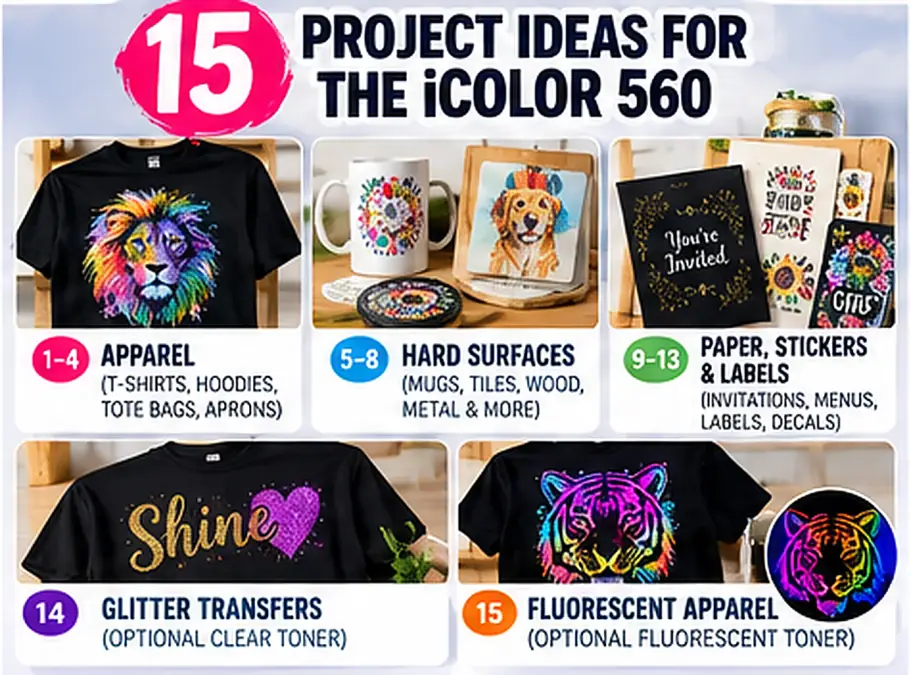
Free printable: The two-page PDF includes all 15 project types, a materials and equipment checklist, and a simple production-cost worksheet.
Apparel Projects You Can Make With the iColor 560
Apparel transfers are a practical use of white toner because the opaque white base helps colored artwork remain visible on dark garments. These four projects require compatible textile transfer media and suitable heat-press equipment.
1. Custom T-Shirts on Dark and Light Fabric
Custom T-shirts are useful for one-off designs, photo prints, short-run logos, and personalized gifts. White overprint creates the backing needed when transferring full-color artwork onto a dark shirt. On a light shirt, the amount of white used depends on the image, material, and transfer setup.
For a two-step textile system, print onto the A transfer sheet, marry it to the B adhesive sheet as directed, then apply it to the garment. Start with a small sample to check color, white coverage, adhesion, and wash behavior. A toner transfer sits on the fabric rather than bonding into polyester like dye sublimation.
2. Personalized Hoodies and Sweatshirts
Hoodies can carry chest logos, names, team graphics, and event designs without requiring large screen-printing runs. Their thicker fabric also makes even pressing more difficult. Keep artwork away from pockets, heavy seams, and drawstrings, and use an appropriate platen or pressing accessory where necessary.
Large solid graphics can feel heavier than small or properly rasterized artwork. Sample the actual hoodie before accepting a large order because fabric finishes and heat tolerance vary.
3. Custom Tote Bags
Cotton tote bags work for craft fairs, brand merchandise, conference giveaways, and gifts. White-toner transfers allow multicolor designs on natural or dark bags when the fabric and transfer media are compatible.
Place the bag so handles and seams do not interrupt pressure. When quoting an order, calculate how many graphics fit on each transfer sheet. Sheet layout can affect the true cost of small designs.
4. Personalized Aprons and Workwear
Aprons and workwear offer practical branding for cafes, bakers, makers, and small teams. They are also a good fit for short runs where individual names or designs change between garments.
Check fabric composition, surface treatment, and laundering requirements before production. Workwear may be washed more aggressively than casual shirts, so test durability on the exact garment and transfer combination rather than promising a universal wash count.
Hard-Surface Projects With the iColor 560
White-toner hard-surface projects require transfer media selected for the material. Ceramic, wood, and metal should not be processed with ordinary two-step textile instructions. Check UNINET’s hard-surface media compatibility chart before ordering supplies.
5. Personalized Ceramic Mugs
A mug press or other compatible heating setup can apply a white-toner ceramic transfer to suitable mugs. This differs from dye sublimation: the transfer medium and its adhesive or finishing process create the decoration rather than dye bonding to a polyester coating.
Follow the exact ceramic media instructions, including heating, cooling, and post-treatment. Do not advertise dishwasher safety unless the selected system supports it. Keep decorative transfers out of food-contact areas unless the materials are approved for that use.
6. Custom Ceramic Tiles and Coasters
Flat tiles and coasters can be used for names, photographs, artwork, and event gifts. Their flat shape makes alignment straightforward, but surface finish and consistent heat still matter.
Clean and dry the item first. Test adhesion, edge coverage, abrasion, and how the finished product handles moisture or hot drinks before selling it as a functional coaster.
7. Personalized Wood Signs
Wood signs can serve as indoor decor, event signage, small business displays, or seasonal gifts. Use transfer media intended for wood and verify compatibility with the specific surface.
Rough grain, paint, sealants, moisture, and uneven boards can cause poor transfer. Test on a smooth prepared sample. Do not describe a decorative indoor transfer as weatherproof without product-specific outdoor durability evidence.
8. Custom Metal Promotional Items
Flat metal tags, plaques, and promotional pieces can be personalized using metal-compatible transfer media. The metal’s coating and surface treatment influence adhesion and the finished appearance.
Confirm that the piece fits safely in the heat-press setup. Evaluate scuffing, bending, and handling on a finished sample before committing to a bulk order.
Paper, Sticker, and Label Projects
Direct-print projects do not need a heat press when you use suitable laser-compatible media. White underprinting makes designs visible on dark stock or behind colors printed on transparent material.
9. White Printing on Black Wedding Invitations
The printer can place white names, dates, lettering, and decorative artwork on compatible dark cardstock. White underprinting also supports color designs that would otherwise disappear against a dark background.
Check the stock’s thickness, coating, and feed compatibility. Print an approval sample on the exact cardstock to be used in the finished stationery set.
10. Personalized Envelopes and Stationery
Dark envelopes, business correspondence, and personalized stationery can use spot-white or white-underprint workflows. Small batches allow names, addresses, and event details to change without manufacturing custom plates.
Test the specific envelope design. Seams, adhesive, folds, coatings, and thickness can affect how reliably the stock feeds through the printer.
11. Restaurant Menus and Event Place Cards
Short-run menus and place cards can use white text on dark stock or standard CMYK on light paper. The printer is useful when menus change regularly or an event needs variable names or table details.
Select paper for the intended handling. A one-night event card needs different finishing from a menu that will be wiped or handled repeatedly.
12. Clear and Dark Product Labels
White underprinting helps text and colored artwork remain visible on clear labels or dark packaging. This supports small-batch packaging prototypes and branding for compatible containers.
Only use laser-compatible label stock. Check adhesive suitability, exposure to moisture or oils, and any rules relevant to the item being labeled. Printing capability does not establish food-contact or cosmetic-packaging compliance.
13. Window Clings and Promotional Decals
The iColor 560 supports compatible window-cling and specialty decal media. White can help the graphic remain readable against glass or a changing background, with the toner configuration chosen for the intended viewing side.
Window clings, adhesive decals, and waterslide transfers are different materials. Test application, removal, viewing direction, and environmental exposure using the exact media before customer production.
Specialty-Toner Projects That Need Optional Kits
The standard printer supports many projects, but glitter and fluorescent effects are different workflows. Confirm the exact cartridge kit and media before buying either set of supplies.
14. Glitter Transfers for Shirts and Tote Bags
UNINET’s documented glitter-transfer process uses an optional clear-toner cartridge system with compatible glitter adhesive media. White toner cannot simply replace clear toner because its opacity can obscure the glitter effect.
You will also need the appropriate transfer sheets and heat press. Make a small sample to check adhesion and determine whether the glitter effect is visible through the chosen artwork.
15. Fluorescent Event Apparel
The optional fluorescent kit produces vivid specialty colors that react to ultraviolet light. It can support event merchandise, promotional apparel, and designs that deliberately use fluorescent effects.
Choose the toner and textile transfer setup together. Fluorescent is not the same as glow-in-the-dark: UV-reactive effects depend on the lighting conditions. UNINET documents the available cartridges in its specialty toner information.
What Comes With the iColor 560, and What Must You Buy Separately?
The standard printer includes five toner cartridges (CMYW plus true black), ProRIP Essentials, and SmartCUT. Transfer media, a heat press, blanks, and optional toner kits are separate purchases unless your particular retail bundle says otherwise. Check the current package contents before ordering.
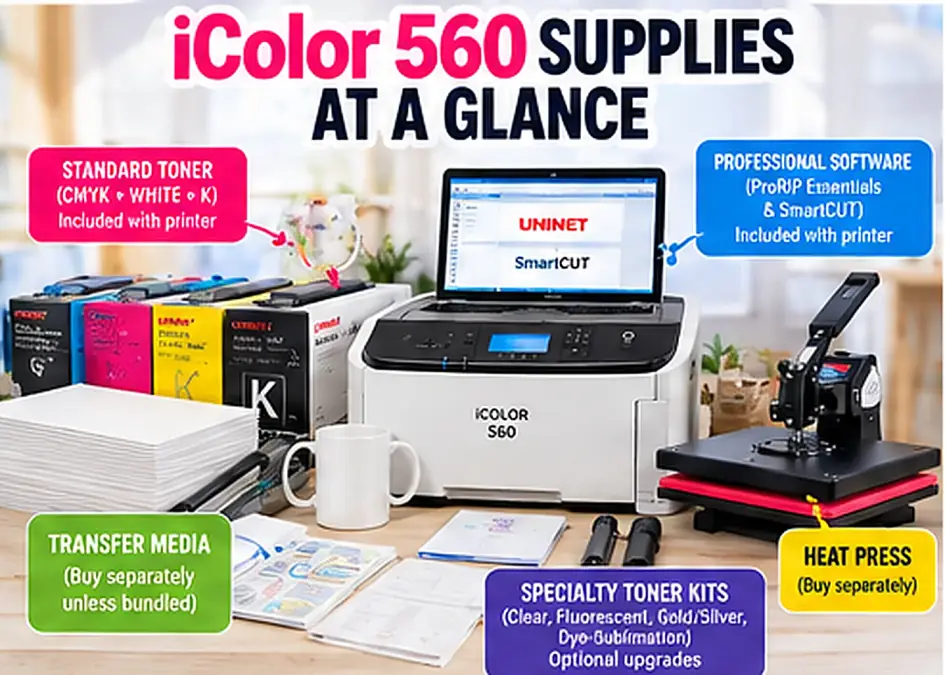
| Item | Included with standard printer? | Needed for |
|---|---|---|
| CMYW and true-black toner | Yes | Standard white and CMYK output |
| ProRIP Essentials and SmartCUT | Yes | RIP settings and oversized layouts |
| Two-step textile transfer media | No, unless bundled | T-shirts, hoodies, tote bags |
| Hard-surface transfer media | No, unless bundled | Mugs, tiles, wood, metal |
| Heat press / mug equipment | No, unless bundled | Applicable transfer projects |
| Clear-toner system | Optional | Glitter and certain clear-toner effects |
| Fluorescent kit | Optional | Fluorescent printing |
| Gold / silver toner kits | Optional | Metallic effects |
| Dye-sublimation toner kit | Optional | Separate CMYK dye-sublimation workflow |
For clothing and flat transfers, choose equipment with the right platen size and reliable pressure. Our heat press buying guide explains the main equipment types. For media, follow the current instructions for the exact product; one-step hard-surface sheets and two-step textile sheets are not interchangeable.
Can the iColor 560 Do Sublimation Printing?
Yes, with an optional dye-sublimation toner kit, but it is a separate configuration from the standard white-toner process. Dye-sublimation toner is intended for suitable polyester and sublimation-coated substrates, using the kit’s specific paper and heating instructions.
UNINET’s dye-sublimation workflow is CMYK only, without white overprint. Installing that kit does not create white sublimation or make transparent sublimation color visible on a black garment.
If the goal is white artwork on dark cotton, standard white-toner transfers, DTF, or a compatible transfer layer are more relevant. Our white sublimation printer explainer covers why conventional dye sublimation cannot print opaque white.
Which iColor 560 Projects Make Sense for a Small Business?
Choose projects you can produce consistently, quote accurately, and repeat without excessive setup. A printer capable of many applications is not a reason to buy every toner upgrade at once.
| Category | Typical small-business use | Main expense to track |
|---|---|---|
| Apparel | Small custom orders, team items | Blank, textile sheets, labor, reprints |
| Tote bags | Event merchandise, personalized gifts | Bag, sheet layout, press time |
| Mugs / coasters | Gift and promotional orders | Hard-surface media, finishing, breakage |
| Stationery | Invitations and variable-name pieces | Paper, toner, setup, finishing |
| Labels | Packaging samples and small runs | Label stock, toner, wasted sheets |
| Specialty effects | Premium or event orders | Optional toner, specialty media, labor |
Cost per finished item = blank + toner + transfer media + labor + packaging + equipment allocation + overhead + expected waste. Keep failed transfers in the calculation. A low material cost can become expensive when a process requires repeated reprints or long finishing time.
Use our profit margin calculator with your own white-toner costs, not default sublimation estimates. For a new product line, begin with two or three items that share the same transfer media and pressing workflow.
Common iColor 560 Project Mistakes
- Wrong white-toner mode: transfer overprint and direct-print underprint are not interchangeable. Confirm the cartridge arrangement and ProRIP setting.
- Incorrect transfer media: textile A/B sheets, ceramic media, wood media, and label stock have different purposes.
- Skipping the adhesive sheet: a two-step textile workflow needs both its transfer and adhesive stages.
- One press setting for everything: temperature, pressure, peel method, and finishing must follow the exact media instructions.
- Insufficient white coverage: sample dark-substrate designs before a large run and adjust the supported RIP settings as needed.
- Unverified durability claims: do not assume apparel, mugs, labels, and outdoor signs share the same wash or wear resistance.
- Buying upgrades prematurely: use the standard configuration for initial products; add clear or fluorescent toner only for a defined application.
Frequently Asked Questions
Can the iColor 560 print on cotton and polyester?
It can create transfers for compatible cotton, polyester, blends, and other suitable fabrics with the correct textile transfer media. The fabric finish, media, and heat tolerance affect the result; always test the actual garment.
Can it print white directly on black cardstock?
Yes. Its white-underprint or spot-white capabilities can print onto compatible dark laser-printable cardstock. Verify the paper’s thickness and coating against the printer specifications.
Do I need a heat press for every project?
No. Direct-print jobs such as suitable labels, invitations, envelopes, and menus do not require a press. Textile transfers and most hard-surface transfer applications do require appropriate heating equipment.
Can it decorate an ordinary ceramic mug?
Compatible white-toner hard-surface media may allow decorating selected ceramic mugs without the usual dye-sublimation coating. Compatibility, curing, wash care, and food-contact restrictions depend on the media and mug; follow the exact supplier instructions.
Can the iColor 560 print stickers and labels?
Yes, with compatible laser-printable label or sticker media. White underprint helps designs on clear or dark labels remain visible. Do not feed inkjet-only sticker sheets through the toner printer.
Can I print glitter without the clear-toner kit?
Not with UNINET’s documented clear-toner glitter-transfer process. The optional clear system is used with compatible glitter adhesive media because opaque white toner would obscure the glitter effect.
Does the iColor 560 need daily printing to prevent ink clogs?
It is toner-based, not a liquid white-ink inkjet, so it does not have the same inkjet nozzle-clogging issue. It still requires the cleaning, consumable handling, and maintenance specified by its manufacturer.
Can I switch between white toner and sublimation?
Yes, with the optional dye-sublimation toner kit and its required software and cartridge setup. The dye-sublimation mode uses CMYK only and does not retain opaque white printing in that mode.
What supplies should a beginner buy first?
Start with the supplies for one target product. An apparel project needs the appropriate textile media, blank garments, and a compatible heat press. Direct-printed stationery instead needs compatible paper or cardstock. Add specialty kits only when required.
Where to Start With the iColor 560
Choose one product you expect to sell repeatedly. Check the compatibility chart, confirm the toner configuration and exact media, and produce a small sample using the manufacturer’s instructions. Record production time, material use, transfer quality, and finishing requirements before taking a larger order.
Expand into related projects after the first workflow is repeatable. That lets you use the iColor 560’s different applications without turning every new product into an equipment purchase.