Printer Test Page: How to Print, Use, and Fix Common Issues

If your prints look faded, misaligned, or just “off,” the fastest way to diagnose the problem is a printer test page.
Many beginners skip this step and start changing settings randomly. That usually makes things worse. A test page gives you a clear visual check of what’s actually happening inside your printer.
In this guide, you’ll learn how to print a test page, how to read it, and how to fix the most common issues it reveals.
Try Ready-Made Printer Test Pages
If you want to quickly check your printer without setting anything up, you can use these ready-made test pages.
- Check ink flow and text clarity with a black and white printer test page
- Test color accuracy and gradients using a color printer test page
- Clean clogged print heads with these printer purge sheets (free PDF)
These tools help you diagnose problems faster before adjusting settings.
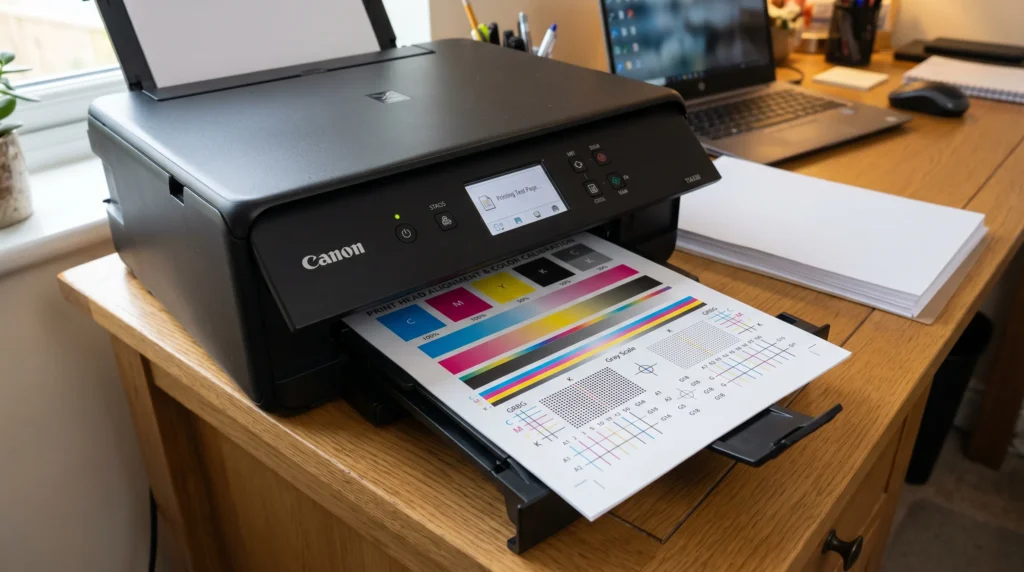
What Is a Printer Test Page?
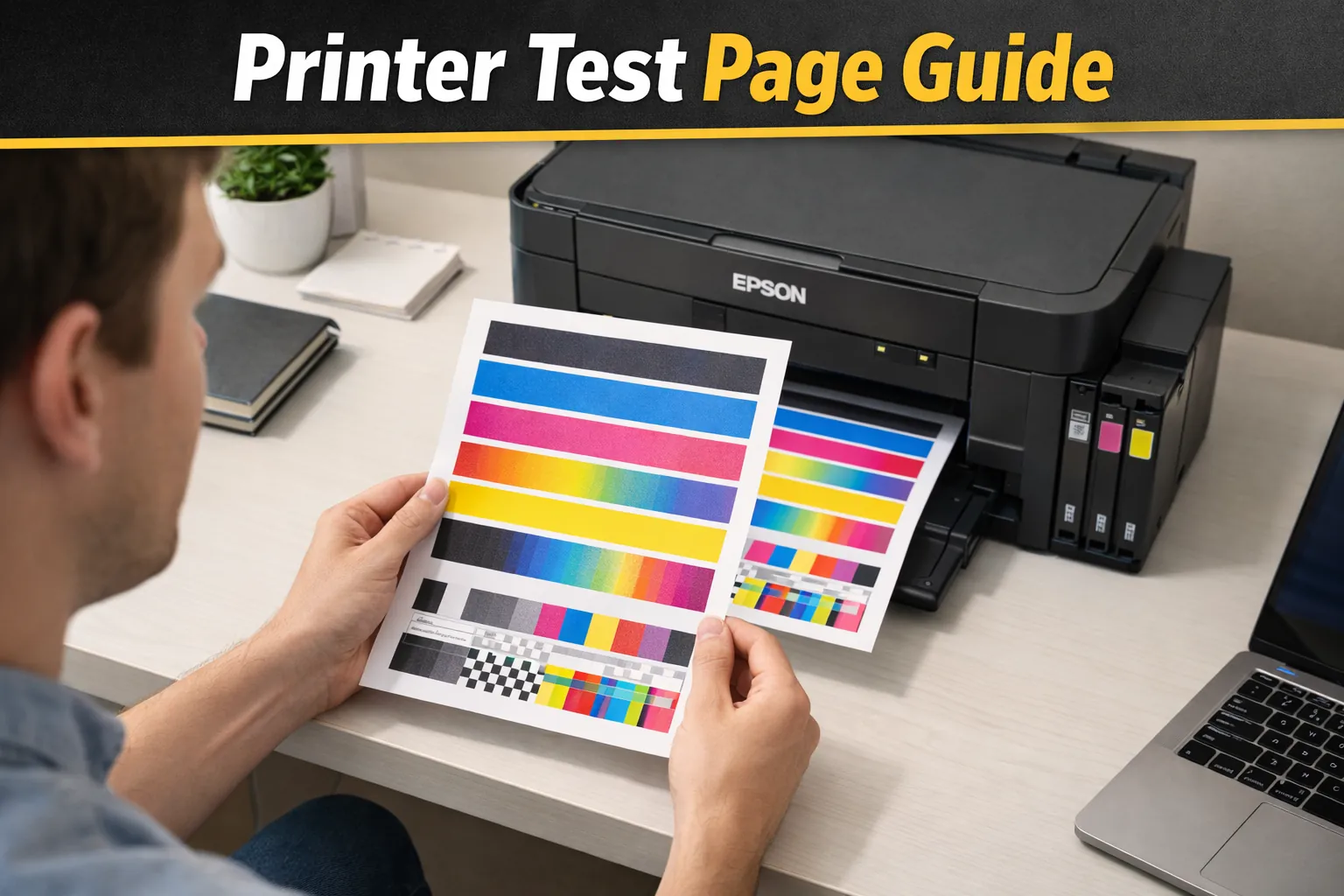
A printer test page is a diagnostic print that shows how well your printer is working.
It typically includes:
- Color blocks (CMYK)
- Gradient transitions
- Alignment patterns
- Text clarity samples
- Grayscale bars
Why Printer Test Pages Matter
A test page quickly shows problems you can’t always see in regular prints.
It helps you:
- Detect clogged print heads
- Check color accuracy
- Identify banding or streaks
- Confirm proper printer setup
If you’re working with sublimation, this becomes even more important. Many print issues can be traced back using a proper test page before wasting materials.
When Should You Print a Test Page?
You don’t need to print one every day, but there are key moments when it’s essential.
Print a test page:
- After installing a new printer
- After replacing ink cartridges
- When colors look incorrect
- After cleaning print heads
- Before important print jobs
If you’re troubleshooting sublimation results, always start with a test page before adjusting heat or materials.
For deeper troubleshooting, you can follow this sublimation troubleshooting guide to identify root causes faster.
How to Print a Test Page (Step-by-Step)
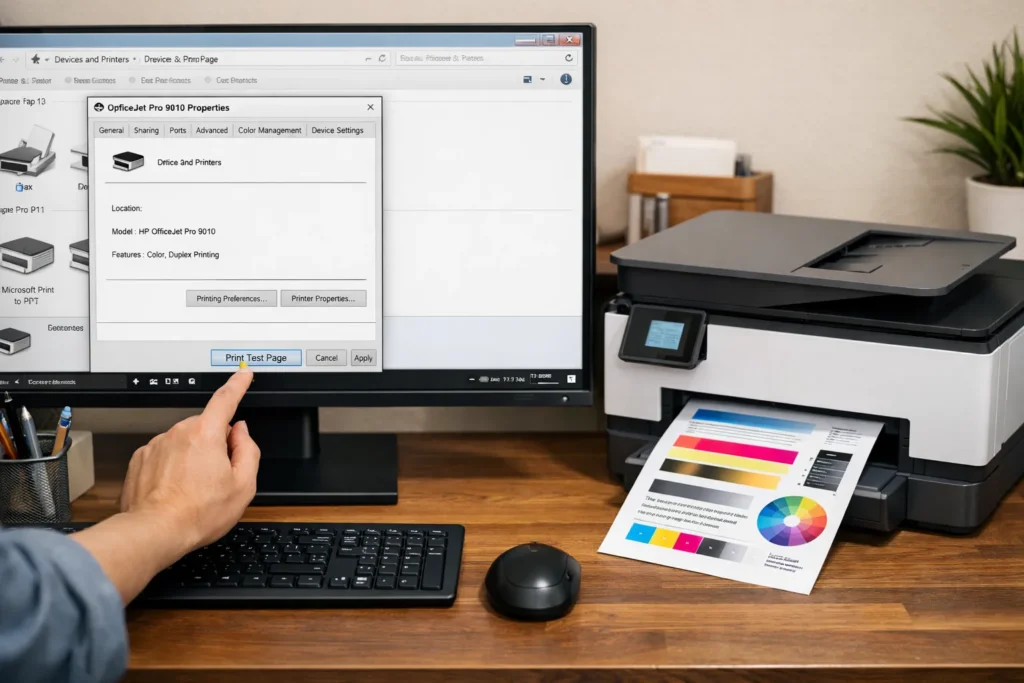
On Windows
- Open Control Panel
- Go to Devices and Printers
- Right-click your printer
- Select Printer Properties
- Click “Print Test Page”
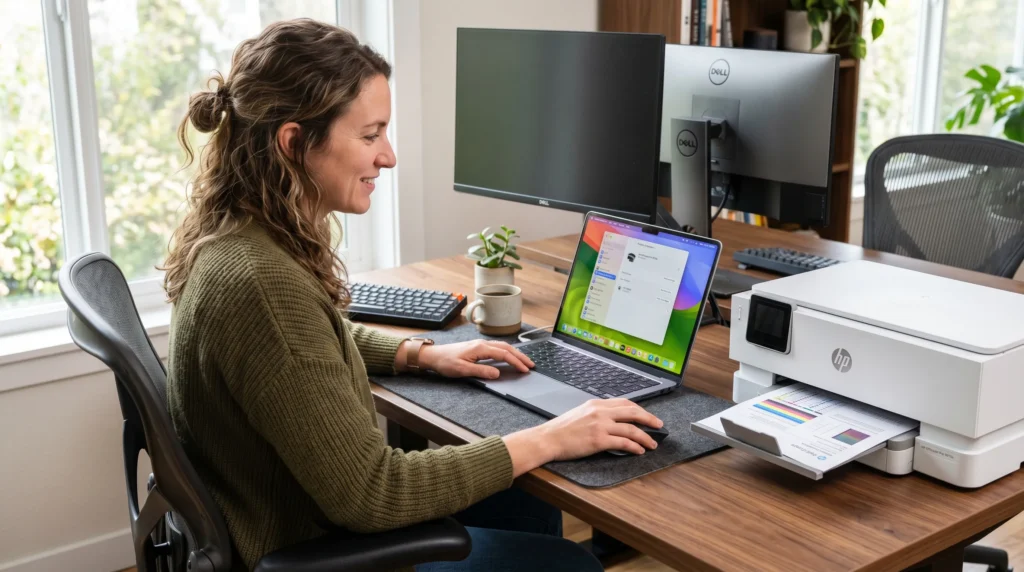
On Mac
- Open System Settings
- Go to Printers & Scanners
- Select your printer
- Click Options & Supplies
- Print a test page
Directly From Your Printer
Many printers allow you to print a test page without a computer.
- Use the printer’s control panel
- Navigate to Maintenance or Settings
- Select “Print Test Page” or “Nozzle Check”
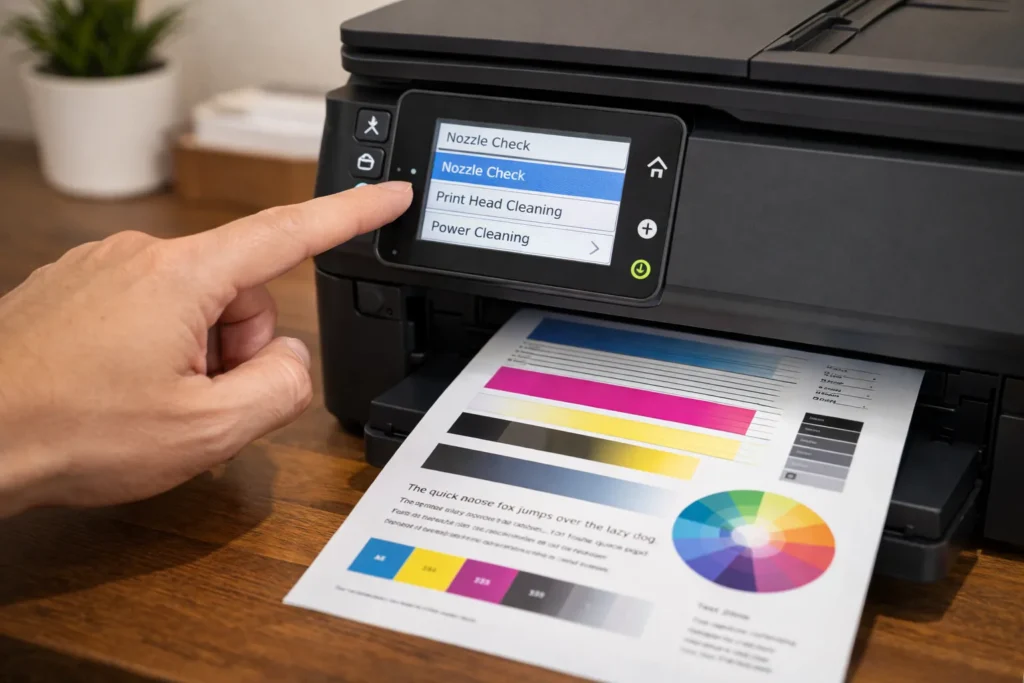
This is especially common on Epson and Canon printers.
Types of Printer Test Pages
Not all test pages are the same. Each type helps diagnose a specific issue.
Color Printer Test Page
This shows:
- CMYK color blocks
- Gradients
- Color transitions
For a full walkthrough and downloadable example, see this color printer test page guide.
Use this when:
- Colors look dull
- Prints don’t match your screen
If your colors are off, it’s often a profile issue. You can fix that using proper ICC profiles for sublimation.
Black and White Test Page
This focuses on:
- Grayscale shades
- Text sharpness
If you’re troubleshooting black ink issues, use this black and white printer test page guide for step-by-step help.
Use it when:
- Black ink looks faded
- Text appears blurry
Ink Nozzle Check / Ink Test Page
This is one of the most important tests.
It shows:
- Thin line patterns
- Missing segments
If lines are broken or missing, your print head is clogged.
In that case, you’ll need proper sublimation printer maintenance to restore print quality.
PDF Test Pages
These are downloadable test sheets you can print manually.
They are useful when:
- Your printer software isn’t working
- You want a more detailed test layout
- You need consistent testing across devices
You can use ready-made sheets like these printer purge sheets and test files for cleaning and diagnostics.
Free Printer Test Page (Download Options)
Downloadable test pages give you more control than built-in ones.
Common options include:
- Full color test pages
- Black and white diagnostic sheets
- Ink coverage test pages
- Alignment check sheets
These are especially useful in sublimation workflows where color accuracy matters.
How to Read a Printer Test Page
Printing a test page is only half the job. You also need to understand what it’s telling you.
Faded Colors
This usually means:
- Low ink levels
- Incorrect print settings
- Wrong color profile
Missing Lines
This is a clear sign of:
- Clogged print heads
Run a cleaning cycle and test again.
Banding or Streaks
This often happens due to:
- Dirty print heads
- Alignment issues
Incorrect Colors
If colors look completely off:
- Your ICC profile may be wrong
- Your printer settings may not match your ink
Common Printer Test Page Problems (And Fixes)
Test Page Is Blank
Cause:
- Clogged nozzles or empty ink
Fix:
- Run a cleaning cycle
- Check ink levels
Colors Look Wrong
Cause:
- Incorrect color settings
Fix:
- Adjust print settings
- Use proper color profiles
Lines or Streaks Appear
Cause:
- Dirty print head
Fix:
- Clean the print head
- Run alignment
Test Page Won’t Print
Cause:
- Connection or driver issues
Fix:
- Restart printer and computer
- Reinstall drivers
Best Practices for Accurate Test Results
To get reliable results, follow these simple rules:
- Use standard or recommended paper
- Print at high-quality settings
- Avoid draft mode
- Run multiple tests if needed
- Keep your printer regularly maintained
Skipping these steps can lead to misleading results.
Printer Test Page vs Purge Sheet
These two are often confused, but they serve different purposes.
- A test page checks print quality
- A purge sheet cleans the printer
If your printer is clogged, printing a test page alone won’t fix it. You’ll need cleaning sheets like those found in this printer purge sheet guide.
Related Printer Maintenance Guides
To keep your printer running properly, it helps to understand the full workflow.
You can explore:
- fixing sublimation printing problems
- cleaning a sublimation printer properly
- color correction and ICC profile setup
These guides will help you go beyond basic testing and actually fix the root cause.
Quick Summary
A printer test page helps you quickly diagnose:
- Ink issues
- Color problems
- Print head clogs
- Alignment errors
It’s one of the simplest tools you can use to avoid wasting time, ink, and materials.
Frequently Asked Questions
Can I print a test page without a computer?
Yes, most printers allow you to print a test page directly from the control panel.
Do I need a color test page every time?
No, only when checking color accuracy or troubleshooting color issues.
Why is my printer test page blank?
This usually means clogged print heads or empty ink cartridges.
Is a test page the same as a purge sheet?
No, a test page checks print quality, while a purge sheet cleans the printer.
How often should I print a test page?
Print one every few weeks or whenever you notice changes in print quality.