Epson ET-2400 Purge Sheet: Free CMYK PDF + Cleaning Guide

An Epson ET-2400 purge sheet helps move ink through a specific color channel when a converted sublimation printer starts showing missing colors, banding, or weak output. The safest workflow is to run a nozzle check first, identify the problem channel, then use only the purge page you actually need.
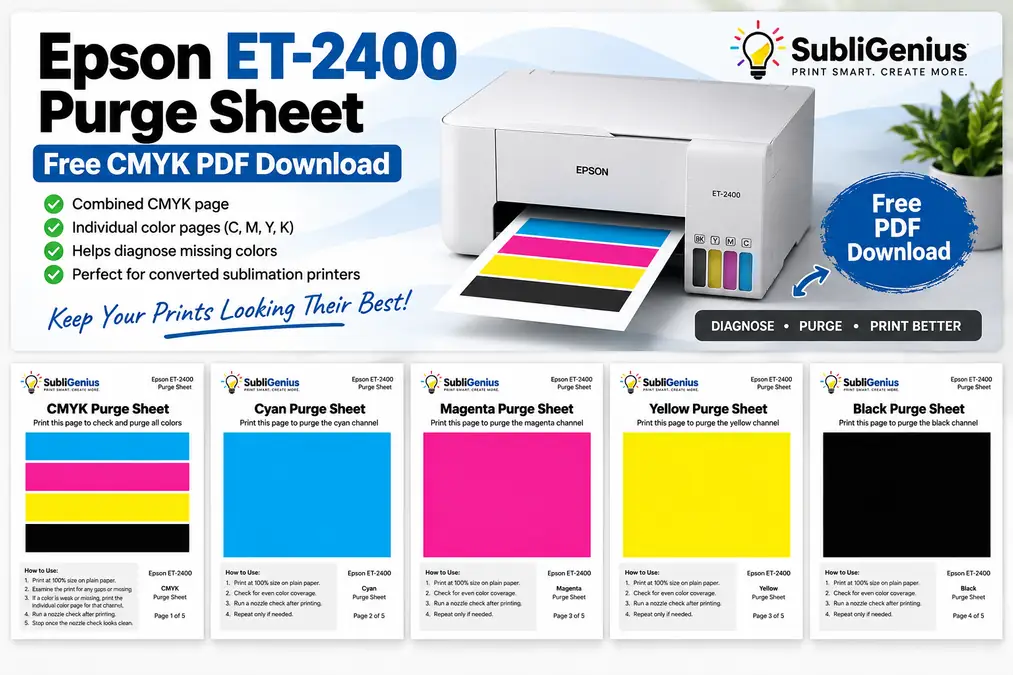
This ET-2400 purge kit is designed around the printer’s four color channels: cyan, magenta, yellow, and black.
Free ET-2400 CMYK Purge Kit
The downloadable kit includes:
- Combined CMYK purge sheet
- Cyan-only purge page
- Magenta-only purge page
- Yellow-only purge page
- Black-only purge page
Download button: Epson ET-2400 CMYK Purge Sheet PDF
The ET-2400 is sold by Epson as a standard EcoTank printer, not as a factory sublimation printer. Epson’s official maintenance procedures are nozzle checks, print head cleaning, and Power Cleaning.
A purge sheet is a separate printing technique commonly used with converted printers, not an Epson maintenance utility.
Epson also warns that damage caused by non-genuine ink may not be covered under the printer’s limited warranty.
Which ET-2400 Purge Sheet Should You Print?
Start with the nozzle check. The missing or broken color in that pattern tells you which purge page makes sense.
| What you see | Purge page to use | What to do next |
|---|---|---|
| Cyan is weak or broken | Cyan page | Print once, then rerun nozzle check |
| Magenta is weak or missing | Magenta page | Print once, then rerun nozzle check |
| Yellow is weak or missing | Yellow page | Print once, then rerun nozzle check |
| Black has gaps | Black page | Print once, then rerun nozzle check |
| Several colors have minor gaps | Combined CMYK page | Recheck before printing more |
| Almost the entire nozzle pattern is missing | Do not rely on purge sheets | Follow Epson’s Power Cleaning guidance |
| Nozzle check is clean but transfer colors are wrong | Purge sheet probably will not help | Check color management, paper, ink, and pressing |
Printing the single affected color is usually more useful than repeatedly sending a heavy CMYK page through the printer.
A purge sheet should be treated as a targeted print, not as something to run continuously until the page looks perfect.
Run an ET-2400 Nozzle Check Before Using a Purge Sheet
A nozzle check tells you whether the problem is actually inside the ink-delivery system.
Epson provides a button method that does not require opening the printer utility:
- Turn the ET-2400 off.
- Load several sheets of plain paper.
- Hold the Stop button.
- Press the Power button while continuing to hold Stop.
- Release both buttons after the printer powers on.
- Wait for the nozzle check pattern to print.
- Inspect each color for gaps or missing sections.
Epson says a pattern with no gaps indicates a clean print head. Gaps or faint sections point toward cleaning, while a pattern that is almost completely missing calls for the stronger Power Cleaning procedure.
If you are unsure what the two procedures do, see our explanation of Epson purge files vs nozzle checks.
Read the Pattern by Color
Do not judge the printer only by looking at a full-color design.
A design can hide a weak channel because several inks combine to create the final color. The nozzle check separates the channels so you can see the problem more clearly.
For example:
- Missing yellow can turn greens and oranges strange.
- Weak magenta can shift reds, purples, and skin tones.
- Weak cyan can affect blues, greens, and darker mixed colors.
- Broken black nozzles can cause gaps or weak dark areas.
Identify the weak channel before printing a purge page.
How to Use the Epson ET-2400 Purge Sheet
Use plain paper for troubleshooting. A purge sheet does not need sublimation paper because you are checking ink flow through the printer, not preparing a transfer for pressing.
Step 1: Print the Nozzle Check
Identify the affected channel first.
If cyan is clean but magenta is broken, printing a cyan purge page wastes ink without helping the magenta problem.
Step 2: Open the Matching Purge Page
Choose the individual cyan, magenta, yellow, or black page when one channel is clearly responsible.
Use the combined CMYK page when several channels have minor gaps and you want one controlled test print.
Step 3: Print at Normal Size
Print the page at 100% or actual size.
There is no maintenance advantage to enlarging a purge block beyond the printable page area.
Use regular printing rather than forcing a borderless print. The goal is steady ink flow through the intended channel, not edge-to-edge artwork.
Step 4: Print One Sheet
Start with one purge print.
Watch the page as it exits. A channel that was missing completely may appear uneven at first if ink flow is starting to return.
Do not judge the repair by the purge page alone.
Step 5: Run Another Nozzle Check
The nozzle check is the real measurement.
If the missing sections improve, you have useful evidence that the ink path is responding.
If the nozzle pattern is clean, stop. More purge prints will only consume ink and paper.
If the pattern does not improve, move to the ET-2400’s proper head-cleaning procedure instead of printing the same purge page over and over.
For more general purge-file options, see our free printer purge sheets and usage guide.
Purge Sheet vs Head Cleaning vs Power Cleaning on the ET-2400
These three actions are not interchangeable.
| Method | Main purpose | Ink use | When to use it |
|---|---|---|---|
| Nozzle check | Diagnose missing nozzles | Very low | Always start here |
| Purge sheet | Print through a selected channel | Depends on page coverage | Minor or channel-specific flow troubleshooting |
| Head Cleaning | Epson’s built-in printhead cleaning cycle | Higher | Gaps remain in nozzle check |
| Power Cleaning | Stronger Epson maintenance cycle | High | Severe nozzle loss after normal cleaning |
Nozzle Check
This tells you what the printer is doing.
It should be the first step before changing settings, running cleaning cycles, or wasting sheets of ink.
Purge Sheet
A purge page sends a large area of a chosen color through normal printing.
That makes it useful for channel-specific troubleshooting, especially when one color appears weak but other channels are printing normally.
It does not replace Epson’s built-in cleaning functions.
Head Cleaning
For the ET-2400, Epson says you can start a cleaning cycle from the printer by loading plain paper and holding the Stop button for five seconds.
The power light flashes while the cleaning cycle runs. Epson warns not to turn off the printer or open the front cover during the cycle. After cleaning finishes, run another nozzle check.
Power Cleaning
Power Cleaning is the escalation step, not the starting point.
Epson’s ET-2400 documentation directs users toward Power Cleaning when almost the entire nozzle-check pattern is missing or normal cleaning does not restore print quality. Power Cleaning is performed through the Epson utility on Windows or Mac.
Do Not Keep Running Head Cleaning Indefinitely
Repeated cleaning is one of the easiest ways to turn a small clog into a large amount of wasted ink.
Epson gives the ET-2400 a clear stopping point. If print quality does not improve after up to three head-cleaning cycles, turn the printer off and wait at least 12 hours. Then run another nozzle check and reassess the pattern.
That waiting period matters.
Running cleaning cycle after cleaning cycle does not guarantee that a blocked channel will suddenly recover. It keeps consuming ink and sends more waste ink into the printer’s internal collection system.
A better troubleshooting sequence is:
- Nozzle check.
- Targeted purge page if appropriate.
- Nozzle check again.
- Normal head cleaning if gaps remain.
- Recheck.
- Stop after three unsuccessful cleanings.
- Wait at least 12 hours.
- Recheck before considering Power Cleaning.
This gives you useful checkpoints instead of guessing.
Common Epson ET-2400 Problems and What to Do
The purge sheet is useful only when the problem involves ink delivery. Several other ET-2400 problems can look similar but need a different fix.
One Color Is Missing
Start with the nozzle check.
If only one channel has gaps, print that individual purge page rather than a full CMYK sheet.
For example, a missing magenta channel should be tested with the magenta purge page.
Run another nozzle check immediately afterward.
If the channel remains unchanged, move to Epson’s normal head cleaning rather than printing ten more magenta pages.
Prints Have Horizontal Lines or Gaps
Banding often points toward missing nozzles, but it is not proof by itself.
Run the nozzle check first.
If the pattern contains gaps, work on ink flow. If the nozzle pattern is clean, the cause could be elsewhere in the printing workflow, such as print settings, media settings, alignment, or the artwork itself.
A general printer test page can help separate print-quality problems from a single sublimation design problem.
Cyan and Black Print but Yellow and Magenta Are Missing
Treat this as a multi-channel ink-flow problem.
Do not start changing heat press settings. Heat pressing cannot restore missing yellow and magenta nozzles inside the printer.
Print the nozzle check, then test the missing channels individually.
If yellow and magenta remain completely absent after controlled troubleshooting, move through Epson’s cleaning procedure.
A real-world ET-2400 owner reported this exact pattern after buying a converted printer: cyan and black appeared on the nozzle check, while yellow and magenta did not. The case illustrates why checking each channel matters before changing unrelated settings.
Regular Epson Ink Was Installed Before Sublimation Ink
This is a different situation from a clogged nozzle.
If the ET-2400 was initialized with regular Epson ink before sublimation ink was added, some of the original ink may remain inside the printer’s ink path even after the tanks are emptied and refilled.
Do not assume a specific number of purge pages will remove it.
Community discussions sometimes recommend fixed page counts, but Epson does not provide a verified purge-sheet count for converting an ET-2400 from regular ink to sublimation ink.
One recent ET-2400 case involved a printer that had been initialized with regular ink, then drained and refilled with sublimation ink. The user initially focused on heat-press settings because the transfers were not working, while the discussion pointed back toward the original ink remaining in the system.
If you are changing ink systems, our guide to changing sublimation ink brands safely covers the broader flushing and compatibility considerations.
The ET-2400 Prints but Nothing Transfers
A clean printed page does not prove that sublimation ink is actually reaching the paper.
If the nozzle check is complete and the printer produces a normal-looking image, but the image does not transfer under heat, stop treating it as a clog problem.
Check:
- Whether sublimation ink is actually installed
- Whether ordinary ink was previously charged into the printer
- Whether the substrate is sublimation-compatible
- Whether the transfer is being pressed with suitable time, heat, and pressure
- Whether the image was printed onto the correct side of the transfer paper
A purge sheet fixes ink-flow problems. It does not make regular ink become sublimation ink.
When Should You Stop Printing Purge Sheets?
Stop when the purge sheet stops giving you useful diagnostic information.
More printing is not automatically better.
Stop Purging If:
- The nozzle check is now clean.
- The same channel shows no improvement after controlled purge attempts.
- Almost the entire nozzle pattern is missing.
- Several channels are completely absent.
- The printer displays an error.
- You have already moved into Epson’s head-cleaning sequence.
- The problem exists only after heat pressing, while the nozzle check remains clean.
If a clog is severe, move to the documented maintenance process.
For deeper blockage troubleshooting, use the sublimation printer unclogging guide rather than repeatedly printing full-page color blocks.
Be Careful With ET-2400 Power Cleaning
Power Cleaning is useful when the nozzle check shows severe ink-flow loss, but it should not become the first troubleshooting button you reach for.
Epson says the ET-2400 should be turned off and left for at least 12 hours after a Power Cleaning before another Power Cleaning is attempted. If the print quality still does not improve after the process, Epson recommends further nozzle-check-based diagnosis and contacting support if the problem continues.
Power Cleaning moves considerably more ink through the system than an ordinary diagnostic print.
That matters because the ET-2400 has internal waste ink pads.
Epson’s ET-2400 documentation says these pads collect ink that is not used on printed pages. When they reach the end of their usable life, they require service, and Epson identifies the waste ink pads as non-user-replaceable parts.
For a converted sublimation printer, that is a good reason to avoid treating repeated Power Cleaning as routine maintenance.
Use it when the nozzle-check result actually justifies it.
Prevent the Same ET-2400 Color Problem From Returning
The easiest clog to fix is the one that never becomes severe.
A simple routine is enough for most converted printers:
- Print regularly enough to keep ink moving.
- Run a nozzle check when output starts changing.
- Fix a weak channel before it disappears completely.
- Avoid unnecessary full-page purge prints.
- Do not run repeated cleaning cycles without checking the nozzle pattern.
- Keep the printer in a stable environment and avoid leaving it unused for long periods when possible.
If you use purge pages as part of maintenance, the key is frequency and restraint. Our guide to how often to print sublimation purge sheets explains when a maintenance print makes sense and when it is just wasting ink.
Epson ET-2400 Purge Sheet FAQs
Can I print an ET-2400 purge sheet on regular paper?
Yes. Plain paper is suitable when the purpose is checking ink flow through the printer. You are not creating a transfer that needs to be pressed, so sublimation paper is unnecessary for basic purge troubleshooting.
Run a nozzle check afterward to judge whether the problem improved.
Does a purge sheet clean the ET-2400 print head?
Not in the same way as Epson’s built-in Head Cleaning function.
A purge sheet pushes ink through the selected channel by printing a large area of color. Epson’s cleaning cycle is a maintenance procedure controlled by the printer.
Use the nozzle check to decide which method makes sense.
How many ET-2400 head cleanings should I run?
Epson says that if there is no improvement after cleaning the ET-2400 print head up to three times, turn the printer off and wait at least 12 hours before checking again.
Do not continue running cleaning cycles without checking the nozzle pattern between attempts.
When should I use Power Cleaning on the ET-2400?
Use Power Cleaning when the nozzle-check pattern shows severe loss, such as almost the entire pattern being missing, or when regular cleaning has failed and the Epson troubleshooting sequence points you toward Power Cleaning.
It should not be the first response to one small missing line.
Why is one ET-2400 color completely missing?
A completely missing channel can result from interrupted ink flow, a severe clog, air or ink-delivery problems, or another printer-side fault.
Start with the nozzle check. If only one channel is affected, use that individual purge page, then recheck.
If there is no improvement, move to Epson’s cleaning process.
Can I convert an ET-2400 from regular ink to sublimation ink?
People do convert ET-2400 printers for sublimation, but Epson does not sell the ET-2400 as a dye-sublimation printer or provide an official conversion procedure.
If the printer was already charged with regular ink, simply draining the visible tanks does not prove the original ink has left the entire ink path.
Avoid relying on unverified fixed page counts for flushing.
Does sublimation ink affect the Epson ET-2400 warranty?
Epson says it strongly recommends genuine Epson ink and warns that damage caused by non-genuine ink may not be covered under the printer’s limited warranty.
That distinction should be considered before converting a new ET-2400.
Use the Nozzle Check as Your Stop Signal
An Epson ET-2400 purge sheet is most useful when it solves one specific problem: moving ink through a weak color channel while giving you a controlled way to test the result.
Start with the nozzle check, print only the color you need, then check the nozzles again.
Once the pattern is clean, stop purging.
If nothing improves, do not burn through paper and ink hoping another full-page CMYK print will fix it. Move back to Epson’s maintenance sequence and use Head Cleaning or Power Cleaning only when the nozzle pattern supports that decision.
For other printer models and individual color files, use the Printer Purge Sheets resource hub.