
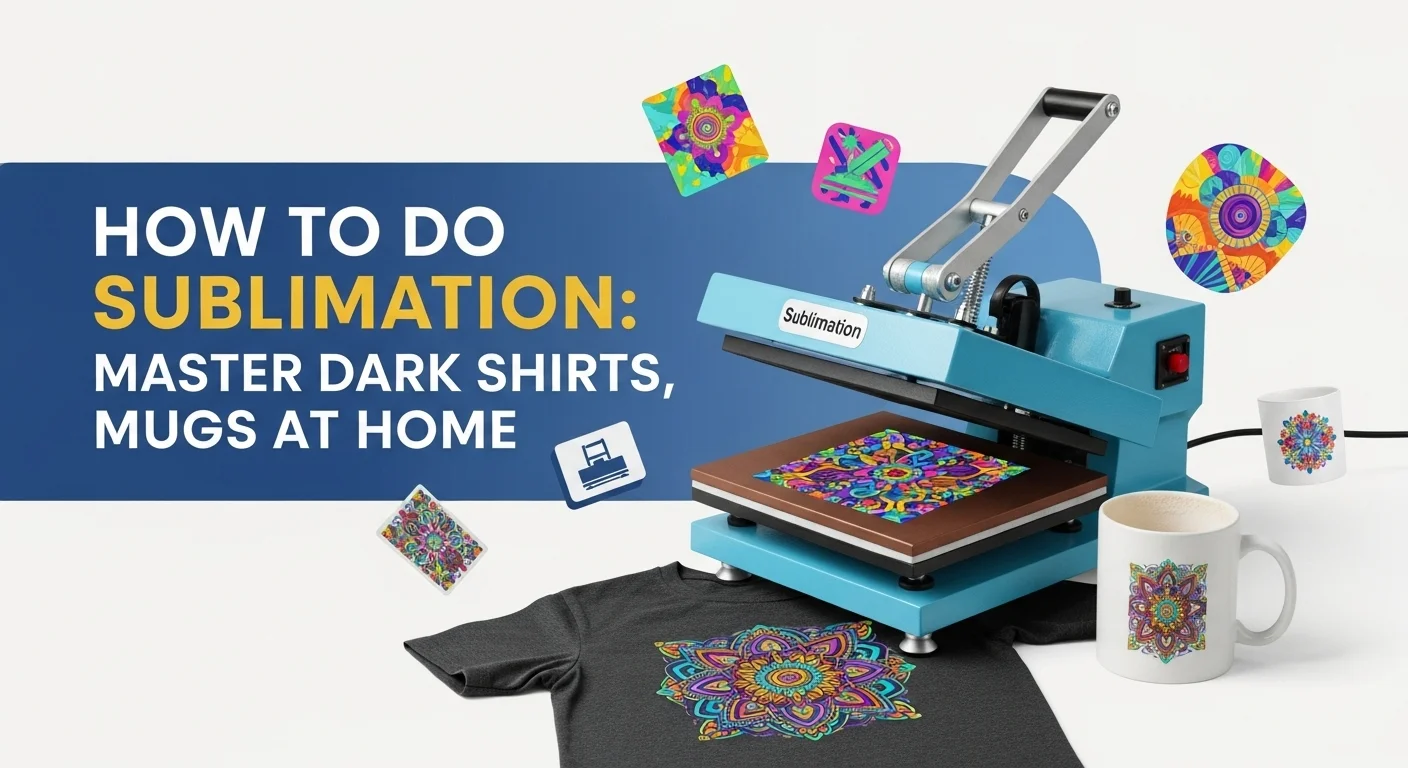
How to Do Sublimation at Home: Step-by-Step First Shirt

To do sublimation at home, print a mirrored design with compatible sublimation ink and transfer paper, place it on a light polyester shirt, and apply heat using the shirt supplier’s instructions. Keep the paper still during pressing, then remove it as directed and inspect the result. The project below walks through the entire first shirt, including what to check before using a blank.
This tutorial assumes you are using a printer designed or appropriately configured for dye-sublimation printing, not ordinary inkjet ink. If you have not selected equipment yet, the sublimation printer compatibility guide explains the printer options.
What You Need to Do Sublimation
Set out everything before printing. A light-colored, sublimation-ready polyester shirt and a flat heat press make a practical starting combination because the design area is easy to see and position.
| Item | What to check before starting |
|---|---|
| Sublimation-compatible printer and ink | Ink system and print software match the supported printer workflow |
| Sublimation transfer paper | Printable side, sheet size, and paper recommendations match the ink/printer system |
| Light polyester shirt | Fabric and color accept direct sublimation dye; check the garment label |
| Flat heat press | Platen covers the artwork and operates according to the press manual |
| Lint roller and protective paper | Prepare fabric and protect the press, following supplier instructions |
| Heat-resistant tape and suitable handling tools | Keep transfer from shifting and handle a hot garment safely |
| Design software | Can size the artwork and control print orientation or mirroring |
An everyday cotton shirt or black polyester shirt is not a substitute for the light polyester blank in this example. Direct sublimation dye is transparent and cannot print an opaque white background. Review the sublimation material guide if you are unsure about an item.
Choose Your First Sublimation Blank
For this walkthrough, use a white or very light polyester shirt that the supplier identifies as compatible with sublimation. A smooth, flat print area is easier to press than one crossed by seams, zippers, or thick collars.
| Blank choice | Use for this tutorial? | Reason |
|---|---|---|
| White, sublimation-ready polyester shirt | Yes | Light surface supports color; flat area fits a shirt press |
| Light polyester-blend shirt | Only after checking supplier guidance | Color strength can vary with fiber content and finish |
| Dark polyester shirt | No, not for standard full-color direct sublimation | Transparent dye has little contrast on a dark base |
| Untreated 100% cotton shirt | No | Standard sublimation dye does not bond to untreated cotton like polyester |
| Ordinary uncoated mug | No | Mugs need a sublimation-compatible coating and suitable heating method |
Keep the shirt’s fabric label and blank supplier instructions nearby. The first-blank selection guide covers these compatibility checks in more detail.
How to Do Sublimation on a Polyester Shirt: Step by Step
Follow the steps in order. Use a single simple graphic for the first print so any alignment, color, or pressing problem is easier to identify. Read your ink, paper, garment, and press instructions before beginning.
Step 1: Size and prepare your artwork
Create the design at the final size you want on the shirt. Make sure it fits within your printer’s printable width and your heat press platen. For the first attempt, choose legible lettering and a few distinct colors rather than a full-coverage print.
Plan the location on the shirt before you print. Check distance from the collar, side seams, and any raised fabric areas. Do not assume the design preview in software matches the garment size.
Step 2: Mirror the design when your workflow requires it
Most standard printed sublimation transfers are placed face down, so text and directional images usually need to be mirrored before printing. Check whether your printer utility already mirrors the transfer. Mirror only once. A test word is a quick way to confirm orientation before wasting a full sheet.
Step 3: Print on the correct side of transfer paper
Load the transfer paper according to the paper maker’s instructions. Use the supported sublimation print mode and confirm the size, orientation, and color-management workflow. Print a nozzle check first if previous sheets showed banding or missing color.
The ink on transfer paper can look less vivid than the final pressed image. Judge color on a compatible test blank, not the sheet alone. If the paper already has gaps, streaks, or a clipped design, fix the print before moving to the heat press. See the sublimation printer settings guide for printer-side diagnosis.
Step 4: Prepare the shirt and press
Put the press on an appropriate heat-safe work surface with safe clearance around it. Follow its electrical, ventilation, and handling guidance. Check that the platen fits the design and that thick seams will not prevent contact.
Lint-roll the entire transfer area to remove stray fibers. If the garment supplier recommends pre-pressing, follow that procedure to reduce moisture or wrinkles. Use fresh protective paper or a suitable insert when required so stray dye cannot pass through the shirt or mark the press.
Step 5: Position and secure the transfer
Place the printed side of the sublimation paper against the front of the shirt. Align it with the garment center and the planned print area. Keep the paper flat and use heat-resistant tape where permitted by the supplier, so it cannot slide when the press closes or opens.
Avoid moving the paper after it has been heated. Even a small shift can leave a second outline, commonly called ghosting.
Step 6: Press using the exact blank instructions
Use the shirt supplier’s specified temperature, time, and pressure, not a single number applied to every polyester shirt. As one documented reference, Sawgrass lists 400°F, 45 seconds, and medium manual pressure for its general polyester-fabric starting point. Sawgrass also says that press calibration, substrate manufacturer directions, and testing determine the right result. See Sawgrass heat press settings.
Place protective material as directed, close the press without sliding the transfer, and complete the recommended cycle. Do not increase temperature or time to compensate for an unverified blank. A proper heat press setup and calibration check helps rule out uneven contact.
Step 7: Remove, cool, and inspect
Lift the press carefully, avoiding contact with hot parts. Remove the transfer according to the paper and garment supplier’s hot- or cold-removal instructions, keeping it from dragging across the design. Let the garment cool as directed before handling, folding, or checking the print closely.
Look for clean edges, complete transfer, consistent color, and damage such as shiny press marks or scorching. Record the result before adjusting any setting on the next attempt.
How to Choose Press Settings for Your Shirt
The correct settings depend on the garment, sublimation coating or finish if any, transfer system, and the actual heat press. The fastest reliable method is to start with the blank supplier’s instructions, not to copy numbers from a generic chart.
| Setting | Where to verify | What a poor result may indicate |
|---|---|---|
| Temperature | Blank supplier and press manufacturer | Incomplete transfer, color shift, or heat damage |
| Time | Blank and paper instructions | Patchy transfer or excess exposure |
| Pressure | Press manual and blank thickness | Gaps, impressions, or uneven coverage |
| Pre-press, protection, removal | Garment and transfer instructions | Moisture, ghosting, contamination, or smearing |
Treat the Sawgrass polyester value above as an example from one published reference. It is not an instruction for all shirts or every press. Make a sample when changing garment models, coatings, paper, or press equipment.
Check Your Finished Sublimation Print
Inspect the sheet and the shirt separately. A defect visible on the paper usually points toward printing; a clean sheet followed by a defective shirt points more strongly toward blank compatibility, contact, transfer movement, or the pressing method.
| What you see | Check first | Next useful action |
|---|---|---|
| Pale or barely visible design | Garment polyester content and color | Confirm this is a compatible light blank before changing heat |
| Double edge or shadow | Paper shifted during pressing or removal | Improve paper security and removal technique |
| Patchy area | Moisture, lint, uneven pressure, or print gap | Compare sheet with shirt; check contact and garment prep |
| Small blue or colored specks | Lint or contamination on transfer area | Lint-roll thoroughly and use clean protective paper |
| Horizontal streaks | Gaps visible on the printed sheet | Run a manufacturer-supported nozzle check and confirm print settings |
| Scorch or shiny rectangle | Heat exposure, fabric tolerance, or platen marks | Stop and consult garment and press instructions before another attempt |
Avoid changing ink profile, pressure, and temperature at the same time. Change one supported variable, label the sample, and compare results. The sublimation troubleshooting guide provides deeper checks for persistent problems.
First-Print Checklist and Test Record
Use this before the first press or when you switch to a new blank. It is also a simple way to repeat a successful transfer without relying on memory.
- Confirm the shirt is light-colored and suitable for direct dye sublimation.
- Verify the printer, ink, paper, and print software are compatible.
- Measure the artwork and make sure it fits the shirt and press.
- Check mirroring once, and print on the correct paper side.
- Inspect the printed transfer for clipped edges or missing lines.
- Lint-roll and prepare the shirt as the supplier directs.
- Find the exact blank-specific pressing and removal instructions.
- Secure the transfer; keep the press surface clean and even.
- Handle the hot garment safely, then inspect and record the result.
| Test note | Your record |
|---|---|
| Blank supplier, SKU, color, fabric | _______________________ |
| Printer, ink, transfer paper | _______________________ |
| Press model / platen | _______________________ |
| Supplier temperature, time, pressure | _______________________ |
| Actual test settings and paper removal | _______________________ |
| Result and one change for next test | _______________________ |
What About Mugs, Cotton, and Dark Shirts?
The same basic design-to-transfer idea applies to many products, but the receiving material and heat method change. Do not use a flat-shirt pressing procedure for curved mugs or a dark cotton T-shirt.
| What you want to make | What changes from this shirt tutorial |
|---|---|
| Sublimation-ready mug | Requires a compatible mug coating, suitable mug heater or approved oven method, and mug-specific instructions |
| Untreated cotton shirt | Needs a different compatible transfer or print method; standard direct sublimation is not enough |
| Black or navy shirt | Transparent dye needs a suitable light receiving layer, such as manufacturer-approved sublimation HTV, or a different print process |
| Coated metal or mousepad | Check the product’s receiving surface, heat tolerance, pressure, and cooling instructions |
The former version of this page focused mainly on dark-shirt workarounds. That useful topic has a better home in the sublimation HTV guide, which covers receiving layers rather than standard direct dye transfer. Siser’s official EasySubli directions illustrate why printable HTV has a separate application procedure.
Frequently Asked Questions
Can you do sublimation with a regular inkjet printer?
Not with ordinary inkjet ink. You need a printer and dye-sublimation ink system known to be compatible with the intended process. Some machines are purpose-built for sublimation; some conversions are unsupported or have warranty and maintenance implications. Check the exact model before using any ink.
Do you need a Cricut to do sublimation?
No. For an ordinary printed sublimation transfer, a compatible printer and heat press are the main equipment. Cutting machines can help with special shapes or other projects, but they are not required to print and press a simple rectangular shirt design.
Can you sublimate directly onto cotton or a black shirt?
Standard dye-sublimation transfers work on compatible polyester or polymer receiving surfaces. Untreated cotton does not behave like polyester, and transparent dye lacks the white base needed for full-color designs on black fabric. Those projects require a different supported transfer system.
Why does the paper look dull before pressing?
Transfer paper does not reliably show the final pressed color. Some designs become more vivid when the dye transfers to the compatible blank. If the finished print is still dull, check the blank, printer output, color management, and pressing instructions before changing multiple settings.
Can you use a household iron instead of a heat press?
A household iron generally makes it harder to maintain the even temperature, contact, and timed pressure expected by sublimation supplies. Use equipment that can meet the blank manufacturer’s pressing requirements. An iron is not a dependable substitute when controlled heat and pressure are specified.
What to Do After Your First Shirt
Keep the first successful transfer with its test notes. Repeat the same blank and settings once before buying a larger variety of products. After you can produce a consistent shirt, the detailed sublimation process tutorial can help you work through more involved transfers and quality checks.





2 Comments