

Best ICC Profiles for Sublimation: Which One Fits Your Setup?

The best ICC profile for sublimation is one that matches your actual printer, ink, paper, and print settings. There is no universal file that produces the best color on every setup. Use the comparison below to choose a supported profile or color workflow for Hiipoo, Printers Jack, A-SUB, Cosmos Ink, and Epson printers.
Compare your exact ink product and printer model before downloading anything. Some ink lines are sold for printing without a separate ICC file; others offer model-specific downloads. If the supplier does not document a match, ask for guidance or consider a custom profile instead of guessing with another printer’s file.
An ICC file also cannot fix blocked nozzles, incorrect heat settings, a damaged printhead, or a poor blank. Treat color management as one part of the full sublimation workflow.
Compare ICC Profile Options by Printer and Ink
This is a compatibility and workflow comparison, not a print-quality ranking. Use the link for your brand to verify file availability, supported printer models, and installation steps before printing a controlled test.
| Your setup | Best starting point | What to confirm before printing |
|---|---|---|
| Hiipoo sublimation ink | Identify your Hiipoo ink line and check its ICC instructions | Hiipoo markets some ink products for ICC-free printing and also offers model-specific ICC downloads. Verify the exact ink product, printer, and supported workflow. |
| Printers Jack sublimation ink | Check Printers Jack profile availability for your model | Ask the supplier to confirm a compatible file and driver settings. Do not assume a shared profile for another Epson model is a match. |
| A-SUB ink and paper | Follow A-SUB’s documented ICC profile setup | A-SUB says its published profile is for A-SUB ink and paper and is compatible with Windows only. Check the specific printer and required driver settings. |
| Cosmos Ink | Check Cosmos Ink profiles for your ink version and printer | Cosmos publishes different color profiles for some printer and ink combinations. Select only a file its documentation supports. |
| Epson ET-15000 converted for sublimation | Match the ET-15000 profile to your ink and output workflow | The printer model alone is not enough to establish compatibility. Confirm the ink brand, paper, print quality, and color settings. |
| Purpose-built sublimation printer with supported ink | Use the printer maker’s supported software or color workflow | Do not add an unrelated downloaded profile unless the documented printing process calls for it. |
| No exact supported profile | Contact the printer or ink supplier, or consider a custom ICC profile | First verify nozzles, driver settings, press conditions, and blank consistency. An unverified profile cannot repair those problems. |
Source check: Hiipoo’s official site provides an ICC file menu and lists some ink as ICC-free. A-SUB’s official profile page specifies its ink-and-paper pairing and Windows support. Cosmos Ink publishes version-specific downloads. Check the current supplier instructions for your own product rather than treating the table as a universal compatibility list.
Do You Actually Need an ICC Profile?
Not every sublimation setup needs a separate downloaded ICC file. The correct answer depends on how the printer and ink supplier expect color to be managed.
| Setup | What to do |
|---|---|
| Purpose-built sublimation printer using supported ink and software | Follow the manufacturer’s color workflow first. Do not add a third-party profile unless that workflow calls for it. |
| Converted Epson using third-party sublimation ink | Check if the ink supplier provides a profile for the exact printer and paper/output condition. |
| Ink sold as an ICC-free workflow | Use the supplier’s documented driver settings before adding another color conversion. |
| No supported profile exists | Use a controlled test workflow or consider a custom profile rather than guessing with unrelated files. |
If you need the basic concept first, read what an ICC profile does in sublimation. A printer profile describes an output condition. It is not a universal correction file.
What Must Match an ICC Profile?
A useful printer ICC profile describes a specific output condition. A mismatch in printer, ink, paper, or driver behavior can change the result enough that the profile no longer represents what your setup is doing.
| Part of the workflow | What to verify |
|---|---|
| Printer | Exact model or model range explicitly supported by the profile provider |
| Ink | Same ink line or chemistry the profile was built around |
| Paper / output condition | Paper or media condition specified by the provider |
| Driver settings | Paper type, quality, resolution, and other settings required by the provider |
| Color handling | One color-management path, such as application-managed or printer-managed color, not both at the same time |
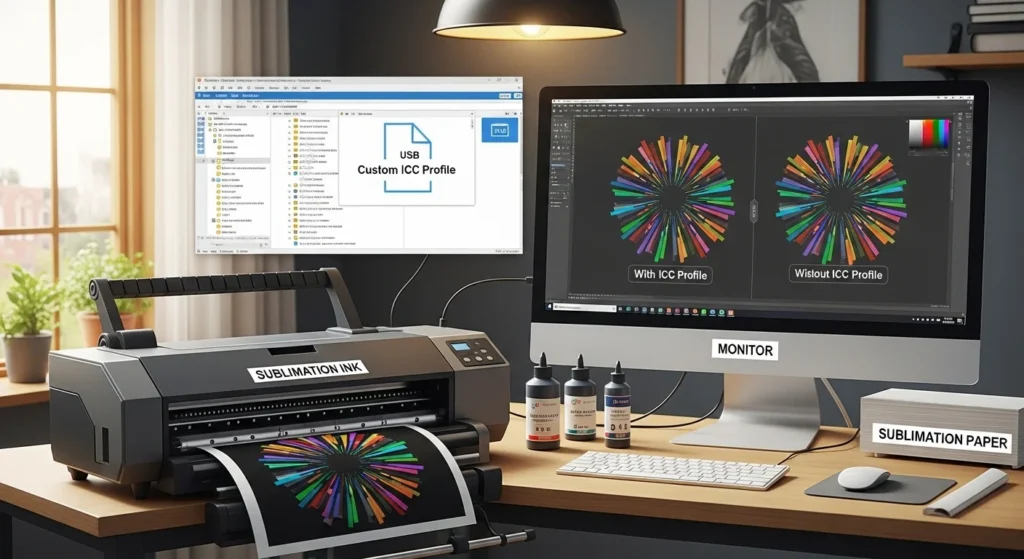
Adobe separates a document’s working profile from the printer profile used for output. The working profile defines the document color space. The printer profile describes how a particular output setup reproduces color.
Download the ICC Profile Setup & Test Record
Use this free printable worksheet before comparing ICC profiles or changing color settings. It gives you one place to record the printer, ink, paper, profile source, driver settings, color-management workflow, press conditions, and pressed-color results so you can change one variable at a time.
- Record the exact printer, ink, paper, and ICC profile.
- Track Photoshop-managed or printer-managed color settings.
- Document driver, press, and substrate conditions.
- Compare up to three profiles using the same controlled setup.
- Save the final working combination for future production runs.
Where to Download Sublimation ICC Profiles Safely
Use the most specific source you can verify. A profile with a clear printer, ink, paper, and setup description is more useful than a file named only for a printer family.
- Ink or printer manufacturer: start here when the supplier publishes a profile or documented color workflow.
- Paper or authorized workflow supplier: use this when the profile is explicitly built around the printer, ink, and paper combination you use.
- Custom profiling service: consider this when no supported stock profile exists or production color needs to be repeatable.
Avoid anonymous ICC downloads, old file-sharing lists, and profiles copied from a similar printer without documentation. Those files may install correctly while still describing the wrong output condition.
Install an ICC Profile on Windows
Windows can register standard ICC and ICM profile files directly. Follow the supplier’s instructions first because some profile packages include driver settings that matter just as much as installing the file.

- Download the profile supplied for your setup and extract it if it is inside a ZIP archive.
- Right-click the
.iccor.icmfile and choose Install Profile when that option is available. - Close and reopen Photoshop or the application you print from.
- Confirm the profile appears in the application’s printer-profile list before printing.
Installing the file does not automatically make every program use it. Select the correct output profile in the print workflow when the application is managing color.
Install an ICC Profile on Mac
macOS uses ColorSync to manage installed color profiles. Follow the profile provider’s macOS instructions, then use ColorSync Utility to confirm that the profile is available. The A-SUB profile discussed in this guide is documented by A-SUB for Windows only, so do not assume the same file is supported on Mac.

- Download the profile supplied for your exact setup.
- Install it using the method documented by the supplier. macOS stores ICC files in ColorSync profile locations such as
/Library/ColorSync/Profiles. - Open ColorSync Utility and check the Profiles list to confirm the file is registered.
- Restart the design or print application if the new profile does not appear immediately.
Apple’s ColorSync Utility guide explains how to view installed profiles. Use supplier-specific installation instructions when the profile package requires a different method.
How to Use an ICC Profile in Photoshop
For a Photoshop-managed workflow, choose the printer profile in the Print dialog, then turn off color management in the printer driver. This prevents two separate color conversions from being applied to the same print.
- Open the design and choose File > Print.
- Expand Color Management.
- Set Color Handling to Photoshop Manages Colors.
- Choose the ICC file that matches the printer and output condition under Printer Profile.
- Use the rendering intent specified by the profile provider when one is given.
- Open Print Settings and disable printer-side color correction.
- Print and press a controlled test before using the setup for production work.
Adobe’s current Photoshop color-management instructions use this File > Print workflow. Adobe also supports Printer Manages Colors as a separate workflow. Pick one color-management path and configure the driver to match it.
Epson documents the same principle on supported SureColor workflows. For example, the SureColor F570 user guide includes a No Color Adjustment option when color is managed by the application.
Why Colors Can Still Be Wrong With the Correct ICC Profile
An ICC profile handles color conversion. It cannot repair missing ink channels, a poor heat transfer, or a mismatched sublimation blank. Before replacing a profile, use this short sequence to separate a color-management error from a mechanical or pressing problem.
- Check the printer first. Run a nozzle check and resolve missing colors or banding before comparing profiles.
- Match the print workflow. Confirm the printer, ink, paper, driver media setting, and the profile provider’s instructions.
- Choose one color-management path. If Photoshop manages color, select the matching ICC profile and turn off driver-side correction. If the printer manages color, follow its supported settings instead.
- Press a controlled sample. Compare the finished transfer using the same blank, pressing method, and lighting. A dull-looking transfer sheet alone is not proof of a bad profile.
- Change one variable. Record the settings in the downloadable worksheet before trying another supported profile or asking the supplier for help.
The symptom table below helps decide where to look next.
| Symptom | Check first |
|---|---|
| Banding or a missing color | Nozzle check and ink flow before changing profiles |
| Print is very dark or muddy | Double color management, wrong profile, or wrong driver settings |
| One hue is consistently shifted | Ink/profile match and the settings specified by the profile provider |
| Transfer looks dull before pressing | Judge the controlled pressed result, not only the transfer sheet |
| Screen and print do not match | Monitor profile, document working space, lighting, and output profile |
| Results vary from run to run | Nozzles, ink, paper, press process, and substrate consistency |
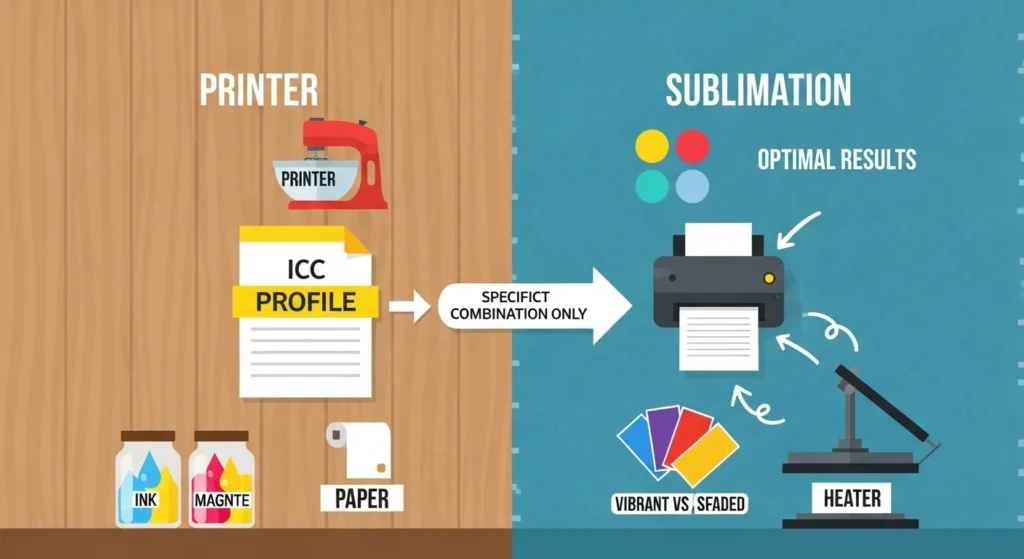
If you are deciding between profile-based correction and driver adjustments, use the manual color correction vs ICC profile guide to separate the two workflows.
When a Custom ICC Profile Makes Sense
A custom profile becomes more useful when the stock profile does not describe your real production setup or when consistent color has commercial value.
- No manufacturer or ink-supplier profile exists for your exact setup.
- Your printer, ink, and paper combination differs from the supported stock workflow.
- You need repeatable color across customer orders or production batches.
- Several verified stock profiles have failed to represent the setup correctly.
- You plan to keep the same printer, ink, paper, and driver configuration long enough for profiling to be worthwhile.
See the free vs paid ICC profile guide for the trade-offs between supplier profiles and custom profiling.
Brand-Specific ICC Downloads and Setup Guides
The comparison near the top helps you choose a workflow. Use these dedicated guides for supplier-specific download locations, printer compatibility, and setup instructions. A guide link is not a promise that a matching ICC file exists for every printer.
| Topic | Dedicated guide |
|---|---|
| Hiipoo | Hiipoo ICC Profile: Compatible Models, Download, Setup |
| Printers Jack | Printers Jack ICC Profile: What’s Actually Available |
| A-SUB | A-SUB ICC Profile: Download, Install & Epson Setup |
| Cosmos Ink | Cosmos Ink ICC Profile for Sublimation |
| Epson ET-15000 | Epson ET-15000 ICC Profile for Sublimation |
Frequently Asked Questions
For sublimation ICC profiles, match the profile to the real output workflow, use one color-management path, and troubleshoot printer or pressing problems separately. If the file cannot be tied to your printer, ink, paper, and settings, treat it as an unverified profile rather than a shortcut.





28 Comments